














Want a fresh start, a Creative world, or a world with your own difficulty settings? On your RuneScape: Dragonwilds server, it all comes down to one setting. The server runs one world at a time, and World Name picks which one. Each world is a single .sav file named after its World Name. When you enter a name that has no save yet, the server makes a fresh world the next time it starts. Your old world stays in its file, so you can switch back to it whenever you like.
You need access to your server in the Physgun Gamepanel. For a world with custom settings, you also need the game on a Windows PC, because you choose those settings when you create the world in the game.
Back up your current world
Changing the World Name does not delete anything. A backup still protects your world if you later delete or replace a save by mistake.
- Open your server’s home page in the panel.
- In the Backups box, select Create.
- Under Name, type a name you will recognise later, such as
Before new world. - Select Submit.
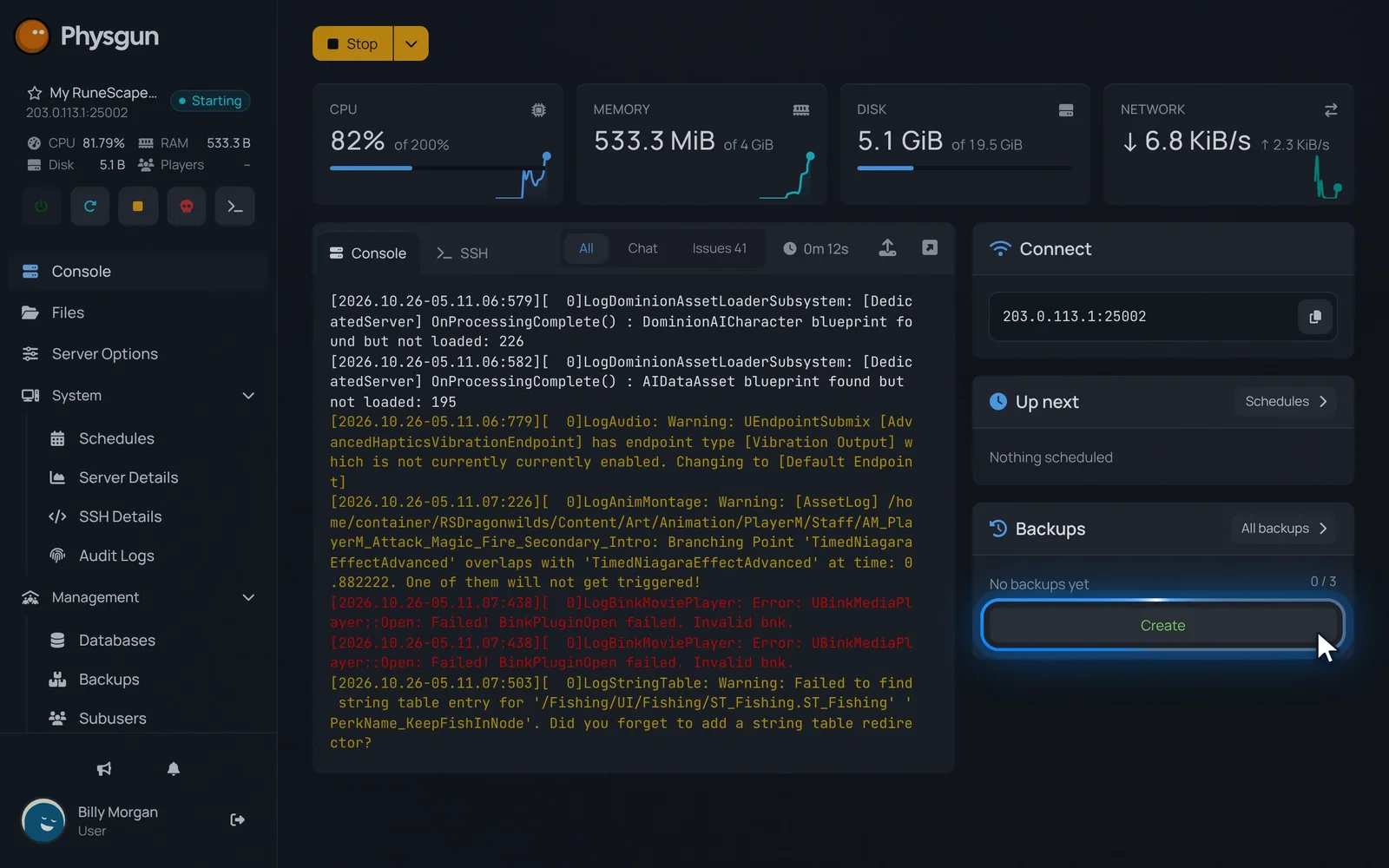 Create a backupSelect Create in the Backups box on your home page.
The backup window recommends stopping your server first, because a backup taken while the server runs can contain broken data. If you can, stop the server before step 2. With Automatic selected, the backup copies your whole server folder and takes a few minutes. To back up less, select Choose myself and pick what to leave out.
Start a new world
- Select Server Options in the menu on the left.
- Type
World Namein the search box at the top. - In the World Name field, replace the current name with one that has no save yet, such as
NewWorld. - Press Tab or click outside the field. The panel saves the setting and shows “Startup variable successfully saved.”
- Select the arrow next to Stop at the top of the page.
- Select Restart, then Yes, Restart Server.
- Wait until your server shows Online. It makes the new world while it starts. On our test server this took about a minute.
Players find your server by searching for this exact World Name in the game’s Public tab. Tell them the new name before they try to join.
Find and upload world saves
To check that the new world was made, look in the SaveGames folder:
- Select Files in the menu on the left.
- Open the RSDragonwilds folder, then Saved, then SaveGames.
- Find the save named after your new World Name, such as
NewWorld.sav. Your old world’s save,Physgun World.savby default, is still there too.
To use a world you made in the game:
- In SaveGames, select New.
- Select Upload and pick your world’s
.savfile. - Go to Server Options and set World Name to the file’s name without
.sav. For a file namedMyCustomWorld.sav, typeMyCustomWorld. - Restart your server the same way as in the section above.
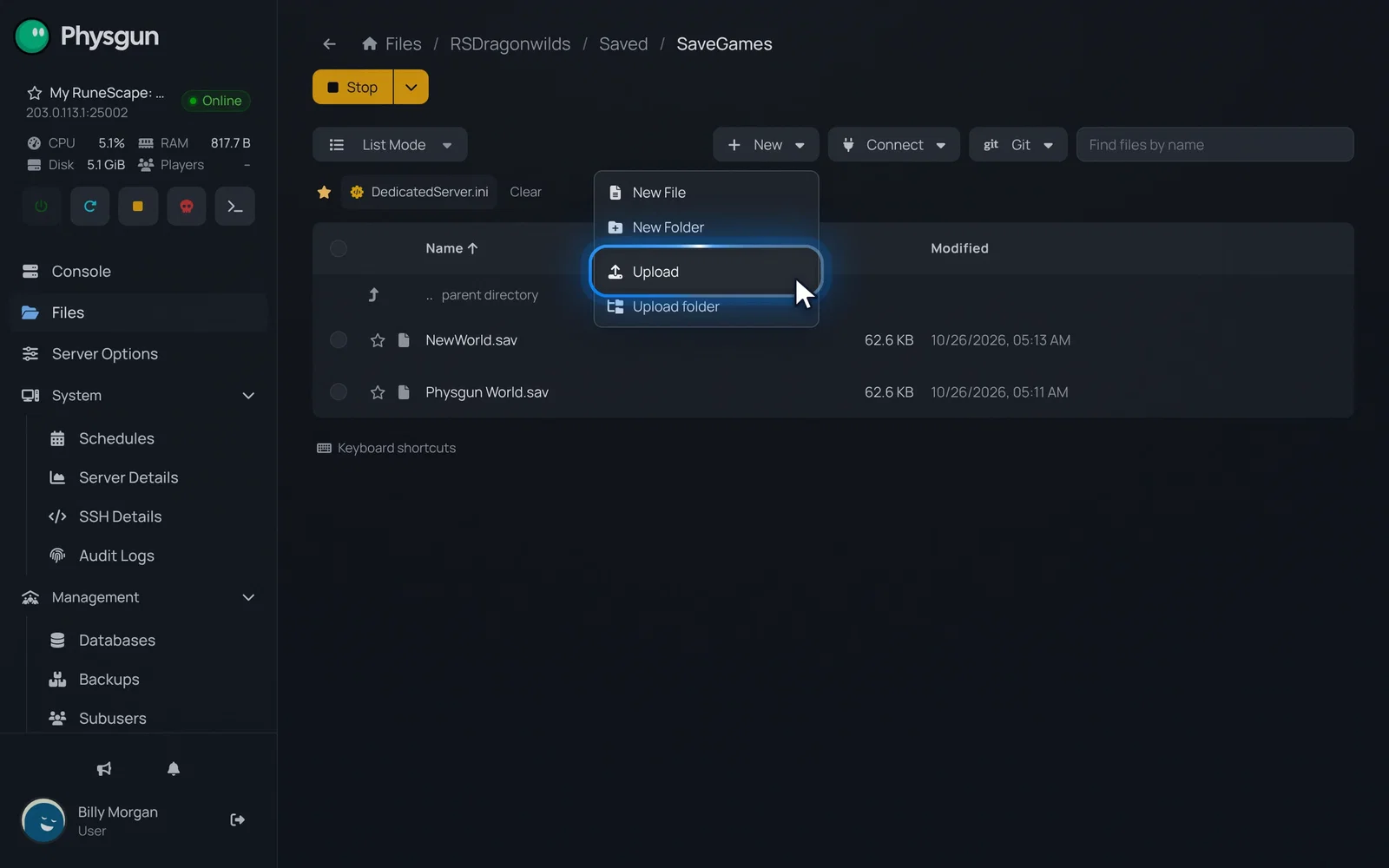 Upload your saveSelect Upload and pick the .sav of the world you made in the game.
Keep the file’s name as it is and change the World Name to match it. If SaveGames already has a save with the same name, the upload can replace it, so back that save up first.
Create a custom world in the game
New worlds made by the server use the default Standard settings. For anything else, create the world on your PC first:
- In the game, create a new world and pick Standard, Creative or Custom. With Custom you choose the difficulty and Friendly Fire, and the Advanced tab has more options.
- Enter the world for a moment so the game writes its save file, then exit to the menu. If you skip this, there is no save file to upload.
- Press Windows + R, paste the path below and press Enter to open your saves folder.
%LOCALAPPDATA%\RSDragonwilds\Saved\SaveGames- Find the
.savfile for your new world and upload it to your server as described above.
Switch back to your old world
To go back, follow the steps in “Start a new world”, but type the name of the save you want back, without .sav. The default world is Physgun World. Your server loads that world with all its progress, and the world you just left stays in SaveGames for later.
Reset a world
To start over and keep the same World Name, remove that world’s save:
- Back up your server as shown at the top of this article.
- Stop your server.
- In Files, go to RSDragonwilds -> Saved -> SaveGames.
- Delete the
.savfile with your World Name. To keep a copy, download it first. - Start your server. It makes a fresh world with the same name.
If a new name is fine, set a new World Name instead. You get a fresh world and nothing is deleted.
If it does not work
- Your old world loads again: the World Name was not saved. Check that the field shows the new name and that you saw “Startup variable successfully saved.” before you restarted.
- Your uploaded world does not load: the World Name must match the file name exactly, including capital letters and spaces, without
.sav. Also check that the file is in RSDragonwilds/Saved/SaveGames and not in another folder. - The custom world has the wrong settings: check that you uploaded the newest
.savfrom your saves folder, not an older one with the same name. - A world is gone: restore the backup you made before switching. Your backups are under Backups in the menu on the left.