How To Set FOV Keybind In Rust
Learn how to set an FOV Keybind in Rust, along with what FOV changes actually do, and binding keys to change your FOV.
If you’re tired of opening the console every time you want a different field of view, setting an FOV keybind in Rust is one of the easiest quality-of-life upgrades you can make. With a single key press, you can instantly switch between a wider view for close-quarters awareness, a tighter view for long-range fights, or even a smaller weapon model that frees up more screen space.
This guide walks through the exact console commands, autoexec.cfg setup, toggle binds, hold-to-zoom aliases, and troubleshooting steps you need to create reliable Rust FOV keybinds that work every time the game launches.
Setting an FOV Keybind in Rust
To set an FOV keybind in Rust, open the console with F1 and use a bind command such as bind f “graphics.fov 90” for camera FOV or bind h “graphics.vm_fov_scale false” for weapon model FOV; if you want those binds to stay after a restart, save them in autoexec.cfg. Field of view decides how much of the game world you can see at once without turning your camera, so Rust players who want to adjust visuals quickly during fights usually bind it instead of digging through menus.
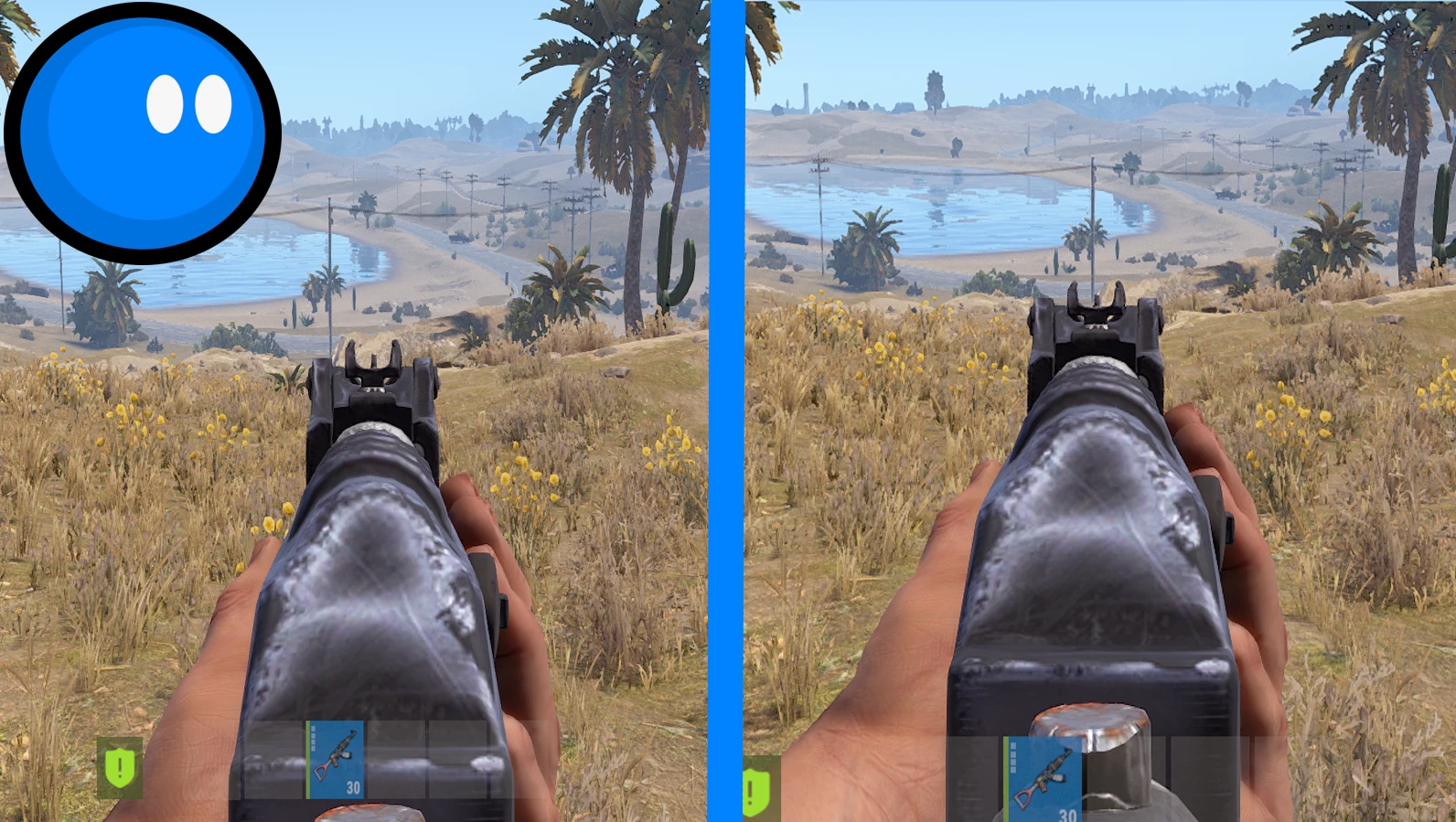
Push it wider and you pick up movement at the edges of your screen, which helps for catching someone peeking from the side. Pull it narrower and distant targets sit bigger in the center, something a lot of long-range players prefer. Rust gives you two separate controls here: graphics.fov, which changes the camera itself, and graphics.vm_fov_scale, which changes how your weapon model sits in your hands. Neither one touches hit registration or gives you an edge over anyone else; they just change what shows up on your monitor.
From here, this guide shows how to make temporary console binds, save permanent ones through autoexec.cfg, set up toggle and combo binds, choose a sensible FOV, fix common bind problems, and remove or reset binds when you want to go back.
What FOV actually changes in Rust
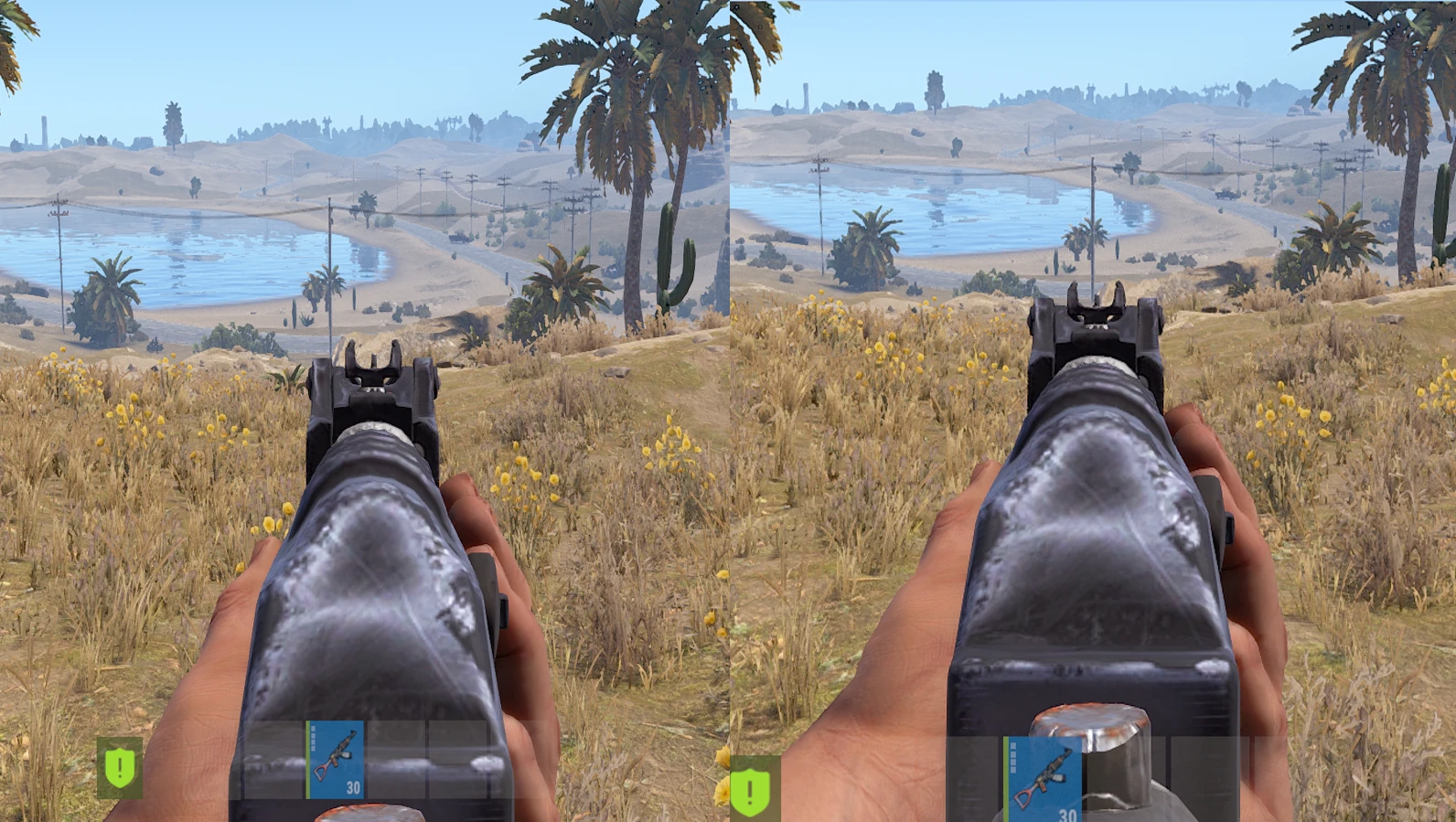
graphics.fov controls your camera’s view cone. At the default of 90, you’re looking at a fairly standard first-person angle. Bump it up to 100 or 110 and you start picking up players approaching from the sides without having to swing your camera around to check. The cost is some distortion near the screen edges and slightly smaller-looking targets dead center. Drop it down toward 70 or 80 and the opposite happens: center-screen objects look bigger, which a chunk of long-range PvP players swear by, but you give up peripheral coverage.
graphics.vm_fov_scale is a different thing, and it’s also the part of this topic that gets mangled in a lot of guides floating around online. It isn’t a slider with decimal values. It’s a toggle. Set it to false and your weapon model pulls back and shrinks, opening up more of the lower half of your screen. Set it to true (the default) and you get the standard, closer-in gun model. There’s no 1.2 or 1.5 to dial in, despite what you might’ve read elsewhere. Like camera FOV, this setting is purely cosmetic. It doesn’t move your hitbox, your crosshair, or anything the server cares about.
Most players land somewhere between 90 and 110 for camera FOV. People who play a lot of close-quarters PvP tend to push toward the higher end for the awareness it gives them. Players on smaller monitors, or anyone who just prefers a tighter view, often sit closer to the default. There isn’t a correct number here. It’s whatever you can play comfortably for hours without your eyes fighting the screen.
Before you touch anything
Open the console with F1. If nothing pops up, head to Settings > Input > Console and make sure it’s actually enabled. Some players accidentally rebind or disable it without realizing.
Rust keeps its config files in Steam\steamapps\common\Rust\cfg. Two files matter here. client.cfg holds your currently active settings, but Rust rewrites this file every time you close the game, so anything you manually add to it gets wiped out. autoexec.cfg is the one you actually want. It loads automatically every time Rust starts and survives both updates and shutdowns. If the file doesn’t already exist in that folder, just create it yourself with Notepad or any plain text editor. This is where every permanent bind you set up should live.
You don’t need admin rights or special permissions to edit either file. They’re just local text files tied to your Steam install. Steam Cloud sometimes syncs client.cfg, but autoexec.cfg stays local unless you go out of your way to add it to cloud storage. Don’t do that. It tends to cause more sync headaches than it solves.
Method 1: a quick, temporary bind through the console
The basic syntax for any bind looks like this: the general formula is bind key action.
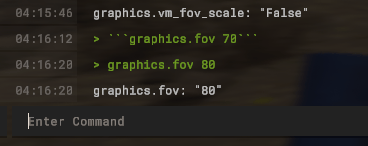
bind < key> "< command>"Keys use Rust’s internal naming: things like f, mouse4, kp_minus, or grave for the tilde key. Whatever command you’re binding goes inside the quotes, letting you assign a specific action to that key. To set a key that jumps your camera FOV straight to 110:
bind f "graphics.fov 110"This is a direct set bind, so when you press F it changes FOV to that specific value instantly. You can check your current FOV at any point by typing graphics.fov alone into the console with no number after it. It’ll print whatever value is currently active.
The catch with binds made this way: they disappear the moment you close Rust. The console only holds them for that session. If you want something that’s still there tomorrow, that’s what Method 2 is for.
Method 2: saving permanent binds with autoexec.cfg
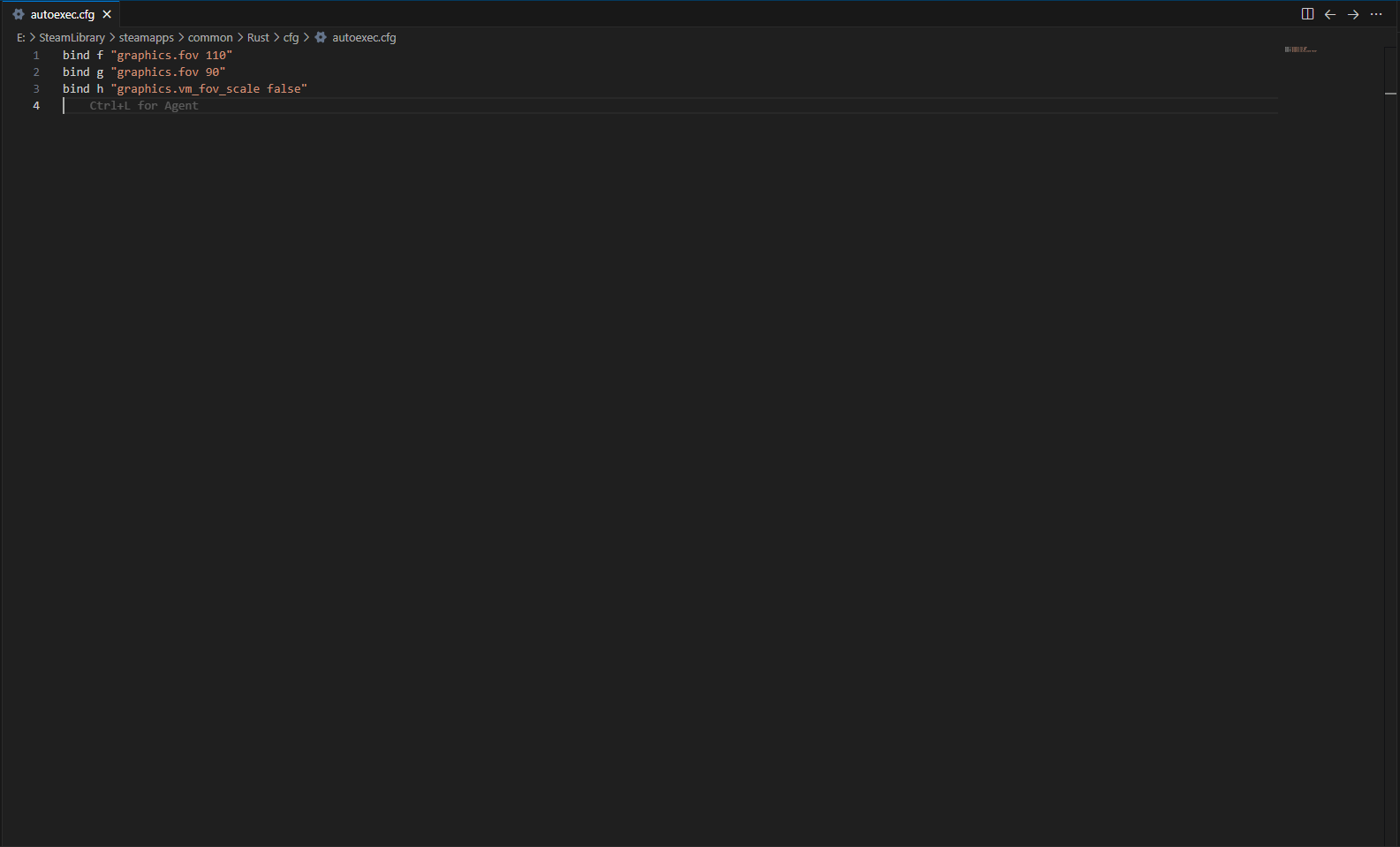
Open autoexec.cfg in whatever text editor you’ve got, Notepad or VS Code or anything else. Add your binds one per line:
bind f "graphics.fov 110"
bind g "graphics.fov 90"
bind h "graphics.vm_fov_scale false"
Save the file, hop back into Rust, and type:
exec autoexec.cfgYour binds go live right away. You only need to run that exec command once per play session manually if you’ve just edited the file. On future launches, Rust loads autoexec.cfg on its own.
One command that trips people up: host_writeconfig. This saves your current settings into client.cfg. It does not touch autoexec.cfg at all. Run it if you’ve been adjusting sliders in the options menu and want those specific values to stick around, but don’t expect your custom keybinds to show up in client.cfg afterward. They won’t, and that’s normal. Binds belong in autoexec.cfg, period.
Toggle crouch and combo binds
A basic toggle alternates between two FOV values with a single key:
bind f "graphics.fov 70;graphics.fov 90"Tap F and it flips between a wider view and a zoomed-in view, so bindings can be set to toggle between both states with one key. Some players use a leading tilde (~) on the command for cleaner toggle behavior, depending on which guide you’re following. Both versions show up in active use.
For more presets, chain commands together with semicolons:
bind f "graphics.fov 90;graphics.vm_fov_scale true"
bind g "graphics.fov 100;graphics.vm_fov_scale false"
bind h "graphics.fov 110;graphics.vm_fov_scale false"
Each key now sets up a full profile: camera angle and weapon model together in one tap, and the semicolon lets you trigger multiple actions from the same press.
Hold-to-change binds use aliases instead of a straight bind. Drop this block into autoexec.cfg:
alias "+fovhigh" "graphics.fov 110"
alias "-fovhigh" "graphics.fov 90"
bind mouse4 "+fovhigh"
This is a zoom-style bind on a mouse button that works only while held. Hold Mouse4 and you’re at 110 FOV. Let go and it snaps back to 90 automatically, because the plus sign marks one of the game’s held actions, so hold to zoom only stays active while the button is pressed and returns on release. This is a popular setup for peeking around corners or scanning a horizon without committing to a permanent FOV change for the rest of the fight.
You can mix camera and weapon settings together on a single key too:
bind f "graphics.fov 105;graphics.vm_fov_scale false"That widens the camera a bit and pulls the gun model back at the same time, opening up more of the lower-center screen. Small adjustments here feel a lot bigger in practice than the numbers suggest, so test a few combos before locking one in.
The weapon model and viewmodel fov scale setting, explained properly
Because so many older guides get this wrong, it’s worth spelling out clearly: graphics.vm_fov_scale only accepts true or false. There’s no fine-grained scale to dial in like there is with camera FOV. true is the default. Your hands and weapon sit at their normal, closer position. false pushes the model back and shrinks it, giving you better visibility because the weapon takes up less screen space, especially noticeable while aiming down sights or crouched behind cover.
This setting changes nothing about recoil, bullet spread, sway, or anything the server tracks. A player running graphics.vm_fov_scale false lands exactly the same shots as someone running the default true. The only difference is how much of their own gun is blocking their view. Some players also test it alongside their ADS sensitivity preferences to see what feels right while aiming.
A common combo for maximizing visibility:
graphics.fov 110
graphics.vm_fov_scale false
Wide camera, smaller gun model, more world on screen. Some players find anything past 105 to 110 starts to feel distorted or borderline nauseating. If that’s you, dial the camera FOV back down to around 100 and keep the weapon scale setting as is.
Picking the right FOV for your setup
Low (70 to 85). Targets read bigger on screen, which helps with long-range identification and shooting. You give up peripheral coverage, so flanking players are easier to miss. Common among players on smaller 1080p monitors, or anyone who just finds wider FOV uncomfortable to look at for long sessions.
Medium (90 to 100). The most common range, and where the default of 90 sits. A lot of players never move off this zone because it feels natural without much of an adjustment period. Nudging up to 95 or 100 adds a bit more awareness without much visible distortion.
High (100 to 120). Maximizes peripheral information, and you’ll see plenty of competitive and content-creator setups sitting in this range. Edge distortion becomes noticeable here, so it helps to be on a monitor large enough, or sitting close enough, that the stretched corners don’t hurt your ability to actually read what’s there.
Ultrawide monitors (21:9, 32:9) tend to handle higher FOV more naturally since the extra horizontal space matches the wider view cone instead of fighting it. On a standard 16:9 panel, anything north of 110 can start to feel like a fisheye lens.
Screen size and how far you sit from it matter more than raw resolution. A 27-inch 1440p monitor at arm’s length handles 110 FOV more comfortably than a 24-inch 1080p panel at that same distance, even though the resolutions are different.
If you’re not sure where to start, set it to 100, play a session, nudge it by 5 in whichever direction felt off, and repeat. Give it a few days before locking anything in. FOV is one of those settings that stops feeling like a setting once your eyes adjust to it.
Rust keybinds and key names for binds
The console expects specific internal key names, not just whatever’s printed on your keyboard. Common ones:
tab, grave, capslock, lshift, rshift, lctrl, rctrl, lalt, ralt, space
enter, backspace, delete, insert, home, end, pageup, pagedown
uparrow, downarrow, leftarrow, rightarrow
f1 through f12
kp_0 through kp_9, kp_period, kp_divide, kp_multiply, kp_minus, kp_plus, kp_enter
a through z, 0 through 9
For rust keyboard keybinds, those internal labels matter more than printed legends on a regular uk qwerty keyboard. For shift-based binds, use names like lshift or rshift rather than the printed Shift label.
Mouse buttons:
mouse1 (left), mouse2 (right), mouse3 (middle), mouse4, mouse5
mwheelup, mwheeldown
A mouse button can be used the same way as a keyboard key in a bind.
F1 through F12 all work as bindable keys, but F1 is your console toggle by default. Rebind it and you’ll lock yourself out of the console unless you’ve also bound a separate key to showconsole first.
To check whether a key name is correct, type bind < key> into the console with nothing after it. It’ll print the current binding, or say “not bound” if nothing’s assigned. Type the key name wrong and it’ll tell you “unknown key” instead.
Common bind problems and how to fix them
Bind isn’t doing anything. Double-check spelling: it’s graphics.fov, not graphic.fov, and that single missing letter is a more common typo than you’d think. Quotes need to be straight (”), not the curly ones some word processors auto-insert. Semicolons separate chained commands; spaces around them are optional but won’t break anything.
autoexec.cfg won’t load. Make sure the file actually sits directly in Steam\steamapps\common\Rust\cfg, not in some subfolder. The filename needs to be exactly autoexec.cfg. Windows sometimes hides file extensions and saves it as autoexec.cfg.txt without you noticing. Run exec autoexec.cfg manually in the console once to confirm it’s working.
Settings keep resetting on launch. Steam Cloud occasionally overwrites client.cfg, which is expected. Your autoexec.cfg should reapply your binds right after that happens anyway. If autoexec.cfg itself is reverting, check Steam > Properties > General and disable “Keep game saves in Steam Cloud” for Rust, or check whether the file got marked read-only somehow.
Changes aren’t sticking between sessions. This almost always means you edited client.cfg instead of autoexec.cfg. Rust rewrites client.cfg on every exit, wiping anything you added by hand. Move your binds over to autoexec.cfg and the problem goes away.
Want to reload without restarting? Just run exec autoexec.cfg again in the console. It reloads instantly, no restart needed.
Removing or resetting binds
To clear a single key and return it to its default unbound behavior:
unbind f
bind y ""
If you want to wipe everything custom and go back to defaults, the cleanest approach is deleting autoexec.cfg entirely and running host_writeconfig to save a clean state to client.cfg.
To edit autoexec.cfg directly instead, open it in your text editor, delete the lines you don’t want (or comment them out with // in front), save, and run exec autoexec.cfg to apply the change. This is useful when you want to reset just one custom bind instead of wiping everything.
If binds start acting strange, ghosting, not applying, conflicting with each other, verifying game files through Steam can help: Library > Rust > Properties > Installed Files > Verify Integrity. This resets default configs without touching your autoexec.cfg.
Frequently asked questions and useful keybinds
What’s the actual range for graphics.fov? Rust’s UI slider historically sits in a roughly 65 to 90 range, but plenty of players push past that through the console with toggle and hold binds reaching 100, 110, or higher without issue. There isn’t a single, universally agreed-upon hard ceiling across all client versions, so don’t be surprised if guides disagree on the exact number. Test in your own client to see where your setup stops responding.
Does vm_fov_scale take decimal values like 1.2 or 1.5? No, and this is a common mix-up. It’s a true/false toggle, not a scalable number. false pulls the weapon back and shrinks it; true is the default closer-in view.
Does the weapon model setting affect gameplay at all? No. It only changes what you see on screen. Recoil, sway, hit registration, and everything the server calculates stays identical no matter which value you’re running.
Does a wider FOV hurt performance? Slightly. You’re rendering a bit more of the world at once, which means marginally more GPU work. On most modern hardware that difference is small enough not to matter. On very old or integrated graphics it might be worth dropping FOV for a few extra frames, but it’s not a real optimization strategy for most setups.
Can a server force my FOV settings? Vanilla Rust servers can’t restrict your graphics.fov or graphics.vm_fov_scale values. Some modded servers run plugins that lock specific values on join, but that’s uncommon, and most server admins who do this mention it somewhere in the server description or rules.
Why did my keybind disappear after I closed Rust? Rust keybinds set through console commands only last for the current session if you don’t save them anywhere. Add the same line to autoexec.cfg, save the file, and run exec autoexec.cfg once. If you want Rust keybinds to load on launch, that line needs to be saved in autoexec.cfg.
I changed vm_fov_scale and now my weapon looks wrong while aiming down sights. What happened? Some players run into this after toggling the setting mid-game rather than on load. Try setting it back to true, then to false again after a fresh game launch, or rebind it cleanly through autoexec.cfg instead of typing it ad hoc in the console.
Was this article helpful?
Thanks for the feedback!