How To Fix Mouse On Screen: Rust
Struggling with a mouse cursor on your screen? Discover effective solutions to fix cursor issues and restore smooth navigation. Read the article now!
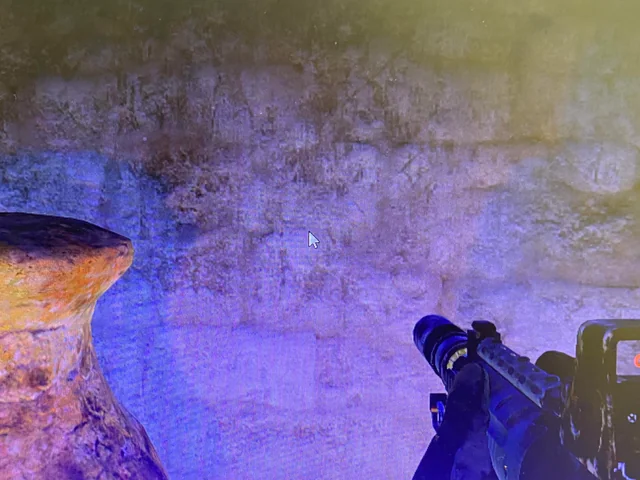
Few issues are more frustrating in Rust than having your mouse cursor remain visible while you’re playing. The problem can make it difficult to aim, manage your inventory, and interact with the game’s menus correctly. In some cases, the cursor may become stuck in the center of the screen, while in others it remains visible during gameplay when it should be hidden.
Fortunately, this issue is usually caused by a software conflict, display setting, or temporary game bug and can often be resolved in just a few minutes. If you’re playing Rust and encounter this problem, the fixes below will help you identify the cause and restore normal mouse behavior.
This guide covers the most common fixes for the on-screen mouse issue in Rust.
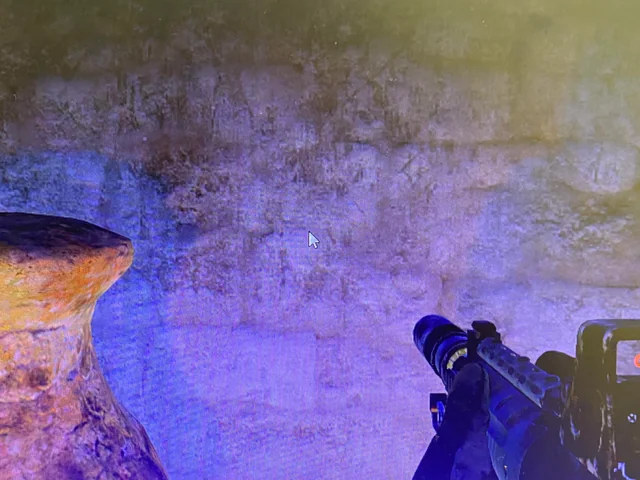
Why Is My Mouse Cursor Showing While Playing Rust?
The mouse cursor appearing during gameplay is typically caused by one of the following:
-
Alt-tabbing in and out of Rust.
-
Overlay software conflicts.
-
Display mode issues.
-
Multiple monitor setups.
-
Driver problems.
-
Corrupted game files.
-
Steam overlay conflicts.
-
Temporary bugs after opening menus.
The exact cause varies from player to player, so you may need to try several solutions.
While there isn’t a single cause, a lot of players report the same issue after alt-tabbing, changing display settings, or interacting with overlays.
Restart Rust
The simplest fix is often restarting the game.
To restart Rust:
-
Exit Rust completely.
-
Close Steam.
-
Wait a few seconds.
-
Launch Steam again.
-
Start Rust.
Many temporary cursor issues disappear after a fresh launch.
Press Alt + Enter
Rust occasionally becomes confused about whether it should be running in fullscreen or windowed mode.
Press Alt + Enter. This will switch display modes. After a few seconds, press the shortcut again to return to your preferred display mode.
Many players report that this immediately removes the stuck cursor from the middle of the screen.
Open and Close the Inventory
Sometimes Rust incorrectly believes a menu is still open.
Follow these steps before moving on to more advanced troubleshooting methods.
Try:
-
Press Tab to open your inventory.
-
Close the inventory.
-
Open and close the map.
-
Open and close the crafting menu.
This can force the game to properly hide the cursor again.
Check Your Display Mode
Display mode settings are one of the most common causes of cursor issues.
To check your settings:
-
Open Rust.
-
Go to Options.
-
Select Screen.
-
Locate the Display Mode setting.
Try switching between:
-
Fullscreen
-
Exclusive Fullscreen
-
Borderless Window
Many players find that Exclusive Fullscreen provides the most reliable mouse behavior.
Disable Overlays
Third-party overlays can interfere with mouse capture.
Common overlay applications include:
-
Steam Overlay
-
Discord Overlay
-
NVIDIA Overlay
-
AMD Software Overlay
-
Xbox Game Bar
Temporarily disable these overlays and test Rust again.
If the issue disappears, one of the overlays is likely responsible.
Disconnect Additional Monitors
Multi-monitor setups can occasionally cause cursor problems.
If you use multiple displays:
-
Close Rust.
-
Disconnect secondary monitors.
-
Launch Rust.
-
Check whether the issue remains.
If the problem is fixed, you may need to adjust your display configuration before reconnecting additional monitors.
Verify Rust Game Files
Corrupted game files can sometimes cause unusual interface behavior.
To verify Rust’s files:
-
Open Steam.
-
Navigate to your Library.
-
Right-click Rust.
-
Select Properties.
-
Open Installed Files.
-
Click Verify Integrity of Game Files.
Steam will automatically scan and replace any missing or damaged files.
If a file becomes damaged or an unexpected error occurs during an update, verifying your files can often resolve the problem.
Update Graphics Drivers
Outdated graphics drivers can create a variety of display-related issues.
To update your drivers:
-
Visit your GPU manufacturer’s website.
-
Download the latest driver.
-
Install the update.
-
Restart your computer.
Driver-related issues can sometimes occur after Windows updates or GPU software changes, making this an important troubleshooting step.
Keeping drivers updated can help prevent cursor and display problems across many games, not just Rust.
Disable Steam Overlay
If other fixes haven’t worked, try disabling the Steam Overlay completely.
To do this:
-
Open Steam.
-
Go to Library.
-
Right-click Rust.
-
Select Properties.
-
Disable Enable Steam Overlay While In-Game.
Launch Rust again and see if the cursor issue is resolved.
Restart Your Computer
While it may sound simple, a full system restart can resolve software conflicts that persist even after restarting Rust itself.
Save any work, restart your PC, and launch Rust again before trying more advanced troubleshooting.
Reinstall Rust
If none of the previous solutions work, a clean reinstall may be necessary.
To reinstall Rust:
-
Uninstall Rust through Steam.
-
Restart your computer.
-
Reinstall the game.
-
Launch Rust and test the cursor.
This should eliminate any remaining issues caused by corrupted files or installation problems.
Final Thoughts
A mouse cursor stuck on screen in Rust is usually caused by display mode conflicts, overlays, alt-tabbing, or temporary software bugs. In most cases, switching display modes with Alt + Enter, reopening menus, disabling overlays, or verifying your game files will resolve the problem quickly.
Take the time to work through each solution carefully and read any error messages that appear during troubleshooting, as they may provide useful information about the underlying cause. Once you understand which fix works for your system, you’ll be able to resolve the issue much faster if it happens again in the future.
If the issue continues after trying these fixes, updating drivers or performing a clean reinstall of Rust will often restore normal mouse behavior and get you back into the game.
Was this article helpful?
Thanks for the feedback!