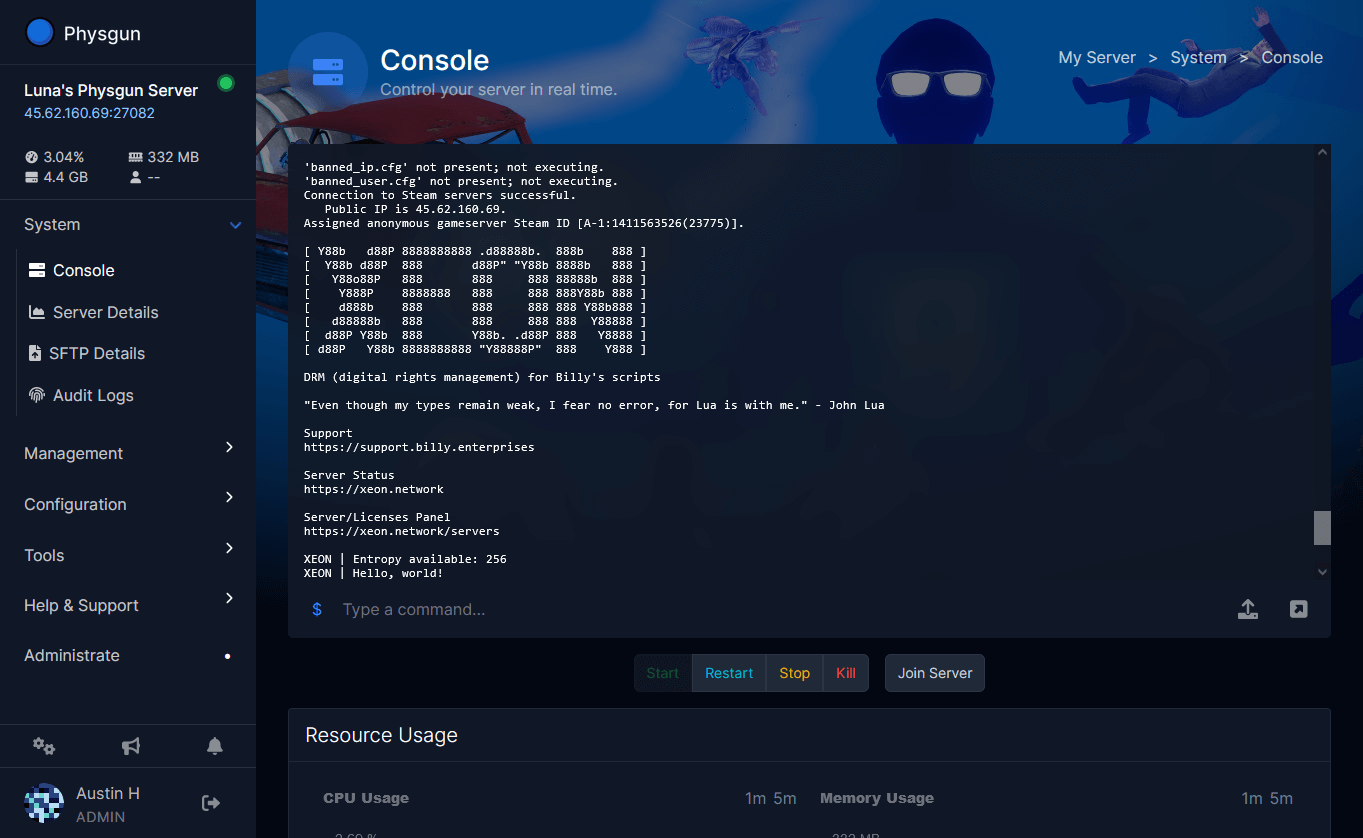
A firewall is only as effective as the rules and filters that control it. While rules determine what traffic is allowed or blocked, filters provide an additional layer of protection by applying specialized restrictions based on specific applications, services, protocols, and traffic patterns.
Physgun Firewall filters make it easy to fine-tune your server’s security without requiring complex networking knowledge. In this guide, you’ll learn how to create a new filter, configure its settings, and apply it to your server to help protect against unwanted traffic and common attack vectors.
 Navigating Your Firewall Portal
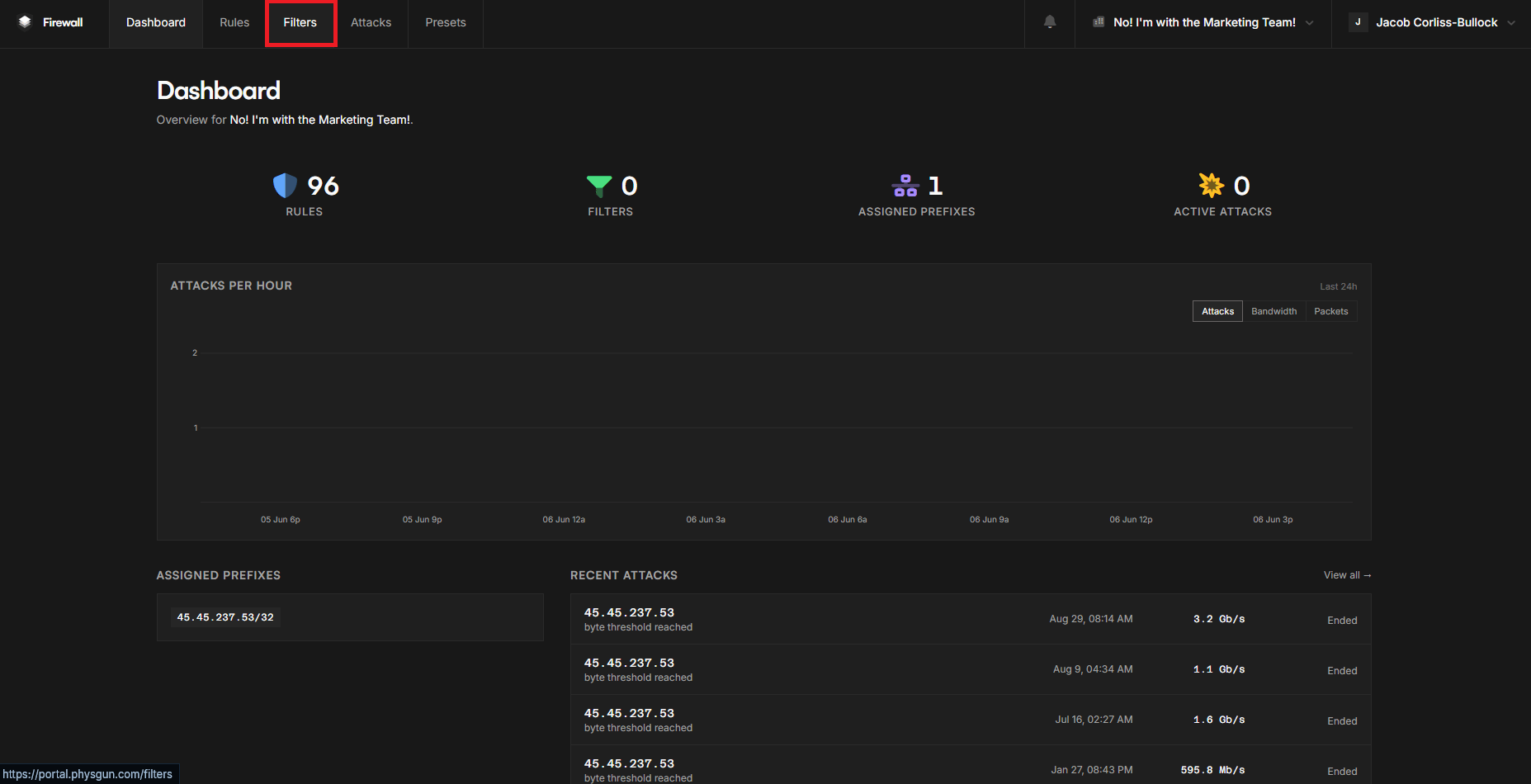
The first thing you need to do is go to your Firewall Portal. You can find this at https://portal.physgun.com. Keep in mind that this will only be available if you own a VPS, dedicated server, or colocation service with Physgun.
Once you’re on your dashboard, click the Filters tab in the top-left navbar. This is where you’ll create and manage your filters.
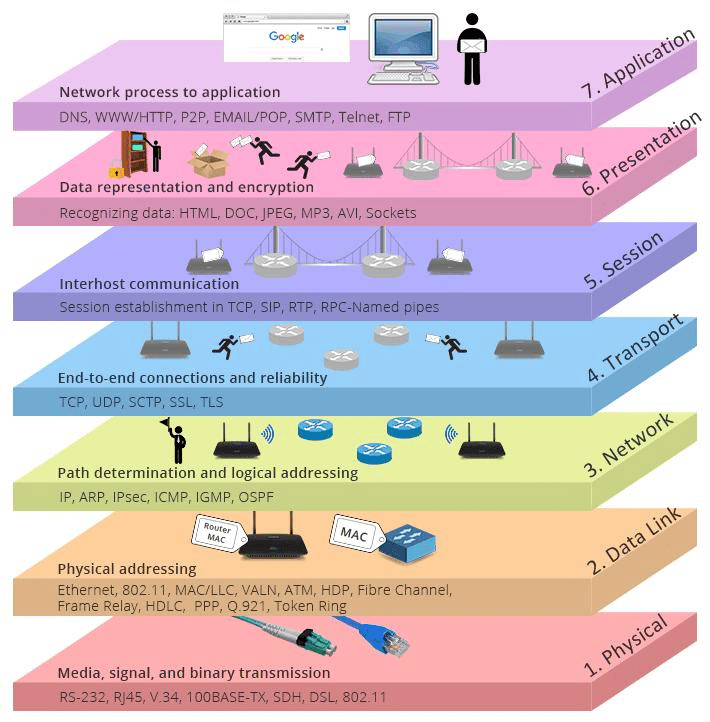
The 7 Layers of Networking
We reference these layers several times in this article, so it wouldn’t hurt to understand them. Below is a simple, comprehensive diagram that shows off the 7 layers.
Creating a Firewall Filter
To start creating a filter, click on the white Create Filter button. Select your server’s IP address in the top box. Next, you need to select the type of filter you want to use. All of these filters require you to specify the ports to which you want the filter applied. Below is an explanation for each one, as well as :
TeamSpeak 3 Server
If you’re hosting TeamSpeak 3 on your VPS, your filter includes the following options:
- Voice Chat UDP Port - This argument defines which UDP port you want to use for voice traffic.
- File Transfer TCP Port - This argument defines which TCP port you want file traffic to go through.
OpenVPN UDP Server
If you’re hosting an OpenVPN Server, you can apply a simple validation filter by defining which UDP port is used for the application’s traffic. All you have to do is define your open or rate-limited UDP ports that you want to use with OpenVPN.
Source Engine Queries
This filter enables Layer 7 proxy for Source Engine queries. This can be enabled together with RakNet or HL2/Source filters. This filter includes the following options:
- Strict Mode - Discards any traffic that isn’t a source query. Essentially blocking out any third-party traffic.
- A2S Caching - Toggle whether or not A2S queries should be cached. This results in servers displaying a lower ping in the browser.
- Port Override - Specify an alternate port to query the server on. To have both the query port and game port be the same for Rust, apply the filter to the game port and then put the original query port here. Requires A2S caching to be enabled.
RakNet Server (v2)
This filter enables Layer 7 packet validation for RakNet game packets. This can be enabled together with the Source Engine Queries filter. This filter includes the following option:
- Accept Server Queries - Should be disabled if the query port is separate; otherwise, keep it enabled.
This is especially used for Rust, Roblox, or Minecraft: Bedrock Edition servers.
TCP Service
The TCP Service filter simply allows for stricter TCP packet validation on a listen port. Just define which port you want to apply this filter to. We recommend using TCP Service Symmetric instead of this one.
TCP Service (Symmetric)
This does the exact same thing as the TCP Service, but it enables symmetric filtering. Symmetric filtering means that the ingress and egress traffic is reviewed for better packet inspection and helps defend against more complex attacks. You can also optionally rate limit packets per second on this TCP Port.
Minecraft: Java Edition Server (Symmetric)
If you’re hosting a Minecraft: Java Edition server, your only available option for this filter is to define which port the filter should apply to.
Half Life 2/Source Server
This filter enables packet validation for Half Life 2/Source UDP traffic. This filter includes the following option:
- Accept Server Queries - Should be disabled if the query port is separate; otherwise, keep it enabled.
This is especially used for Garry’s Mod, Team Fortress 2, Left 4 Dead 2, and Counter-Strike: Global Offensive.
GTA V Multiplayer Server
This filter enables Layer 7 packet validation for GTA V multiplayer traffic. This requires symmetric traffic routing, which is done by default on all Physgun services. This filter includes the following options:
- Strict Mode - Discards any traffic that isn’t from FiveM. Essentially blocking out any third-party traffic.
- Multi-IP Support - Enable this to work around ISPs that split customer traffic over multiple IP addresses.
Half-Life Dedicated/GoldSrc Server
This filter enables Layer 7 packet validation for HLDS/GoldSrc server queries. This filter includes the following option:
- Accept Server Queries - Should be disabled if the query port is separate; otherwise, keep it enabled.
DNS Server
This filter enables Layer 7 packet validation for DNS queries. This filter includes the following option:
- Layer 4 Protocol: UDP or TCP - Choose which protocol should be used for transferring packets.
WireGuard Server
This filter enables Layer 7 packet validation for WireGuard VPN servers. Note: To avoid packet loss from fragmentation, it is recommended that you adjust your MTU to 1360. You just have to define the port you want to apply this filter to here.
Arma 3 Server (Beta)
This filter enables Layer 7 packet validation for Arma 3 game servers. This filter includes the following option:
- Accept Server Queries - Should be disabled if the query port is separate; otherwise, keep it enabled.
STUN Server
This filter enables Layer 7 packet validation for STUN servers. This filter includes the following option:
- Strict Mode - Discards any traffic that isn’t from STUN. Essentially blocking out any third-party traffic.
SA-MP Server Queries
This filter enables Layer 7 proxying for San Andreas Multiplayer server queries. You just have to define the port you want to apply this filter to here.
L4D2/CS:GO Source
This filter enables layer 7 proxying for Source games using L4D2’s Source engine version. This includes Left 4 Dead, Left 4 Dead 2, Counter-Strike: Global Offensive, and Portal 2. This filter can also be paired with our Source Engine filter. This filter includes the following option:
- Accept Server Queries - Should be disabled if the query port is separate; otherwise, keep it enabled.
RakSAMP Filter
This filter enables Layer 7 validation for SA-MP game traffic. You just have to define the port you want to apply this filter to here.
QUIC Server
This filter enables Layer 7 packet validation for QUIC. You just have to define the port you want to apply this filter to here.
SIP Server
This filter enables Layer 7 packet validation for SIP. You just have to define the port you want to apply this filter to here.
DTLS Server
This filter enables Layer 7 packet validation for DTLS. You just have to define the port you want to apply this filter to here.
RTP Server
This filter enables Layer 7 packet validation for RTP. Note: Only one entry per IP address is supported. This filter includes the following option:
- WebRTC - Similar to Strict mode on other filters. Enables stricter packet validation for WebRTC servers
Renegade X Server
This filter enables Layer 7 packet validation for DTLS. You just have to define the port you want to apply this filter to here.
DayZ Server
This filter enables Layer 7 packet validation for DayZ game traffic. This filter includes the following options:
- Accept Server Queries - Should be disabled if the query port is separate; otherwise, keep it enabled.
SCP: Secret Laboratory Server
This filter enables Layer 7 packet validation for SCP: Secret Lab game traffic. This filter includes the following options:
- Accept Server Queries - Should be disabled if the query port is separate; otherwise, keep it enabled.
- Preauth - Whether or not the server has the preauth_challenge_enabled configuration option set to true.
Quake 3 Server
This filter enables Layer 7 packet validation for Quake 3 game traffic. You just have to define the port you want to apply this filter to here.
ASE/Multi Theft Auto Queries
This filter enables Layer 7 proxy for ASE queries. This filter includes the following option:
- Strict Mode - Discards any traffic that isn’t from ASE. Essentially blocking out any third-party traffic.
LiteNetLib Server
This filter enables Layer 7 packet validation for games using LiteNetLib, such as 7 Days to Die. Only LiteNetLib protocol version 11 is supported. This filter includes the following option:
- Accept Server Queries - Should be disabled if the query port is separate; otherwise, keep it enabled.
Lineage II Server
This filter enables Layer 7 packet validation for Lineage II Interlude servers. You need to define your game port and login port on this one. The game port is used for real-time gameplay traffic post-login. The login port is the one you go through before you’re connected to the server.
Steamworks Server
This filter enables Layer 7 packet validation for Steamworks game packets. This can be enabled together with the Source Engine Query filter. This filter includes the following options:
- Accept Server Queries - Should be disabled if the query port is separate; otherwise, keep it enabled.
FiveM Server Queries
This filter enables Layer 7 proxying for FiveM server queries. You just have to define the port you want to apply this filter to here.
Palworld Filter (Beta)
This filter enables Layer 7 packet validation for Palworld game traffic. You just have to define the port you want to apply this filter to here.
Arma Reforger Filter (Beta)
This filter enables Layer 7 packet validation for Arma Reforger game traffic. You just have to define the port you want to apply this filter to here.
Unreal Engine 5 Server
This filter enables Layer 7 packet validation for UE5’s default networking. This filter has the following option:
- Ark: Survival Ascended - This defines whether this filter entry is for an Ark: Survival Ascended server.
This filter is especially used for Conan Exiles Enhanced.
Disable TCP Implicit Deny
This filter disables the Implicit Deny mechanism for TCP packets. Only use this if you’re routing a prefix that is partially symmetric. This does not apply to Physgun customers by default, as all traffic is routed symmetrically.
Disable Service Discovery
This filter disables the Service Discovery mechanism. Only use this if you’ve intentionally left an application filter off of a service. This filter includes the following option:
- Layer 4 Protocol: UDP or TCP - Choose which protocol should be used for transferring packets.
Using Game Presets
If all of those filters were a lot to take in, we wouldn’t blame you. That’s why we actually have presets! If you’re not sure which filters are right for your server, we have game presets that will automatically apply the necessary security measures for your game.
Each of these options also lets you create rules based on what the game needs, making the process almost completely automated!
HL2 / Garry’s Mod Server
This preset is used for Source games that use the Half Life 2 version of the Source Engine. This includes Garry’s Mod, Team Fortress 2, Left 4 Dead 2, and Counter-Strike: Global Offensive. You also have the option of enabling or disabling A2S caching using the preset.
CS:GO / L4D Server
This preset is used for Source games that use the Left 4 Dead version of the Source Engine. This includes Left 4 Dead, Left 4 Dead 2, Counter-Strike: Global Offensive, and Portal 2. You also have the option of enabling or disabling A2S caching using the preset.
Rust Server
This preset is used for Rust. You have the options for:
- Port - The game port you want to apply this filter to.
- RCON Port - The port you use for your Remote Console.
- Query Port - The port used for the server list.
- App Port - The port used for Rust+
You also have the option of enabling or disabling A2S caching using the preset.
Minecraft: Java Edition
This preset is used for the Java Edition of Minecraft. It doesn’t have any special settings you have to input.
Minecraft: Bedrock Edition
This preset is used for the Bedrock Edition of Minecraft. It doesn’t have any special settings you have to input.
FiveM / RedM Server
This preset is used for FiveM or RedM GTA servers. You have the additional option of including a TXAdmin Port. This is the port used for FiveM’s built-in admin panel.
TCP Generic
This is used for general TCP security and packet validation. It doesn’t have any special settings you have to input.
Renown Server
This is used for the game Renown. You have two additional options:
- RCON Port - The port used for your remote console.
- Query Port - The port used for server lists.
7 Days to Die Server
This is used for 7 Days to Die Servers. There are quite a few port options you have here aside from your main port:
- Game Port 1 - The port used for Steam connections
- Game Port 2 - The port used for game traffic and LiteNetLib
- Game Port 3 - An extra port used for backup traffic
- TelNet Port - The port used for the game’s native operator panel.
ARK: Survival Evolved Server
This is used for ARK: Survival Evolved servers. You have a few port options here:
- Steam Overlay Port - The port used for Steam feedback and connections.
- Query Port - The port used for the server browser.
- RCON Port - The port used for your remote console.
The Isle: Evrima Server
This is used for The Isle: Evrima servers. Here you have:
- RCON Port - The port used for your remote console.
- Queue Port - The port used BEFORE you load into a server or if you’re backlogged into a full server.
VEIN
This is used for the game VEIN. The only additional option you have here is your Query port, which handles server browser traffic.
Conclusion
Firewall filters are one of the most effective ways to improve your server’s security without requiring advanced networking experience. By applying the correct filter for your application or game server, you can validate traffic at higher networking layers, block unwanted packets, and reduce the impact of common attacks before they ever reach your service.
Whether you’re hosting a game server, VPN, voice server, or web application, Physgun’s filter system gives you the flexibility to tailor protection to your specific needs. If you’re unsure which filters to use, take advantage of the built-in presets to automatically apply recommended settings and get your server protected in just a few clicks.