








How To Change Difficulty In A Palworld Server
Palworld’s dedicated servers don’t offer the simple difficulty dropdown found in singleplayer, so if you want to change difficulty on a dedicated server, you do it by editing the PalWorldSettings.ini file directly, adjusting values like capture rates, damage multipliers, stamina drain, and death penalties, then restarting the server so the changes take effect.
For server admins and hosts who want more control than the default presets allow, that setup gives you granular tuning, but it also means knowing which values to change, how custom settings differ from preset difficulty options, and how to apply edits safely without having them overwritten. This guide shows where the file lives, which settings actually shape difficulty, how to verify the changes in-game, and what to check when your server ignores them or a common mistake quietly undoes custom tuning.
Before You Begin
Make sure you have administrative access to your server through the Physgun Gamepanel or direct VPS access, then stop the server completely. Editing files while the process is running can get your changes overwritten when the server writes its own state on shutdown. Back up your current PalWorldSettings.ini so you have a clean rollback if something goes wrong.
Changing Difficulty In The Physgun Gamepanel
-
Log into the Physgun Gamepanel and select your Palworld server.
-
Stop the server.
-
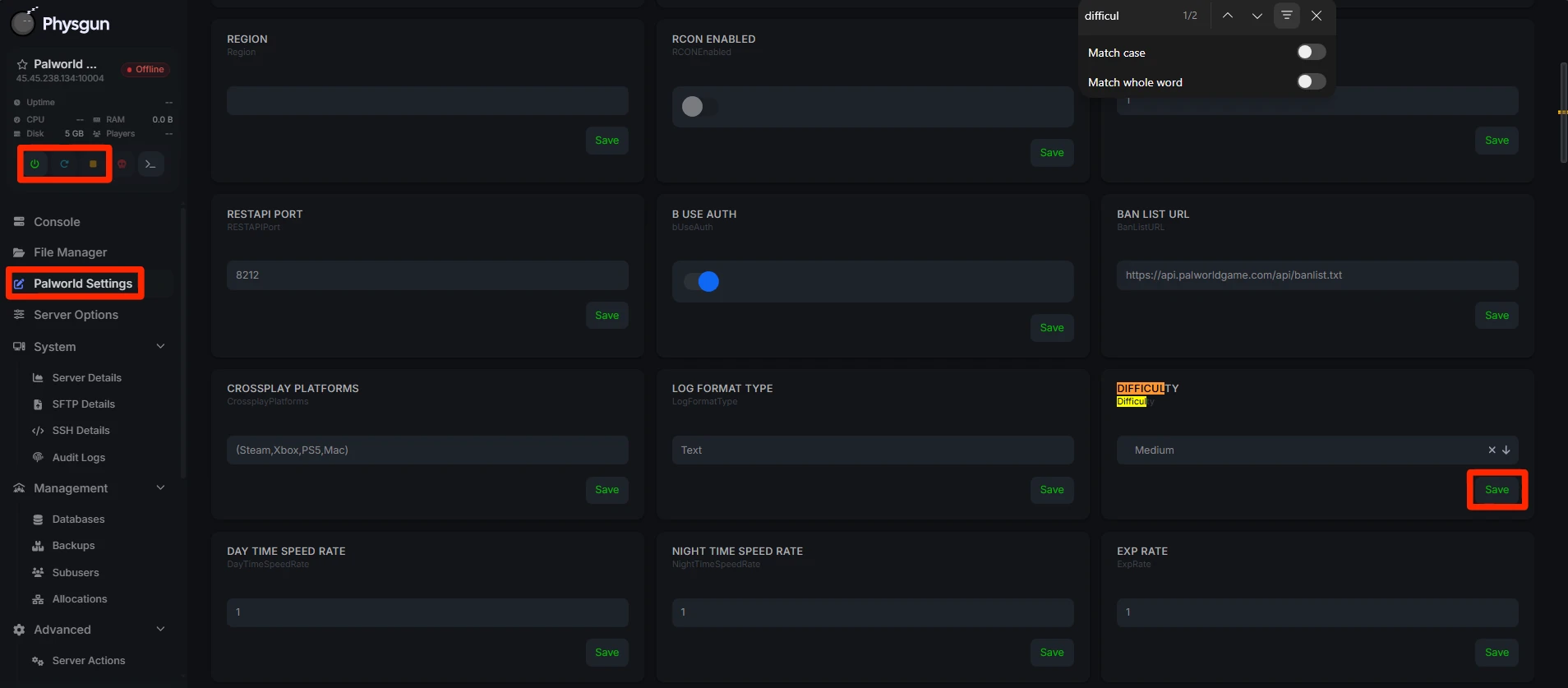
Open Palworld Settings from the left navigation.
-
From here, you can use CTRL+F on your keyboard and search for the different settings you can change, like difficulty, death penalty, or damage rate.
-
Change the setting you would like to change, then press the Save button on that setting.
-
Restart the server and verify the settings you changed worked.
Accessing PalWorldSettings.ini via SFTP (Self-Hosted and VPS)
-
Connect with FileZilla, WinSCP, or scp using your server credentials.
-
Navigate to Pal/Saved/Config/LinuxServer/ (or /WindowsServer/).
-
Download PalWorldSettings.ini and open it in an editor that won’t mangle line endings, such as VS Code or Notepad++.
-
Make your changes, save, then upload the file back over the original.
-
Restart the server process, whether that’s systemctl restart palworld, docker restart, or your own startup script.
Difficulty Preset vs. Custom Tuning (Including Death Penalty)
The Difficulty parameter itself is preset, and the default value is None. Setting it to Casual, Normal, or Hard applies a bundled preset that can override the individual multipliers you’ve tuned by hand; Casual suits relaxed gameplay and exploration, while hard mode is for experienced players who want more challenge, so the difference matters if you prefer a specific preset over manual tuning. If your goal is the desired balance for capture rate, damage, and stamina drain rather than a bundled preset, leave Difficulty=None in place and use the custom difficulty settings on each multiplier directly instead of changing this field.
Key Palworld Server Settings for Custom Difficulty
| Parameter | Effect | Default |
|---|---|---|
| DeathPenalty | What a player loses on death; there are four options: None, Item, ItemAndEquipment, or All | Item (as of version 1.0) |
| PalCaptureRate | Multiplier for capture success that affects the chance to catch Pals; pal capture rate | 1.0 |
| PalDamageRateAttack | Damage Pals deal; higher values mean Pals deal more damage, so pal damage rate attack directly raises their output | 1.0 |
| PalDamageRateDefense | Damage Pals take; lower values make Pals tankier | 1.0 |
| PlayerDamageRateAttack | Damage players deal | 1.0 |
| PlayerDamageRateDefense | Damage players take; lower values make players more durable, and player damage rate defense controls that resilience | 1.0 |
| PlayerStaminaDecreaceRate | Rate at which stamina drains during sprinting, climbing, and gliding; higher values increase player stamina decrease and make players lose stamina faster | 1.0 |
| ExpRate | Global XP gain multiplier; increasing it means players gain experience faster and can level more quickly | 1.0 |
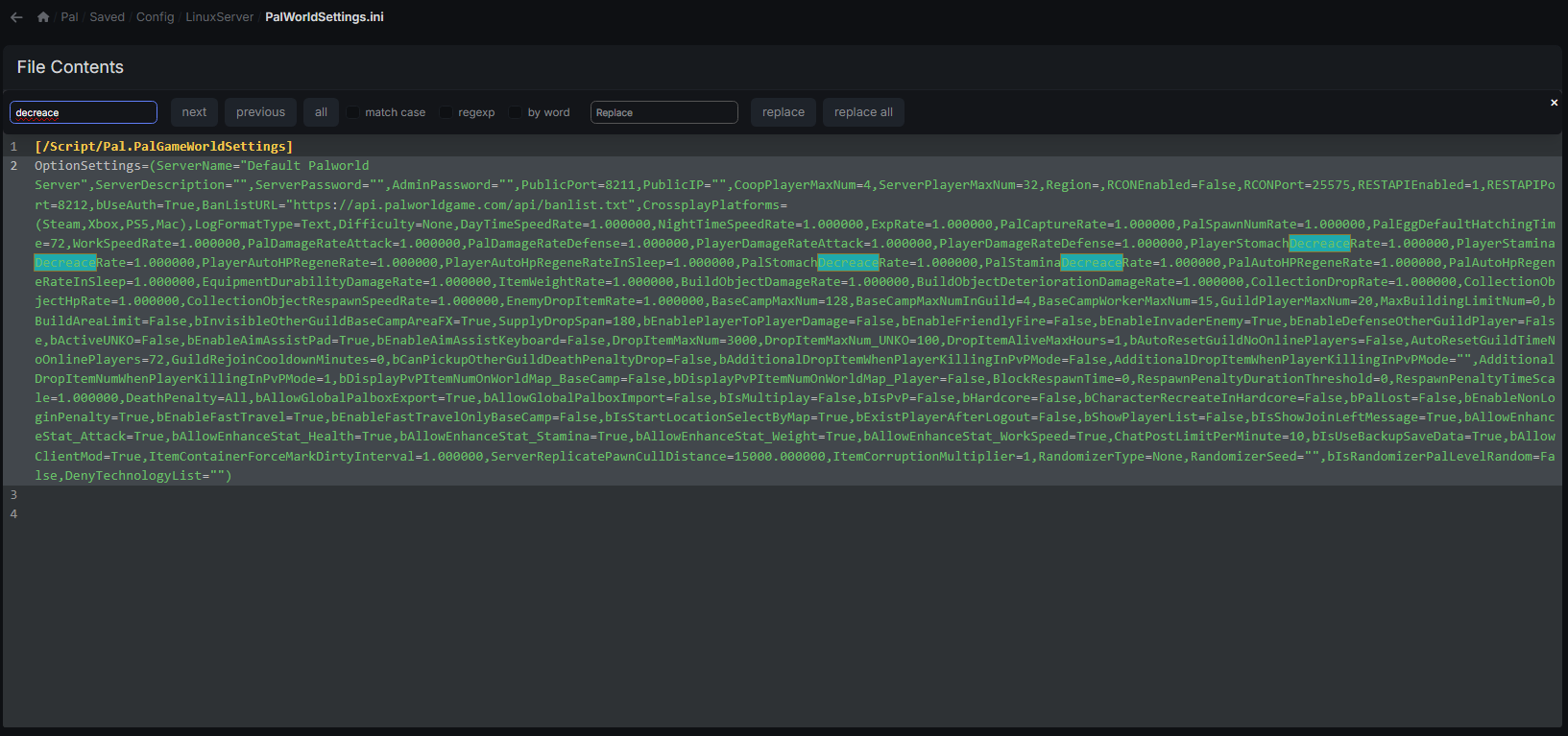
Note the spelling on the stamina key: Pocketpair’s own field uses “Decreace,” not “Decrease.” The same misspelling applies to the matching hunger key, PlayerStomachDecreaceRate. Get either wrong and the setting silently does nothing. Admins can configure and customize these difficulty settings in this file to shape the overall gameplay experience and gaming experience on Palworld dedicated servers.
Applying Changes and Restarting
Save the file, then restart the server rather than just reloading it. In the Physgun Gamepanel, return to the server’s main control page and click Restart. On a VPS, use your service manager’s restart command. Watch the console during startup; a syntax error in the settings line will either produce a warning or stop the server from booting at all, and a clean start will show your updated values reflected in the early log lines.
Verifying Your Difficulty Changes In Game
Join the server and test the mechanics you adjusted directly in-game after you change the difficulty rather than relying on any single display value. Try catching a Pal to feel the new capture rate, die intentionally to confirm the death penalty behaves the way you set it, and sprint or fight to check stamina drain. Watch how much damage Pals deal and take in a fight to confirm the damage multipliers landed, then check whether those values create the level of challenge your group actually wants. If something feels off, return to the file, adjust, and restart again.
Troubleshooting
Changes not applying - Double-check you edited the correct PalWorldSettings.ini, not the DefaultPalWorldSettings.ini template, which the server only reads once during first setup and ignores afterward. Confirm the server was fully stopped before editing and fully restarted after. If the world already existed before your edit, some settings can get stuck reading from a saved WorldOption.sav file instead of the ini; regenerating that file with a tool like https://physgun.com/tools/palworld-server-settings-generator/ and dropping it into the world’s save folder usually resolves it.
Server fails to start - Almost always a syntax error in the settings line: a missing parenthesis, a typo in a parameter name, or an invalid value such as a string where a number is expected. Check the console log for the error, fix the file, and restart. If you can’t spot it, restore your backup and reapply changes one at a time.
Settings reset after an update - Game updates occasionally ship a new default configuration that overwrites PalWorldSettings.ini. Keep a local copy of your tuned file so you can re-upload it after each patch.
Permission errors on VPS - If an SFTP upload fails or the server can’t read the file afterward, ownership or permissions are likely the cause. The file needs to be readable by whatever user account actually runs the Palworld server process on your system, which varies by install method, so check your process configuration rather than assuming a specific username.