
Windrose server lag has a way of showing up at the worst times. Naval combat gets going, more players connect, and what was running fine turns into rubber banding and connection problems that make co-op miserable. The tricky part is that lag issues in Windrose don’t have one source: it could be your PC specs, a version mismatch, CPU usage spiking under load, or backend services choking as the world gets bigger. Late game performance tends to take the worst hit. This guide covers tested fixes for dedicated server configuration, connection issues, and everything in between.
Recommended Dedicated Server Hardware
Hardware specifications play a decisive role in server stability. While Windrose isn’t as resource-intensive as some games, underpowered setups struggle under pressure.
Minimum Recommended Specs
A baseline configuration should include:
-
A modern 4-core CPU with good single-core performance
-
At least 8 GB of RAM
-
SSD storage for faster load times
-
A stable wired internet connection
This setup handles small to medium servers but may falter during peak activity.
Recommended for Larger Servers
For servers with many players or complex worlds, Windrose officially supports up to 10 players, but performance often drops in larger groups as simulation load and network traffic increase:
-
Prioritize a high-frequency CPU (e.g., Intel i5/i7 or AMD Ryzen 5/7)
-
16 GB RAM or more to manage memory-intensive tasks
-
NVMe SSD storage to reduce disk latency
-
Strong upload bandwidth (at least 10 Mbps recommended), especially if difficulty settings or other world configs raise the load
-
If lag persists, lower the player count to reduce strain on the server
Fast storage and CPU performance are non-negotiable for late-game servers.
How To Reduce Windrose Server Lag
Addressing lag requires a combination of server management practices and environmental adjustments.
Restart the Server Regularly
Leaving a server running for days can degrade performance, so use a safe restart with a proper shutdown before bringing it back up. Memory leaks, growing save files, or accumulated simulation errors accumulate over time. Restarting every 6–12 hours clears these issues, resets resource usage, and stabilizes the world as startup progress completes cleanly with updated server files. Also, install updates regularly, since each patch may include server-side performance improvements and memory leak fixes.
Reduce World Complexity
Large worlds with excessive structures, ships, or active entities slow down the server. Cleaning up unused assets (deleting abandoned bases or inactive NPCs) lightens the load. For late-game servers, consider simplifying the map or limiting player-built structures in high-traffic zones.
Lower Player Counts to Reduce Connection Lag
Higher player count means more calculations. Physics simulations, combat interactions, and network traffic spike with higher slot counts. If lag occurs during peak hours, temporarily reducing slots can provide relief. For the best late-game stability, keep groups smaller, ideally around 4 players. Players can also be directed to smaller, dedicated servers during intense events.
Fixing Rubber Banding and Desync
Rubber banding and desync are often symptoms of underlying issues rather than standalone problems.
Common Causes
-
High ping: Latency between players and the server disrupts synchronization.
-
CPU overload: Overworked servers struggle to process actions in real time.
-
Packet loss: Data packets failing to reach the server or clients cause gaps in gameplay.
-
Tick instability: Inconsistent server ticks (the game’s update intervals) lead to desynchronization.
-
Server-side lag: If all players stutter or rubber-band at the same time, the server is likely struggling to keep up with the simulation tick rate.
Warning: During sailing, rubber-banding on a boat and delayed interactions every few seconds are classic synchronization symptoms of server lag in Windrose.
Improving Connection Stability
-
Use Ethernet instead of Wi-Fi for both players and the server host.
-
Host the server near the majority of players to reduce latency.
-
Close bandwidth-heavy applications (streaming, downloads) during gameplay.
-
Restart routers if packet loss is detected.
-
Wait about a minute after starting or restarting the server before players try to join, since connection issues are common while startup is still loading and the menu may appear ready before the server actually is.
-
As a basic troubleshooting pass, restart the PC, fully close Steam, reboot the router, and verify game files before going further.
-
If available, use Direct IP because it can be more stable than an invite code or automated lobby code, especially on the same network.
Warning: Rubber banding during naval combat is frequently caused by CPU overload, not just poor internet. Check server resource usage first.
Hosting Tips for Better Performance
Beyond hardware, how a server is hosted affects its reliability.
Use SSD or NVMe Storage
Slow HDDs increase load times and save stutter. NVMe drives offer the fastest read/write speeds, which is crucial for maintaining smooth gameplay during saves or world transitions, and performance improves further when your game install and page file are both kept on SSD or NVMe storage.
Avoid Weak Shared Hosting
Oversold shared hosting plans may throttle resources during high demand. Dedicated or semi-dedicated servers provide more consistent performance, especially during naval battles or large gatherings.
Monitor Resource Usage
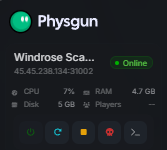
Track CPU, RAM usage, and disk usage through server management tools. Sudden spikes indicate potential performance issues. For example, constant high CPU usage during combat suggests the need for hardware upgrades or optimization. Developers regularly ship patches to fix netcode bottlenecks and improve performance, so monitor the server and keep Windrose updated since new releases can include server-side improvements and memory leak fixes.

Common Beginner Mistakes
New server hosts often overlook key factors that exacerbate lag.
Hosting on Old Hardware
Budget CPUs or outdated GPUs struggle with Windrose’s simulation demands. Upgrading to modern components is usually necessary.
Never Restarting the Server
Long uptime allows memory leaks and save file bloat. Regular restarts are a simple yet effective fix.
Running Too Many Mods
Unoptimized mods can spike CPU usage or cause desync. Test mods individually and remove any that cause instability.
Ignoring Version Mismatches
Even a single version difference can break multiplayer functionality. Some failed attempts to join with friends happen because a player skipped the singleplayer tutorial, which must be completed before multiplayer works properly. Enforce version checks before joining a server.
By addressing hardware limitations, managing server resources, and maintaining stable connections, most Windrose lag issues can be resolved. Focus on the most impactful changes first: upgrading CPU storage, ensuring version consistency, and monitoring performance metrics. A well-optimized server ensures smoother gameplay for all participants.