
How To Install and Use Zone Manager on Your Rust Server
Zone Manager is a popular Rust plugin that lets you create custom zones with unique rules and restrictions. You can use it to protect player hubs, create safe zones, restrict building, or configure areas for events and other gameplay. This guide covers installing Zone Manager, creating your first zone, configuring common settings, and troubleshooting common issues.
Prerequisites
Before installing Zone Manager, make sure you have:
-
A Rust server running the latest supported version.
-
Oxide/uMod installed on your server.
-
The latest
ZoneManager.csplugin. -
Access to your server through the Physgun Gamepanel or an FTP/SFTP client.
Installing Zone Manager
Install Using the Physgun Gamepanel
-
Download the latest
ZoneManager.csplugin. -
Log in to the Physgun Gamepanel.
-
Select your Rust server.
-
Open File Manager.
-
Navigate to:
oxide/plugins-
Upload
ZoneManager.cs. -
Restart your server.
-
Open the console and verify that Zone Manager loaded successfully.
Install Using FTP or SFTP
-
Connect to your server using your preferred FTP or SFTP client.
-
Navigate to:
oxide/plugins-
Upload
ZoneManager.cs. -
Restart your server.
-
Verify the plugin loaded by checking the server console.
When Zone Manager loads for the first time, it automatically generates its configuration file in:
oxide/config/ZoneManager.json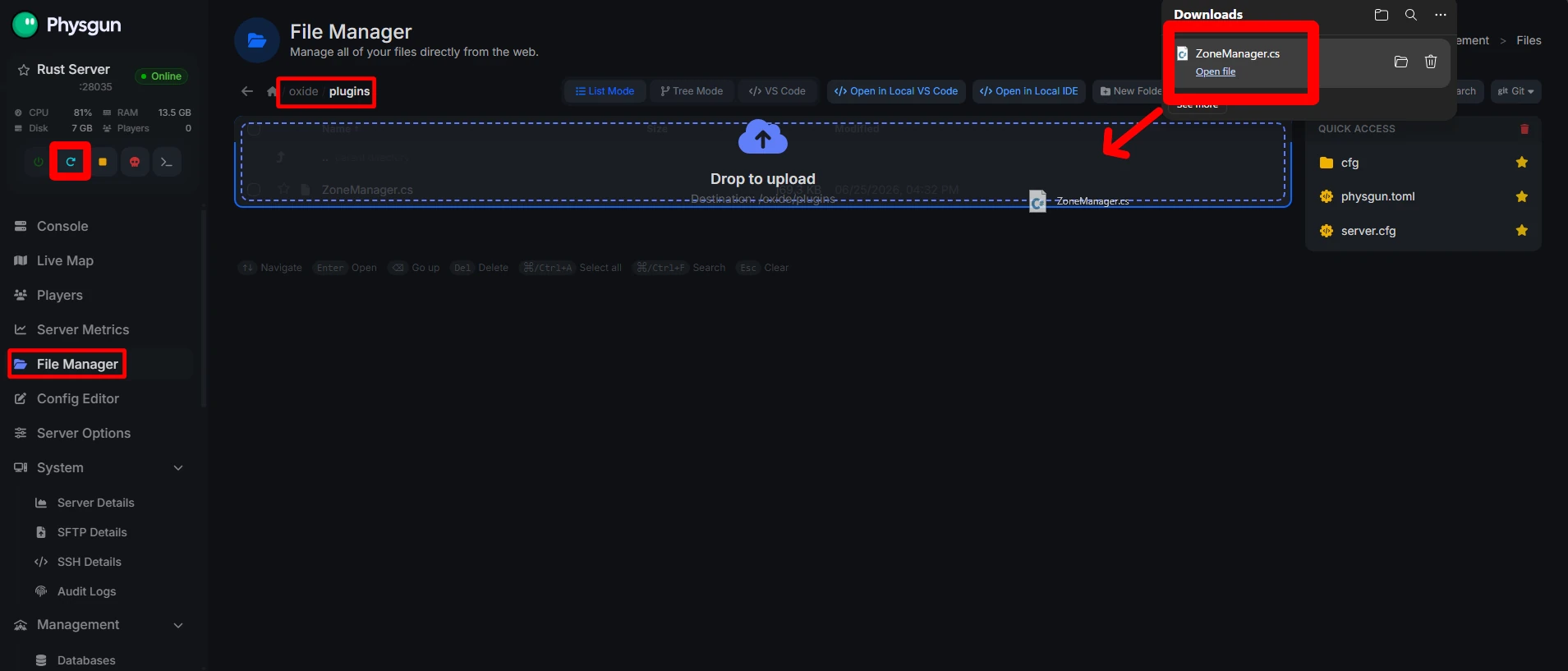
Creating Your First Zone
Zone Manager is managed using in-game chat commands. Players must have admin authorization or the zonemanager.zone permission to use these commands.
Create a Zone
Stand where you want the center of the zone to be and run:
/zone_addA new zone is created with a unique ID.
Edit a Zone
To edit an existing zone, use:
/zone_edit <ZoneID>If you do not know the zone ID, list every zone with:
/zone_listRemove a Zone
To permanently delete a zone:
/zone_remove <ZoneID>To remove every zone on the server:
/zone_wipe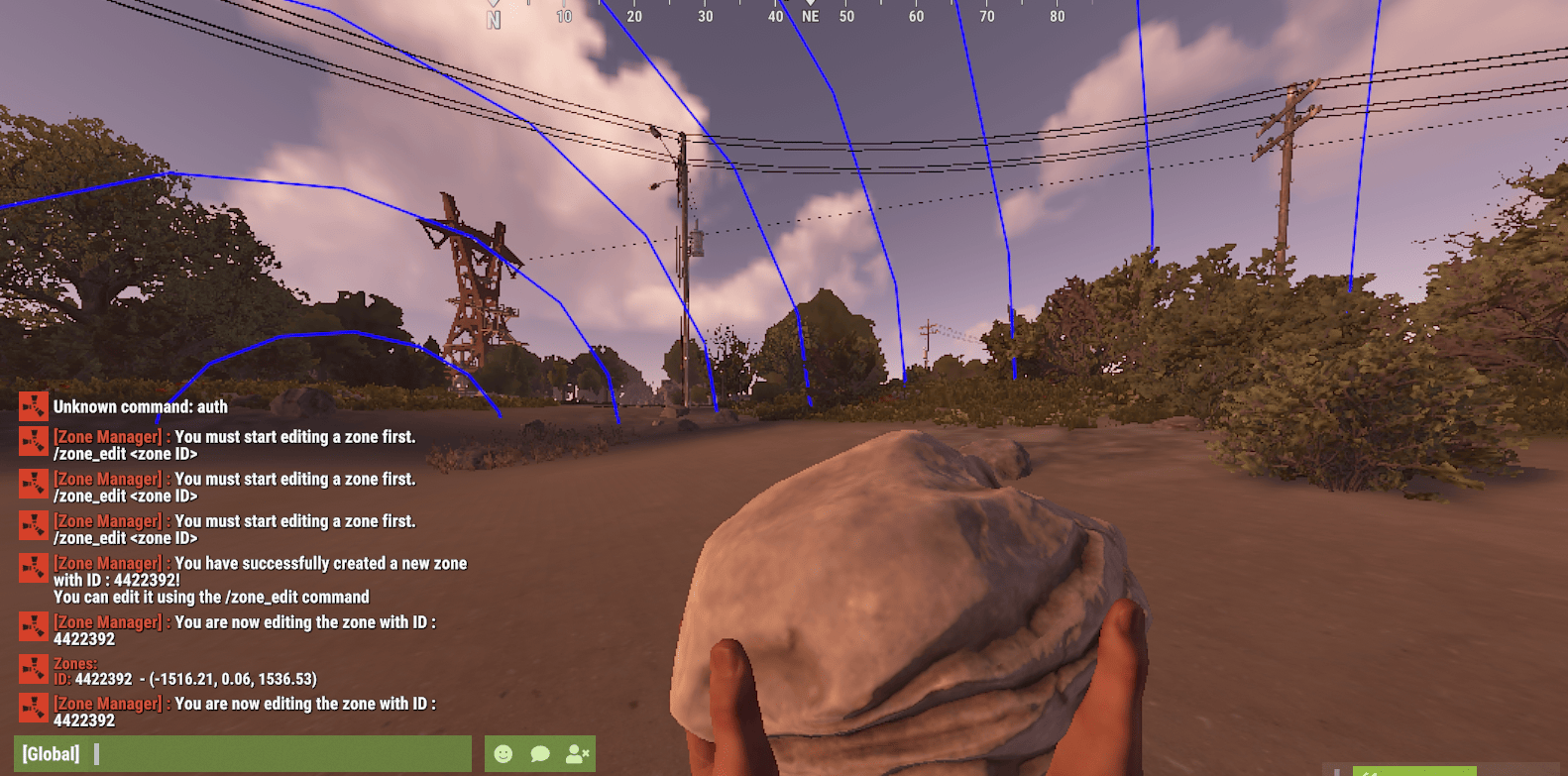
Configuring a Zone
After entering edit mode, use the /zone command to configure the selected zone.
Some commonly used options include:
/zone name "Safe Town"
/zone radius 75
/zone safezone true
/zone nobuild true
/zone nodeploy true
You can also configure multiple options at once:
/zone nobuild true nodeploy true undestr trueTo edit rectangular zones instead of spherical zones, use the size option:
/zone size 100 30 100To move the zone to your current position:
/zone location hereManaging Zone Flags
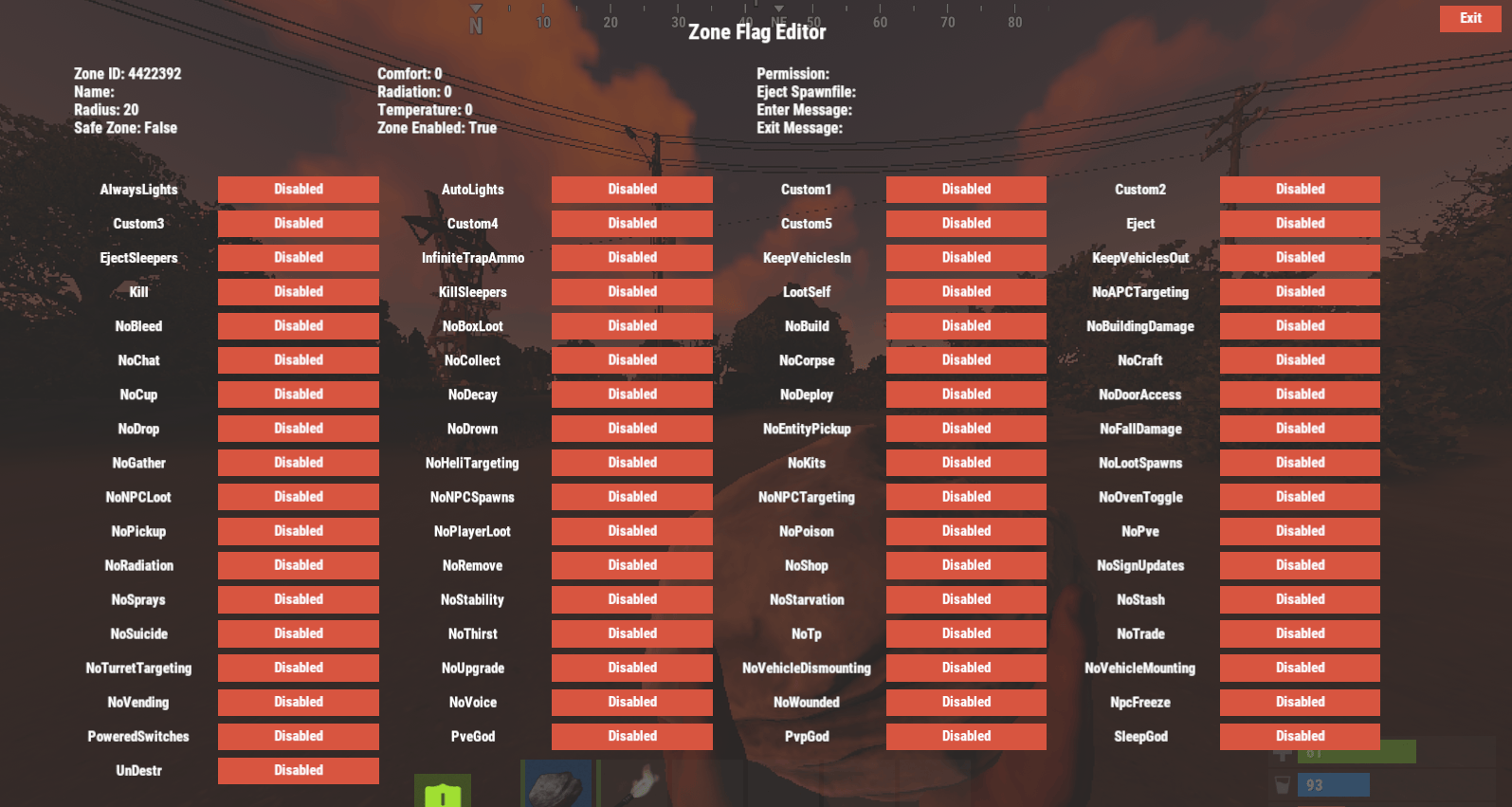
Zone flags determine how players and entities behave inside a zone.
While editing a zone, you can either configure flags with commands or open the built-in flag editor:
/zone flagsSome commonly used flags include:
| Flag | Description |
|---|---|
safezone | Makes the zone function similarly to Outpost or Bandit Camp. |
nobuild | Prevents players from building. |
nodeploy | Prevents players from placing deployables. |
undestr | Prevents structures from taking damage. |
eject | Removes unauthorized players from the zone. |
kill | Kills players when they enter the zone. |
radiation | Applies radiation within the zone. |
Zone Manager supports many additional flags depending on your server version.
Permissions
Zone Manager includes the following primary permission:
zonemanager.zoneGrant it with:
oxide.grant group admin zonemanager.zoneZone-specific permissions can also be assigned using the permission zone option, allowing only certain players or groups to enter restricted areas.
Configuration
Most day-to-day management is handled in-game, while global plugin settings are stored in:
oxide/config/ZoneManager.jsonThis file contains options such as notification settings, automatic light behavior, and other plugin-wide preferences. After making changes, save the file and reload the plugin or restart your server.
Troubleshooting
Zone Manager Doesn’t Load
-
Verify your Rust server and Oxide/uMod installation are up to date.
-
Confirm
ZoneManager.csis located insideoxide/plugins. -
Check the server console for compilation or loading errors.
Commands Don’t Work
Only administrators or users with the zonemanager.zone permission can manage zones. Verify the permission has been granted correctly.
Zone Changes Don’t Apply
Make sure you are editing the correct zone by checking its ID with:
/zone_listAfter making changes, exit edit mode and test the zone in-game.
Configuration Errors
If the plugin fails to load after editing ZoneManager.json, validate the JSON for missing commas or brackets. Restoring a backup of the configuration file is often the quickest way to recover from formatting errors.
Conclusion
Zone Manager provides a flexible way to create protected areas, event zones, and custom gameplay regions on your Rust server. After creating your zones and configuring the appropriate flags, test them with a player account to verify they behave as expected before opening your server to players.