Recycling is one of the most important parts of progression in Rust, but constantly making trips to monument recyclers can become tedious for players and create unnecessary competition around key locations. Recycler Station solves this problem by allowing players to purchase and deploy their own recycler, creating new opportunities for automation and quality-of-life improvements.
In this guide, we’ll walk through installing the Recycler Station plugin, configuring permissions and settings, and showing players how to purchase, place, and use their personal recyclers effectively.
Note: Recycler Station is a paid plugin. You will have to purchase it in order to use it!!!

 Installing the Recycler Station Plugin
To install the Recycler Station plugin:
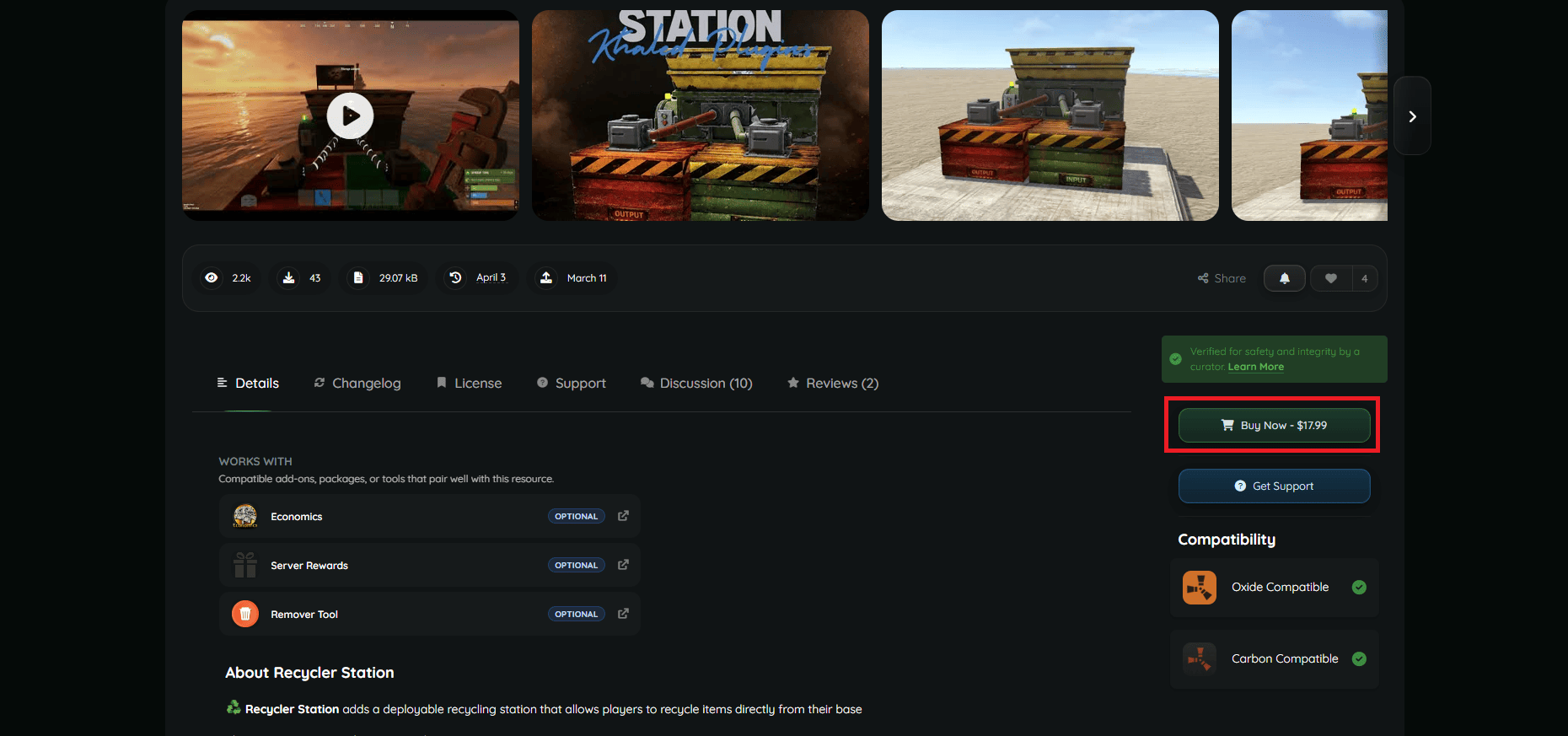
- Visit the plugin’s page on Codefling.
- Click Buy Now to purchase and download the plugin.
- If you’ve already purchased the plugin, just download the latest version.
- Upload the CS files to your server’s oxide/plugins folder using the File Manager on Physgun, SFTP/FTP file transfer, or manually in your dedicated server files.
- Restart your server or use the oxide.reload command.
- Your plugins will automatically install their data and configuration folders!
Recycler Station Configuration
Assigning Permissions
The Recycler Station plugin has a single permission that needs to be granted for players to use its features. This will allow players to actually access and operate the deployable recyclers.
Type in the following command in your server console:
oxide.grant [user or group] [group name or player Steam ID] recyclerstation.useFor example:
oxide.grant group default recyclerstation.useYou can replace “grant” in the command line with “revoke” to remove permissions from a player or group.
Editing the Config File
The next step to setting up the plugin is configuring it to your server’s needs. You can find the config file in oxide/config/RecyclerStation.json. Here you can change resource costs, enable or disable compatibility with the Economics or Server Rewards plugins, and modify recycler speeds.
There is also a debug toggle for devs to troubleshoot the plugin and find errors in the console.
Using Recycler Station In-Game
In-Game Chat Commands
Recycler Station includes the following commands:
/rs buy- Purchases a recycler station if you have adequate currency or resources./rs help- Prints a list of commands in text chat./rs give [player] [amount]- (ADMIN) Gives the specified player the amount of recyclers mentioned in the command./rs remove- (ADMIN) Destroys the recycler you’re looking at.
Buying a Recycler
The first thing you need to do is purchase a recycler. You will need to have the resources available in your inventory or adequate currency if you’re using a plugin for that. By default, you will need 500 scrap, 5000 metal fragments, 50 high-quality metal, and 10 gears.
Once you have the resources or funds, type “/rs buy” in your chat box. The price will be taken out of your inventory, and you’ll be given a deployable recycler.
Setting up Your Recycler
To set up your recycler:
- Select the recycler station in your hotbar.
- The recycler MUST be placed on a player-made building and near a tool cupboard.
- Left-click to place your recycler.
- Equip your Pipe Tool. You can craft one at a Level 1 Workbench with 2 High Quality Metal if you don’t have one
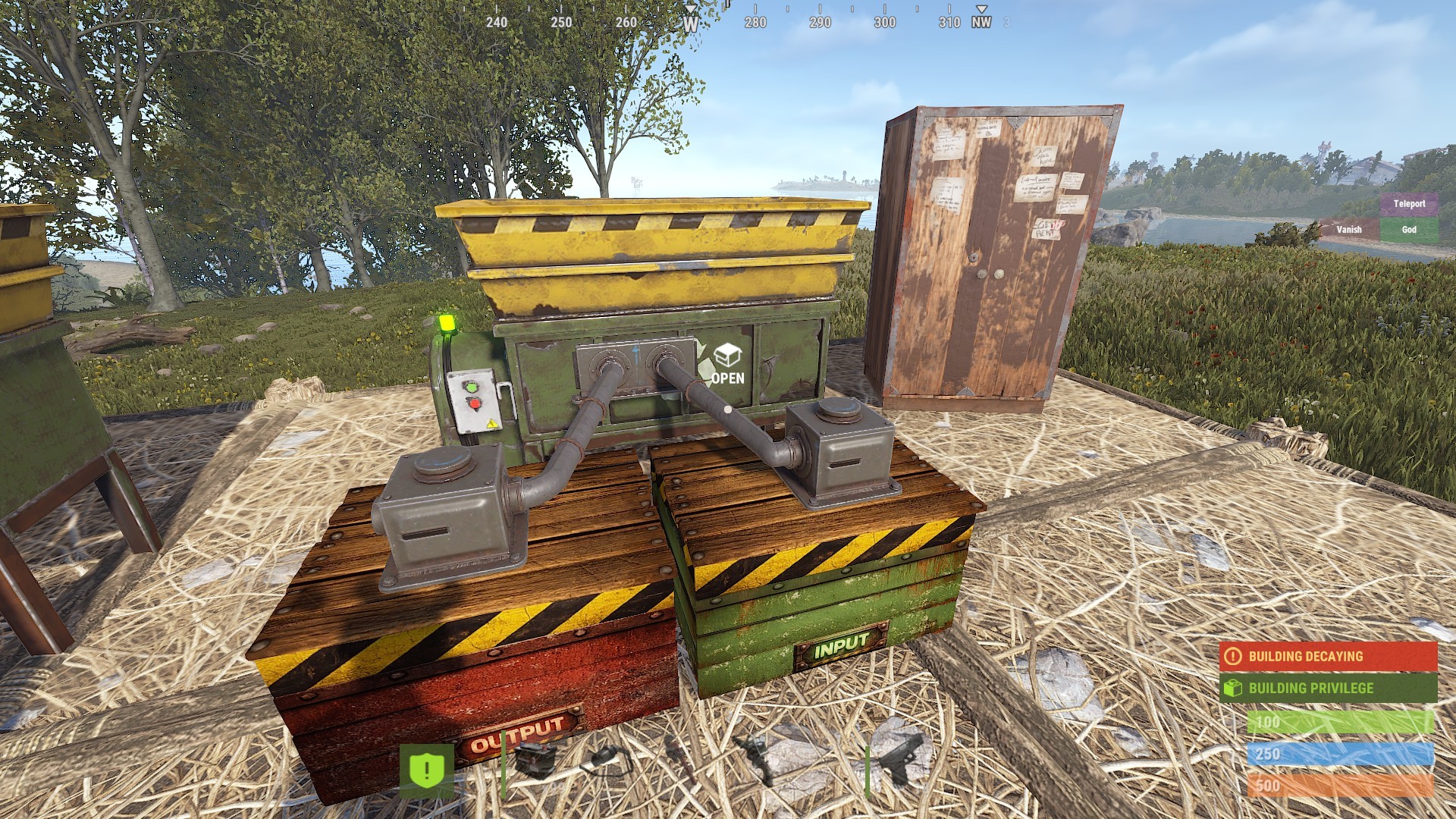
- Connect the “Industrial Out” pipes of your input and output storage adapters to the “Industrial In” pipes of the recycler.
- Optionally, you can hook up the “Industrial Out” pipes of your storage adapters to external storage containers. For example, you can link your dump chest to the input container so everything inside will get scrapped and output into its own box. You’ll have to use more storage adapters and conveyors to do that.
Using Your Recycler
To use your recycler:
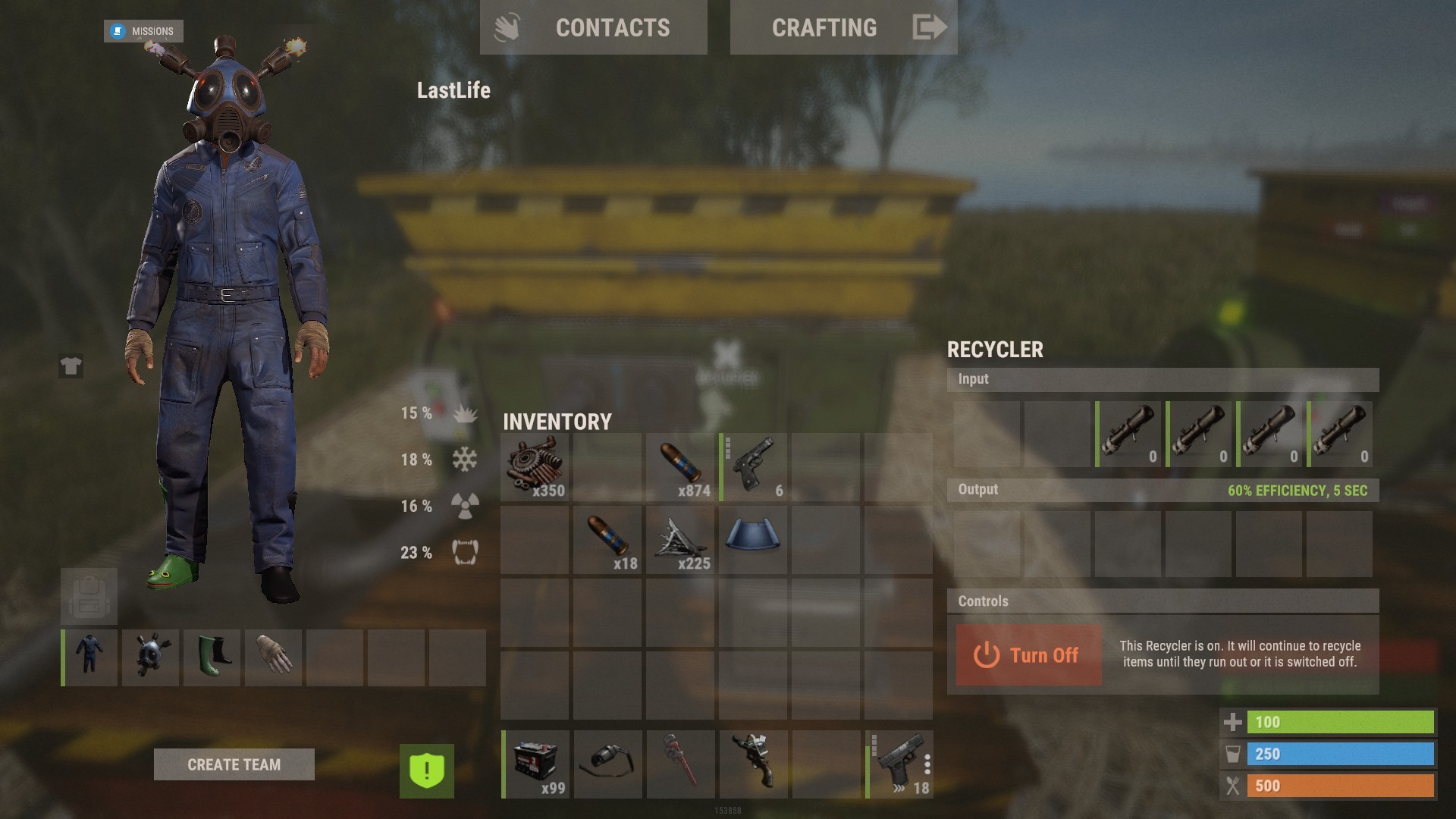
- Grab the items you want to recycle.
- Open the Input container.
- Dump all of your junk inside.
- The recycler will do its thing.
- All of your resources will be spit out into the Output container.
Conclusion
Recycler Station is a simple but powerful plugin that gives players more control over how they manage resources and recycling. With customizable costs, support for economy plugins, and integration with Rust’s industrial system, it can help streamline progression while reducing congestion around monument recyclers.
Once you’ve configured the plugin and assigned the appropriate permissions, your players will be able to purchase, deploy, and automate their own recycling setups with minimal effort.