The Health Boost plugin allows Rust server owners to customize player stats, item effects, building durability, and much more. Whether you’re adding VIP benefits, balancing progression, or simply looking to make your server feel unique, Health Boost provides a wide range of tools for fine-tuning the gameplay experience.
In this guide, we’ll walk you through installing the plugin, setting up permissions, configuring its many options, and using the built-in admin interface to manage everything directly in-game.
Note: Health Boost is a paid plugin. You will have to purchase it in order to use it!!!

 How to Install the Health Boost Plugin
To install the Health Boost plugin:
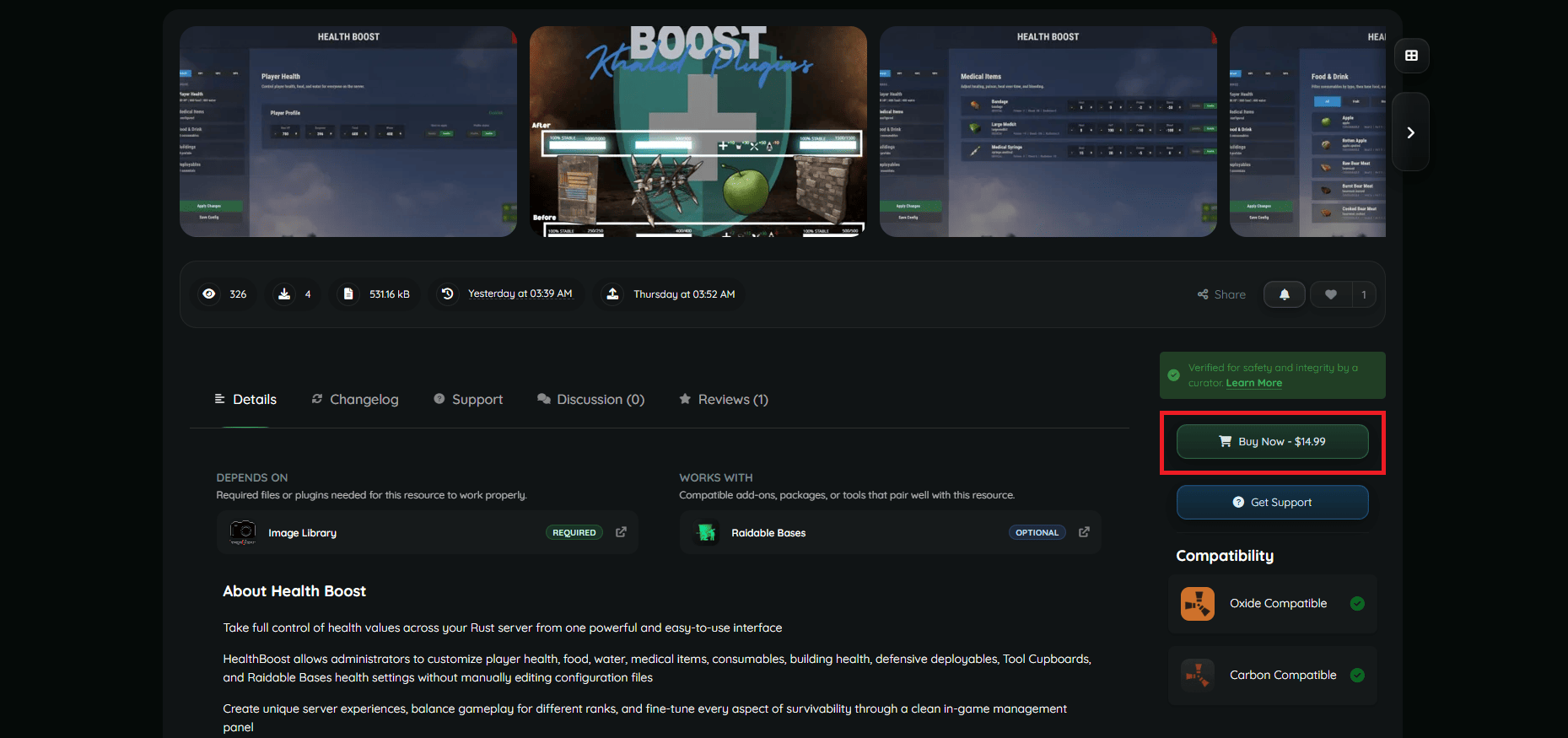
- Visit the plugin’s page on Codefling or RogueDepot.
- Click Buy Now to purchase and download the plugin.
- If you’ve already purchased the plugin, just download the latest version.
- Download the plugin’s dependency. You can find it at https://umod.org/plugins/image-library
- Upload the CS files to your server’s oxide/plugins folder using the File Manager on Physgun, SFTP/FTP file transfer, or manually in your dedicated server files.
- Restart your server or use the oxide.reload command.
- Your plugins will automatically install their data and configuration folders!
Health Boost Configuration
Assigning Permissions
To use Health Boost, you first have to give out the correct permissions. This will allow certain features to apply to certain players. If you want something to be fully accessible to everyone, you can set this up here; same with donators or administrators.
In your server console, type in the following command:
oxide.grant [user or group] [group name or player Steam ID] [permission]Below is a list of permissions:
healthboost.admin- Allows access to the Health Boost admin UI and the /hb and /healthboost commands.healthboost.medical- Applies changes to medical items that the player uses. This is only required when the Require Permission option is enabled in the Medical Item settings.healthboost.food- Applies changes to food and drink items that the player uses. This is only required when the Require Permission option is enabled in the Food & Drink settings.healthboost.rank.vip1- Applies the VIP1 Health Boost profile to the player or group instead of Default.healthboost.rank.vip2- Applies the VIP2 Health Boost profile to the player or group. This has higher priority than VIP1.healthboost.rank.vip3- Applies the VIP3 Health Boost profile to the player or group. This has the highest rank priority.
An example of this command being used is:
oxide.grant group admin healthboost.adminYou can replace “grant” in the command line with “revoke” to remove permissions from a player or group.
Editing the Configuration File
The Health Boost plugin offers a very expansive configuration file that you can use to fine-tune it to your server’s necessities. You can find your config file in oxide/config/HealthBoost.json. The file is split into the following sections:
- UI - This section contains a single option: How many rows should appear per page in the HB menu.
- Player Health - This section allows you to change the player’s maximum health, food, and water, among other things.
- Player Effects: Medical - This section allows you to edit the effects of medical items such as bandages, medical syringes, medkits, etc.
- Player Effects: Food - This section allows you to edit the effects of food and drink items.
- Building Health - This section allows you to edit the maximum health (in percentage) of structures. There’s also a section that lets you edit building health by grade.
- Deployable Health - This section allows you to edit the maximum health (in percentage) of deployables, such as doors, ladders, barricades, etc.
- Raidable Bases - This section is for compatibility with the Raidable Bases plugin. You can apply all of the above settings based on the difficulty level of the raidable base.
- Rank Profiles - This section allows you to apply all of the above settings for all 3 built-in VIP groups.
Once you’re done, restart your server or use the writecfg command to update your configuration
Using Health Boost In-Game
Most features should automatically apply and update based on your configurations. Though, there’s still the admin menu that needs covering.
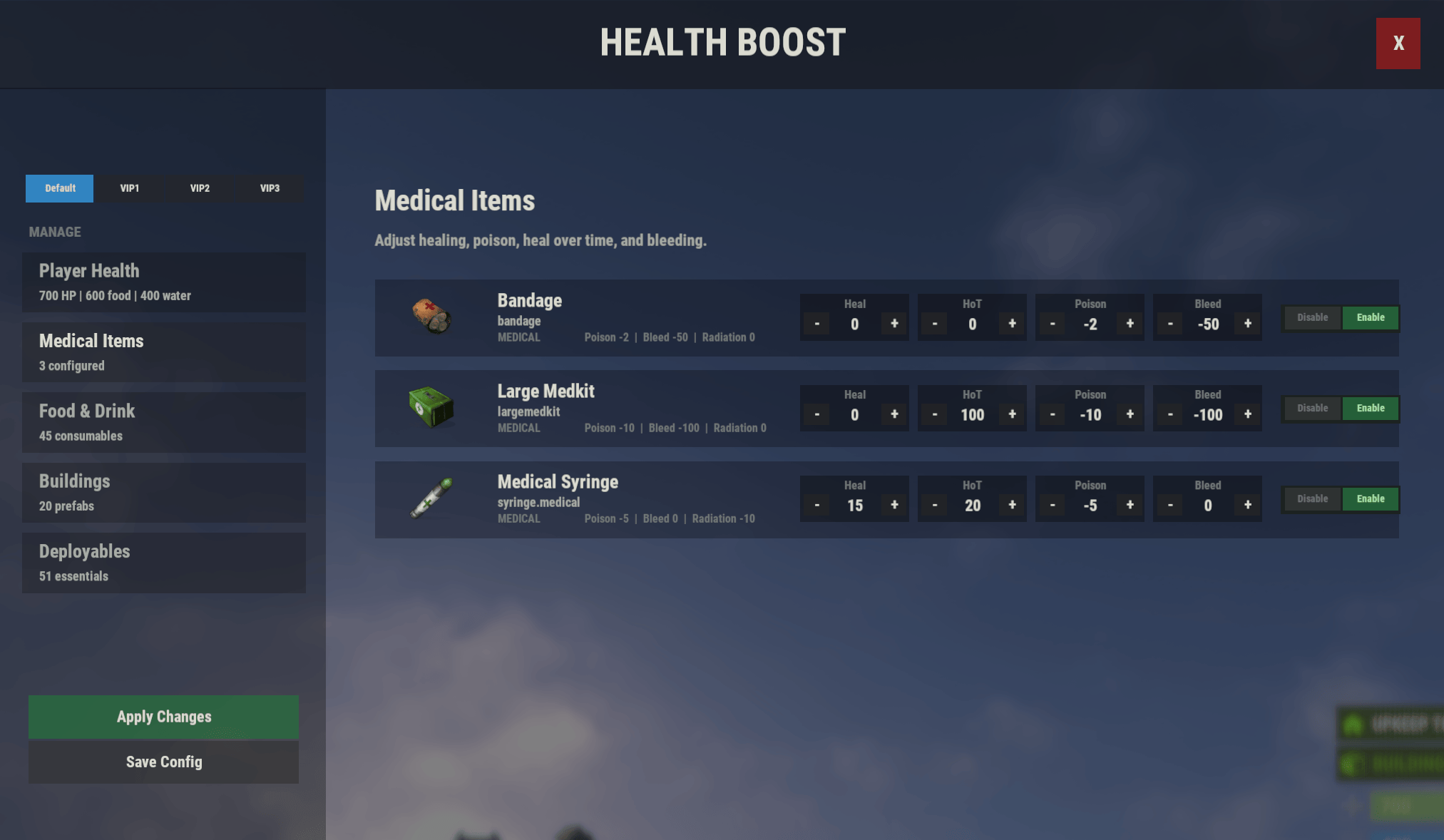
If you’re more of a UI kind of person and not a file person, you can type /healthboost or /hb if you have adequate permissions to open the admin menu. Here you can modify all of these configuration settings in-game without having to do unnecessary restarts!
Conclusion
Health Boost is a powerful customization plugin that gives server owners extensive control over player attributes, consumables, structures, and deployables. With support for permission-based profiles, VIP ranks, and an easy-to-use in-game admin menu, it’s a flexible solution for creating unique gameplay experiences tailored to your community.