Running out of fuel in the middle of a trip is one of the most frustrating experiences in Rust, especially when you’re far from base or flying over hostile territory. Fuel Monitor helps solve that problem by providing players with a customizable fuel gauge, vehicle information displays, and low-fuel warnings that make managing vehicles much easier.
In this guide, we’ll walk through installing the Fuel Monitor plugin, configuring its settings, assigning permissions, and using its in-game features to keep players informed whenever they’re behind the wheel.
Note: Fuel Monitor is a paid plugin. You will have to purchase it in order to use it!!!

 How to Install the Fuel Monitor Plugin
To install the Fuel Monitor plugin:
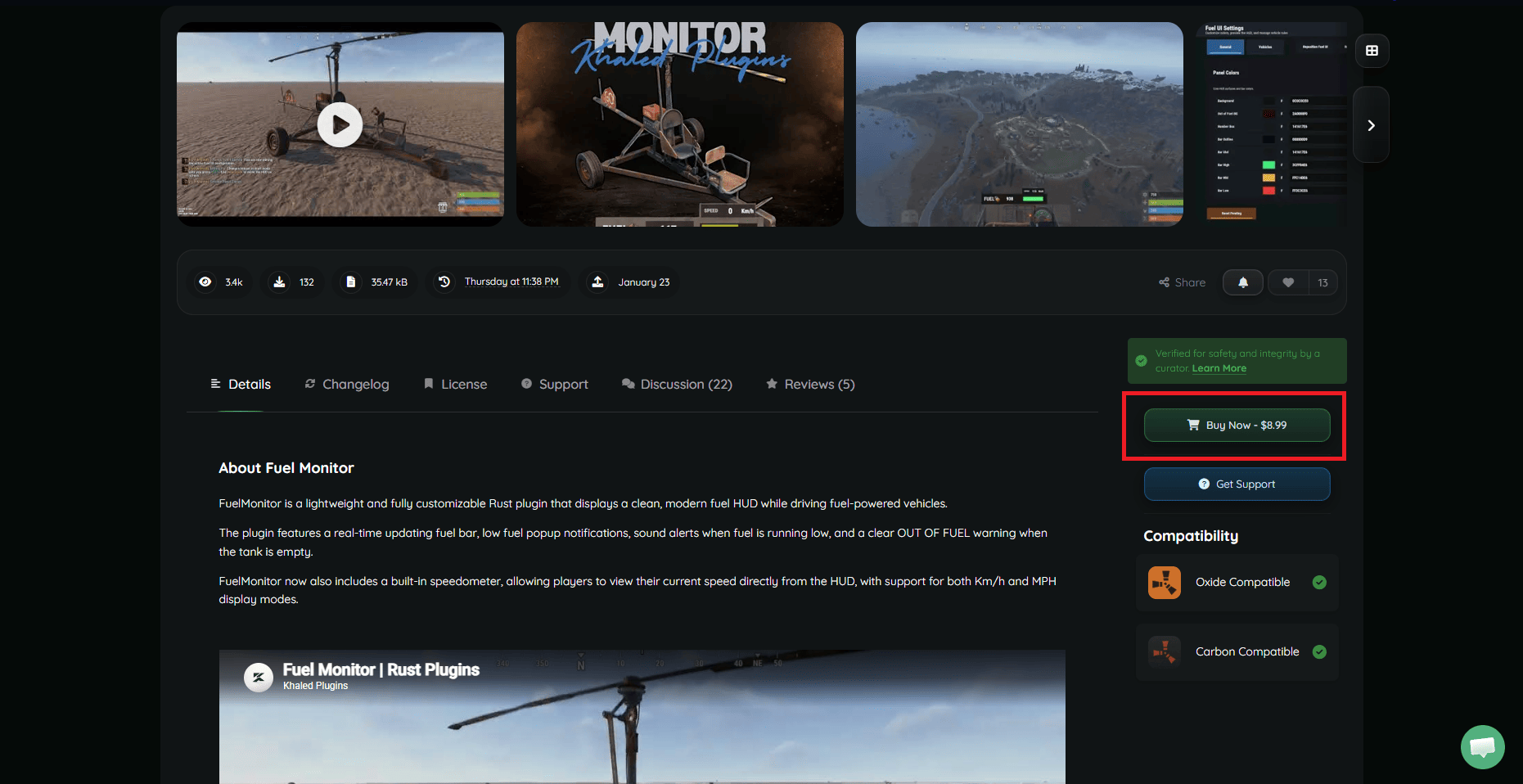
- Visit the plugin’s page on Codefling.
- Click Buy Now to purchase and download the plugin.
- If you already purchased the plugin, you can just download the latest version.
- Upload the plugin’s CS file to your server’s oxide/plugins directory using the File Manager on Physgun, SFTP/FTP file transfer, or manually in your dedicated server files.
- Restart your server or use the oxide.reload command.
- Your plugins should start downloading their data and configuration folders.
Fuel Monitor Configuration
Assigning Permissions
Fuel Monitor has a single permission that can be assigned using either the in-game admin UI or by using the oxide.grant command. This command is structured like this:
oxide.grant [user or group] [group name or user Steam ID] fuelmonitor.vipThis permission is used in tandem with the “VIP Only” config setting. If this setting is enabled, players or groups with this permission will be the only users who can use this plugin’s features. An example of this command in use would be:
oxide.grant user 76561198391199686 fuelmonitor.vipAlternatively, you can remove this permission by replacing “grant” with “revoke”.
Modifying the Config File
Fuel Monitor has an in-depth configuration file. You can find it in oxide/config/FuelMonitor.json. Here you can modify UI settings, indicators, vehicle profiles, and more. The config file is split up into these categories:
- UI Position - Contains general screen location settings for the UI.
- Move Mode - Allows you to enable, disable, and modify settings relating to player movement.
- UI Theme - Change the color scheme of the UI.
- Speedometer - Enable, disable, and modify the speedometer feature.
- Low Fuel Sound - Change the interval, duration, and visual feedback of the low fuel notification.
- Vehicle Gauge Rules - Enable or Disable the Fuel Gauge feature for specific vehicles.
- Vehicle Profiles - Change all of the plugin settings in relation to individual vehicles.
Once you’re done editing, just save the file and either restart your server or type “writecfg” in the console.
Using Fuel Monitor In-Game
Using the Fuel UI Settings
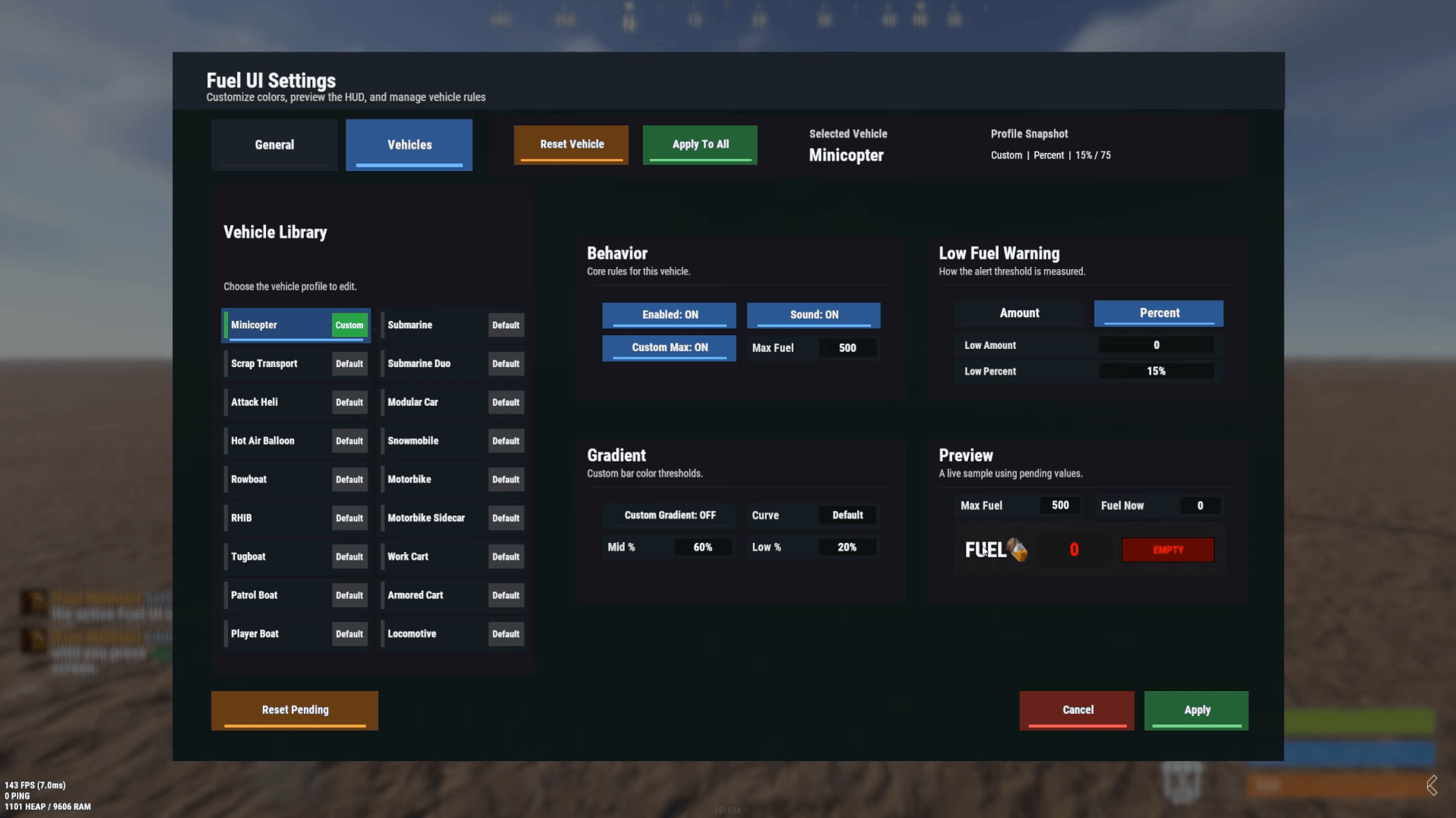
You can open the admin panel if you have admin auth level on the server. Type “/fui” in the chat box to open the interface. Here you can edit config settings live in-game with previews that show what your edits will look like!
Using the Fuel Monitor
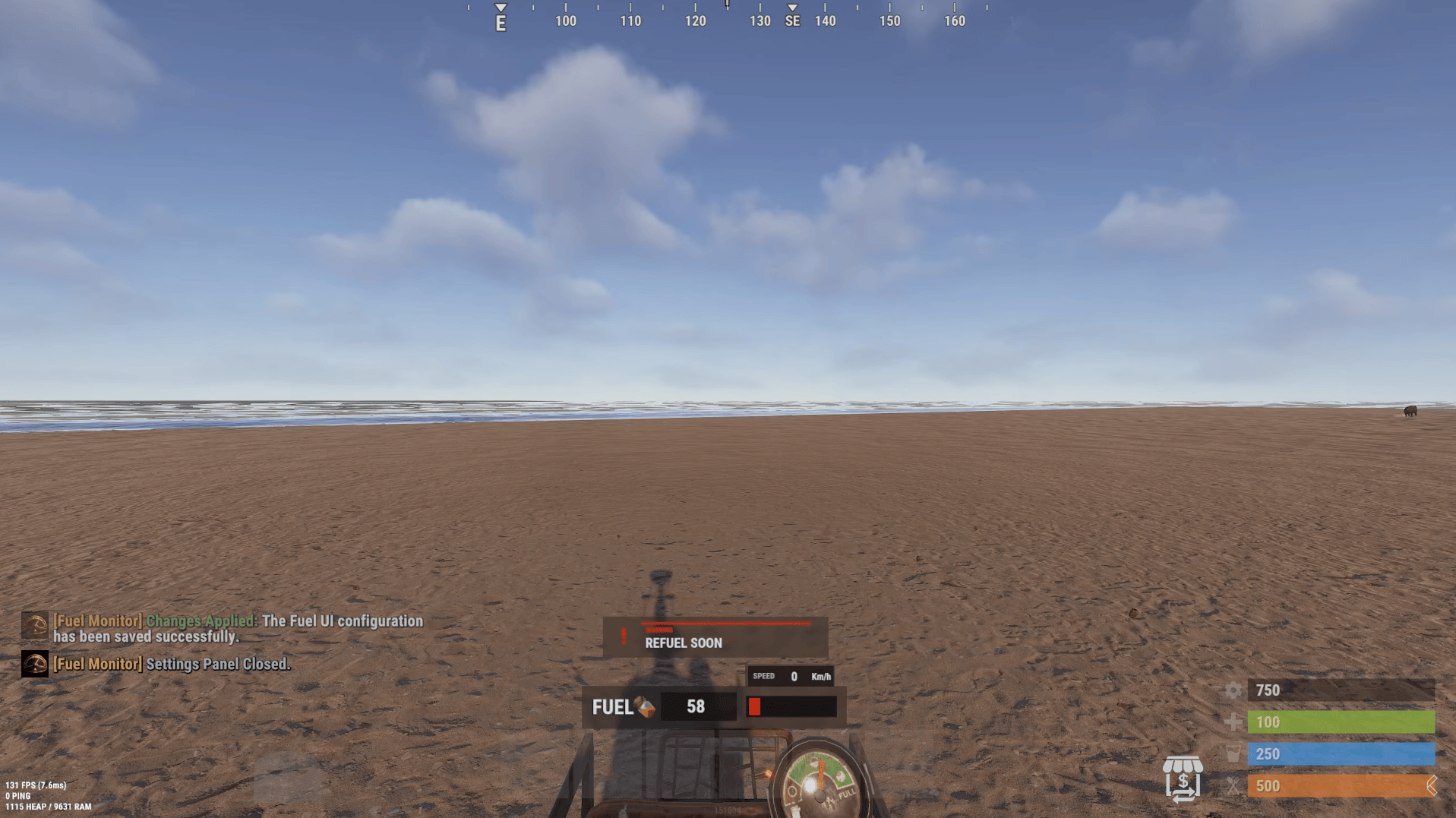
The fuel monitor feature is enabled by default, since that’s the whole point of the plugin. When you get into a vehicle, a pop-up will appear on your screen indicating how much fuel you have. In addition, you will be notified when your fuel gets too low with a “Refill Fuel” prompt.
Conclusion
Fuel Monitor is a simple but highly practical quality-of-life plugin for any Rust server that makes heavy use of vehicles. With customizable fuel gauges, speedometers, vehicle-specific settings, and low-fuel alerts, players can spend less time guessing and more time focusing on exploration, transportation, and gameplay.
After configuring the plugin to fit your server’s needs, your players will have access to a cleaner and more informative driving experience across Rust’s many vehicles.