Better Chat is one of the most popular Rust plugins for customizing in-game chat. Developed by LaserHydra, the Better Chat plugin is a customizable chat system for Rust servers, with features for chat group setup, title and username styling, message format control, and admin management. It replaces Rust’s default chat formatting with a more flexible system that can be integrated with other plugins and permission groups.
This guide covers how to install Better Chat, and before installation, note that uMod (Oxide) must be enabled because this addon cannot be used without it.
Installation Instructions
To install the Better Chat Rust plugin:
-
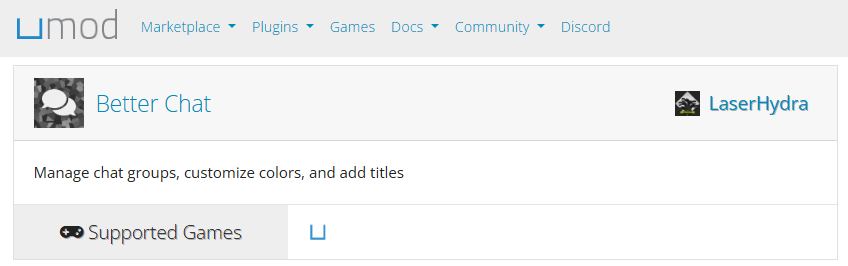
Visit uMod and search for Better Chat, or use this link.
-
Download the latest version of the plugin.
-
Upload the files to your server’s oxide/plugins folder using the File Manager on Physgun, SFTP/FTP file transfer, or manually in your dedicated server files.
-
Restart your server or use the oxide.reload command.
-
Your plugin should be running and operational now! After loading for the first time, it will automatically generate its data and config folders.
Better Chat System Configuration
Assigning Permissions
Before you start using the plugin, you need to assign permissions. This will allow administrators to actually use the commands.
In your server console, type in the following command:
oxide.grant [user or group] [group name or player Steam ID] betterchat.adminFor example:
oxide.grant group moderator betterchat.adminAdditional Configuration
While permissions are the only configuration you absolutely need to set, there are other options you can change in the BetterChat JSON file. You can find this under the oxide/config folder.
Here you can change the following options:
-
Maximal Titles - How many group titles should be displayed?
-
Maximal Characters Per Message - How many characters can a message contain?
-
Reverse Title Order - Should the order of group titles be reversed?
Using the Better Chats Plugin In-Game
Chat Commands
Below is a list of commands that the plugin uses. Note that all commands use a forward slash (/) at the beginning. All words encased in brackets represent an argument. Replace them with the relevant data.
-
chat group add [group] - Adds a chat group.
-
chat group remove [group] - Removes a chat group.
-
chat group set [group] [setting] [value] - Changes a chat group setting.
-
chat group list - Lists all chat groups.
-
chat user add [player name or SteamID] [group] - Adds a player to a chat group.
-
chat user remove [player name or SteamID] [group] - Removes a player from a chat group.
List of Group Settings
Before you get started with setting up chat groups, it’s important to know your setting options so you can configure your groups to match your expectations.
-
Priority - Rank of the group, which tells the plugin which group to prefer if you are in multiple groups (the lower the number, the higher the actual priority!)
-
TitleHiddenIfNotPrimary - If set to true, the title of the group is hidden if the group is not the one with the highest priority of the groups you are in.
-
Title - The group’s title.
-
TitleColor - The color of the title.
-
TitleSize - The size of the title.
-
TitleHidden - Tf set to true, the title of the group will never be shown.
-
UsernameColor - The color of the username.
-
UsernameSize - The size of the username.
-
MessageColor - The color of the message.
-
MessageSize - The size of the message.
-
ChatFormat - The format/order of the chat message.
-
ConsoleFormat - The format/order of the chat message when displayed in console or logs.
Setting Up Chat Groups
For setting up groups, you’ll need the admin permission that we mentioned before. Start by running the /chat group add command followed by the name you want to give the group. Avoid using the same name twice. For the sake of this guide, we’ll be using the group name “admin”.
Next, you need to modify a setting. Give the group a priority level by using the command /chat group set admin priority 0. Priority settings will tell the plugin which group is more important when it needs to choose between several groups. The lower the number, the higher it is on the priority list.
Now that you’ve created the group, you can add yourself to it. To do so, use the command /chat user add followed by your name or SteamID and the name of the group.
You’re in the group! Next, you can choose to set the title that’s displayed for members of that group. Using the command /chat group set admin title [Admin], you can set the title to “[Admin]”. To avoid confusion with the previous section, the brackets here are part of the title. It looks nicer seeing a name pop up as “[Admin] CoolGuy23” instead of “Admin CoolGuy23”. At this point, you can apply additional settings as needed as well.
Lastly, you should set the default group’s priority to be higher than your other groups. By default, it’s set to 0. This will cause issues if it clashes with another group. Set it to something high like 52. Do this by running the /chat group set default priority 52 command.
If keeping track of command values is difficult for you, all chat groups are stored in oxide/data/BetterChat.json and can be manually edited from there. The default group will be in there as existing code too!
Conclusion
Better Chat is one of the most flexible chat-management plugins available for Rust. Whether you’re running a small community server or a large modded network, it provides extensive control over chat formatting, player titles, group management, and message styling.
By creating custom groups, assigning priorities, and configuring colors and titles, you can build a professional-looking chat system that helps players identify staff, VIPs, and community members at a glance.