

A Palworld dedicated server that runs smoothly keeps players engaged and reduces the administrative burden of constant restarts. The default configuration prioritizes compatibility over performance, leaving headroom that targeted adjustments can reclaim. This guide covers the settings that matter most: network throughput, tick timing, memory management, and file-level tweaks, so you can extract consistent frame rates and stable connections from your hardware.
Prerequisites for Server Optimization
Before making changes, confirm that:
-
Your Palworld dedicated server is fully updated to the latest version. Outdated builds introduce bugs that no configuration can fix.
-
Have your server IP and admin password ready for verification tests after each adjustment. You will be editing PalWorldSettings.ini and engine configuration files, so basic familiarity with INI syntax and file paths is assumed.
-
If you are hosting through Physgun, the Gamepanel file manager handles these edits without external tools. Self-hosted administrators should have an SFTP client configured and know the root directory of their server installation.
Where to start:
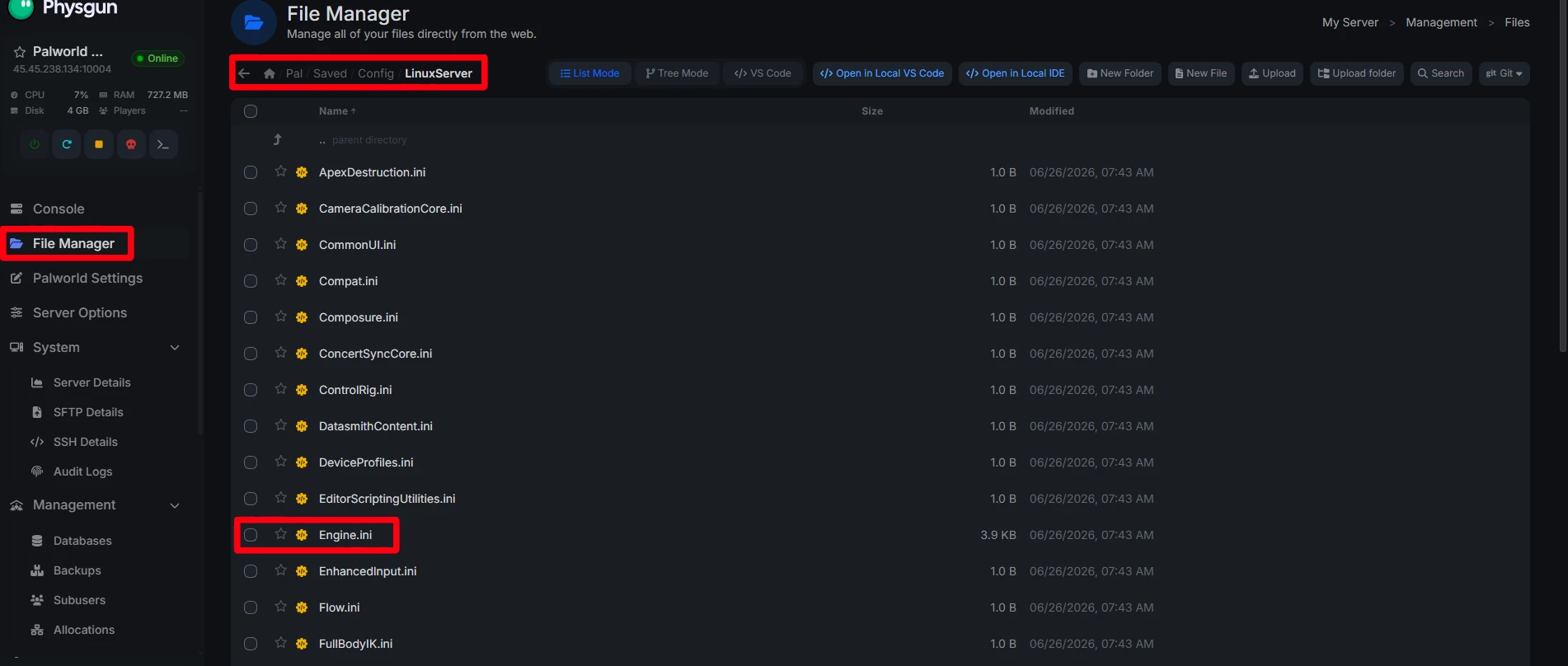
All of the below changes require editing two primary files: PalWorldSettings.ini and Engine.ini. Both live in the Pal/Saved/Config/LinuxServer (or WindowsServer) directory relative to your server root.
Using the Physgun Gamepanel
-
Log into the Physgun Gamepanel and select your Palworld server.
-
Open the File Manager from the left navigation.
-
Navigate to Pal/Saved/Config/LinuxServer.
-
Click on the PalWorldSettings.ini or Engine.ini files.
-
Make your changes in the browser editor, then click Save.
-
Restart the server from the Console or Power tab to apply.
The built-in editor handles line endings and encoding automatically. No FTP client needed!
Using VPS/FTP for Self-Hosted Servers
-
Connect to your server via SFTP (port 22) or FTP (port 21) using credentials from your provider.
-
Navigate to the server installation root, then Pal/Saved/Config/LinuxServer (or WindowsServer).
-
Download PalWorldSettings.ini and Engine.ini to your local machine.
-
Edit with a code editor (VS Code, Notepad++). Avoid plain Notepad to preserve line endings.
-
Upload the modified files, overwriting the originals.
-
Restart the server process via your init system, systemd unit, or hosting panel.
Verify the Pal saved config folder path matches your OS. Linux servers use LinuxServer; Windows uses WindowsServer.
Adjusting Core Palworld Server Settings
The PalWorldSettings.ini controls the simulation workload. Every active pal, structure, and dropped item consumes CPU cycles. The most impactful settings are spawn rates and item persistence. Reducing PalSpawnNumRate lowers the active entity count without breaking progression.
Setting DropItemMaxNum and DropItemMaxNum_UNKO to conservative values (200-300 each) prevents clutter from overwhelming the physics tick. ItemWeightRate and PlayerStaminaDecreaceRate have minor performance implications but can be tuned for balance.
Player capacity directly correlates with bandwidth and CPU demand. A server configured for 32 players but regularly hosting 8 wastes resources on headroom that could be allocated to tick rate. Start with ServerPlayerMaxNum set to your realistic peak plus a small buffer.
Monitor CPU usage during peak hours; if a single core sits above 85 percent, reduce the cap or offload non-critical systems.
The bEnableInvaderEnemy and bEnableAimAssistPad flags can be disabled if your community does not use them, saving a few milliseconds per frame.
Managing RAM Usage and Preventing Memory Leaks
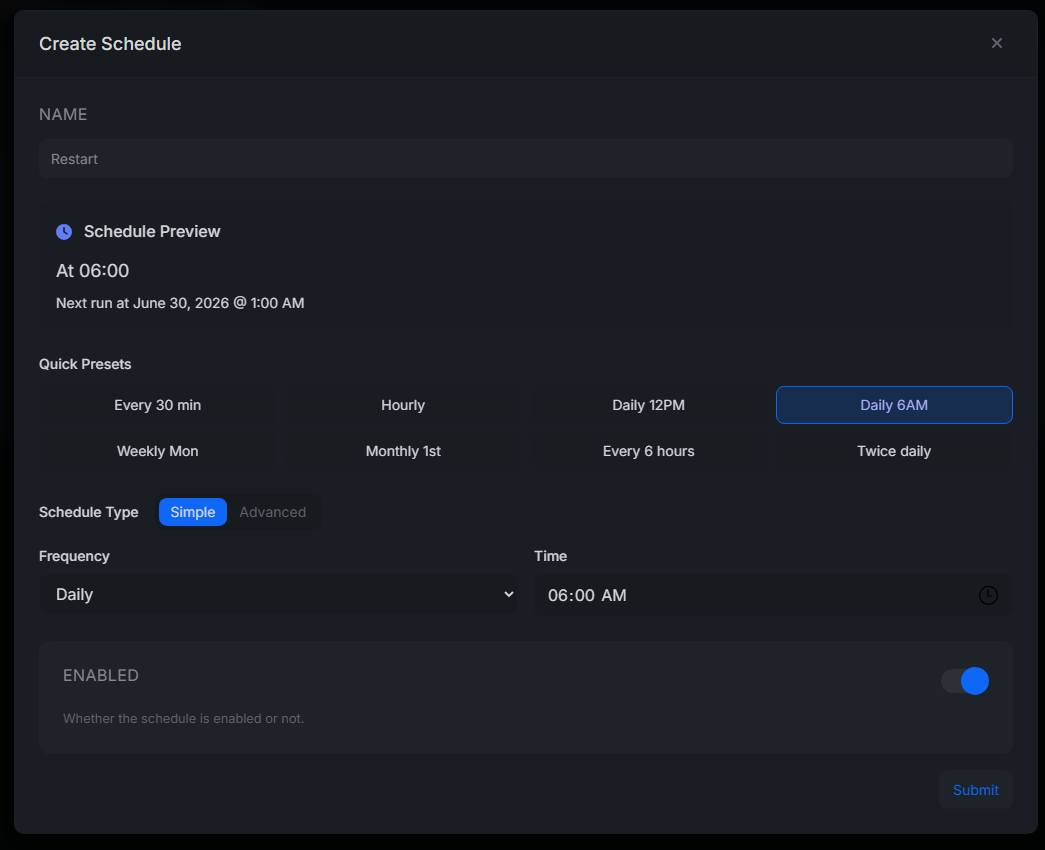
Palworld’s dedicated server software has a known memory leak that grows RSS usage by 50-200 MB per hour under load. Left unchecked, this forces the OOM killer to terminate the process or triggers swap thrashing. The only reliable mitigation is scheduled restarts.
Create a cron job or systemd timer that restarts the server during low-population windows, typically 4:00-6:00 AM local time. A daily restart bounds RAM usage to a predictable ceiling.
Verifying Server Performance Post-Optimization
Join your server as a regular player (not admin) and observe:
-
Server FPS: Type stat fps in the console (enable with ~ key). This should show your active frame rates.
-
Player movement: Walk, sprint, and mount. Rubber-banding or input delay indicates tick rate or bandwidth saturation.
-
Interaction latency: Open containers, craft, and swap items. Actions should register in under 100 ms.
-
Net stats: stat net shows InRate and OutRate. Compare against your MaxClientRate setting. If clients consistently hit the cap, raise it further.
Run a before and after comparison by recording stat unit and stat net output before changes, then after a full restart with the new config. Look for reduced Game thread time, stable Draw thread (irrelevant on headless), and RHIT time under 2 ms. Internet clients should no longer experience data capping or lag spikes during peak entity counts.
Troubleshooting Common Optimization Issues
Instability after tick rate changes: If raising NetServerMaxTickRate causes crashes or “Server tick took too long” warnings, drop it by 10 increments until stable. The game thread must complete within the tick budget (16.6 ms at 60 Hz, 8.3 ms at 120 Hz). High entity counts or complex base logic can exceed this.
Reverting to existing settings: Keep a backup of the original Engine.ini and PalWorldSettings.ini. If a high assumed internet speed causes packet loss, restore the backup, then reapply changes one section at a time with testing between each.
Persistent frame rate fluctuations: Verify t.MaxFPS=0 is set. A non-zero value forces a hard cap. Check for background processes (backups, log rotation, anti-cheat scans) coinciding with dips. Move scheduled tasks to the restart window. If fluctuations remain, the bottleneck is single-thread CPU; no config change fixes silicon limits.