
Palworld gives server owners a wide range of options for customizing gameplay. Whether you want to create a more relaxed experience for casual players, speed up progression for a small group of friends, or increase the challenge on a dedicated community server, nearly every major gameplay mechanic can be adjusted through the server’s configuration file.
Most server settings are stored in PalWorldSettings.ini, where you can modify everything from experience rates and item drops to Pal spawning, death penalties, world difficulty, and player limits. Once you’ve made your changes and restarted the server, the new settings will apply to everyone who joins.
This guide walks through editing your Palworld server settings, and explains how the configuration file works, and covers common issues you may encounter while making changes.
Before You Begin
Before editing any server configuration files, it’s a good idea to stop the server. Although some changes may appear to save while the server is running, they can be overwritten when the server shuts down or performs an automatic save.
You should also consider creating a backup of your existing configuration before making significant changes. If a setting is entered incorrectly, you can quickly restore the previous version without rebuilding the file from scratch.
Locating the ini File Configuration
Most gameplay options are stored inside the following file:
Pal/Saved/Config/LinuxServer/PalWorldSettings.iniFrom the Physgun Gamepanel:
-
Stop your server.
-
Open Files.
-
Navigate to:
Pal
└── Saved
    └── Config
        └── LinuxServer (Or WindowsServer)
└── PalWorldSettings.ini- Open PalWorldSettings.ini using the built-in file editor.
If the file already contains custom settings, you’ll see a single OptionSettings= line containing dozens of configurable values.
Understanding the Configuration Format
Unlike many dedicated game servers that store each setting on its own line, Palworld places nearly every configurable option inside a single OptionSettings= entry in its server .ini file.
For example:
[/Script/Pal.PalGameWorldSettings]
OptionSettings=(Difficulty=None,DayTimeSpeedRate=1.000000,NightTimeSpeedRate=1.000000,ExpRate=1.000000)
To change settings, you need to edit the values inside OptionSettings= rather than the default file.
Each value is separated by a comma and follows a simple format as one of the configuration parameters:
SettingName=ValueWhen editing the file:
-
Do not remove the opening or closing parentheses.
-
Leave commas between every setting.
-
Do not duplicate the same setting more than once.
-
Keep the spelling exactly as provided by the game.
Note: even a small formatting mistake can stop the server from loading the file correctly.
A missing comma or parenthesis can prevent the server from loading the configuration correctly.
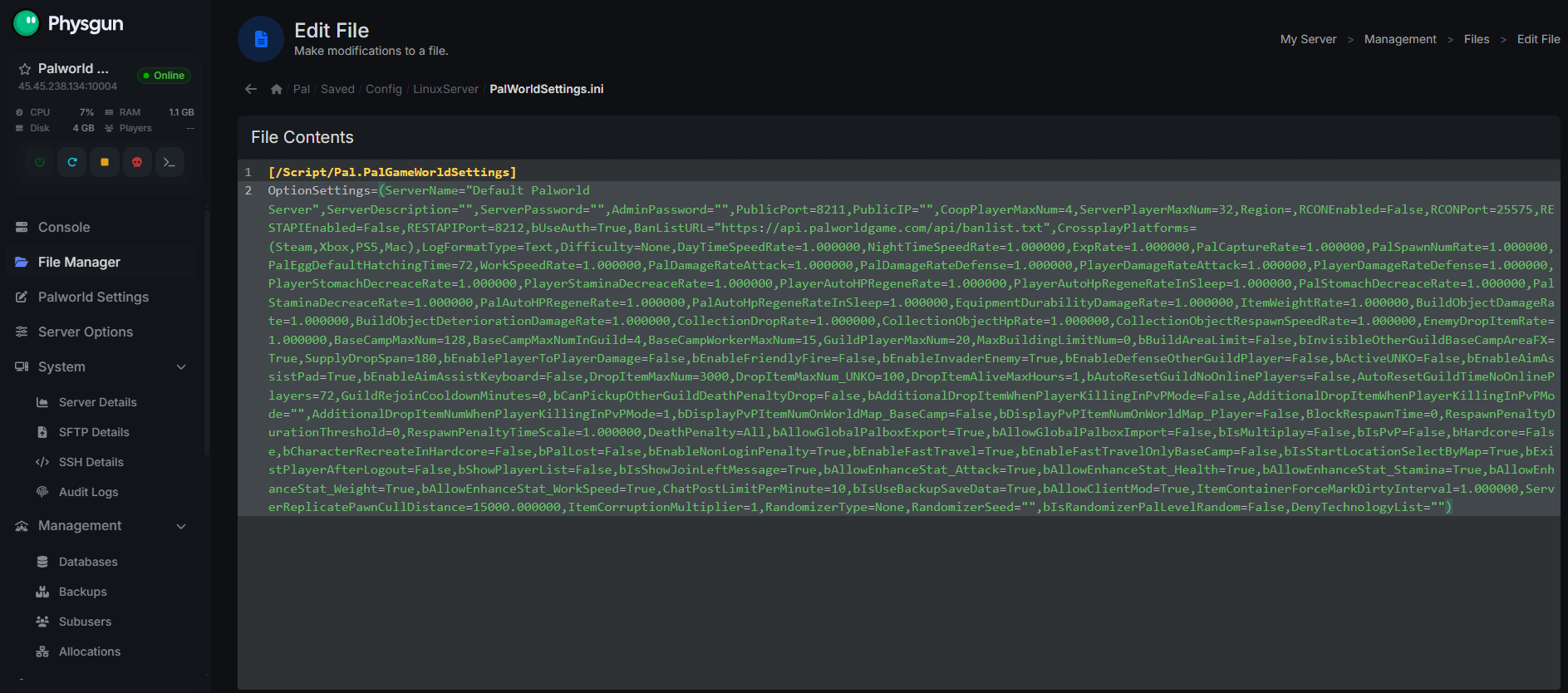
Common Palworld Server Settings
While Palworld exposes dozens of configuration options, these are some of the most commonly adjusted settings.
Server Name
Your server name is what players see in the server browser.
Example:
ServerName="My Palworld Server"Choose a descriptive name that helps players identify your server. If you’re hosting for friends, including your community or group name can make the server easier to find.
Server Description
The description appears alongside your server listing and can be used to explain server rules, progression style, or community information.
Example:
ServerDescription="Casual PvE server with increased experience rates."Server Password
To restrict access, set a password that players must enter before joining.
Example:
ServerPassword="YourPasswordHere"Leaving this value empty allows anyone to connect, provided the server is publicly accessible.
Administrator Password
Administrative commands require a separate password.
Example:
AdminPassword="AdminPasswordHere"Use a strong password that differs from the player password to help secure administrative access.
Maximum Players
You can adjust the maximum number of players allowed on the server at one time.
Example:
ServerPlayerMaxNum=16Increasing the player limit allows more simultaneous connections but may require additional server resources depending on your world’s size and activity.
Difficulty
The difficulty setting controls the overall balance of the world.
Example:
Difficulty=NoneMany server owners leave this at the default value, since the file starts from the default settings and admins often just adjust individual gameplay multipliers for more precise control.
Gameplay Multipliers
One of Palworld’s strengths is the ability to fine-tune progression without installing mods.
Experience Rate
Increase or decrease how quickly players level up.
ExpRate=2.000000A value of 2.0 doubles all experience gained.
Pal Capture Rate
Adjust how easily Pals can be captured.
PalCaptureRate=1.500000Higher values increase capture success, while lower values make catching rare Pals more difficult.
Item Drop Rate
Control the amount of loot dropped from defeated enemies and resource nodes.
DropItemMaxNum=3000Additional drop-related settings may also control how many items can exist in the world simultaneously.
Resource Gathering
Gathering multipliers affect how quickly players collect materials.
Increasing resource rates can reduce grinding, especially on smaller private servers.
Work Speed
Adjust how efficiently Pals perform tasks at your base.
Higher values allow automated production to complete more quickly, reducing downtime for crafting and resource processing.
Egg Incubation Time
Players who don’t want to wait for eggs to hatch often reduce incubation time.
Setting the incubation multiplier lower than the default significantly speeds up breeding progression.
Day and Night Speed
Palworld allows separate control over daytime and nighttime length.
For example:
DayTimeSpeedRate=1.000000
NightTimeSpeedRate=1.000000
Increasing either value causes that portion of the day to pass more quickly.
Lower values extend the duration.
Many community servers choose slightly shorter nights while keeping daytime close to the default experience.
Death Penalty
You can determine what happens when players die.
Depending on the selected setting, players may:
-
Keep all inventory.
-
Drop equipment.
-
Drop inventory.
-
Lose Pals.
-
Lose both equipment and Pals.
Choosing a lighter death penalty makes the game more forgiving, while harsher settings encourage careful exploration and teamwork.
Pal Spawn Rate
The Pal appearance multiplier changes how many creatures spawn throughout the world.
Increasing this value creates a more populated environment and can improve farming efficiency, although it also increases the workload on the server.
Extremely high values are generally not recommended unless your server has sufficient hardware resources.
Saving Your Changes
After editing the configuration:
-
Save PalWorldSettings.ini.
-
Return to the Physgun Gamepanel.
-
Start the server.
-
Allow the server to finish loading completely before joining.
If bIsUseBackupSaveData is enabled, the server creates a backup directory automatically. Those directories are created only after the server starts successfully.
Most gameplay settings require a full server restart before they take effect.
If players remain connected while editing the configuration, ask them to reconnect after the restart to ensure they receive the updated world settings.
Troubleshooting
Changes Are Not Applying
If the server appears to ignore your changes:
-
Verify the correct ini file was edited, not the default file.
-
Confirm the server was fully restarted.
-
Check for formatting errors inside OptionSettings.
-
Make sure the edited file was saved successfully.
Even a single missing comma can prevent certain values from loading.
Settings Revert After Restart
If your configuration returns to its previous values, the server may not have been stopped before editing the file, or the file may not have been saved correctly.
Always stop the server before making configuration changes whenever possible.
Server Fails to Start
Configuration errors are one of the most common causes of startup failures after editing server settings.
Review the file carefully for:
-
Missing commas
-
Missing quotation marks
-
Missing parentheses
-
Duplicate entries
-
Misspelled setting names
If necessary, restore a backup of the previous configuration and reapply your changes one at a time.
Players Cannot Join
If players suddenly cannot connect after editing the server settings:
-
Verify the server password is correct.
-
Check that the maximum player count has not been reduced below the current player count.
-
Ensure the server has finished starting before attempting to reconnect.
Final Thoughts
Changing your Palworld server settings is one of the easiest ways to tailor the game to your community. Whether you’re speeding up progression for a weekend playthrough or creating a more demanding long-term survival experience, the PalWorldSettings.ini file gives you extensive control over how your world behaves.
Before making large changes, keep a backup of your existing configuration so you can quickly restore previous settings if something doesn’t work as expected. Making a few adjustments at a time also makes troubleshooting much easier, especially when experimenting with new gameplay multipliers.
With the right balance of progression, difficulty, and world settings, you can create a Palworld server that matches the experience you’re looking to provide for your players.