








The death penalty setting decides what a player loses when they die on your Palworld server, and it shapes the server’s overall difficulty more than almost any other option in the config. Set it too soft and death barely registers. Set it too harsh and one bad fight can undo hours of progress. This guide covers the four death penalty modes, the settings people often confuse with them, how to make the change on Physgun Gamepanel and on self-hosted setups, and which related settings are worth tuning at the same time.
Understanding the four death penalty modes
Palworld’s dedicated server settings expose a single DeathPenalty parameter with four values:
- None - Nothing drops. Players respawn with their full inventory, equipped gear, and active Pal party intact.
- Item - Inventory items drop. Equipped weapons, armor, and accessories stay with the player, as does the active Pal party.
- ItemAndEquipment - Inventory items and all equipped gear drop. The Pal party is unaffected.
- All - Inventory, equipment, and the player’s active Pal party all drop.
Anything dropped under Item, ItemAndEquipment, or All lands in a death chest at the spot where the player died. It isn’t deleted, and it isn’t automatically fair game for other players; the original owner can walk back and recover it like any other loot.
That matters most for All. Losing your active Pal team on death sounds permanent, but DeathPenalty=All alone doesn’t make it so. The Pals sit at the death chest the same as items, and the player can go collect them. True permanent Pal loss is a separate setting, bPalLost. Set it to True and Pals dropped under All are gone for good. Leave it at its default of False and the loss stays recoverable, just inconvenient.
For death that ends the run entirely rather than just costing the player something, look at bHardcore instead. With bHardcore=True, a player who dies can’t respawn at all. Pairing it with bCharacterRecreateInHardcore=True softens that by letting them start a new character on the same world rather than being locked out.
One more thing worth knowing: with the version 1.0 update on July 10, 2026, Pocketpair changed the default DeathPenalty value from All to Item. If your server predates that update and this setting was never touched, check which mode is actually active before assuming.
How the settings file is laid out
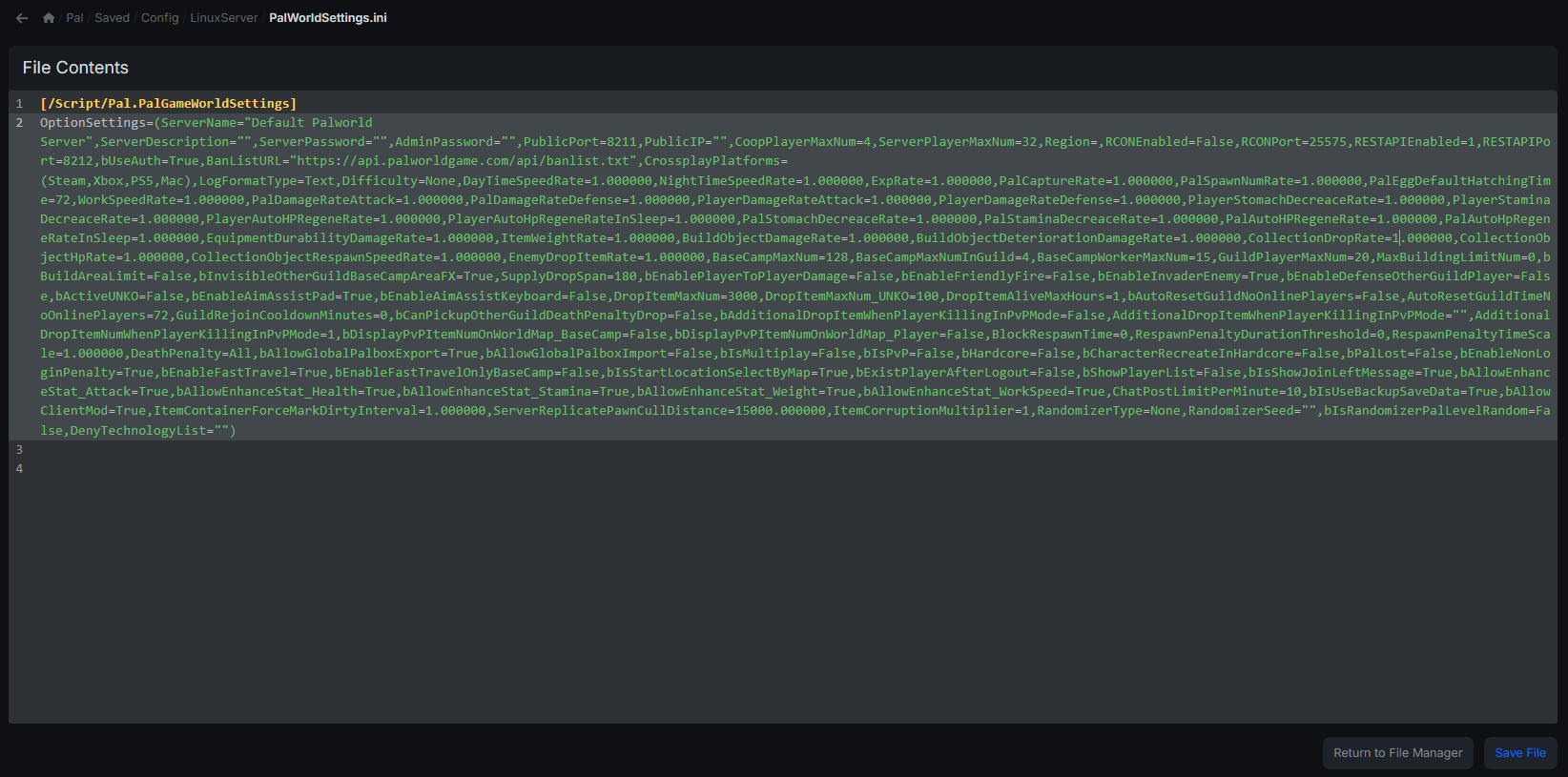
PalWorldSettings.ini doesn’t store one setting per line. Every gameplay setting, DeathPenalty included, sits inside a single OptionSettings=(...) line, comma-separated:
[/Script/Pal.PalGameWorldSettings]
OptionSettings=(Difficulty=None,ExpRate=1.000000,DeathPenalty=Item,ServerName="My Server",ServerPlayerMaxNum=32)
There’s no standalone DeathPenalty= line to scroll to. Use Ctrl+F to jump to it inside the block, change only the value between the equals sign and the next comma, and leave the rest of the line untouched. A dropped comma, a stray line break, or a mismatched quotation mark anywhere in that line will stop the whole file from loading.
The file lives at:
- Linux:
Pal/Saved/Config/LinuxServer/PalWorldSettings.ini - Windows:
Pal/Saved/Config/WindowsServer/PalWorldSettings.ini
This folder only appears after the server has started once. If it’s missing, launch the server, let it fully initialize, then stop it and check again. Before editing, download a copy of the current file. A syntax error will keep the server from booting, and a clean backup means an instant fix instead of rebuilding the config from scratch.
Editing the setting via Physgun Gamepanel
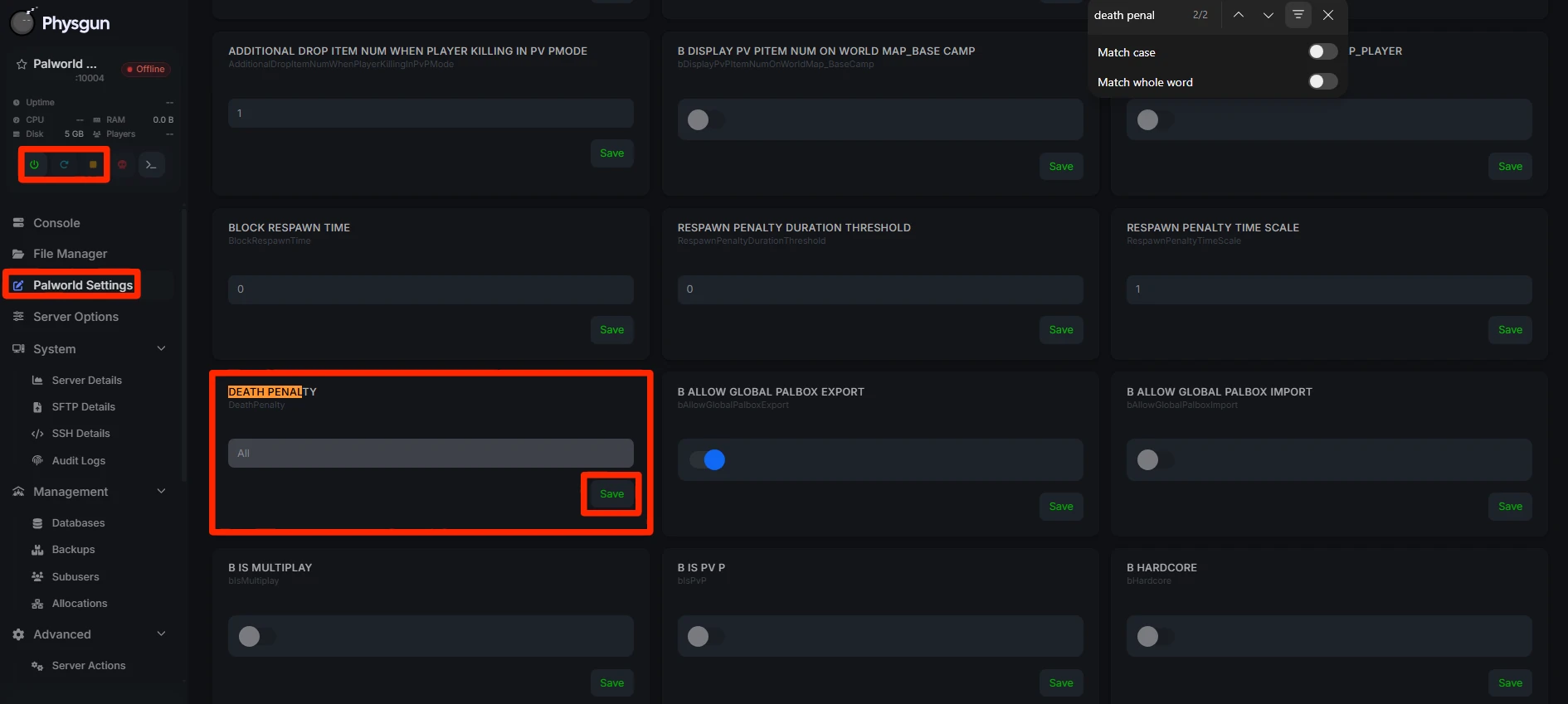
- Log into the Physgun Gamepanel and select your Palworld server.
- Stop the server.
- Open Palworld Settings from the left navigation.
- From here, you can use CTRL+F on your keyboard and search for Death Penalty.
- Change the setting you would like to change, then press the Save button on that setting.
- Restart the server and verify the settings you changed worked.
Editing the setting via SFTP or FTP
For a VPS, dedicated box, or any host outside Physgun:
- Connect with FileZilla, WinSCP, or
scpusing your server credentials. - Navigate to
Pal/Saved/Config/LinuxServer/(or the Windows equivalent). - Download
PalWorldSettings.iniand open it in an editor that won’t mangle line endings, such as VS Code or Notepad++. - Find
DeathPenalty=inside theOptionSettings=(...)line and edit it, along with any related settings below. - Save, then upload the file back over the original.
- Restart the server process, whether that’s
systemctl restart palworld,docker restart <container>, or a custom script.
Tail the log afterward to confirm a clean boot: tail -f Pal/Saved/Logs/PalServer.log.
Verifying the change in game
After restarting, join and die on purpose (fall damage or a wild Pal attack both work) to confirm the respawn behavior matches the mode: None keeps everything, Item drops inventory into a death chest, ItemAndEquipment adds equipped gear, and All adds the active Pal party too. If bPalLost=True, confirm those Pals are actually gone rather than sitting in the chest. Check Pal/Saved/Logs/ for any parse errors referencing PalWorldSettings.ini if something looks off.

Troubleshooting
Server fails to start. Almost always a syntax error in the OptionSettings=(...) line: a missing parenthesis, a stray quotation mark, or a dropped comma. Diff the broken file against your backup to spot it.
Death penalty appears unchanged. Confirm you edited the right platform folder (LinuxServer versus WindowsServer) and that the server process actually restarted. Also check whether the world already existed before your edit: once a world is generated, Palworld copies most world settings into a WorldOption.sav file in that world’s save folder and reads from there instead of the ini afterward. If a change won’t stick even after a clean restart, that file is the likely reason.
Settings revert after an update. Game patches can ship a new default configuration that overwrites PalWorldSettings.ini. Re-apply your custom values after major updates, and keep a local copy of your tuned ini on hand.
RCON not working. Confirm RCONPort matches the rule in the Physgun Firewall Portal or your host’s firewall, and that AdminPassword is actually set, since RCON authenticates against it.