






Minecraft snapshots give server admins early access to new features, new blocks, and gameplay changes before an official release. Running a snapshot server lets you and your friends test what’s coming in the next Java Edition update, especially in a multiplayer environment, but it works a little differently than setting up a standard server.
Instead of grabbing a stable minecraft server jar, you need to download the correct snapshot server jar directly from Mojang and match it to the same version your players are running through the Minecraft launcher. This tutorial walks through the full setup process and what to keep in mind before you launch.
What is a Minecraft Snapshot Server?
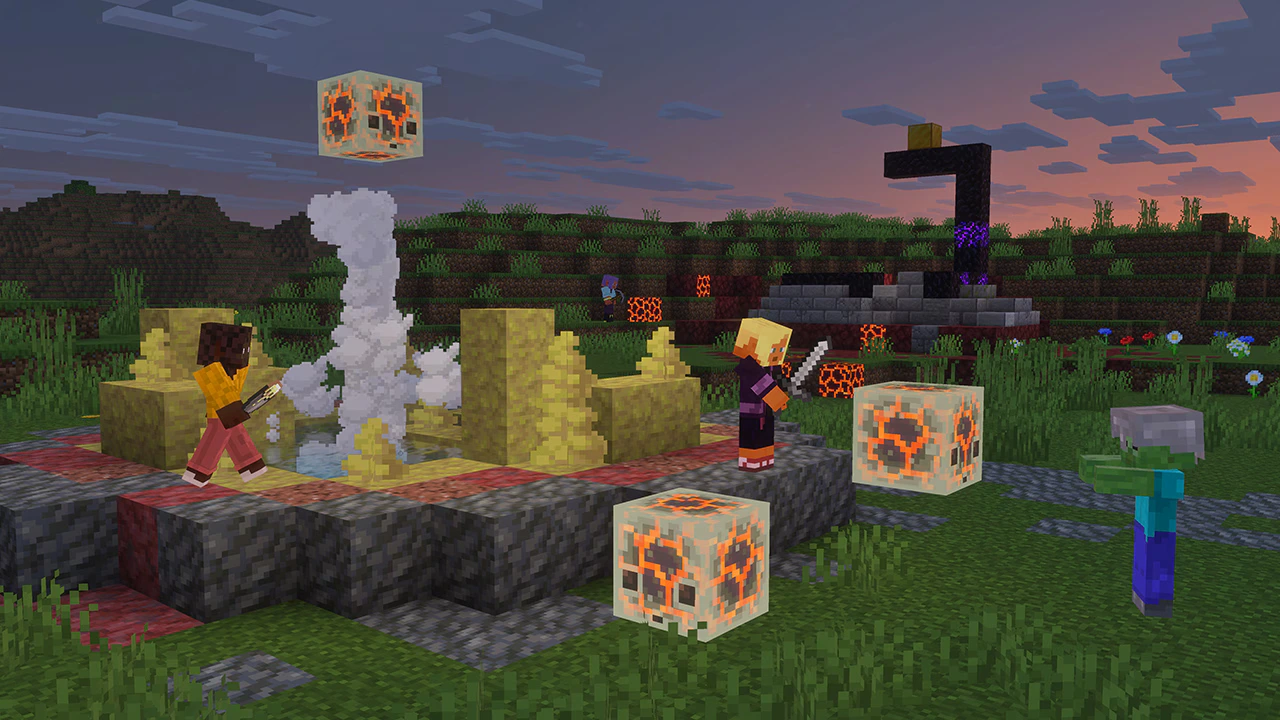
A snapshot server is a server that runs a development version of Minecraft Java Edition. These versions are released periodically by Mojang Studios to test upcoming features before they’re fully released.
Snapshots are experimental, unstable, and version-sensitive. However, they often introduce brand new features that can be really fun to play around with in a new world or test map. Just don’t commit a 2-year survival world to a snapshot because you’ll probably want to upgrade to the full release later, which can be dangerous for your world file.
How To Make A Snapshot Minecraft Server
How To Download the Snapshot Server Jar (Java Edition)
Downloading a snapshot jar file is very similar to downloading a stable version. Here’s how to do it:
-
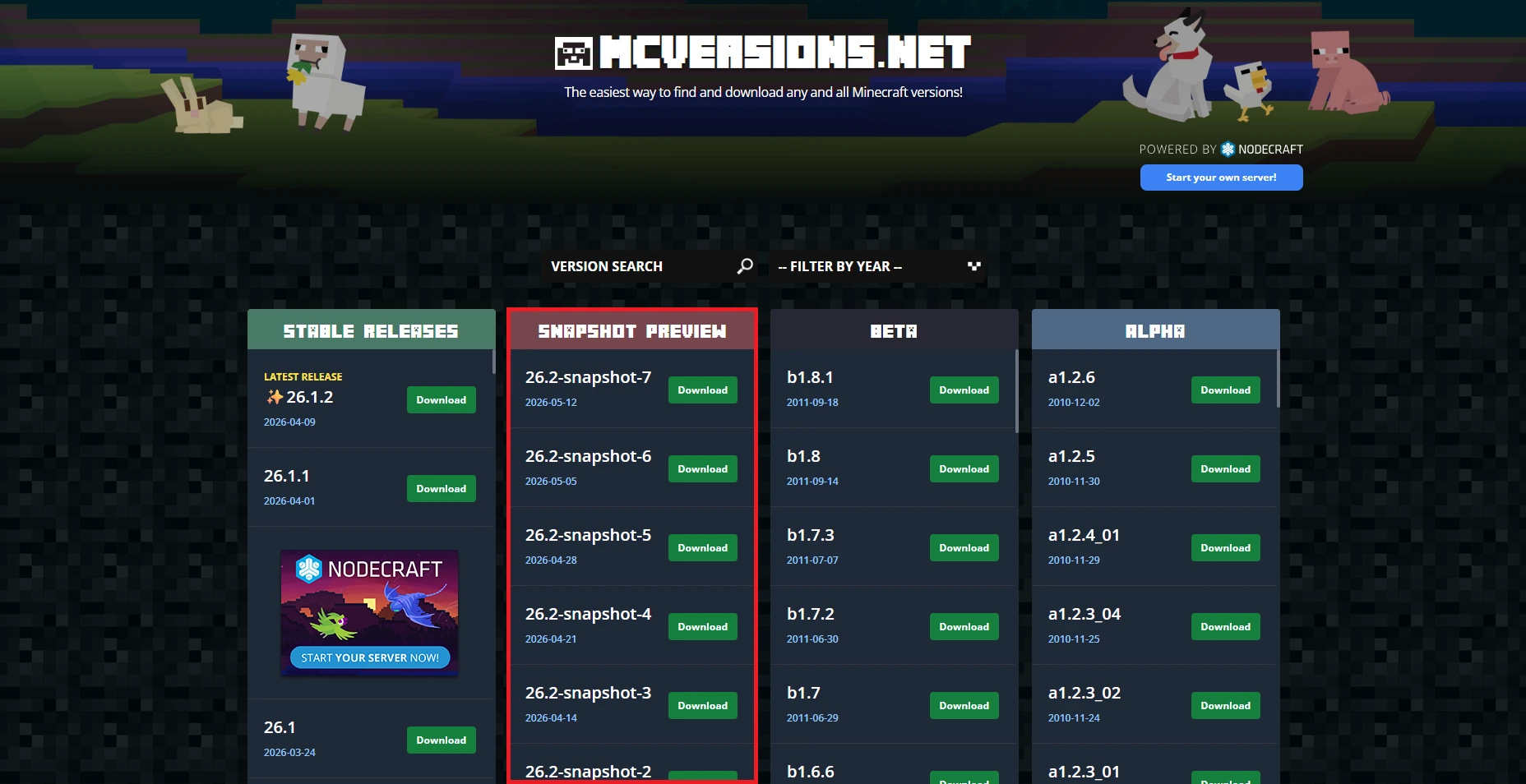
Visit the MCVersions page.
-
Locate the “Snapshot Preview” tab.
-
Scroll down to find the snapshot version you’re looking for (they often have unusual names)
-
Click the download link
-
On the next page, click Download Server Jar
-
You should now have a new server.jar file saved on your computer
How To Set Up Your Snapshot Server
Setting up your snapshot server isn’t much different from a normal server. If you’re self-hosted, follow the steps below. If you’re on Physgun, we have built-in tools for this. Just scroll down a little, we’re covering that too! If you prefer to add files manually, you can do it in the file manager as well.
Step 1: Create Your Server Folder
Start by making a new folder wherever you want your server to be located. This will act as your server’s root directory.
Step 2: Add the Snapshot Jar File
Next, open the folder and upload or paste your Minecraft server.jar into the directory.
Step 3: Create a Batch File
Create a new batch file. You can do this by making a text file and renaming the suffix from .txt to .bat. Paste in the following prompt:
@echo off
java -Xmx2G -Xms2G -jar server.jar nogui
pause
This is just an example. If you know what you’re doing, change the values as necessary.
Step 4: Run the Server
The last step is to run the server. This should install all of the necessary files using your server.jar file. You may be prompted to accept an EULA. To do so:
-
Open eula.txt.
-
Change the option from false to true.
-
Hit the save button and close the file.
-
Start up your server.
Setting Up on Physgun
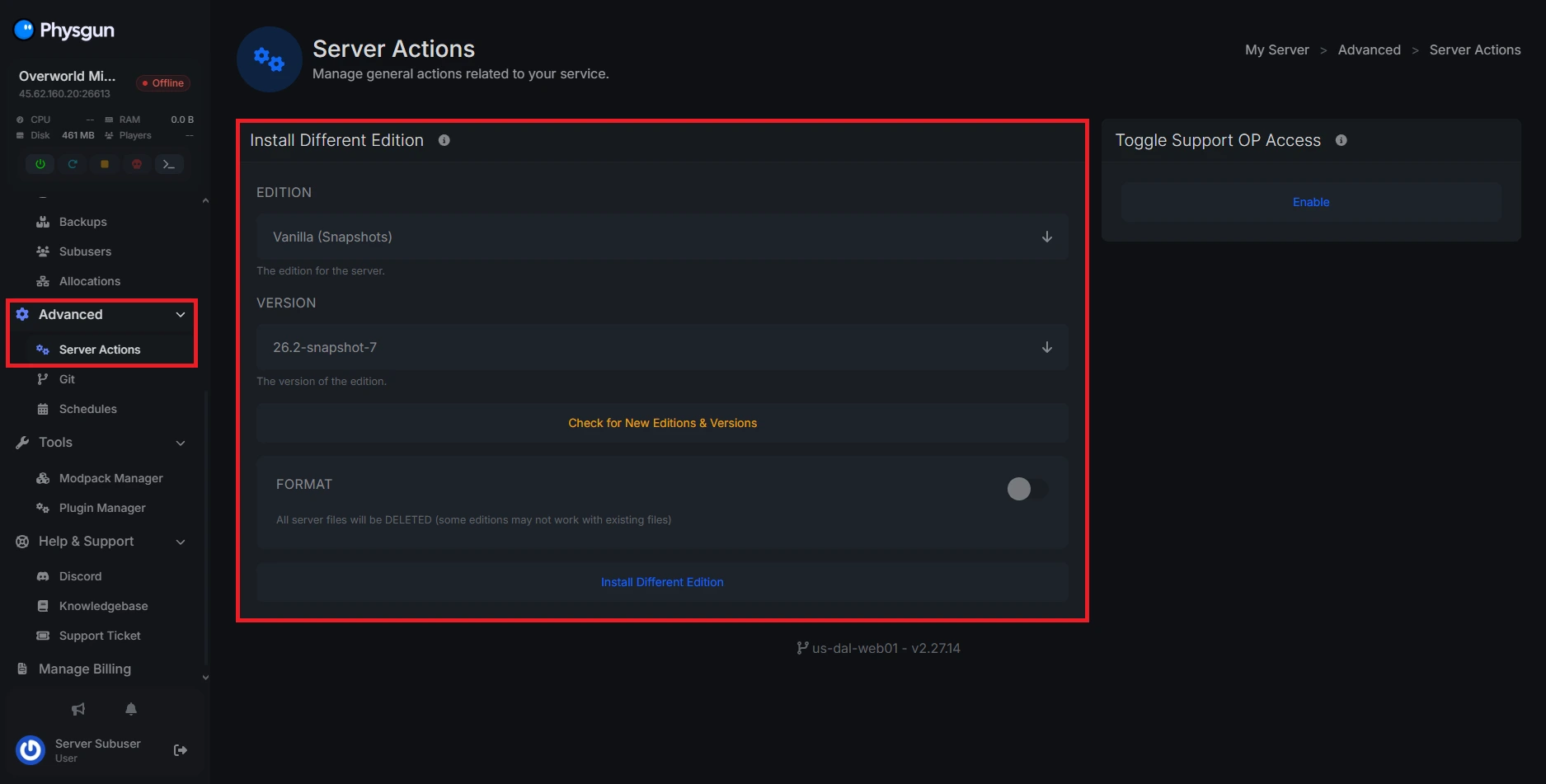
Physgun makes it simple. Head over to the Advanced tab and select Server Actions. From here, you should change your edition from a Vanilla server to Vanilla (Snapshots). Now you can easily select the snapshot you want to run!
How To Update to a New Snapshot Server Version
As mentioned before, snapshots are highly unstable and constantly changing to showcase the new content for the upcoming full release. If you want to change your snapshot version, just follow the same steps you used to download your server.jar file and replace your current one with the new version.
DISCLAIMER! Switching server versions is very risky. Be sure to back up your world! Avoid reverting to an older snapshot as well!
What To Know Before Running a Snapshot Version
Expect Bugs
Snapshots are unfinished builds of the game. They aren’t going to be perfect, and you’ll probably find some broken features in the game.
Frequent Updates
If you want to stay up to date with the latest snapshots, you’ll be looking forward to a lot of updates. Make frequent backups of your world files and keep yourself knowledgeable of new releases.
World Compatibility Issues
As mentioned before, if you’re constantly updating to a new snapshot every couple of weeks, your world could become corrupted. This is especially the case if Mojang changes the way Minecraft’s world generation functions, or if they remove/update important blocks you used for building.
Set the Correct Version in the Minecraft Launcher
When you enable snapshots, keep in mind that Minecraft won’t be running the snapshot by default. In the launcher, head over to Installations and create one for the snapshot you plan to use. This way you’re running the correct version on both the server and client.
Conclusion
A Minecraft snapshot server is a great way to experience upcoming features before they officially release. While setup is similar to a standard server, the key difference is using the correct snapshot server jar and keeping everything version-matched.
Just remember: snapshots are unstable by design, so treat your world as temporary and always keep backups.