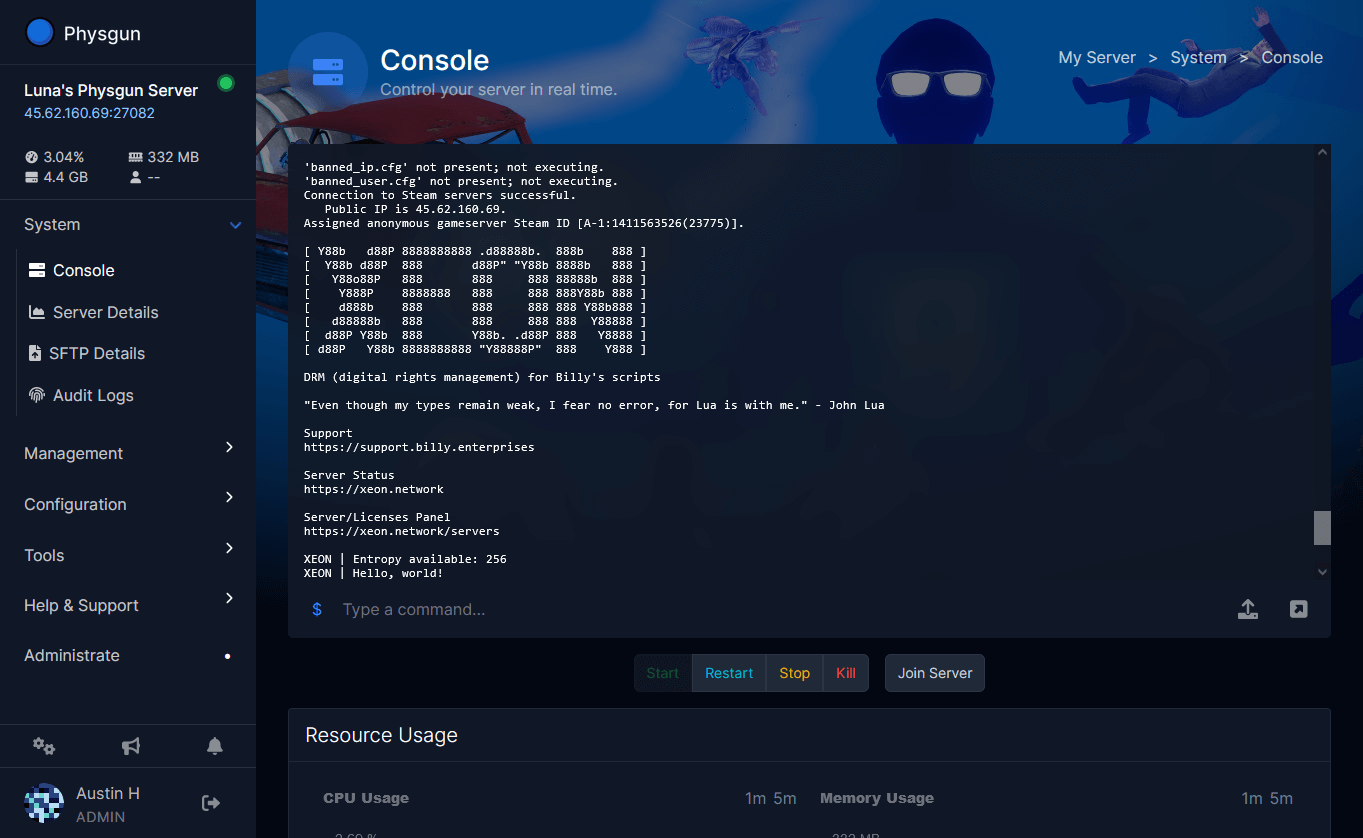
Built-in VSCode & SSH has landed at Physgun!
Editing your server files just got a massive glow-up.
Editing your server files has always sat in that awkward middle ground. The in-panel file editor is great for a quick one-line change, but the moment you actually want to do the real nitty gritty - accurate syntax highlighting, find & replace across the whole addons folder, jumping between files without losing your place, you’ve historically had to drop down to SFTP, pull files locally, edit them, and push them back. It works, but it’s a gruelling back-and-forth workflow.
That’s the gap this update closes. VS Code is now built directly into the Physgun panel, and SSH access is live alongside it. No installs, no third-party tunnels, no faff.
 VS Code, Right In Your Browser
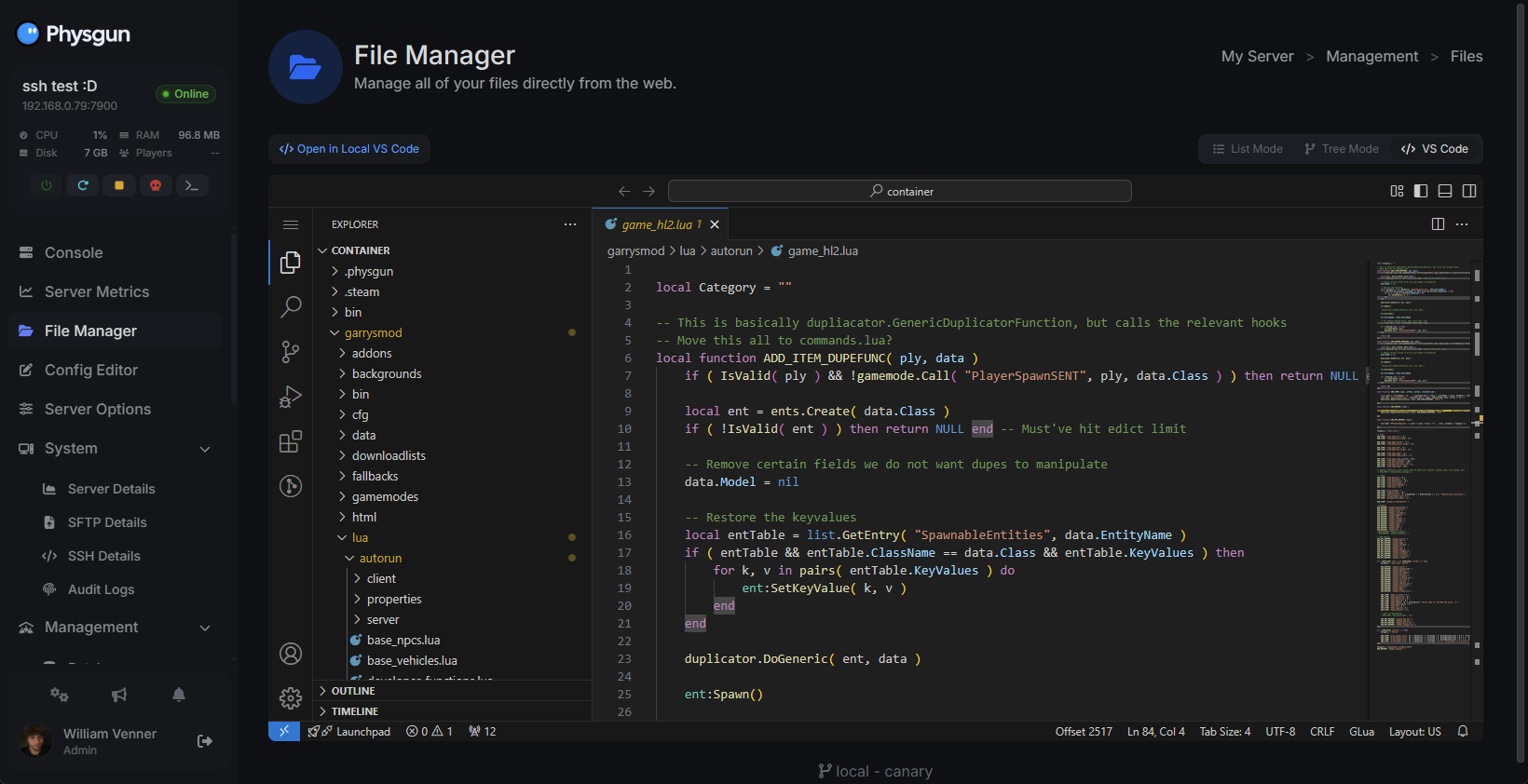
Open the File Manager on any of your servers and you’ll see a new “VS Code” button in the top-right corner. Click it. A full VS Code editor spins up in your browser in seconds, no installs, no setup, no extensions to wrangle before you can write a line.
It’s the real thing, not a stripped-down clone. You get syntax highlighting for everything you’d expect (yes, including GLua, C#, JavaScript, and the rest of the languages people actually use on their servers), multi-file editing with proper tabs, the command palette, the integrated terminal, and find & replace across your entire server’s file tree. If you’ve ever had to track down where a config value is referenced across 200 addons, you’ll know exactly why that last one matters.
Fancy Any Extensions?
We’ve already pre-installed a suite of common extensions our customers use. But if there’s anything extra you might need, just hit “Extensions” and shop around. You can install and use almost any Open VSIX registry extensions.
Your Setup Sticks Around
The best bit is the persistence. Your VS Code extensions, settings, command history, and home folder are all saved across sessions. Once you’ve installed your favourite extensions, set up your colour scheme and tweaked your settings.json to your liking, it stays exactly how you left it next time you log in. No re-installing the same five extensions every time you want to edit a file.
Or Use Your Local VS Code!
Already got VS Code dialled in on your own PC, with your themes, your extensions, your keybinds? Hit the “Open in Local VS Code” button instead. Your desktop editor launches and opens your server’s files like they’re sitting on your own machine. Edit, save, done, the change is on your server the moment you hit Ctrl+S.
This is genuinely the workflow most power users (and your developers) want. You don’t lose your local setup, you don’t copy files back and forth, and you don’t have to think about where the files actually live.
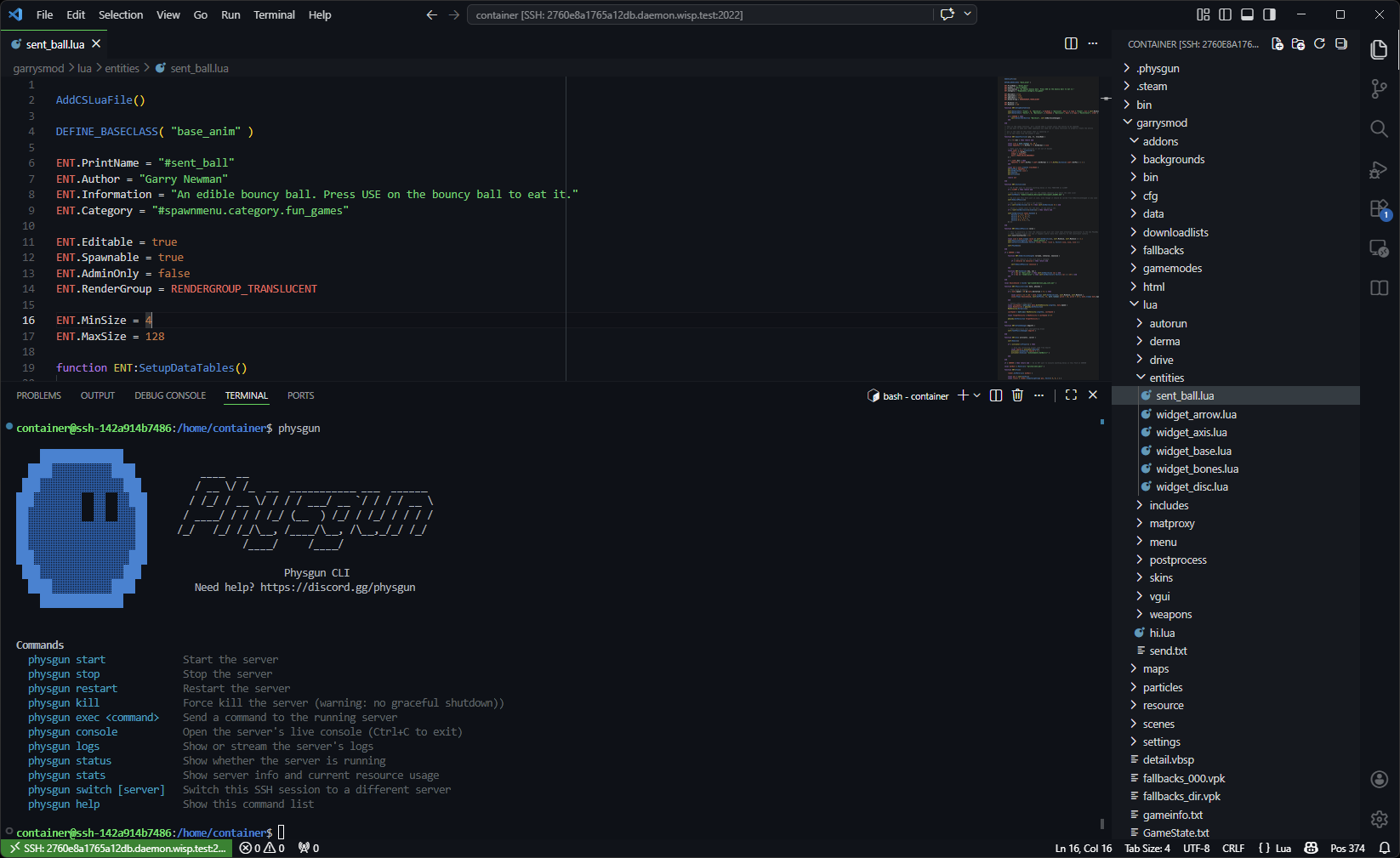
For me, the file explorer makes far more sense on the right. I dare you to try and argue otherwise. 😉
SSH Access, With A Real Toolkit
For the power users among you, SSH access is live too. And we didn’t just open port 22 and call it a day, your SSH container ships with a pre-loaded developer toolkit so you can actually do work the second you connect:
-
Source control: git, with all the usual config
-
Languages and runtimes: Python, Node.js, Rust, Go, C#, and more
-
Build tools: make, plus the usual GNU toolchain
-
Searching and parsing: ripgrep, jq, and friends
Script anything you want, pull from a private git repo, run a quick build, automate routine maintenance. If something you need isn’t there, let us know in Discord and we’ll get it added.
Same Credentials As SFTP
There’s no separate SSH config to learn. Use the exact same credentials, hostname, and port you already use for SFTP, just connect to SSH instead. That’s it. If your SFTP works, your SSH works.
You can also access SSH directly in the panel through your web browser. Just click “SSH Console” on your server’s page and you’ll get a full terminal in the panel, no client to install.
Your Home Sticks Around Here Too!
And just like with VS Code, you get a private, persistent home folder, it’s the same one shared with the in-browser VS Code instance. Drop a script in there, save your dotfiles, leave a private note, it’ll be there when you come back.
 The Physgun CLI
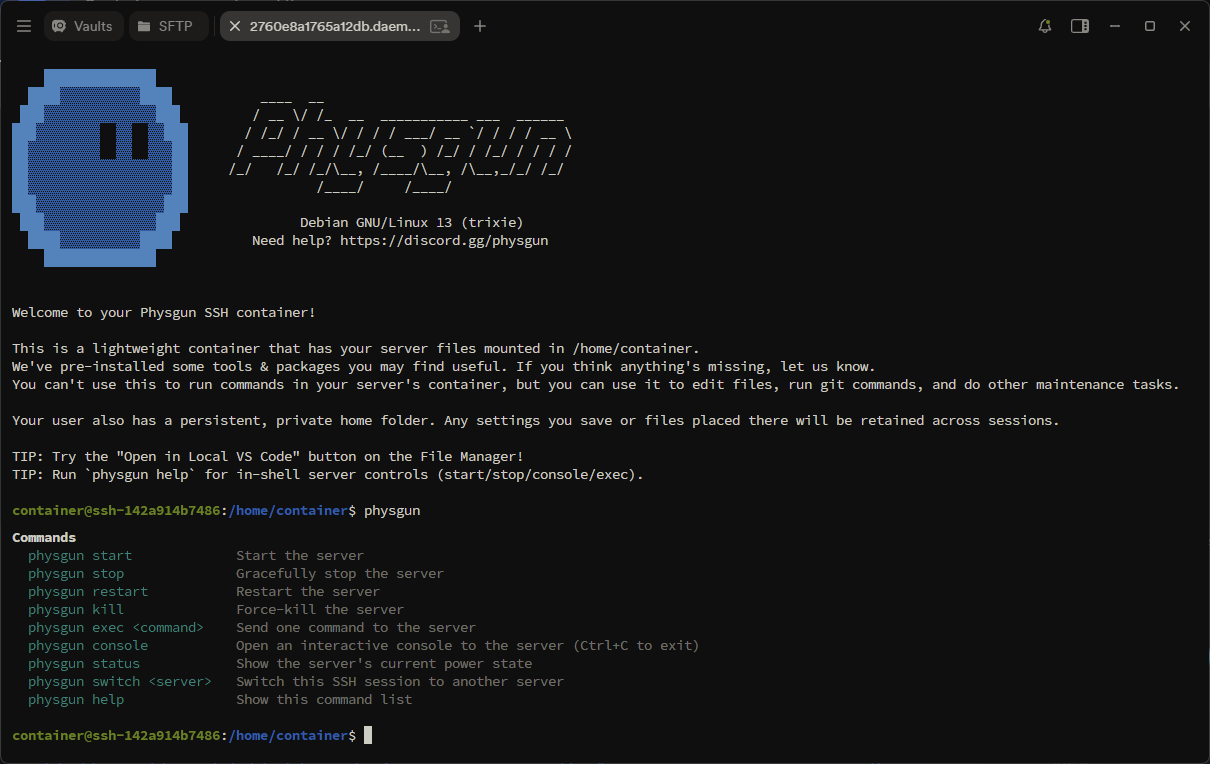
We’ve also built a proper Physgun CLI for SSH sessions. Send power actions to your server, open its console, send individual commands, the works. Look ma, no panel!
Type physgun in your SSH terminal to see what’s available:
-
physgun start– start the server -
physgun stop– gracefully stop the server -
physgun restart– restart the server -
physgun kill– force-kill the server -
physgun exec <command>– send a single command to the server -
physgun console– open an interactive console to the server -
physgun status– show the server’s current power state -
physgun stats– show the server’s current resource usage & player count -
physgun logs– browse the current logs of your server with advanced filtering -
physgun switch <server>– switch this SSH session to another server
Wire any of that into a script, a cron job, or your own deploy pipeline, whatever fits how you actually run your server.
Authorized SSH Keys, In The Panel
One last thing. You can now add authorized SSH keys directly in the panel, head to “SSH Keys” in the panel to manage them. Once you’ve added a key, you’ll never type a password again for SFTP or SSH.
Unless, of course, you encrypt your private key with a password… like you should!
Why This Matters
Game server hosting has historically been a bit weird about developer tooling. The assumption was that anyone wanting to actually code against their server would jump out to a local environment, treat the server as a deploy target, and never touch the box directly. That works fine for a single-developer setup, but it falls apart the moment you’ve got staff who need to make changes, addons being iterated on live, or a workflow where the line between “editing config” and “writing code” is blurry, which on Garry’s Mod, Rust, FiveM, and basically every modded game server, it absolutely is.
VS Code in the panel, SSH alongside it, a persistent home folder, and a CLI that lets you skip the panel entirely. That’s the toolkit we’d want if we were running a server from home, so it’s the toolkit we’ve built right into our experience here at Physgun.
We’re excited to see what you nerds cook up with this one! 
Was this article helpful?
Thanks for the feedback!