

Joining a TF2 server is without question one of the fastest ways to connect to private servers, community servers, or game servers shared by friends. Whether you use the server browser or connect directly using an IP address through the developer console, both methods let you jump into a match quickly without unnecessary searching. As long as you have the correct server information, connecting to a TF2 server is straightforward.
In this guide you’ll learn how to:
-
Enable the developer console in Team Fortress 2
-
Use the connect IP command to join a server
-
Find and join servers using the TF2 server browser
-
Enter a server password if the server is private
-
Add servers to the favorites tab for quick access
-
Troubleshoot connection issues when joining a TF2 server
Follow these steps, and you’ll be able to join TF2 servers quickly using either the server browser or a direct IP connection.
How to Join TF2 Server with IP Address in the Developer Console
Begin by opening Steam and locating Team Fortress 2 in your game library. From there, select Team Fortress 2 and launch the game so you reach the main menu. You’ll need to be in-game in order to connect to any server.
The first and most direct method for connecting to a server is to use the server IP address and port to direct connect to a specific server. For starters, if you don’t already have it enabled, you’ll need to enable developer console so you can run client commands.
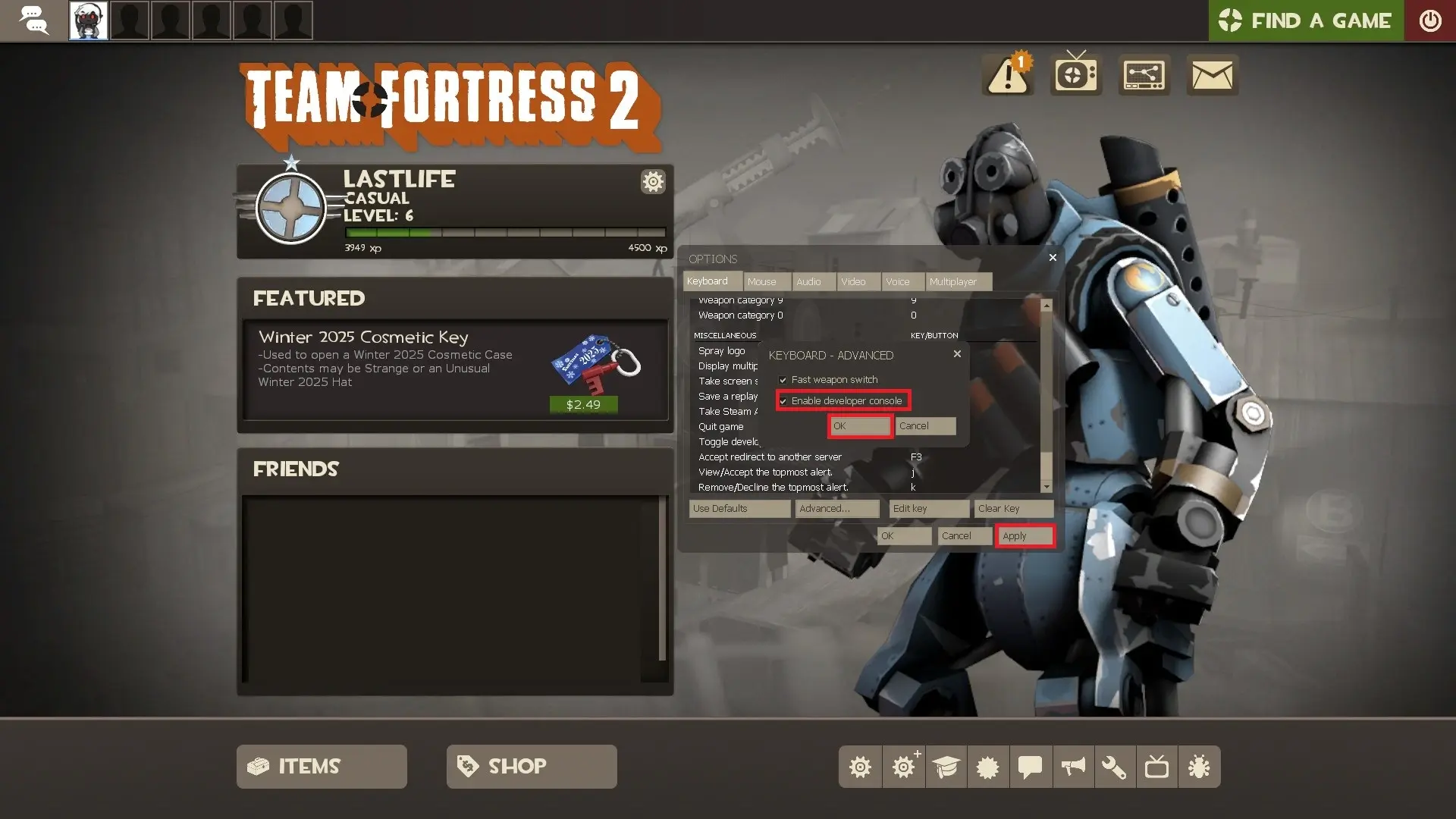
To enable console:
-
In the TF2 main menu, start by navigating to the bottom of the screen and selecting options.
-
At the bottom of the window, select Advanced.
-
Check the Enable Developer Console box.
-
Hit OK, then the Apply button.
- (Optional) You can save a bind for the dev console in the keyboard tab, but by default, the key to open the console in Team Fortress 2 is the tilde key underneath the Esc key.
-
Close out of the menu.
To directly connect to a server:
-
Open the developer console with the tilde key (or the key you bound it to).
-
Type “connect”, followed by the server’s IP address, into the command line.
-
A common mistake when connecting to a TF2 server includes forgetting to include the port in the IP address.
-
Note that you can get a server’s IP address after you join it by typing status into the console. If you don’t know the IP of the server you want to join, consider joining through the server list first.
-
-
If the server is password-protected, you’ll have to add a colon, followed by the password.
-
Press enter.
-
Now you should be connecting!
An example of this command looks like this:
connect 12.12.123.12:12345; password Hard2GuessPassword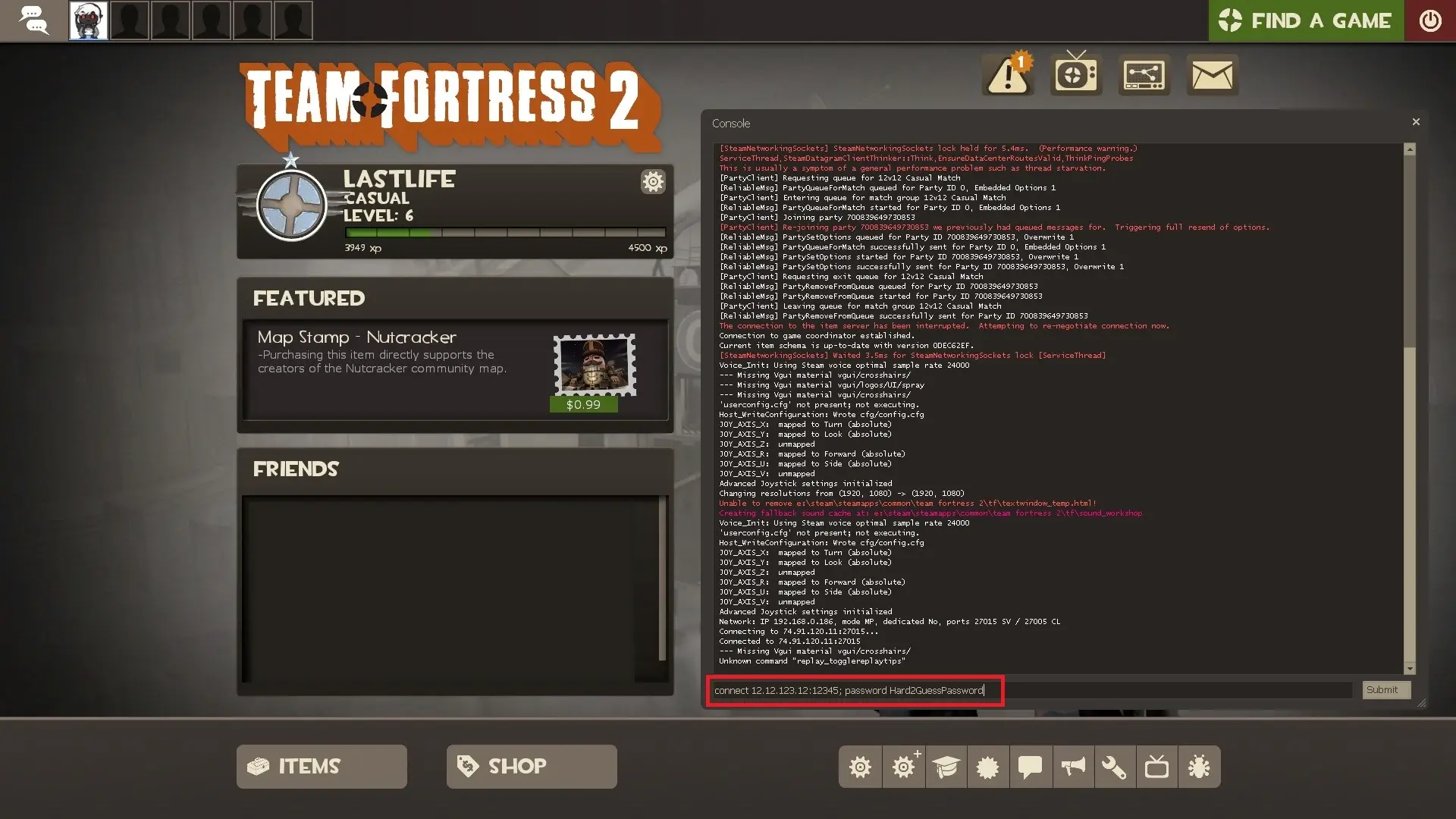
Joining A TF2 Server Through The Community Server Browser
The other option for connecting to a TF2 server is through the server browser. You can do so pretty easily in the TF2 main menu.
To connect to a server using the browser:
-
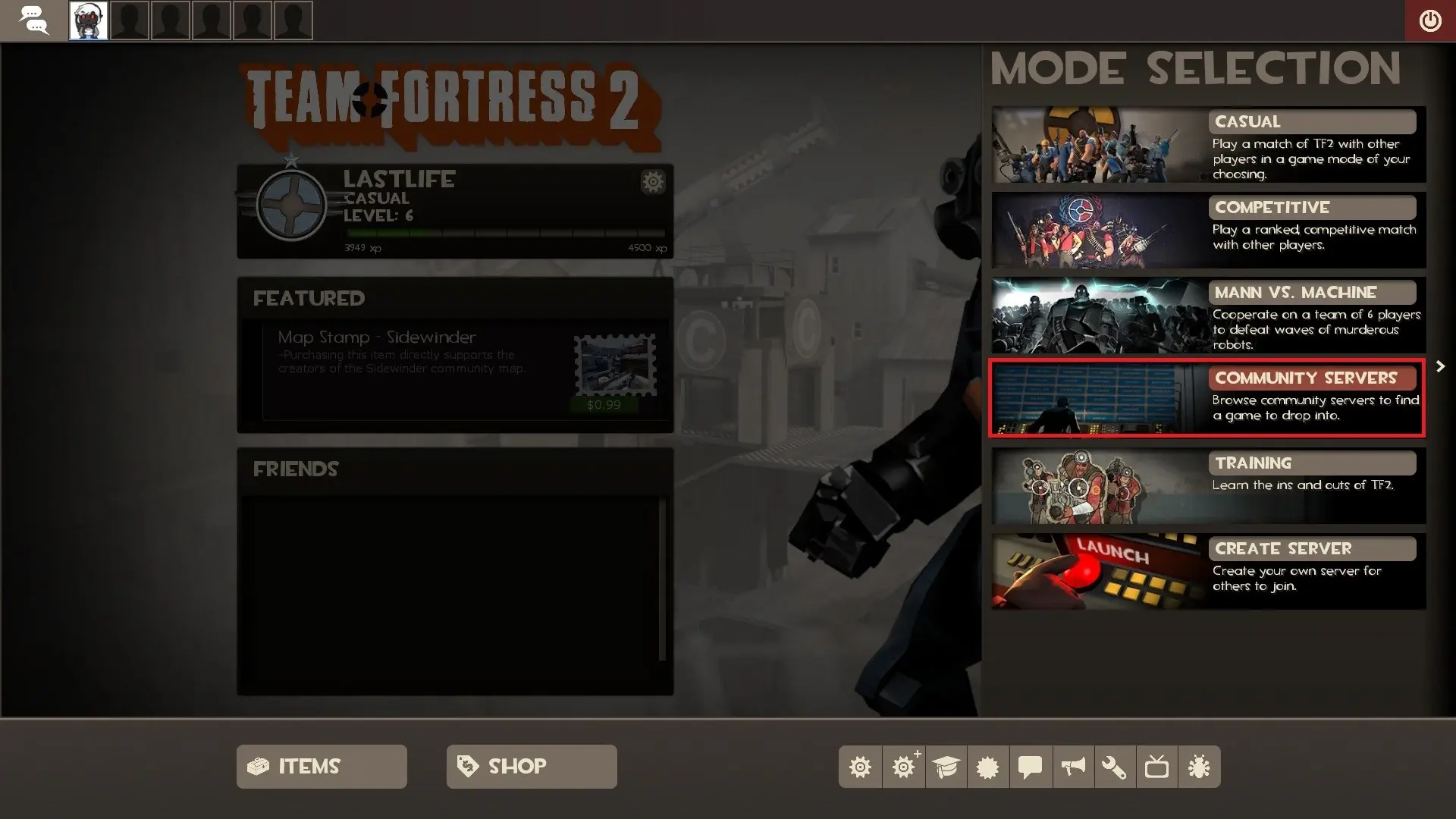
In the main menu, select Find Game.
-
Next, click Community Servers.
- The other options won’t let you browse servers; they’ll put you in a random lobby.
-
Here you can view a long list of servers. You can browse all servers on the internet, LAN servers, servers your friends are in, or your recent servers.
-
If you can’t find the server you want to play, try refreshing or scrolling further in the list.
-
You can also mess with the search filters by defining different properties such as the map, max player count, or anti-cheat setting, among other fields.
-
-
Once you’ve found your server, either double-click it or click the select button.
-
That’s that! You should be loading into the server.
Conclusion
Joining a server in Team Fortress 2 is simple once you understand the two main methods available. Whether you jump into the community server browser or connect using the developer console, both approaches make it easy to access the servers you want. The browser is great for discovering new communities and filtering servers by map or player count, while direct IP connections are perfect when a friend sends you a server address you can quickly copy and paste into the console.
If you ever run into connection problems, double-check the IP address, port, and password, and make sure nothing in your launch options is interfering with the connection. In most cases, troubleshooting only takes a moment before you’re back in the match. With the steps in this guide, you should now have a clear understanding of the topic and be ready to join servers quickly without confusion or unnecessary delays. Just remember to follow each server’s rules and avoid behavior that could be considered abuse, so you can keep enjoying everything the TF2 community has to offer.