

Installing plugins on a TF2 server is the easiest way to customize gameplay, automate moderation, and add new features to your community. Most plugins run through Sourcemod and Metamod, which act as the framework that allows servers to load custom code and extensions.
This guide explains how to install plugins on a TF2 server and where plugin files should go inside your server directory.
Key things you will learn:
-
How to install Sourcemod and Metamod on a Team Fortress 2 server
-
Where to upload .smx plugin files using a file manager or FTP.
-
Restarting your server so Sourcemod plugins load correctly
-
How to manage plugin settings and extensions
Once installed, plugins allow you to add custom gameplay features, admin tools, and automation to your server.
Installing Sourcemod & Metamod
Most TF2 plugins require the Sourcemod and Metamod frameworks to function, so before you go downloading all sorts of plugins, you should install these first.
How to Install Sourcemod and Metamod on a Physgun Game Server
In your Physgun server panel, Sourcemod and Metamod have an integrated install button to keep things simple and easy.
To install Source Mod and Metamod:
-
Open your Physgun server panel.
-
Hit Stop on your server console.
-
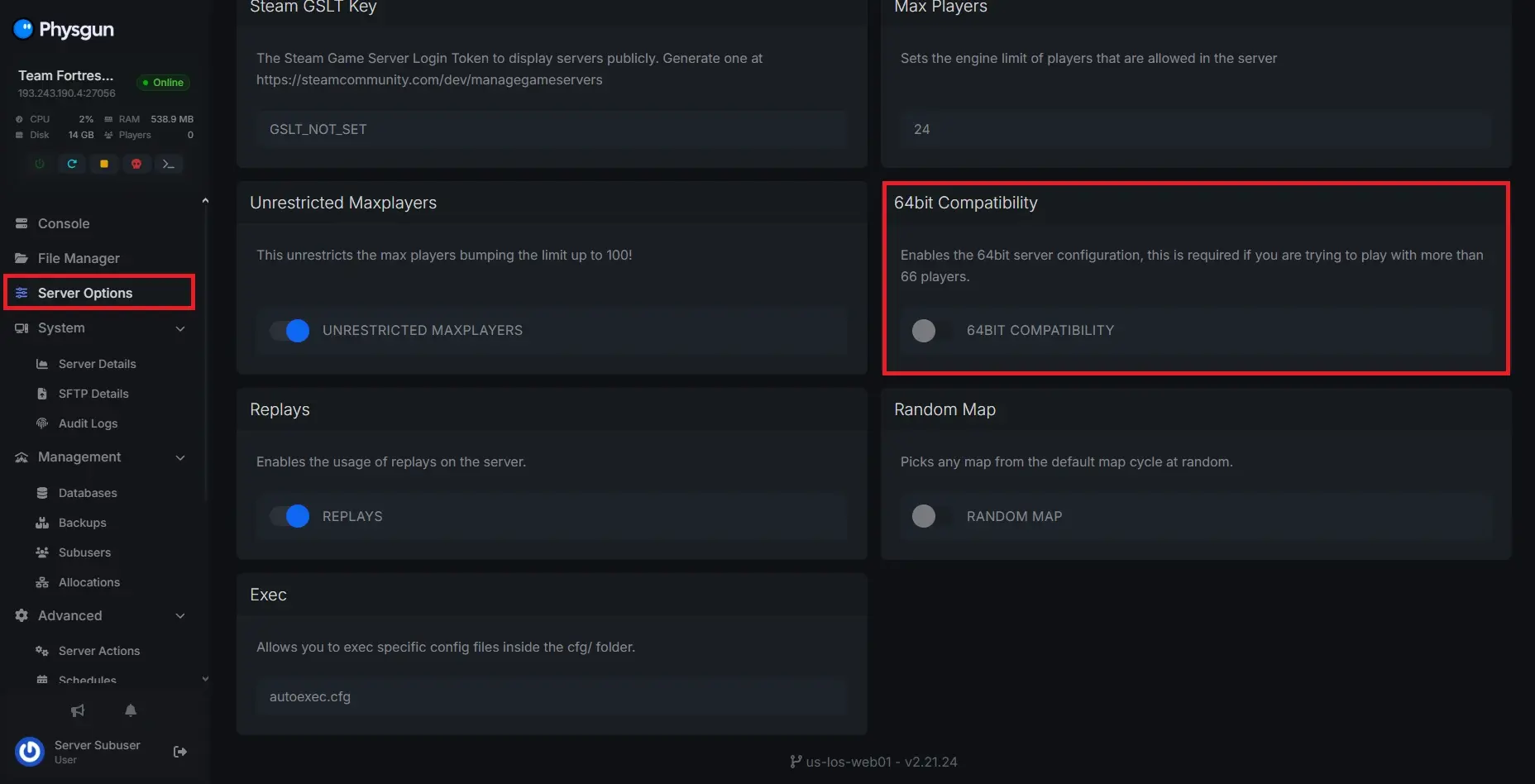
First, you’re going to want to go to your Server Options tab and make sure 64bit Compatibility is off.
-
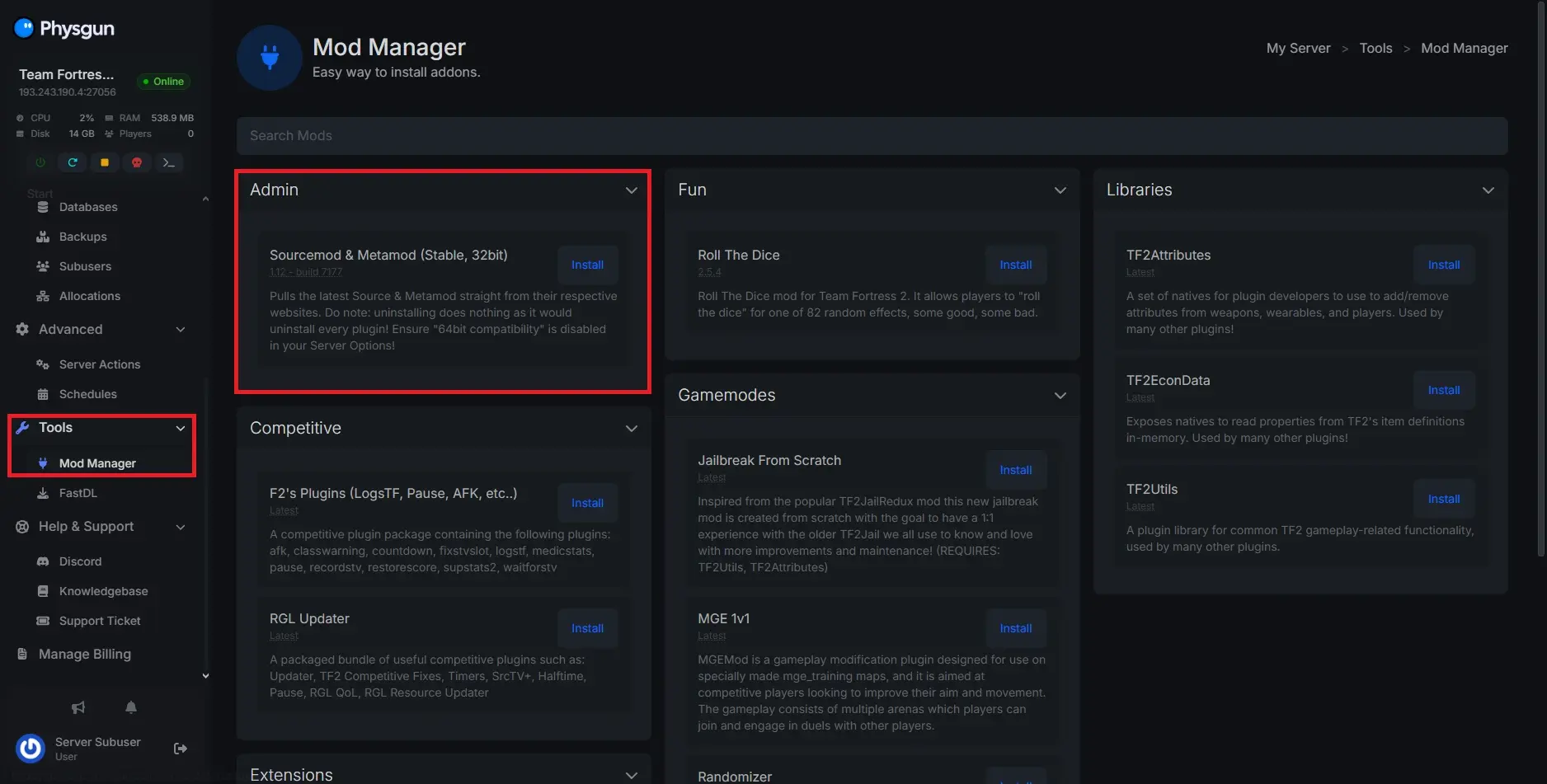
Now, navigate to the Tools tab and select Mod Manager.
-
The very first box will say “Sourcemod & Metamod (Stable, 32bit)”. Click install.
-
That’s all. Now you can move on to installing your plugins!
How to Install Sourcemod and Metamod on Your Own Server
Installing Sourcemod and Metamod manually is just as simple as downloading it and putting it in the correct directory.
To install Source Mod and Metamod manually:
-
Visit the Sourcemod and Metamod websites.
-
Download the latest stable Metamod and Sourcemod versions for Windows or Linux.
-
You’ll receive two zip files. Extract their contents into your tf folder in your server files. This will add all of the files needed to both your cfg and addons folder.
-
Note that you’re extracting the addons and cfg folders into this location and not the collective sourcemod and metamod folders.
-
You might also have to use software like FileZilla to upload it to your server host if you’re using one (like us!).
-
-
That’s it. Sourcemod is now downloaded. You might want to configure the framework and admin tools in the tf/addons/sourcemod/configs folder.
Installing Sourcemod Plugins for Team Fortress 2
Installing plugins is more or less the same process as installing the frameworks themselves. In the same menu that you installed Sourcemod, you’ll find several other available plugins for quick installation. Just hit the button, and you’re done!
To manually install Sourcemod plugins:
-
Visit the plugin’s download page, usually a GitHub or AlliedModders page.
-
Download the latest version of the plugin.
-
You will receive a zip file containing various folders, most importantly, the plugins folder. This holds the plugin’s main .smx file.
-
Extract everything into your tf/addons/sourcemod directory.
- If you’re downloading a small plugin that just has a .smx file, you can just extract it to your tf/addons/sourcemod/plugins folder directly.
-
Configure and save your addon to your specific needs.
-
Congrats! Your addon is installed.
Installing Extensions
The last thing these instructions will cover is extensions. In order for some plugins to work, they rely on extensions to do things that Sourcemod, on its own, isn’t able to do. Luckily, just like with plugins, it’s almost the exact same steps!
For Physgun users, we have the cURL Extension and SteamWorks extension readily available in the mod manager! All you’ve got to do is click install.
To manually install Sourcemod extensions:
-
Visit the extension’s download page, usually a GitHub or AlliedModders page.
-
Download the latest version of the plugin.
-
You will receive a zip file containing a .dll file (or .so for Linux).
-
Add this file (or files) to your tf/addons/sourcemod/extensions directory.
-
If it came with a .cfg file, drag and drop it into the tf/cfg/sourcemod directory.
-
There you have it. Your extension has been installed!
Conclusion
With Sourcemod, Metamod, plugins, and extensions all installed, your TF2 server is ready to start running custom features and tools that improve gameplay and management. If something doesn’t work right away, take a moment to check your server console for errors, confirm files were uploaded to the correct folders, and restart the server so everything can start properly. Many plugins also include configuration files that let you tweak how they behave, so it’s worth taking the time to review their settings after installation.
If you still have questions or run into issues, we recommend visiting the Sourcemod or AlliedModders forums, where the community regularly helps server owners troubleshoot plugin problems. You could also drop into our Discord and we’ll be more than happy to help you as well!