

Team Fortress 2 includes a built-in replay system that lets players record demos, edit clips using the replay editor, and create gameplay movies with different camera modes. Once enabled, players can save temporary replays, render clips, and upload highlights to their YouTube account.
Replays work by having the server record gameplay through a replay bot, which silently watches the game and captures important moments during a match. Players can press F6 to screen-record their current life and memorable moments like landing a sick backstab as Spy or pulling off a difficult shot as Sniper. Once a replay is saved, the client will download the replay data from the server so it can be edited locally. Depending on your setup, the replay data may also be transferred via FTP offloading, which sends replay files to a local web server rather than storing them directly on the game server.
This guide explains how to enable replays on a TF2 server and configure the replay feature.
Key things you will learn:
-
Enable replay recording on a TF2 server
-
Configure replay files and replay data storage
-
Use the replay editor to edit clips and switch camera modes
-
Save recordings and render gameplay movies
-
Upload finished videos to YouTube or share clips with other players
With replay support enabled, your server can automatically record gameplay moments that players can edit and publish later.
Enabling the Replay Setting on Your Team Fortress 2 Server
Before players can record and edit their gameplay clips on your server, the replay system must be enabled. By default, this feature is disabled, so you must enable it manually.
Enabling Replays on your Physgun Server
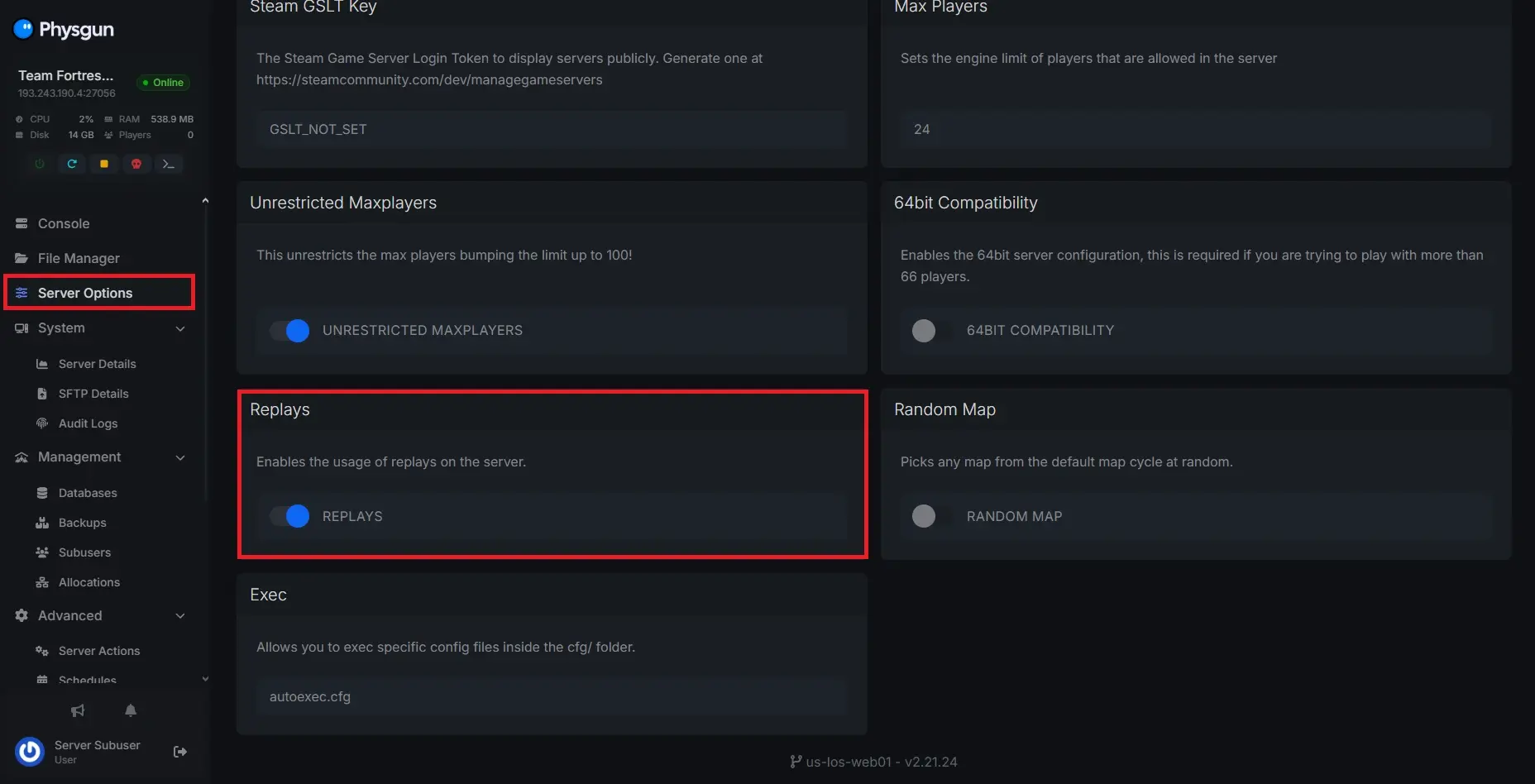
If your TF2 server is hosted on Physgun, you can easily enable replays through the server panel.
To enable replays through Physgun:
-
Shut off your server before changing any configuration.
-
Login to your Physgun server panel.
-
Navigate to the Server Options tab.
-
Scroll down to the Replays box and mark it as On.
-
Start up your server, and replays will be enabled!
Enabling Replays on your Dedicated Server
If you’re running a dedicated TF2 server, you can enable replays manually in the configuration files.
To manually enable replays through the config file:
-
Navigate to your tf/cfg directory and open or create the replay.cfg file.
- Physgun provides an example file for you to copy and configure.
-
In the config file, add the following line: “replay_enable 1”.
-
Save the file and restart the server.
Once you restart your server, the replay bot will join the server. You may notice a notification message in the console confirming the bot has connected.
Configuring Your Replay Settings
The replay system includes several configuration options that control recording behavior, storage limits, and replay download settings. These can all be placed inside your replay.cfg file.
Some config options include:
-
replay_enable - You already know about this one. This enables the replay system entirely. 1 to enable, 0 to disable.
-
replay_block_dump_interval - How often should the server write partial replay files? Default 10.
-
replay_fileserver_protocol - What method should clients use to download replay data? Can be “http” or “https”. HTTP is the only option supported by Physgun at the moment.
-
replay_record_voice - Whether or not replays should record voice. 1 to enable, 0 to disable.
You can find a full list of variables on the TF2 wiki.
Conclusion
The replay system is a powerful feature that allows players to capture memorable moments from their TF2 game anytime they happen.
By enabling the replay bot, configuring replay storage, and ensuring the server can properly connect, download, and manage replay files, server owners can provide players with a built-in tool for creating gameplay highlights.
Once replays are enabled, players can record clips, edit them in the replay editor, and play them back in first person or third person views before uploading them online.
With the right setup, your server can support cinematic gameplay recordings without impacting normal gameplay on Community or Valve servers players connect to in the server browser.