

Setting up RCON on a Rust server is essential if you want full remote control over your server console, player management, and admin commands. RCON, short for remote console, allows you to connect to your Rust server using an RCON tool by entering your server IP address, RCON port, and RCON password. Once configured, you can issue commands, kick or ban players, manage plugins, view logs, and restart the server without logging into the game itself.
In this guide, you’ll learn how to configure Rust RCON step by step, including where to set the RCON port, how to create a secure RCON password, and how to use the Rust God Tools as a part of Physgun’s Rust server hosting. Whether you’re running a new Rust server or optimizing an existing one, properly setting up RCON gives you faster access, better control, and a more powerful way to manage your server and community.
What Is RCON In Rust?
RCON in Rust stands for Remote Console. It is a system that allows you to connect to your Rust server from an external RCON tool using your server IP address, RCON port, and RCON password. Once connected, you gain direct access to the server console, similar to being logged into the server backend.
With Rust RCON, server owners and admins can issue commands, kick or ban players, monitor server logs, manage plugins, restart the server, and check server status in real time. This makes RCON one of the most important tools for running and moderating a Rust server, especially for admins who need quick access without joining the game.
RCON is commonly used with third-party tools like RustAdmin or Battlemetrics, which provide another type of interface for connecting, saving server profiles, and managing all server features from a single dashboard. Whether you are running a small private server or a large community server, RCON gives you powerful remote access and full control over your Rust server operations.
Best Method: Using Physgun’s Rust God Tools
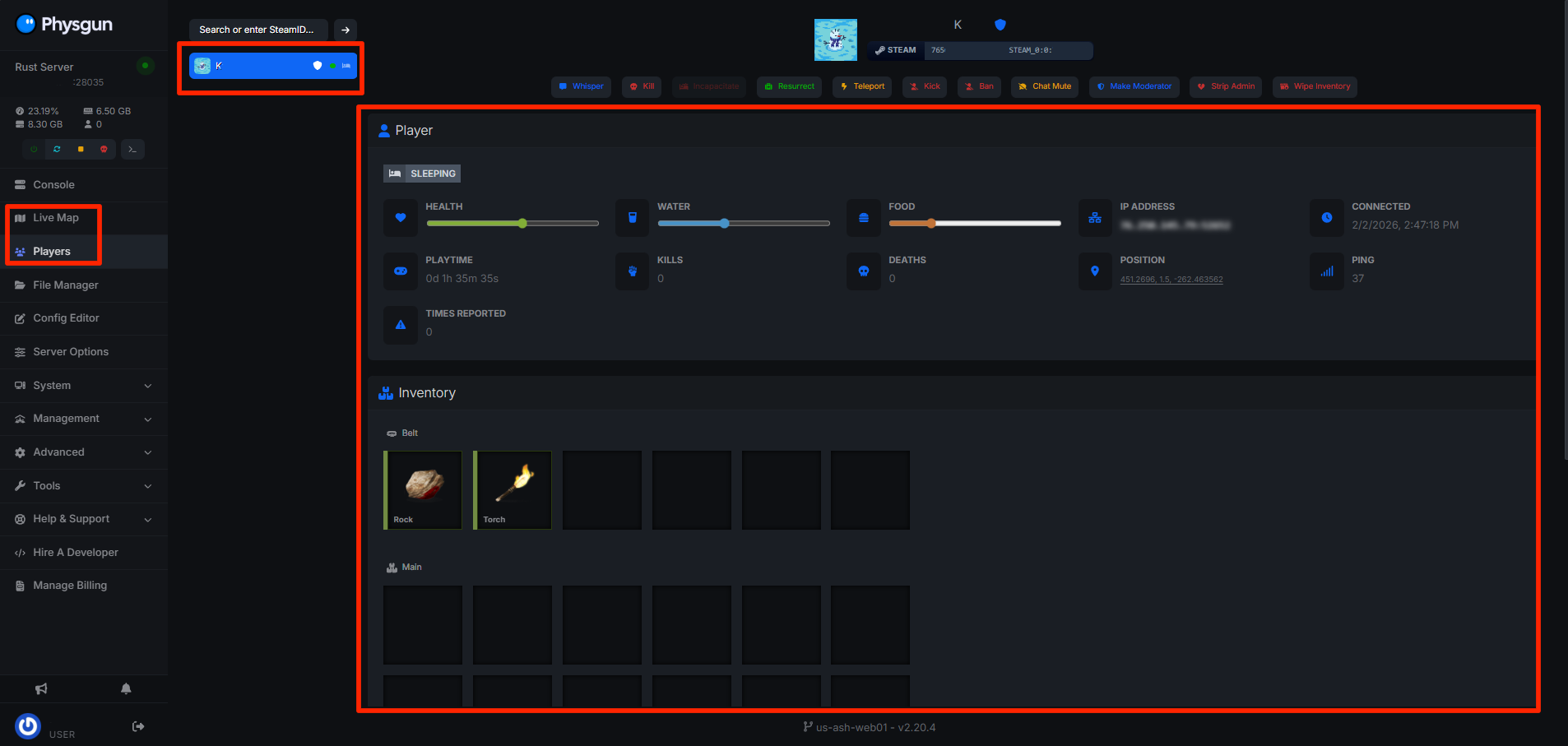
Usually, you’d setup RCON to use an external admin tool, but using Physgun’s Rust God Tools makes managing and administrating your server easier than ever! With just a few simple button clicks, you can do things like manage player inventories, view a live map of your server, and more!
To use the Rust God Tools on your Physgun server:
-
Navigate to the Physgun Game Panel where your Rust server is hosted.
-
In the left side nav bar, navigate to Players.
-
From there, you can select any player connected to your server and perform administrative tasks easily like managing inventories, health, food, water, and more!
-
That’s it! No extra commands, no fuss, just find the player you want to manage and click on their name!
Note: You can also perform Admin actions from the Live Map, which gives real time updates on your players, where they are, and what they’re doing.
Setting Up Rust RCON Access
Before we get started connecting to your Rust Server via RCON, we will need a few pieces of info from your Rust server. If you already know these, feel free to skip ahead to the Connecting to your server via RCON section:
-
Complete access to your Rust server, either via self-hosting or 3rd party hosting like Physgun.
-
The server IP address and port
RCON Port
Finding your RCON Port Through Physgun hosting
On Physgun Hosting, your Rust RCON port will usually be your server port + 1 or 2.
- Example: If your server port is 28035, your RCON port will be 28036 or 28037
Finding Or Setting Your RCON Port Through a VPS or Self Hosting
If you are running your server self-hosted or, you can find or set your RCON port by:
-
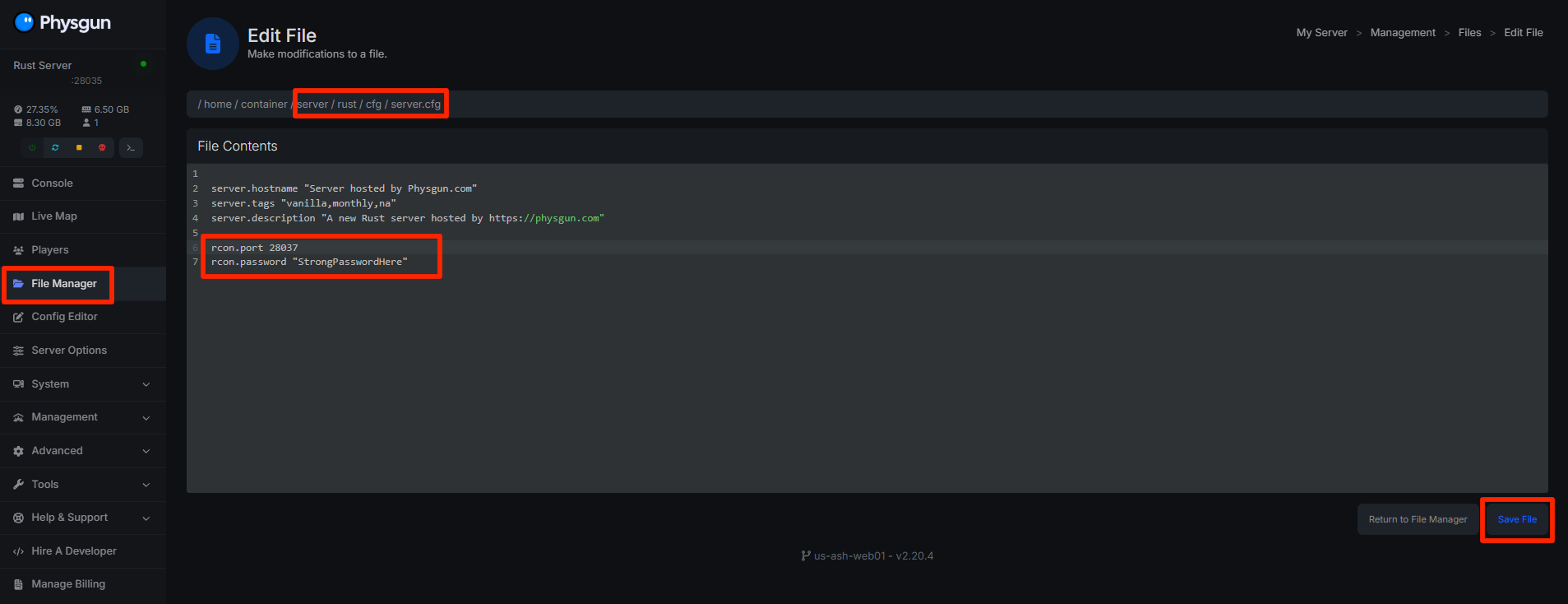
Finding and opening your Rust server configuration file
-
You can usually find this at /server/
<identity>/cfg/server.cfg -
<identity>is usually ‘rust’
-
-
Add or find and set the following line in the server.cfg file:
rcon.port 28016Make sure that you choose a port that is not already in use, open in your firewall, and allowed by your hosting provider.
-
If you changed your RCON port, make sure to restart your server so the changes will take effect.
RCON Password
To find your RCON password:
-
Find and opening your Rust server configuration file
-
You can usually find this at /server/
<identity>/server.cfg -
<identity>is usually ‘rust’
-
-
Add or find and set the following line in the server.cfg file:
rcon.password "StrongPasswordHere"This password is required to connect using any RCON tool.
-
If you changed your RCON port, make sure to restart your server so the changes will take effect.
Note: NEVER share your RCON password publicly. Anyone with access can fully control your server.
Connecting To Your Server Via RCON
Now that you have the port and password set for your Rust server, you can now use this information to connect to and control your server remotely, either via 3rd party services like Battlemetrics, or the RustAdmin RCON tool, or in-game if you are an administrator on the server.
Connecting to RCON In Game Via The Console
If you are an administrator for the server you have RCON access to, you can connect directly to the server console in game!
To connect to your Rust server via RCON in game:
-
Launch Rust and join your server you are an administrator on
-
Once you are fully loaded in game, press F1 to open the server console
-
In the server console, enter the command rcon.connect IP:PORT PASSWORD
-
Example:
rcon.connect 123.45.67.89:28016 MyRconPass
-
-
You will see a confirmation message once connected.
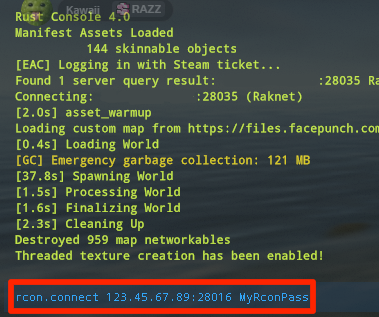
From here, once you are connected, you can run any command you would normally run by clicking the RCON tab at the top of the console, or by typing the command with the correct prefix.
From the RCON tab, you can just send messages normally, like ‘say Server restarting in 5 minutes’.
If you want to use the client console tab, make sure to prefix RCON commands with rcon.
-
Example:
rcon.say Server restarting in 5 minutes
