

Joining a Rust server is simple once you know where to look, but the number of options can be confusing if you’re new to the game. Whether you’re trying to connect to a friend’s world, a community server, or a modded setup, this guide shows how to join a Rust server step by step without guesswork.
We’ll walk through the main ways to join a server in Rust, including using the in-game server list and directly connect with a server IP address and port. You’ll learn how to search by server name, copy an IP, open the Rust console, type the correct command, and press Enter to connect. This also helps if you’re stuck on a Rust server connecting screen or the server doesn’t show up in the list.
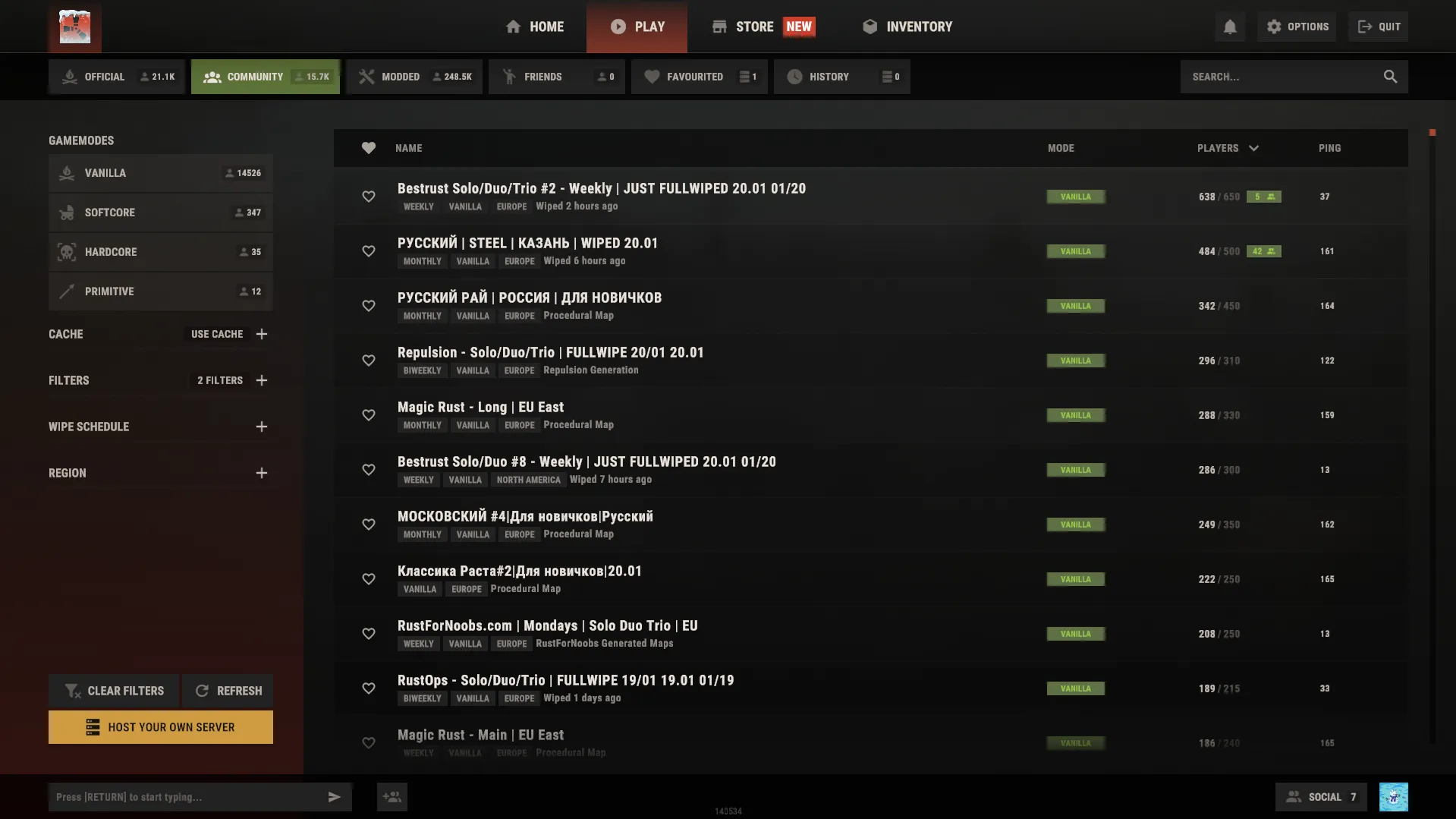
Connecting To A Rust Server Via. The Steam Server Viewer
To connect to a Rust server through the Steam server browser:
-
Open Steam.
-
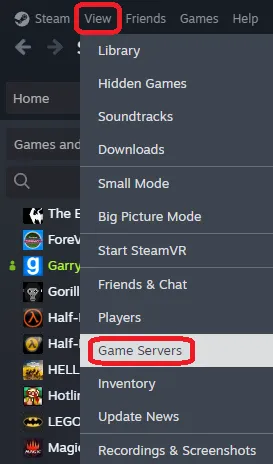
Click view in the top-left corner.
-
Select Game Servers from the list.
-
Click the + button in the bottom-right corner
-
Enter the server IP address, but do not use the normal game port.
When adding a Rust server to the Steam server browser, the port is almost always the next number after the highest port the server uses.
Most servers use game port + 1:
-
Game Port: 28015
-
Steam server browser port: 28016
Some Hosts (like Physgun) will use RCON port + 1:
-
Game Port: 28015
-
RCON Port: 28016
-
Steam server browser port: 28017
-
Type the server address into the text entry using the format ip:server_browser_port
-
Click OK to add the server to your Favorites.
-
Select the server in the list and click Connect in the bottom right corner
-
Steam will automatically launch Rust if it is not already open and connect you automatically.
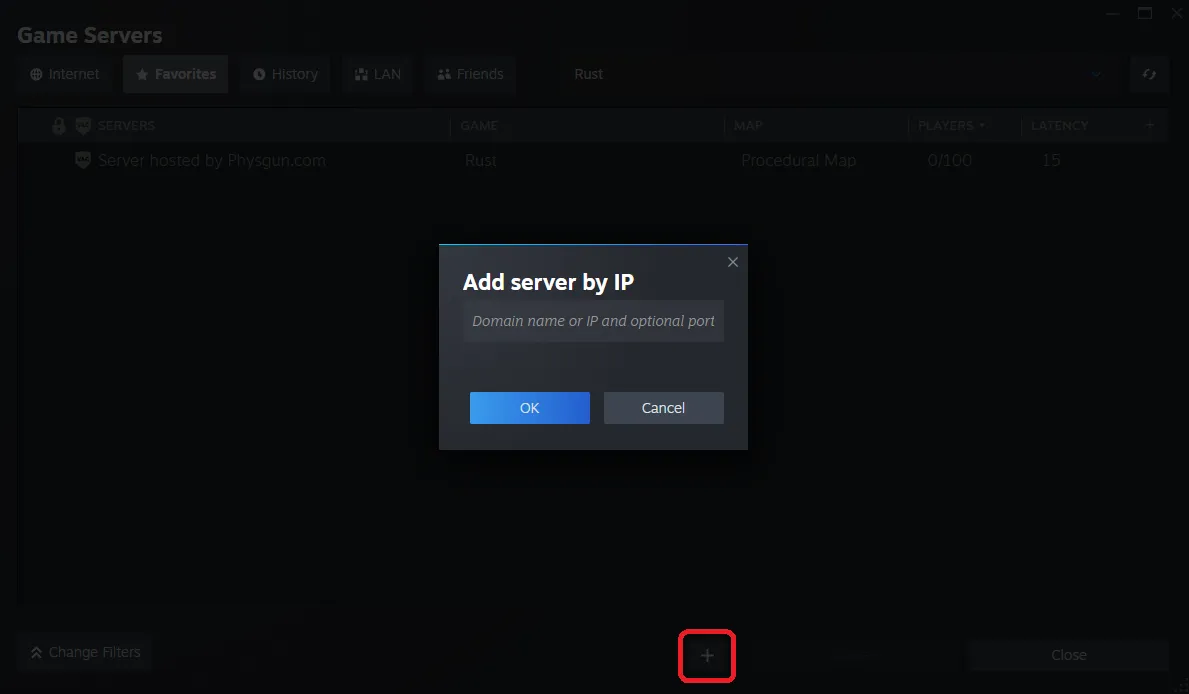
If after entering the server IP and port, a popup appears saying “Failure Invalid hostname or IP address,” make sure the server you are trying to connect to is running and you have typed in the IP address and port correctly.
Connecting To A Rust Server Via. The In-Game Client Console
To connect to a Rust server through the in-game client console:
-
Launch Rust from Steam and log into your game client.
-
Once at the main menu, press F1 on your keyboard to open the client console.
-
Type the command client.connect IP:port into the text input line at the bottom of the console.
-
Replace IP with the server IP address and port with the server port number.
-
Hit Enter on your keyboard to connect to the server.
-
If typed correctly, Rust will immediately attempt to join the server.

If the game returns you back to the main menu after trying to connect and says “Disconnected,” make sure the server is running and you have typed in the IP address and port correctly.
Connecting To A Rust Server Via. The In Game Server List
To connect to a Rust server through the Rust server list:
-
Open Rust and wait for the main menu to load.
-
Click Play at the top of the screen
-
Choose the server category you want (Official, Community, or Modded). Here, you can find servers you or others have created.
-
Use the search bar at the top-right to type the server name
-
Hit Enter on your keyboard or click the search icon.
-
Scroll the server list until you find the server you’d like to play on.
-
Click the server once to select it.
-
Click Connect To Server to join.
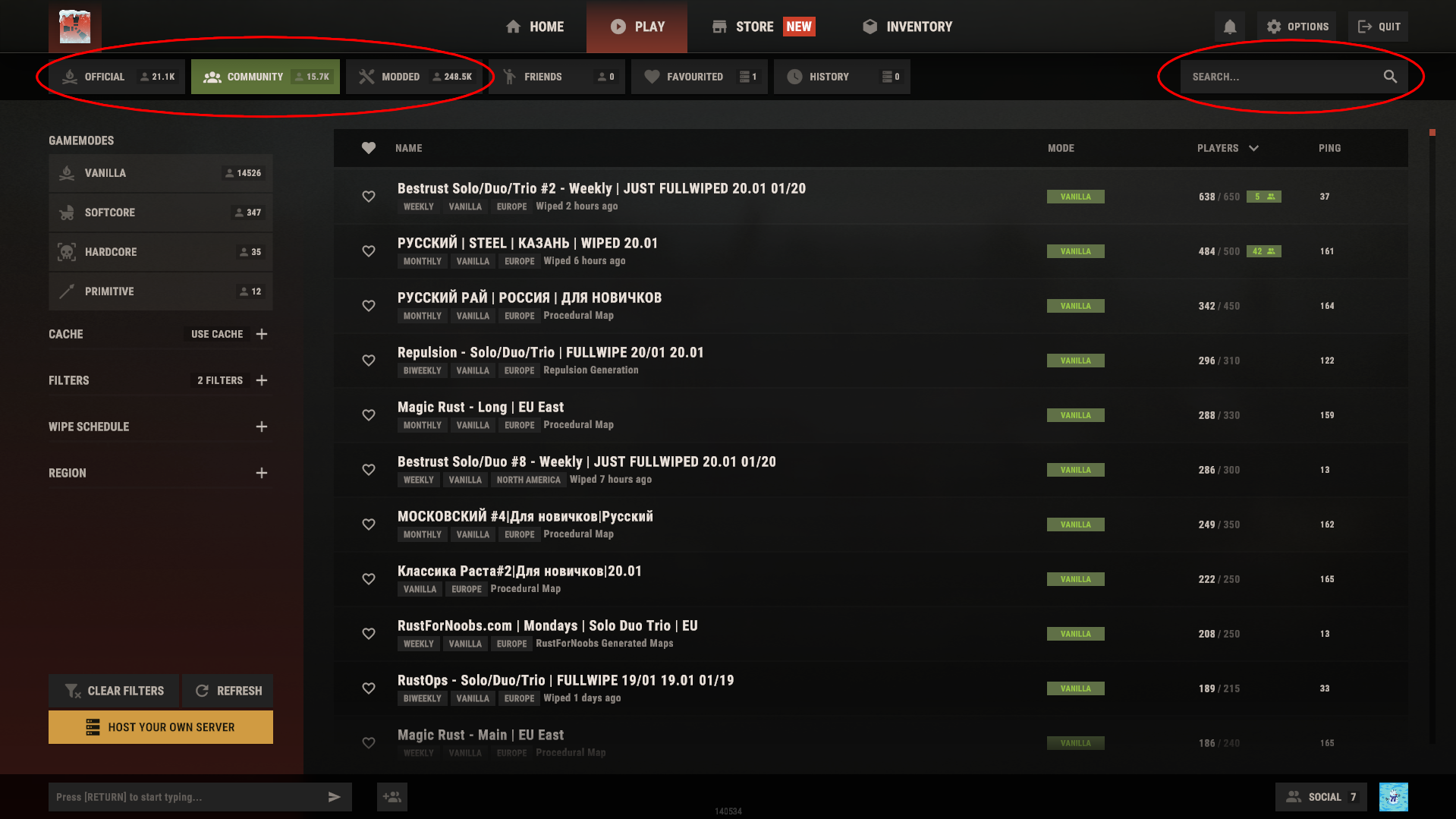
Congratulations, you have successfully connected to your Rust server through the server list!