

Knowing how to hide admin commands in the Rust console is important for server admins who want to manage their server without exposing commands to players.
By default, many admin commands executed in-game can appear in chat or console logs, making players aware of moderation actions.
In this guide, you will learn how to hide admin commands in the Rust console, prevent admin commands from appearing in chat, and adjust server settings or plugins so commands run silently. This helps keep moderation discreet, reduces confusion for users, and maintains a cleaner in-game experience for everyone on the server.
Why Can Everyone See My Admin Commands On My Rust Server?
On a Rust server, certain admin actions are broadcast in the global chat, so all users connected to the server are informed of what’s happening in the world. These system messages are tied directly to Rust’s built-in admin and moderation settings. This is designed for security and transparency reasons, allowing players to see what your admins are doing around them, and allowing you to easily catch misuse of their powers. Despite this, many server owners choose to disable these messages to reduce confusion and keep moderation actions private.
Having these commands fully visible could easily leave players confused or annoyed when they appear in chat. Anyone who’s familiar with server management would agree that a major killer for Rust communities is admin abuse, and it’s best to handle the issue in private to avoid driving away members. There is no built-in way to remove or check these settings through vanilla Rust, but you can make them disappear by using just a couple of plugins.
Before you continue any further into this guide, make sure you have the Oxide mod base installed on your server in order to use these plugins.
Hiding Admin Commands On A Rust Server
To hide admin commands on a Rust server:
-
Start by opening your web browser and going to umod.org.
-
By searching under the plugins tab, you can find No Give Notices and Secure Admin. For context, No Give Notices will automatically prevent global chat messages when admins give items to themselves or other players, while Secure Admin offers the option to disable messages in global chat when players are kicked or banned.
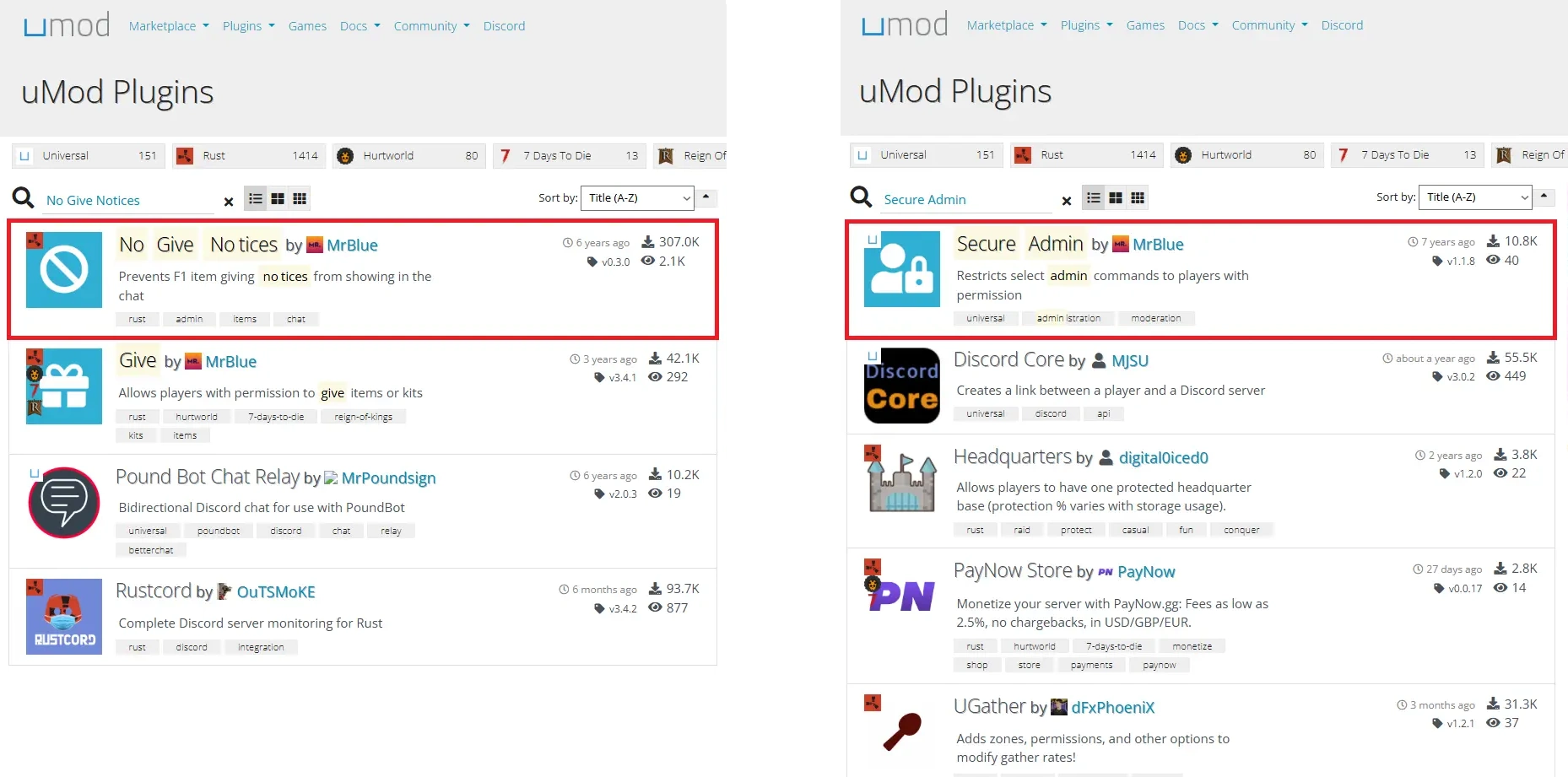
-
Download all of the plugins.
-
Open your server’s file manager and navigate to the oxide/plugins directory.
-
Place the .cs files you downloaded into the directory.
-
Restart your server to install the plugins.
-
The No Give Notices plugin will work without any further input, but Secure Admin will require a bit of configuration.
-
To configure Secure Admin, view the config file located in the oxide/cfg/SecureAdmin.json file directory.
-
Set the Broadcast Bans and Broadcast Kicks settings to false to remove these broadcasts from global chat.
-
Save and close the file, and either restart your server or run the server.readcfg console command to apply the settings and ensure all changes take effect.
-
The last thing to do is join your server and check the global chat to confirm everything has been done correctly.
-
It’s as simple as that! Now you won’t have to worry about your players being deterred by admin abuse or by receiving constant traffic in the global chat when actions are being taken by your staff.
-
If you connect to your server and find that you’re still experiencing public messages as a result of admin commands, check to make sure any other admin resources you’re using aren’t broadcasting messages on their own. If they are, look in their config for any settings like “Broadcast ___” or something similar.