

When playing Rust, crashing can be the bane of any server owner (and player’s) existence. Sometimes it happens completely out of nowhere and could happen for a plethora of different reasons. To save yourself the headache, this guide will cover the common reasons for crashes on both the server and client’s end and the troubleshooting steps to go about resolving loading issues.
In this guide, you’ll learn:
-
Why Rust might randomly crash when loading in.
-
How to check your PC system requirements.
-
How to verify game files on Steam.
-
How to update to the latest drivers.
-
How to identify if a plugin is outdated.
-
How to reinstall Rust on Steam.
Why Does Rust Crash When I Join A Server?
Before you can start fixing the crashes, you have to identify the source of the crash. This process is mostly trial and error, going down the list of causes and fixing them one by one until it works.
Lack of System Resources
The first cause is a lack of system resources on either your computer or on the server itself. Your system could be spiking in CPU or hitting virtual memory limits. Loading into Rust can be intensive since it has to load all of the assets of the game, and if your computer doesn’t have the resources to keep up with that, it can cause the entire game to fail. This goes for the server itself, too. A Rust server that’s overextending its resources can lead to these issues as well.
Corrupted Game Files
The next cause could be corrupted game files. From foreign plugins affecting the client to incomplete loading, anything can cause your game files to corrupt. All it takes is one missing or corrupted file, and you can’t play the game anymore. Luckily, in most cases, this is a super simple fix.
Outdated Graphics Drivers
Outdated drivers can cause game crashes. If your drivers need updating, it can be hard for your system to render everything it needs to, so when you load into the server, you’ll overwhelm your computer, and it’ll crash.
Bad or Outdated Plugins
It’s also important for server owners to keep their plugins up to date with every Rust update. An outdated plugin can stop your players from loading in or corrupt their game files if it affects the client in certain ways.
Excessive Background Activity
The last of the most common causes for crashes is excessive background activity. If you have too many applications running in the background, you’re overworking your computer, and it can cause the game to crash.
It’s important to note that there may be issues outside of your control, like too many people loading in at once, or perhaps problems with the server host, where the only solution is to wait a little bit and try again.
Make Sure Your PC Meets The System Requirements
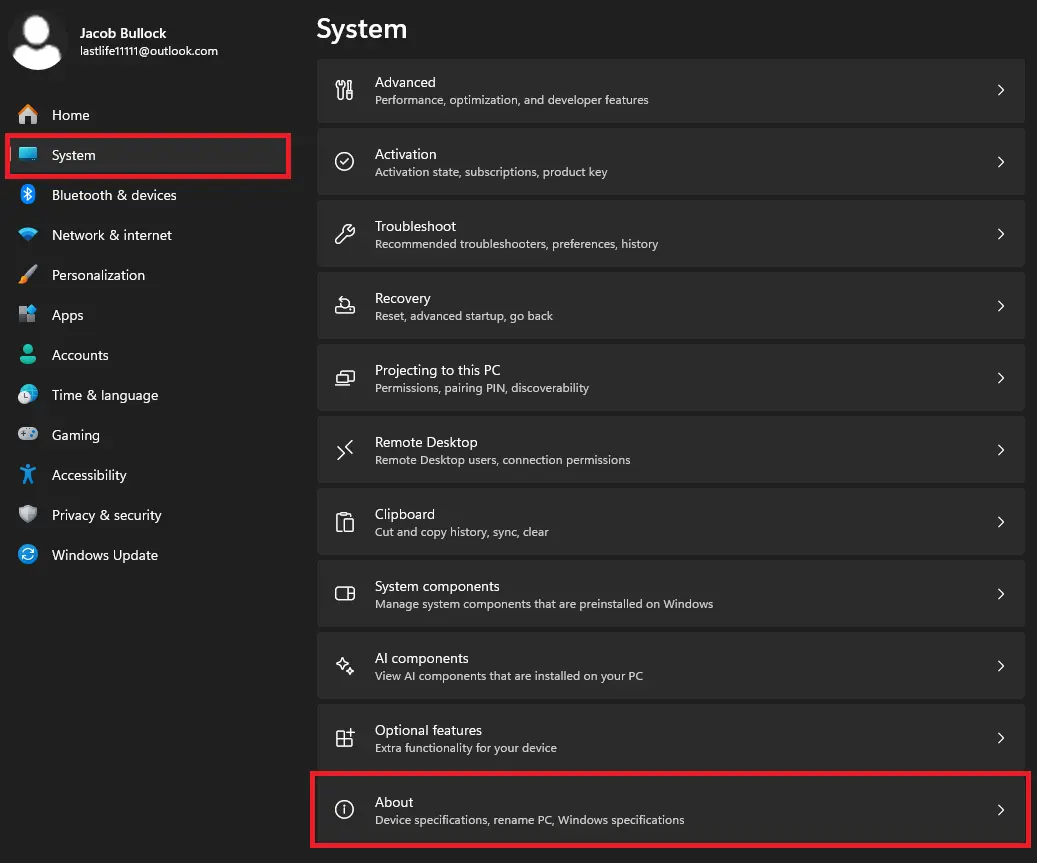
To find out if your system meets the minimum requirements to run Rust, open your settings and select the System tab. Scroll all the way down and click About. You can find your computer specs here.
The minimum requirements for Rust are:
-
Processor: Intel Core i7-3370 / AMD FX-9590
-
Memory: 10 GB RAM
-
Graphics: GTX 670 2GB / AMD R9 280
-
Storage: 25 GB available space
If your hardware meets or exceeds these specs, this isn’t your problem. Keep in mind that not meeting these requirements doesn’t definitely mean you can’t play the game, but it’s not going to run as well, and can cause crashes if your PC is already occupied.
Clearing Temporary Files
A big, non-negotiable requirement is storage space. While the others may affect performance, storage space has less flexibility. Consider deleting the cache, logs, and shaders folders in your %USERPROFILE%/.cargo directory to get rid of any temporary files that could be bloating the game’s file size and blocking necessary files from being downloaded.
Allocating More Virtual Memory to Your C Drive
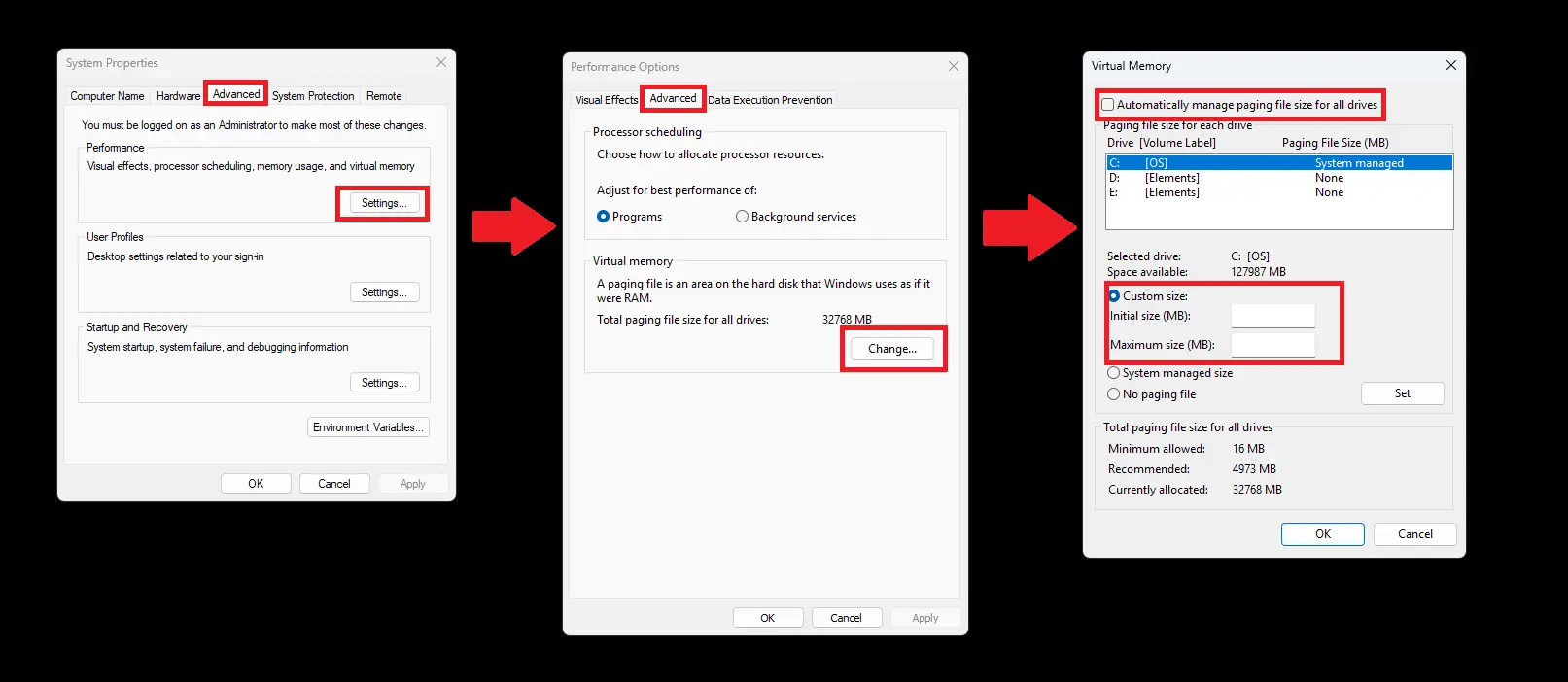
If you’re hitting your memory limits, you can allocate more virtual memory in your settings by searching for Advanced System Settings.

Click on the Advanced tab. Click Settings under the Performance box and click the Advanced tab again. Under Virtual Memory, click Change and uncheck the box that says Automatically manage paging file size for all drives. Lastly, select the Custom Size option and adjust your memory. It’s recommended that you set the Initial Size to 1.5x and the Maximum Size to 3x your installed physical RAM.
Verify Integrity of Game Files Through Steam
If you have corrupted or missing game files, the solution is to verify the integrity of your game files. 90% of the time, this is the solution to fix Rust crashing.
Before verifying, you may want to check if you are running a Steam beta program. This can lead to unstable builds being installed. Open Steam settings in the top left corner of the application and select Interface settings. Here you’ll find an option called Client Beta Participation. Make sure this says “No beta chosen”. Restart Steam and move on to verifying your files.
To verify game files:
-
Launch Steam and go to your Steam library.
-
Right-click Rust and select Properties.
-
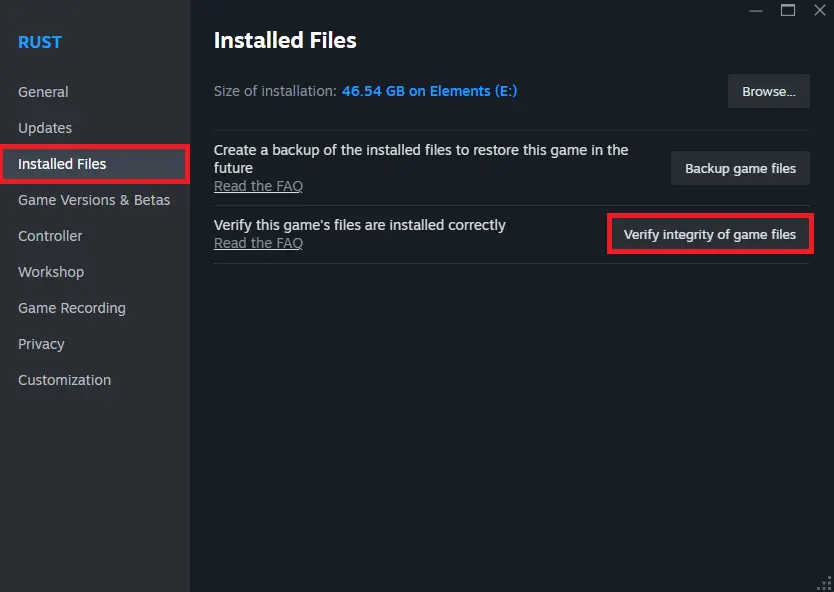
Select the Installed Files tab and click the Verify integrity of game files button.
-
Wait. This may take a while.
-
Once all of your files have been verified, launch Rust and see if your loading issues are solved.
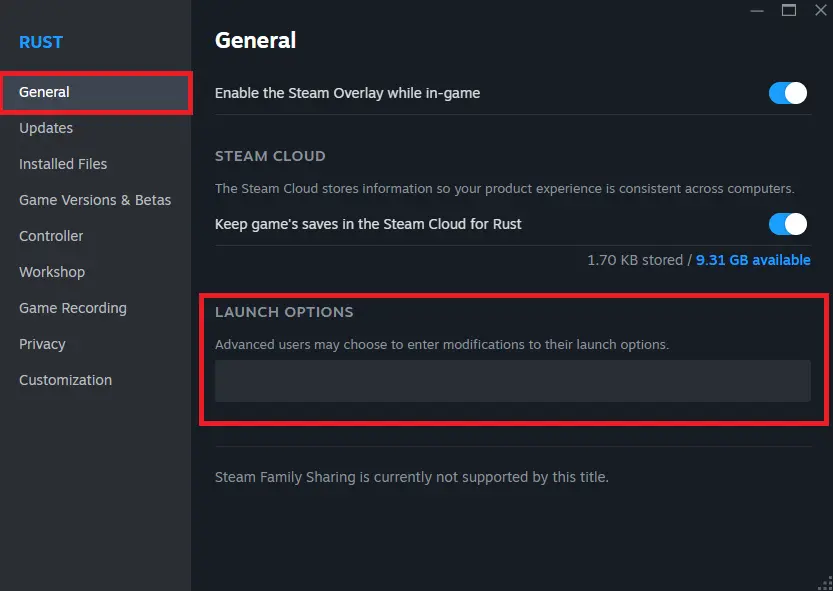
While you’re dealing with the game’s properties, try typing “-dx9” into the command line under Set Launch Options. This may affect performance, but it can fix crashing in the process.
Update Outdated Graphics Drivers
If your graphics drivers are outdated, you’re going to have to download some updates to fix Rust crashing. Depending on what graphics driver you’re using, the process may be slightly different, but overall, the methods are very similar.
Updating NVIDIA Drivers
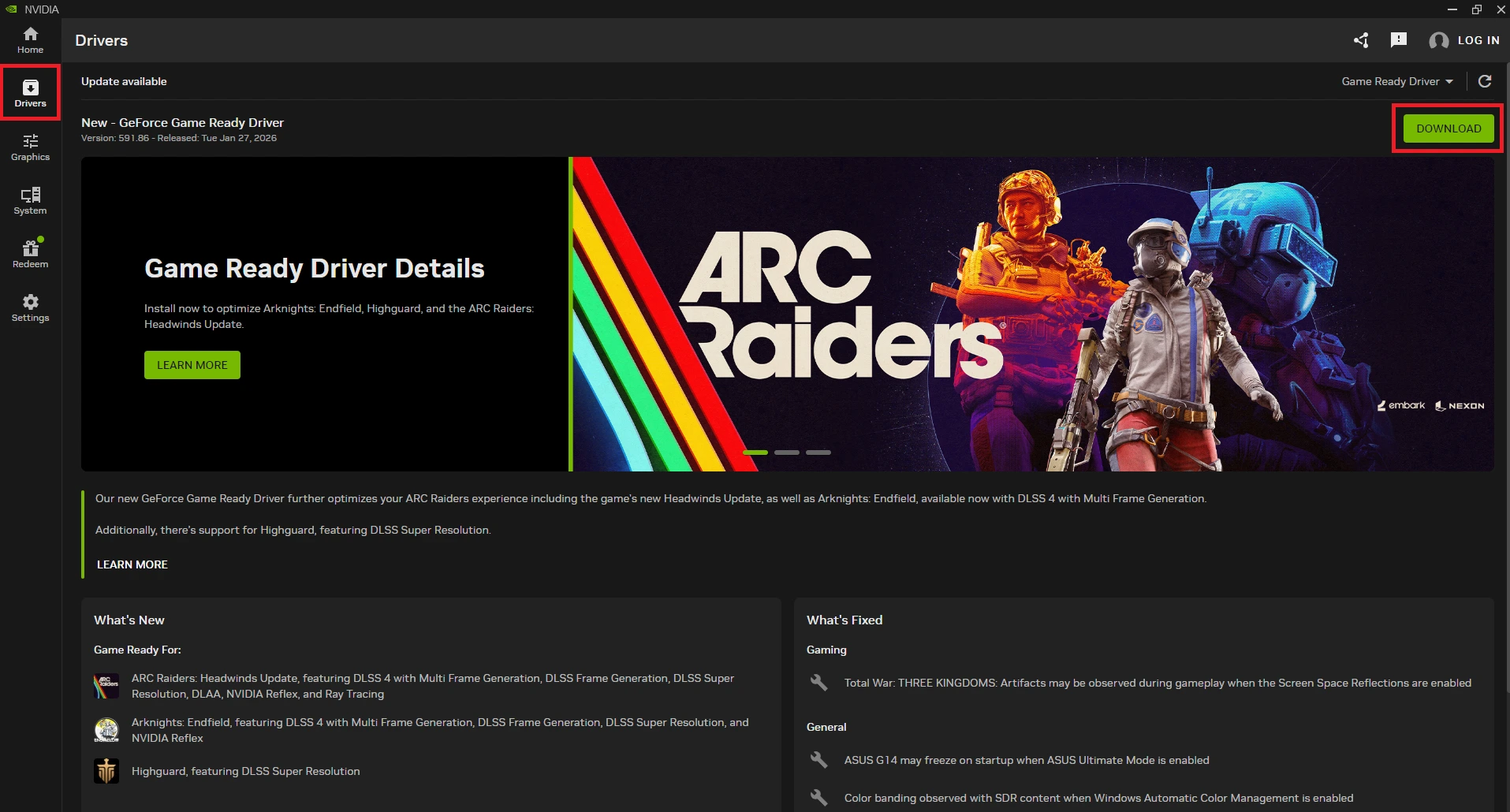
To update your drivers as an NVIDIA user:
-
Download the NVIDIA app by visiting the linked website and clicking the Download Now button.
-
Launch the app and let it handle its initial installation.
-
Once the app is open, click the Drivers tab.
-
In the top right corner, click Download to install the latest drivers.
-
Wait for the drivers to install and close the app once it’s complete.
Updating AMD Drivers
To update your drivers as an AMD user:
-
Download the AMD app by visiting the linked website and clicking the Download Software button.
-
Download either the Windows or Linux drivers depending on your system.
-
Launch the app and define where you want the application to be installed.
-
Click Install and let it handle its initial installation.
- If you don’t immediately see the install button in the new window, you may be given several different prompts depending on your system. Go through them as needed, and you’ll eventually see the install button at the end.
-
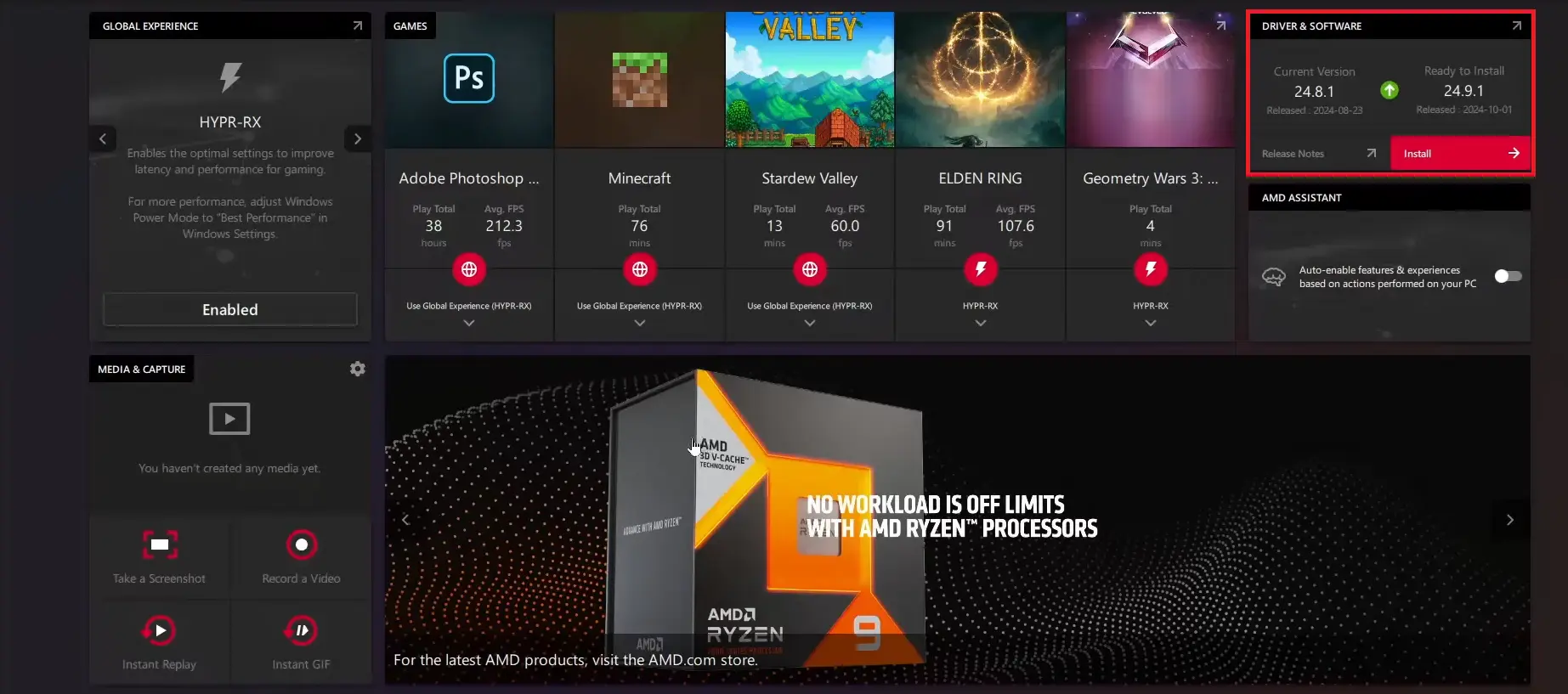
Open the app if it doesn’t do so on its own, and navigate to the Driver & Software box.
-
Click the Install button if your drivers need to be updated.
-
Wait for the application to scan your system for updates and click Install when the new window pops up.
-
Wait for the drivers to install and close the app once it’s complete.
After updating your drivers, launch Rust and see if it’s fixed. If you have any performance issues, try lowering your graphics settings for better stability. Your game could still crash after loading in if it’s too intensive on your system.
Update Old Rust Plugins
Sometimes loading issues aren’t entirely on the player. Sometimes server owners forget to update their plugins, and the outdated files prevent some people or even everybody from loading in. If you’re a server owner, try removing your plugins and seeing if people can load in then. If the problem is fixed, slowly add them back until you find the plugin(s) that are causing the issue. This will involve a lot of restarting and rejoining, which can be tedious, so prepare for that.
Once you’ve found the culprit, go to the plugin’s page, usually on the uMod website, and see if there is a new version out for it. If there is, download it and replace your old plugin files. If the creator hasn’t released any new version, try reporting it to them and disabling the plugin for the time being.
For a more detailed explanation on adding plugins to your Rust server, consider checking out our other articles in our Help Center that are centered around the installation of plugins. Like this one, which explains how to install a Whitelist plugin.
Close All Background Applications
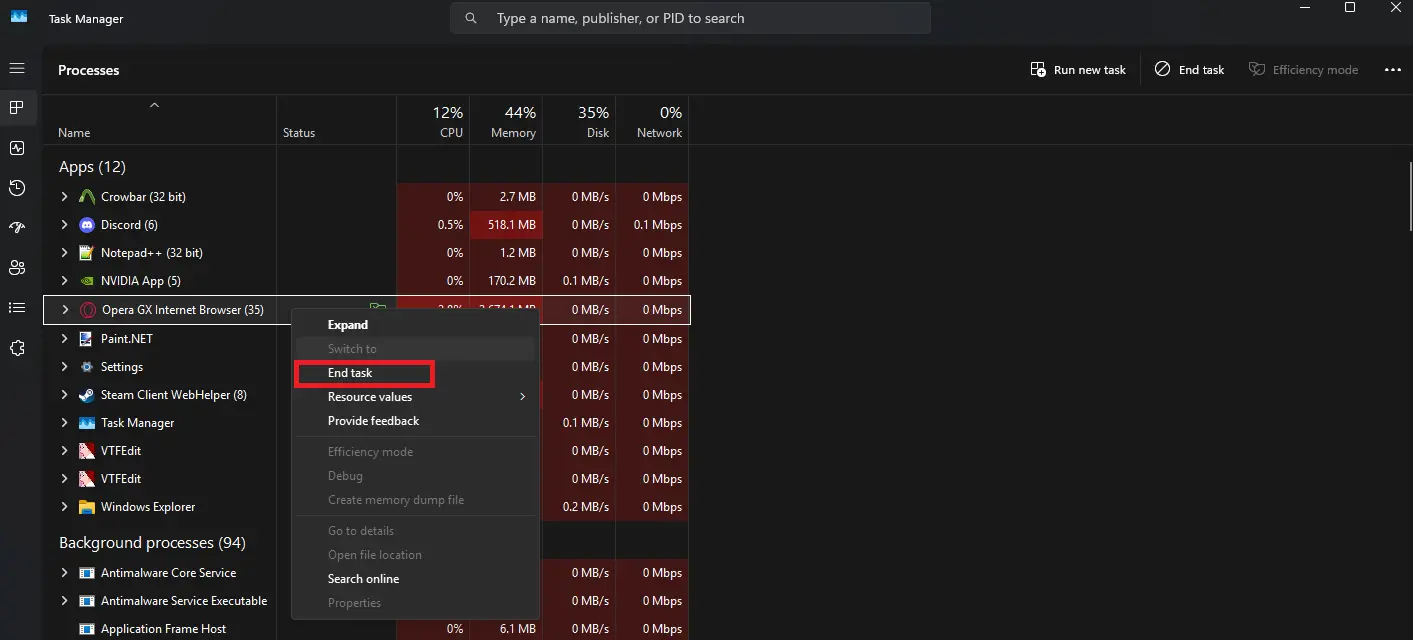
Your crashing may be a result of background activity on your computer. Before loading into Rust, open up your task manager by right-clicking on your task bar on the bottom of your screen and selecting the Task Manager option.
Once your task manager is open, find the applications that are taking up the most CPU and Memory and close them out if possible by right-clicking the task and selecting End Task. When you’ve closed out of your background apps, load up Rust and see if it’s still crashing.
Reinstall Rust
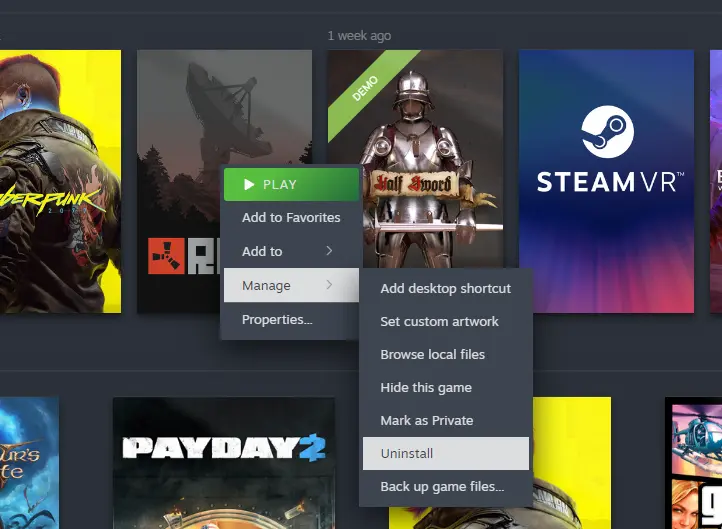
When all else fails, you may just have to bite the bullet and reinstall the game. Yes, it may be annoying, but you’ve waited this long while trying other solutions; a couple of hours at most won’t kill you. Right-click on Rust and select the Manage tab. Click Uninstall and wait for the game to do its thing. Once it’s done, click Install and wait. When your game is good to go, load it up and see if your problem is solved.
Conclusion
With that, you now know the common causes for Rust crashing while joining a server. If you find that Rust continues to have issues, join our Discord linked below this article and ask around. We will be more than happy to help!