

If you want to manage your Rust server from your phone, enable remote features, and get push notifications, you’ll need to pair your server with the Rust mobile app.
This guide walks you through how to download the Rust app, press the pair server button, set your server port, and connect using your Steam account.
We’ll also cover where to find the right file in your startup tab. By the end, you’ll be able to manage players, view logs, refresh your server, and control your Rust game from anywhere.
Download The Rust App On Your Mobile Device
Downloading the Rust app on your phone is just as easy as downloading any other mobile app. Rust+ is accessible on the Google Play Store and Apple Store.
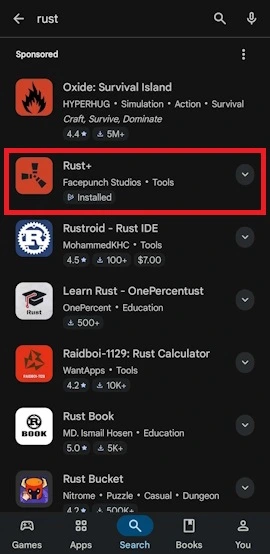
Once you’ve installed and launched Rust+, you’ll be prompted to sign in using Steam. Log in and accept any verification that your Steam app requires you to do.
Enabling Rust+ On Your Rust Server
To enable Rust+ on your Physgun Rust server:
-
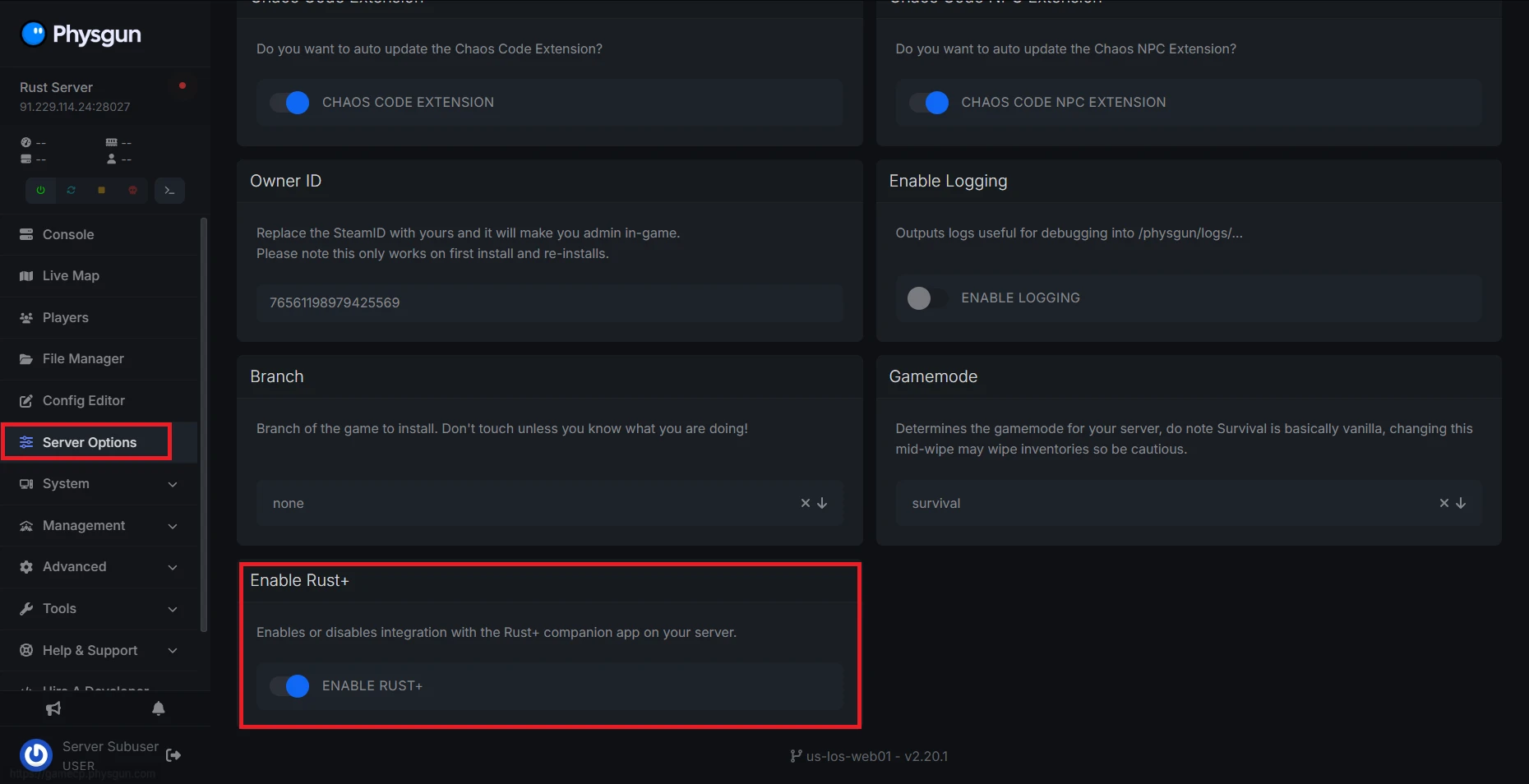
Access your Physgun server panel and navigate to the Server Options tab.
-
Find the setting that reads Enable Rust+ and mark it as On.
-
Now your server’s network should be able to communicate with Rust+ and vice versa.
-
Restart your server.
-
Load into Rust and join your server.
-
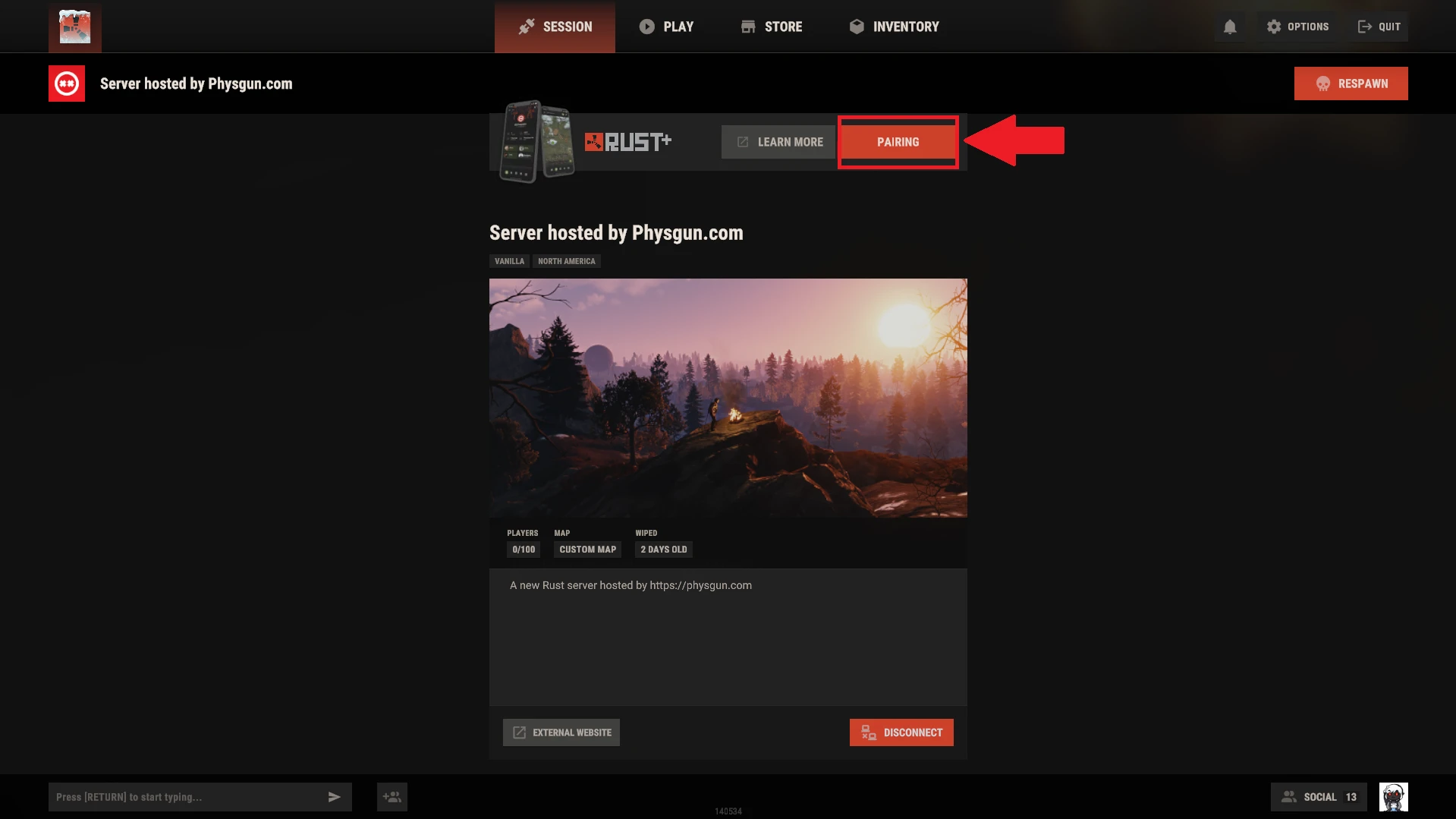
Press Esc to open the menu. Near the top, you’ll see Rust+.
-
Hit the Pairing button and allow push-notifications.
-
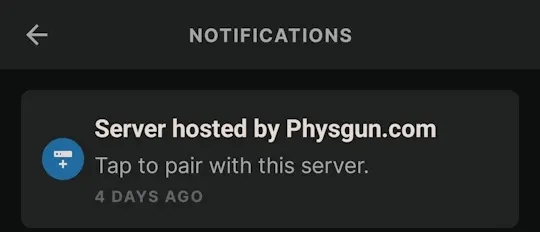
Open the Rust app on your phone and check your notifications.
-
Press Pair Server on the notification.
-
You can pair Rust+ anywhere that supports it, not just your own server. Just follow steps 5-9, and you’ll be all paired!
-
Now you’re connected successfully, and Rust+ should be working. You can now view your server’s information, access the map, chat with your team, and access the app’s remote features like cameras to see when your base is being raided.
To enable Rust+ on a non-Physgun Rust server:
-
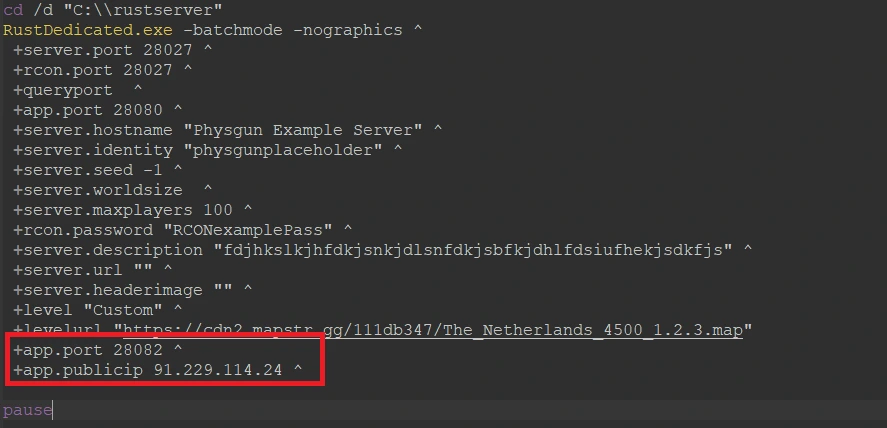
Open your batch file or start-up command line.
-
If you are hosting your own dedicated server, make sure it has been port-forwarded to 28082. This is the default TCP port used for Rust+. Otherwise, run the app.id command on your host’s console to find what port it’s running for external app connection.
-
Copy your server’s IP address and the app port.
-
Type +app.port ^, followed by the port you copied earlier, into your start-up command.
-
In the same file, add +app.publicip ^, followed by your server’s IP address.
-
Follow steps 5-9 in the previous section.
-
You’re all set! Your players can now access all of the Rust app’s features for your server!
Removing Rust+ From Your Own Server
To remove Rust+ from your Rust server:
-
Return to your Physgun panel.
-
Navigate back to your Server Options.
-
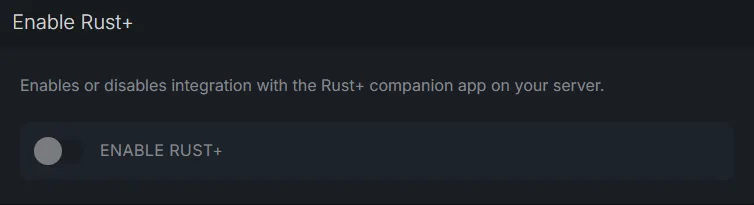
Turn the Enable Rust+ setting off.
-
If Rust+ was already enabled before, anyone who paired with the app previously may still have access to it until their auth token expires.
-
You’re done! Users should no longer be able to connect to your server with the Rust mobile app, limiting any features that may seem unbalanced for your server.
To remove Rust+ from a non-Physgun server:
-
Open your batch file or start-up command line.
-
Change the value of app.port to 1-. Note that it must be 1- and not -1 due to command line parser conflicts.

-
As mentioned in step 4 of the previous section, you will have to wait for the auth tokens to expire if users have already paired with your server.