

If you want a pure building sandbox or a stripped-down PvP map, removing monuments is the cleanest way to control gameplay. Instead of using default map generation, you’ll:
-
Generate a custom map using a map tool like RustEdit
-
Disable or delete monuments before export
-
Upload the map file to your rust server
-
Set the server to load that map on startup
For Rust console edition, options are limited. Custom servers on rust console do not currently support full custom map uploads like PC. On PC, however, you have full control using plugins and map editors.
Once uploaded, restart the server, check your world seed and size settings, and confirm monuments are removed in-game. This setup keeps loot progression controlled, encourages building, and gives admins more control over performance and player flow.
Getting Started With RustEdit
How to Install RustEdit
-
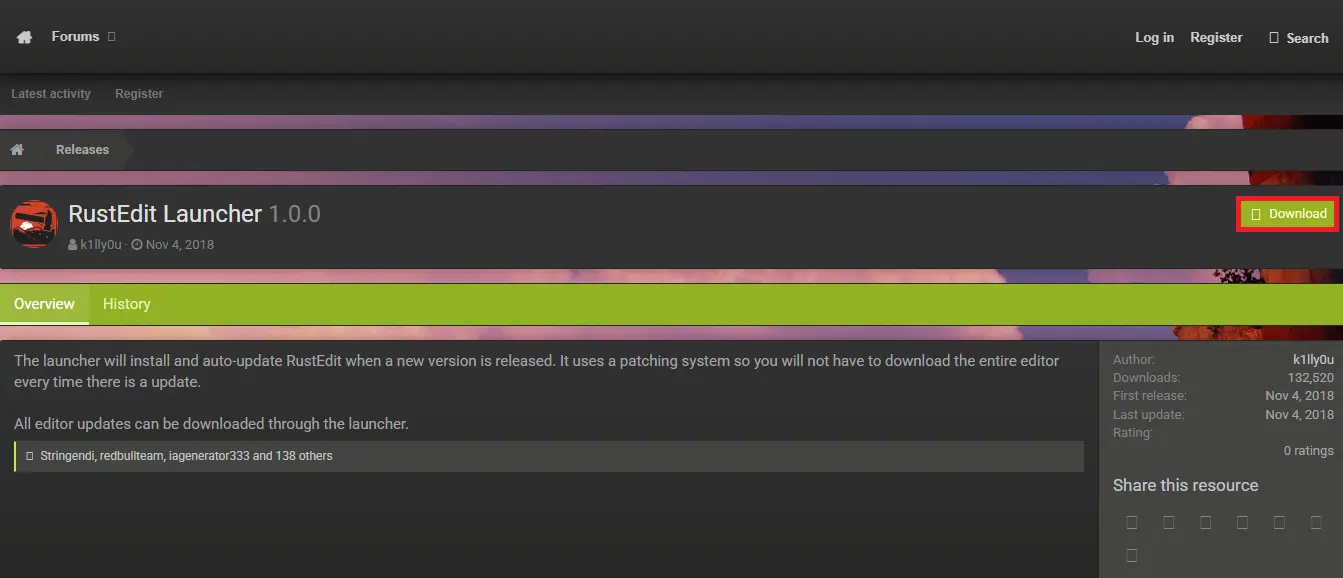
Start by visiting the RustEdit website using this link.
-
Click the download button on the latest release and let the launcher install.
-
Once it’s finished, launch RustEditLauncher.exe.
-
Define the directory you want the RustEdit folder installed in.
-
Visit the directory once it’s done and run Launcher.exe.
-
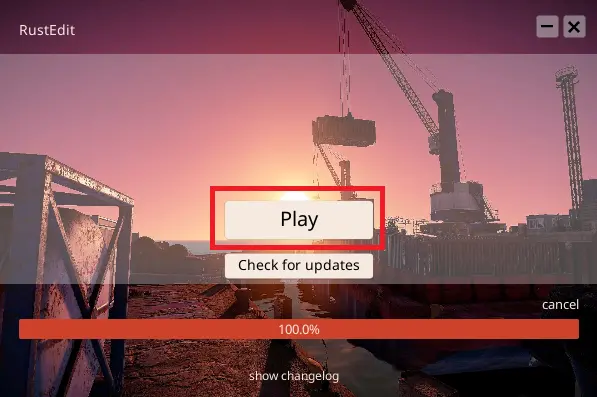
Wait for it to do its thing and click Play once the application is all installed.
-
For future reference, you can launch RustEdit.exe instead now that it’s installed. You may have to run it as an administrator if it doesn’t have the correct permissions.
-
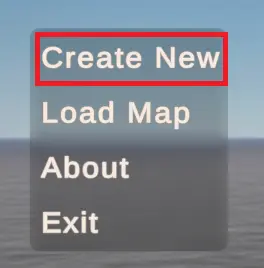
Click Create New once RustEdit is open.
-
Now you’re ready to get to work on your map.
Basic Exploration of the Editor
Once your map has loaded, you can use your mouse and the WASD keys to move your camera. Press Left Shift to move faster.
At the top of the screen, you should see several tabs you can explore. Some important options are:
-
The Terrain Tool tab will let you shape mountains and hills. You can change the size, shape, and opacity (strength) of the tool all in the menu.
-
The Terrain Painter tab is where you can assign biomes, textures, and topology to parts of your map.
-
The Paths tab is how you can build rivers and roads through your map.
-
The Socket tab lets you modify snap points of particular components.
-
The Prefabs tab is where you can find props and preset structures to decorate your map.
-
Lastly, the Tools tab is where you can modify map settings like procedural generation and loot tables.
We highly recommend you play around with these features for yourself, because people have different workflows and methods for creating maps, and you’ll just have to develop some of your own. After reading this post, perhaps sign in to YouTube and watch some tutorial videos to improve your mapping abilities beyond just the beginner level. You’ll thank yourself if Rust mapping is something you intend to do a lot.
Making Your No Monument Map For Your Custom Server
Generating Your Map
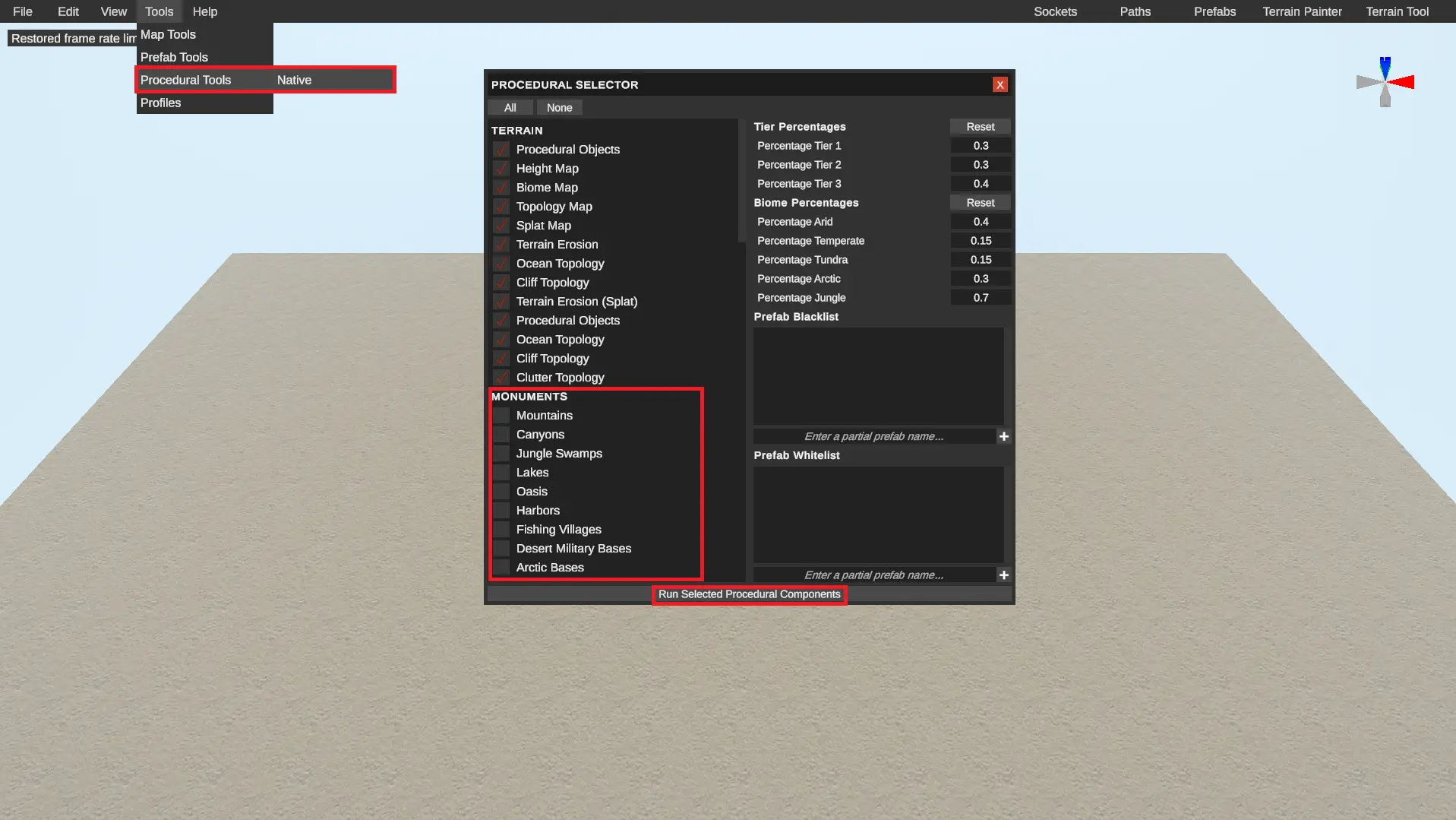
If you’re not looking to go crazy with your first map or you just need something quick, you should use procedural generation for your map. Go to Tools > Procedural Tools > Native and select all of the components you want in your generation. For the sake of this guide, deselect all monument options. This will make it impossible for monuments to show up in your map, which is easier than deleting all of them yourself. Make sure to check your generated map for errors. Procedural generation can affect your map, causing weird terrain glitches or floating rocks since it lacks human attention to detail.
Manually Making Your Map
If you’ve got some time on your hands, you can manually create your map by using the tools mentioned above. Use the terrain tool to sculpt your terrain into how you want it to look. Add mountains, islands, or even a big hole in the ground if you really want to. Next, you can use the terrain painter to add different biomes, turn the ground from grass to sand or snow, and set up topography. Topography defines the properties of a surface and decides what can spawn there. If you need help understanding it, you can open the Help tab to find a guide for you to learn how it works. One important setting to take into account is player spawns. Players can only spawn in a Temperate biome with either Beach, Oceanside, Tier0, or Mainland topology. No matter what, it’s impossible for players to spawn on Cliff, Monument, or Cliffside topology.
After you have your terrain the way you want it, open up the Prefabs tab to start adding structures or environmental props. If you find that you want to add monuments to your map in the future, you can find them here as well.
Removing Monuments From a Map
If you’re editing a map that already has monuments on it, removing them is very simple. You just have to click on the monument and press DEL on your keyboard. Then, go over the terrain to make sure the biome, splat, and topography are up to date with the changes.
Finalizing Your Map
The last step to creating your map is to go around and make sure there are no weird glitches once again. Once you’re sure your map is the way you want it, click on the File tab and click Save As. Then, just give your map a name and save it where it’s most convenient for you.
Adding the Custom Map to Your Rust Server
Now that you have a fully functional .map file, you have to upload it to your server. If you’re a Physgun client, log in to your server panel and navigate to the Server Options tab. In the Custom Map URL box, you can upload your map file here, and the panel will handle all of the in-between.
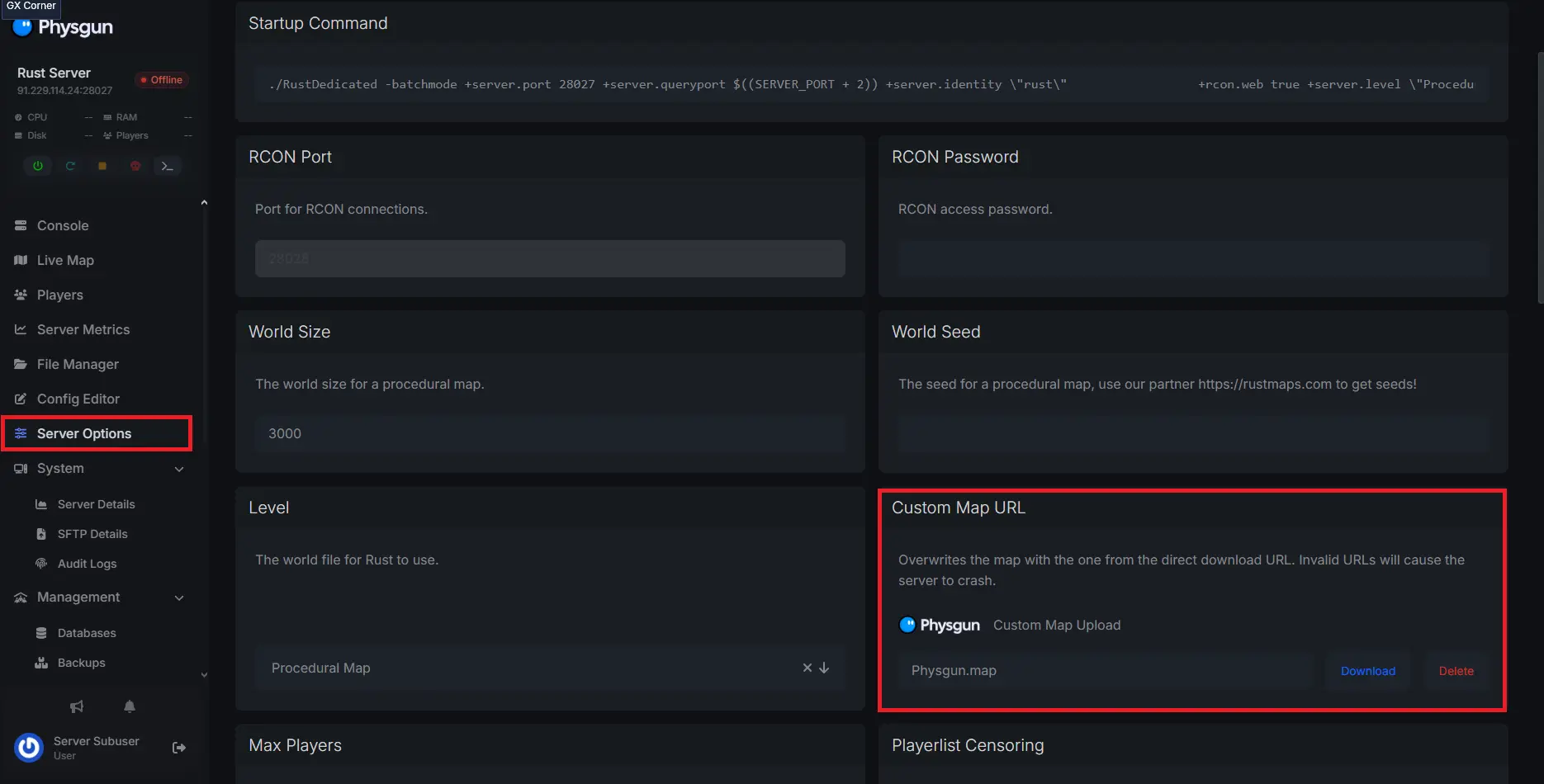
However, if you aren’t a Physgun client or simply don’t want to use this method, you can upload your map to any type of public file hosting service. It doesn’t matter which service, as long as the link goes directly to the file. If people have to click something after visiting the link to open the file, it will not work.
Once you have your link, you can paste it in the Custom Map URL option on your server panel or server.levelurl in your server.cfg file located in the server/rust/cfg directory. Once you’ve done this, restart your server. You can find more details on uploading a custom Rust map to your server in our Help Center.
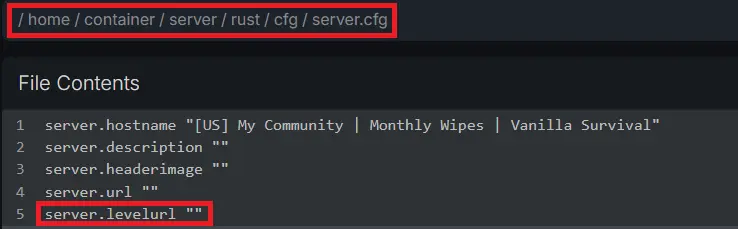
If any errors occur while retrieving your map, and it cancels when you join your server, make sure to validate the link you used to upload the map and make sure it was done properly.
Once your map is working, invite your friends, let your community know it’s all functional, and have fun!