

Adding tags to a Rust server is one of the easiest ways to attract the right players and stand out in the server browser. Server tags act as searchable labels that tell potential players what your server is about before they ever join. Common Rust server tags include playstyles like vanilla, modded, roleplay, PvE, softcore, and creative, along with wipe schedules such as weekly or monthly and regions like NA North America or WA West Asia.
When you add server tags correctly, your Rust server becomes easier to discover using tag filters in the in-game server browser. Players often search by tags to find servers that match their preferred gameplay, whether that is combat training, battle royale, roleplay, or a low-stress PvE experience. Without tags, your server may still appear, but it is less likely to reach the right audience.
Available Server Tags
Game type Tags
-
vanilla
-
modded
Playstyle Tags
-
hardcore
-
softcore
-
pve
-
creative
-
roleplay
-
minigame
-
training
-
battlefield
-
broyale
-
builds
Region Tags
-
NA - North America
-
WA - West Asia
-
EU - Europe
-
SA - South America
-
OC - Oceania
-
EA - Asia
-
AF - Africa
Wipe Tags
-
monthly
-
biweekly
-
weekly
Keep in mind that the list above is the only available tags you can put for your Rust server, and you can only use one tag per group.
Adding Tags To A Rust Server
To add tags to a Rust server:
-
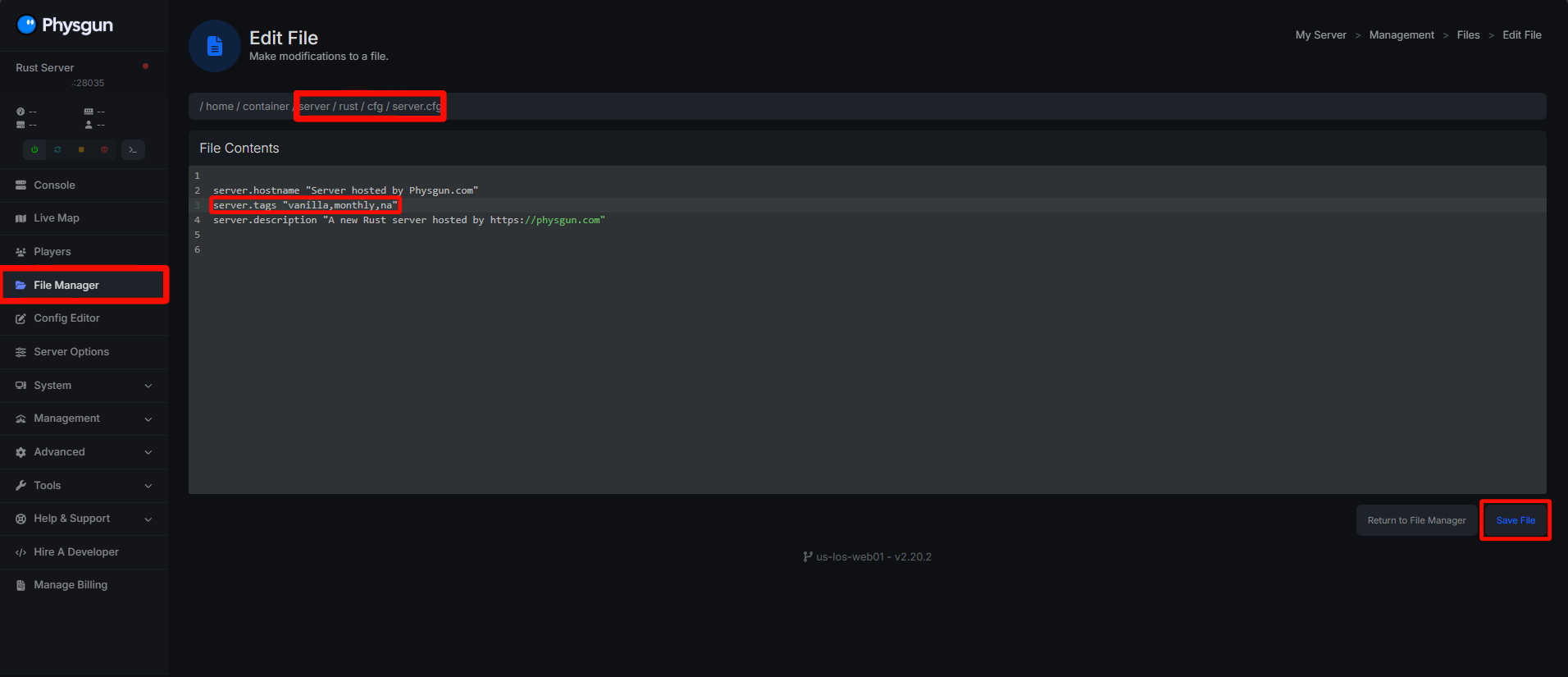
Before configuring your tags, stop the server if it is running. You are about to configure your server settings.
-
Navigate to your Rust server config at /server/[identity]/cfg/server.cfg
- In most instances, [identity] will be rust
-
Open the file and find the line that starts with server.tags, if this line does not exist, create it. You can also add or update tags while the server is running by entering the server.tags command in the server console.
-
Enter the following example line, note that tags must be lowercase and separated by commas with no spaces:
server.tags "vanilla,monthly,na"And then customize it to your needs. Make sure there is a comma separating each tag entry.
You can have up to four tags. For example: “modded,monthly,na,roleplay”
Note: Certain tags are applied automatically based on other settings, which helps keep your server information accurate.
Save the server.cfg file and restart your server. Wait for the server to fully boot back up.
Note: It is crucial to use correct, valid tag values to avoid issues with search visibility.
Open Rust and verify your tags in game. Locate your server in the server browser and check that the tags match what you set.
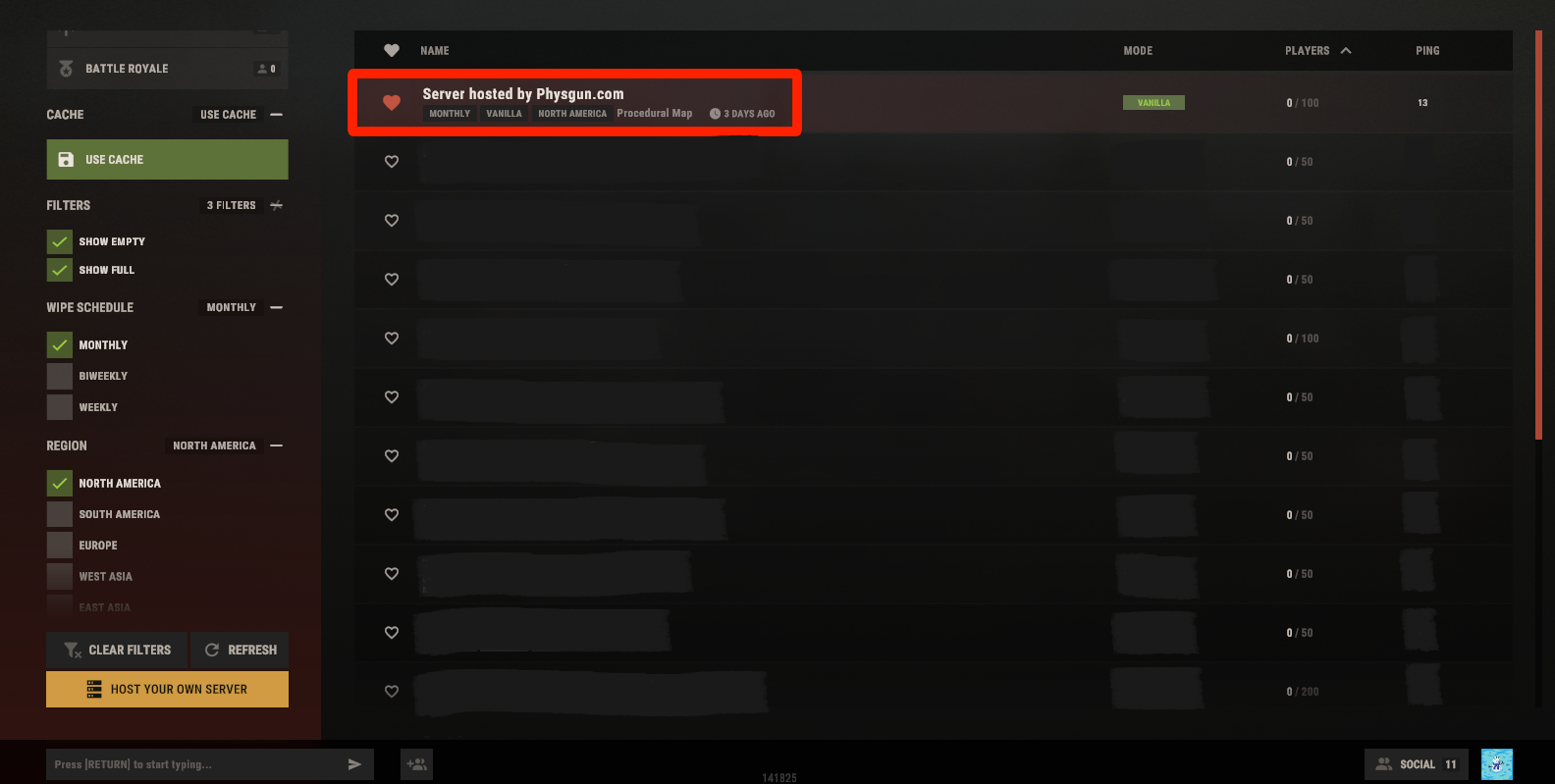
Note: After starting your server, it may take a few minutes for it to appear in the in-game server list.
Common Issues And Fixes
Tags Are Not Showing On Rust Server
If you are missing tags you set on your Rust server, check that:
-
You aren’t using an unsupported tag value, check the spelling.
-
You aren’t using more than one tag per group.
-
You have fully restarted your Rust server after setting the tags and saving the server.cfg file.
If you are running Oxide/uMod, the ‘vanilla’ tag will not display and your server will be classified as ‘modded’ on the in-game server list.
Rust Server Isn’t Appearing In Server List
If your Rust server isn’t appearing in the server list after setting tags, make sure to check:
-
The tags that you set in server.cfg are valid, check the spelling.
-
Verify the server is online
-
Try restarting your server again
-
Review your startup log