

Adding plugins to a Rust server is one of the fastest ways to customize gameplay, improve performance, and create a better experience for your players. In this guide, you’ll learn how to add plugins to a Rust server, whether you’re installing your first mod or managing an existing setup.
We’ll walk through the exact steps to install plugins, from choosing the desired plugin to downloading Rust plugins, placing them in the correct folder, and using Oxide or Carbon to ensure everything works properly.
You’ll also learn how to locate and navigate your server files, restart the server, check the log for anything missing, and confirm your plugins are active after you connect. By the end of this guide, you’ll fully understand how to add plugins to your Rust server quickly, safely, and with confidence. No wasted time, no guesswork, and no unnecessary assistance needed.
Downloading Rust Plugins
Downloading Rust Plugins Through The Physgun Gamepanel
Downloading Rust plugins through the Physgun Gamepanel is as simple as clicking some buttons!
To download Rust plugins through the Physgun game panel:
-
Head to the Physgun Gamepanel
-
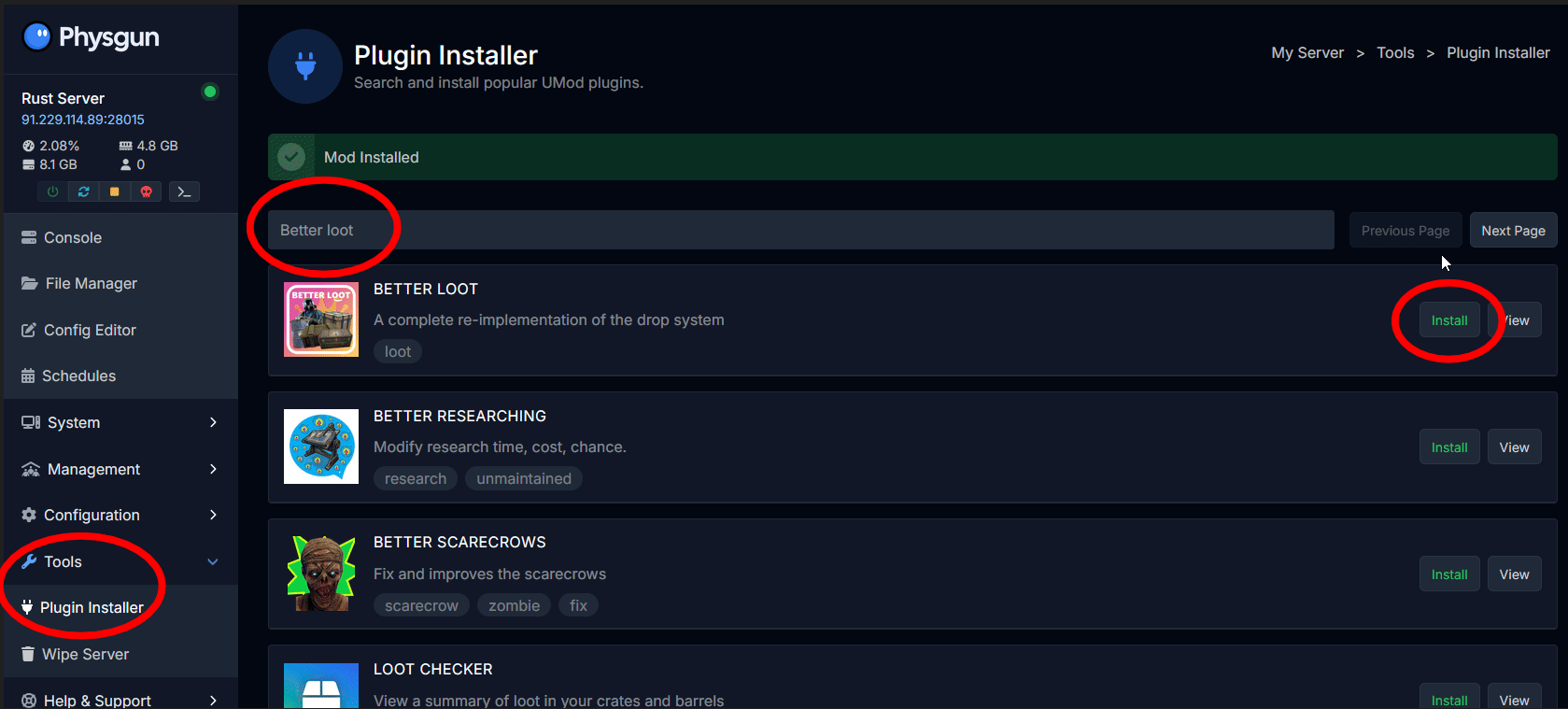
Once you have selected your server, on the left side of the screen, select Tools > Plugin Installer
-
Use the search bar at the top to search for the plugin you want to install, then click install!
-
That’s all! Check your console to see if your downloaded plugin loaded.
Downloading Rust Plugins Manually
First, you will need to download the Rust plugins you want to add.
To manually download Rust plugins:
-
Find a reliable website to download your Rust plugins from. This includes websites like Codefling, RustStore, or uMod, where you can browse Oxide and Carbon plugins.
-
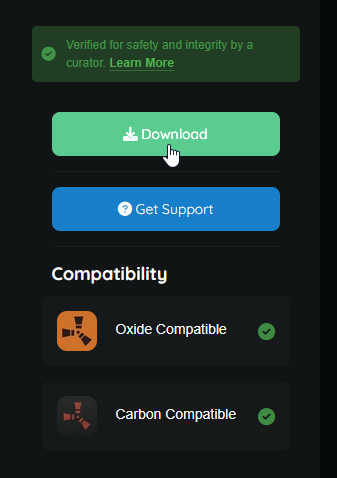
After finding the plugin you would like to download, click download.
- Rust plugins are usually .cs file formats.
Uploading Rust Plugins To Your Server
Once you have downloaded Rust plugins to your computer, you will then upload them to your Rust server.
To upload Rust plugins to your server:
-
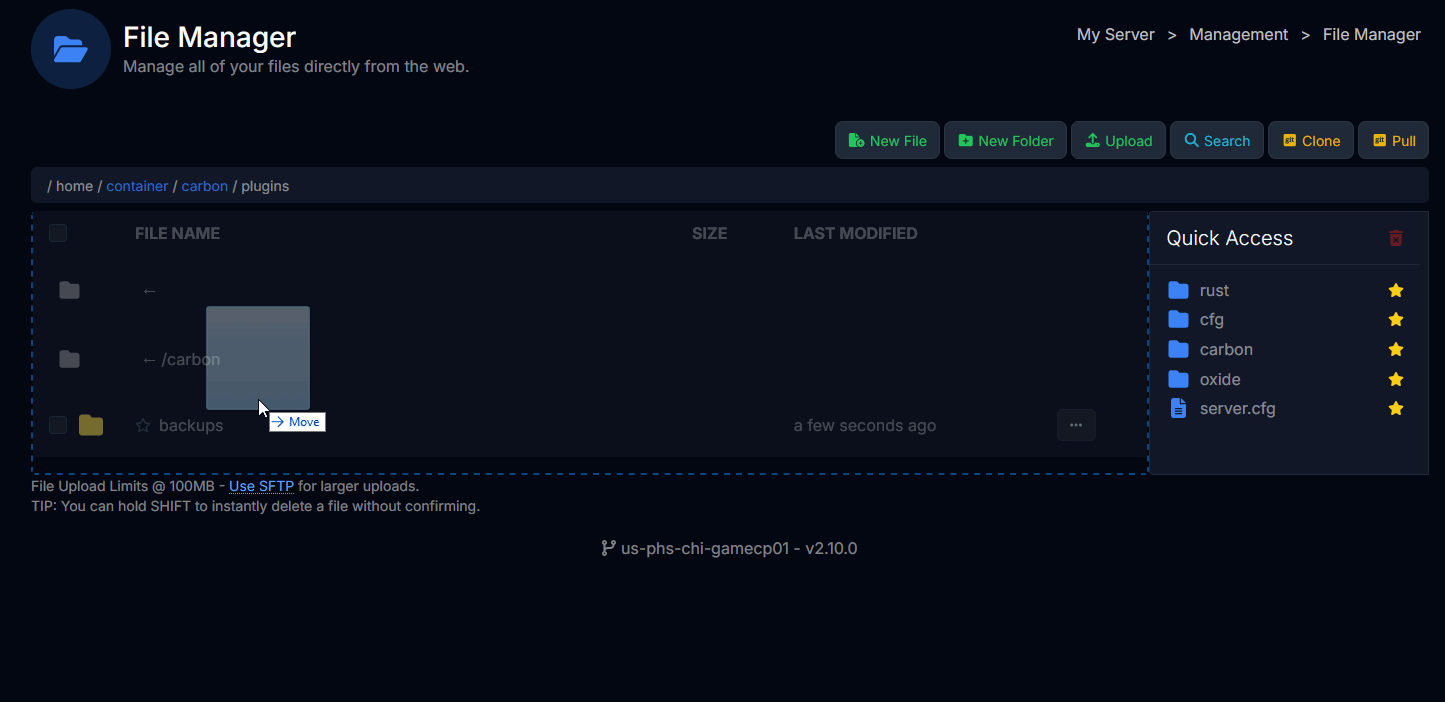
Go to your Rust server’s file directory. You can do this in your Physgun Gamepanel by going to your server and locating File Manager on the left side of your screen.
-
Continue to your mod framework’s plugins folder (/oxide/plugins/ for Oxide or /carbon/plugins/ for Carbon) and upload the .cs file you downloaded there.
-
After uploading, check your Rust server console to verify that the plugin has loaded. If your Rust server is not started, start the server and check to make sure the plugin has loaded.
-
If you have ScriptWatchers disabled in your config.json the addons will not automatically load.
-
For Oxide, you can reload your added plugin by typing oxide.reload PLUGIN_NAME in the game server console
-
For Carbon, you can reload your added plugin by typing c.reload PLUGIN_NAME in the game server console.
Configuring Plugins On Your Rust Server
To configure plugins on your Rust server:
-
After uploading, many Oxide plugins will generate a config file in the framework’s config folder. You can find these in the /oxide/config/ folder to modify your configuration files.
-
With Carbon plugins, you can type the /cpanel command in-game to bring up the configuration menu.
How To Remove Plugins From A Rust Server
To remove plugins from a Rust server:
-
Using File Manager or navigating to your server file directory, go to the plugins folder (/oxide/plugins/ or /carbon/plugins/) and delete the plugin file you previously uploaded.
-
Restart the Rust server so that the plugin no longer loads.