

Adding a custom map to your Rust server is a great way to give your players a unique experience beyond the standard procedural maps. Whether you’ve created your own map, found a community-made one, or want to test a themed world, this guide will walk you through how to add a custom map to a Rust server step by step. You’ll learn how to handle the Rust map file, upload it to your server, and use a custom map URL or direct download link to get it running. This includes where to place the file, how to configure the server to recognize it, and what to do if you encounter errors during the process.
Finding & Downloading Your Custom Rust Map
Custom maps can be found on various websites, including Codefling, Lone Design, or WeOxide. Some custom maps require payment, but all three of these websites have free options as well if you’re looking to go easy on your wallet. Once you’ve selected a map that suits your needs, click download and open your file explorer.
Want to find a pre-generated map file? Use RustMaps!
Look For Dependencies
You should have a .zip folder that contains a .map file, and depending on where you got the map, you’ll also find any licensing or instruction files for the map. Be sure to read the description of the page to see if it has any dependencies and install them so you don’t break your server.
For example, this map we downloaded requires a plugin to be installed, always read the description / readme files.

Once you have all the necessary files to run the custom map, you’ll need to upload the .map file itself to a host link before you can run it on your server.
Uploading Your Custom Map
Physgun makes it incredibly easy to upload your custom map via the Physgun Panel.
Simply follow the steps below, you can either upload the .map file directory or use a URL. We highly recommend
uploading the .map file, it’s not only faster but way easier. Dropbox and other download vendors are known
to randomly delete map files and change urls on the fly.
- Head to the Physgun Panel
- Navigate to
Your Server - Stop your server if it is running
- Navigate to
Advanced->Server Options - Upload your map through the Physgun Custom Map Uploader.
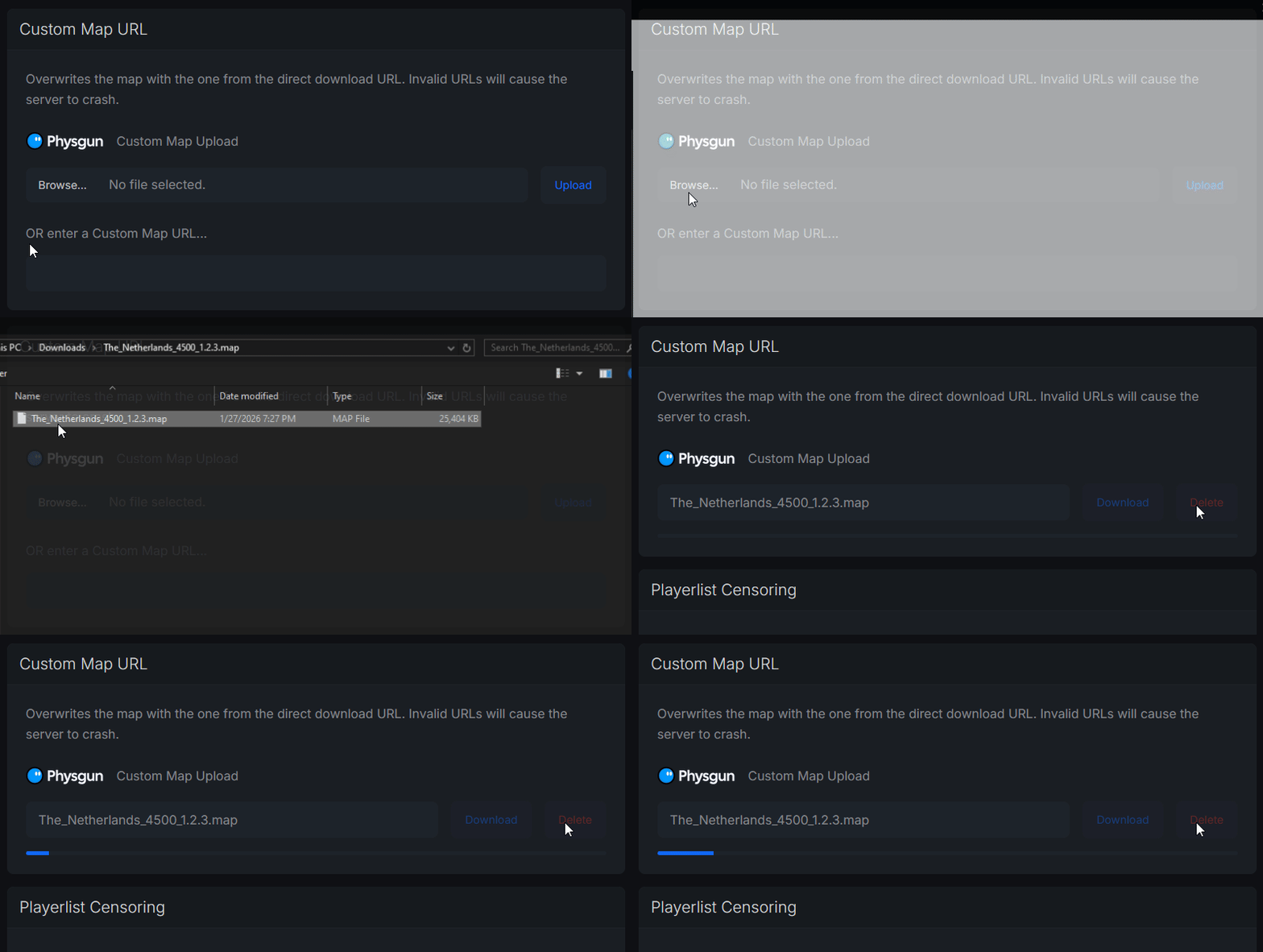
- You should also go into your server config file located in the
server/rust/cfg/server.cfgpath and delete theseedandsizeparameters to avoid conflict.
- Restart your server, and you’re done!
Your custom map should now be installing to your Rust server! It’s really that simple!