

Running a Rust server means you can’t do everything alone forever. Whether you’re moderating chat, enforcing rules, or helping players in-game, giving the right people admin or moderator access is a core part of server management. This guide explains how to add admin to a Rust server so server owners can assign roles correctly without risking full access to the wrong person.
We’ll cover the different ways to add admins and moderators, including using the server console, RCON, and configuration files. You’ll learn how admin commands work, how to use a player’s Steam ID or SteamID64, and where to locate and edit the correct file using a text editor. We’ll also explain the difference between admin and moderator roles, what each level of access allows, and when a restart or reboot is needed for changes to apply.
Getting The SteamID64 Of The Player You Want To Give Admin On Your Rust Server
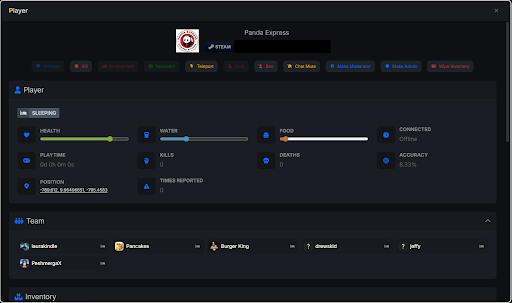
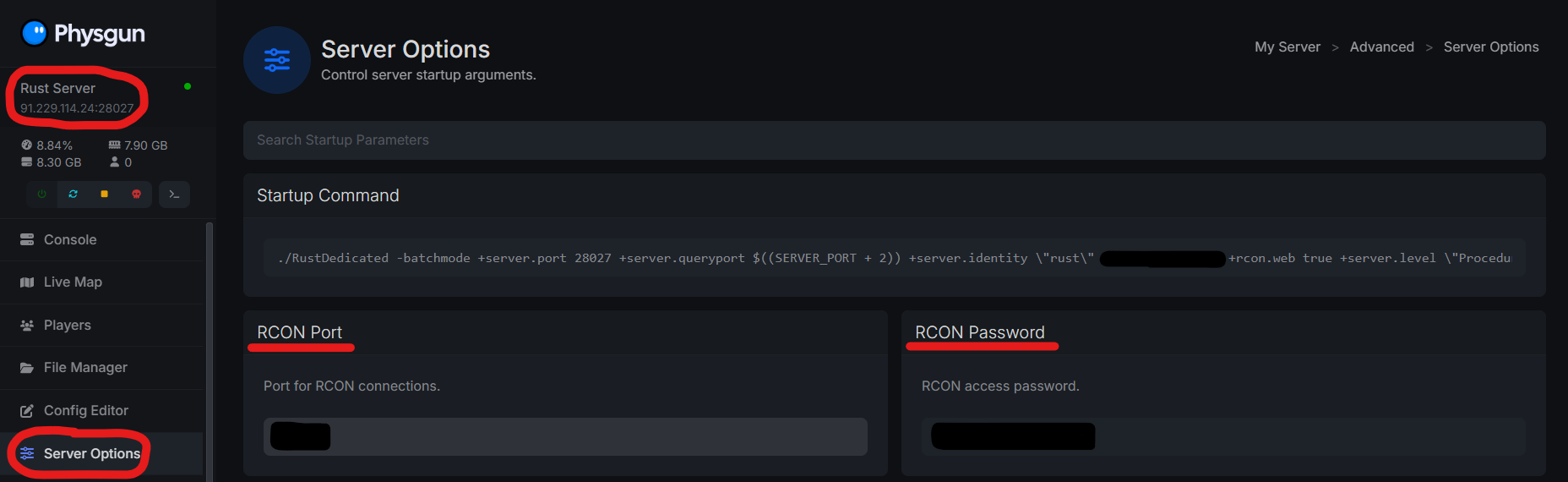
Want an easier way to find a STEAMID? Click the “Live Map” tab to open Physgun’s exclusive Rust God Tools, then click the player you want to gather the STEAMID64 from on the map or list.
Don’t feel like doing that? Start by having your admin or moderator open Steam and navigate to their account details.
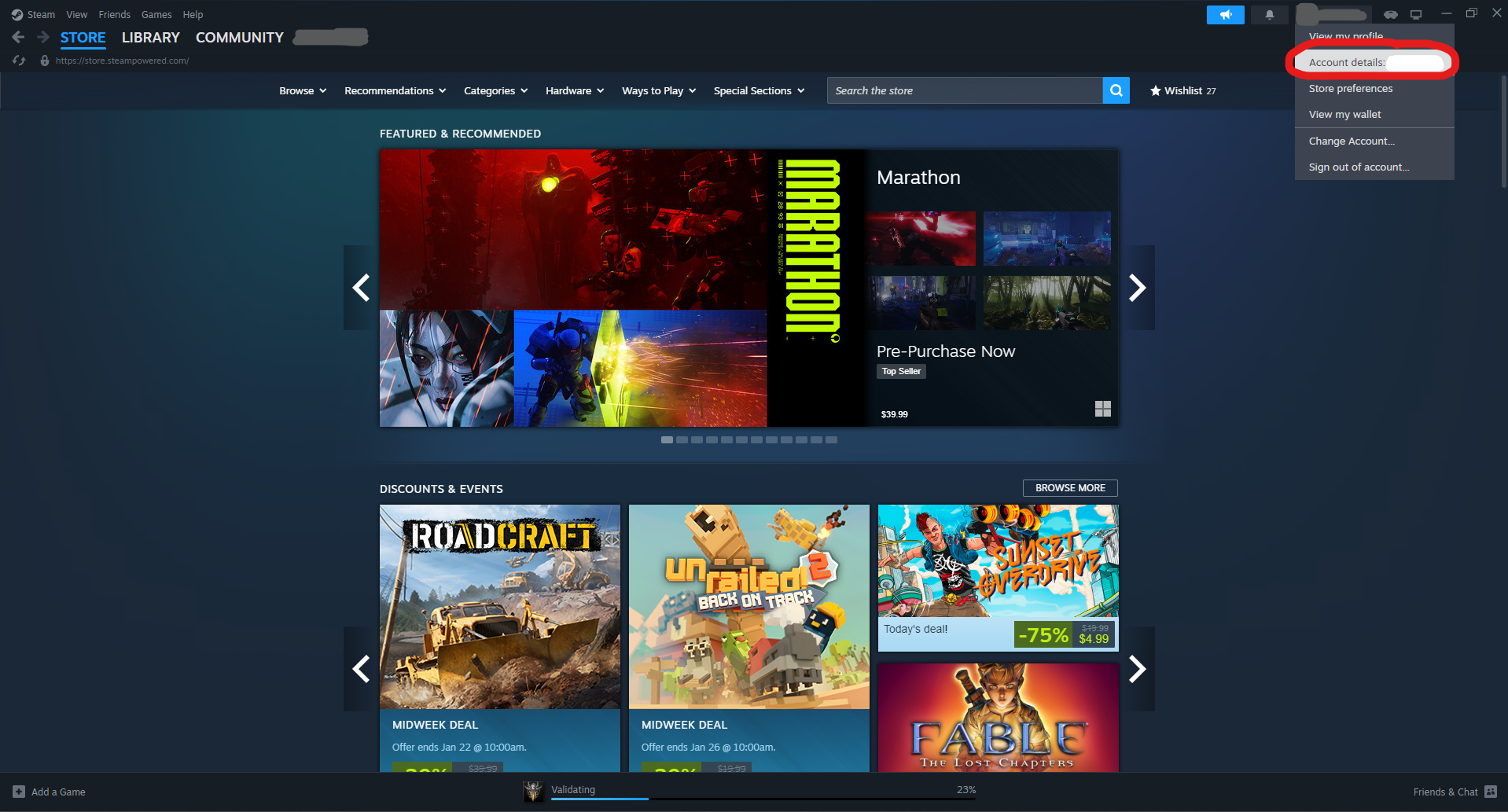
Once your admin is in their Steam account details, they can find their SteamID64 at the very top of the page. Right under their user name, they’ll find a string of seventeen numbers. Have them copy the ID and send it to you.

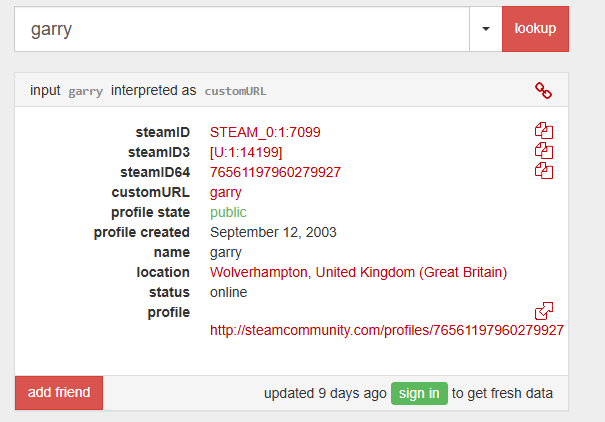
Alternatively, you can use a site like SteamID I/O by copying the link to their profile into the website’s search bar. If their account is public, it will bring up information such as their Steam ID, SteamID64, and SteamID3. You can copy their SteamID64 from here instead of having them send it to you manually. It’s important to note that if their profile is listed as private, you won’t get the information you need from this site.
Adding A Rust Admin (OwnerID) Through an RCON Command
To add an admin to your Rust server, you will have to access a remote console. This guide will be using Rustadmin as an example. Keep in mind, other programs may require you to take different steps than what’s shown here.
Start by visiting the linked website and navigating to Rustadmin Free. Then click the download button and unzip the file.
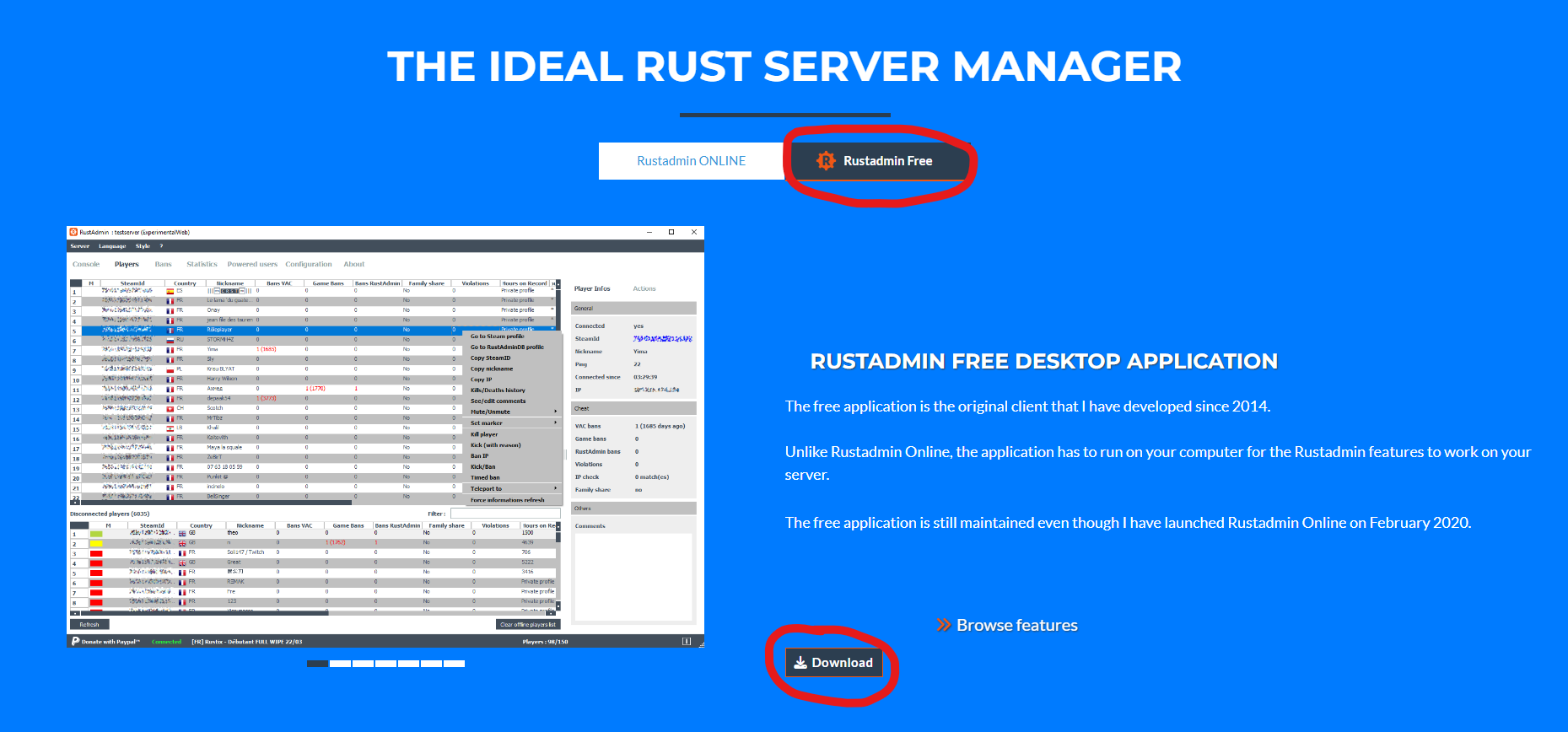
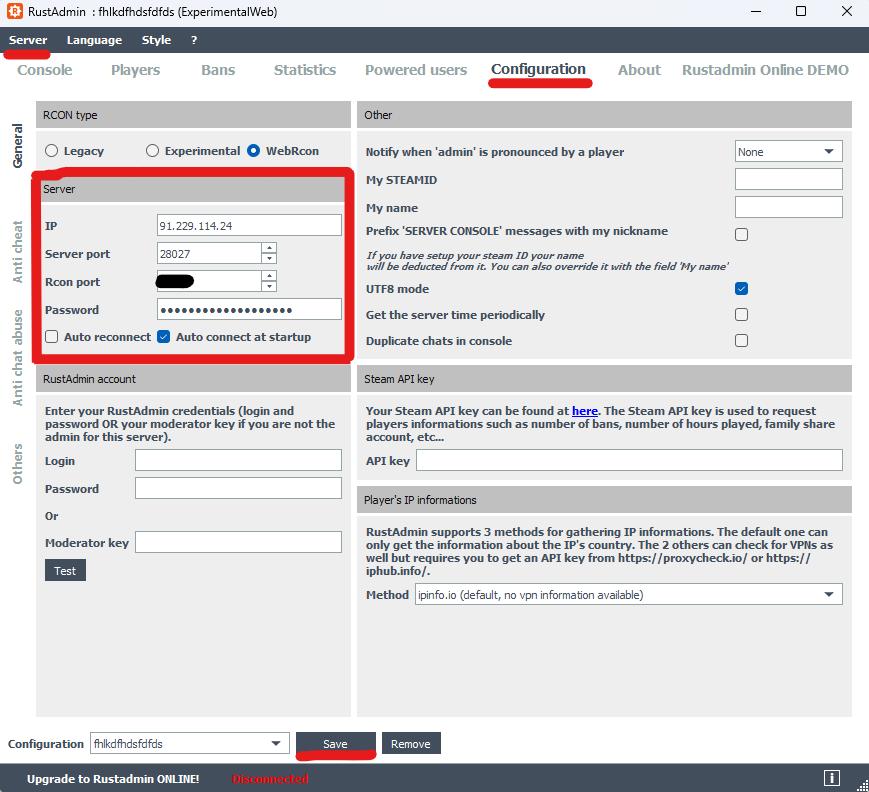
Launch the application with RustAdmin.exe and wait for the application to open. The next thing you want to do is click the Configuration tab near the top and input your Rust server’s IP address, port, RCON port, and password. All of these can be found on your server panel.
Input all of the information and press save to create a new preset. You’ll then be prompted to name the configuration. It doesn’t need to be anything fancy, just something for you to identify the options. Once the config is saved, you’ll be connected to the panel. If you aren’t, navigate to the Server button in the top left and click the name of the preset you created.
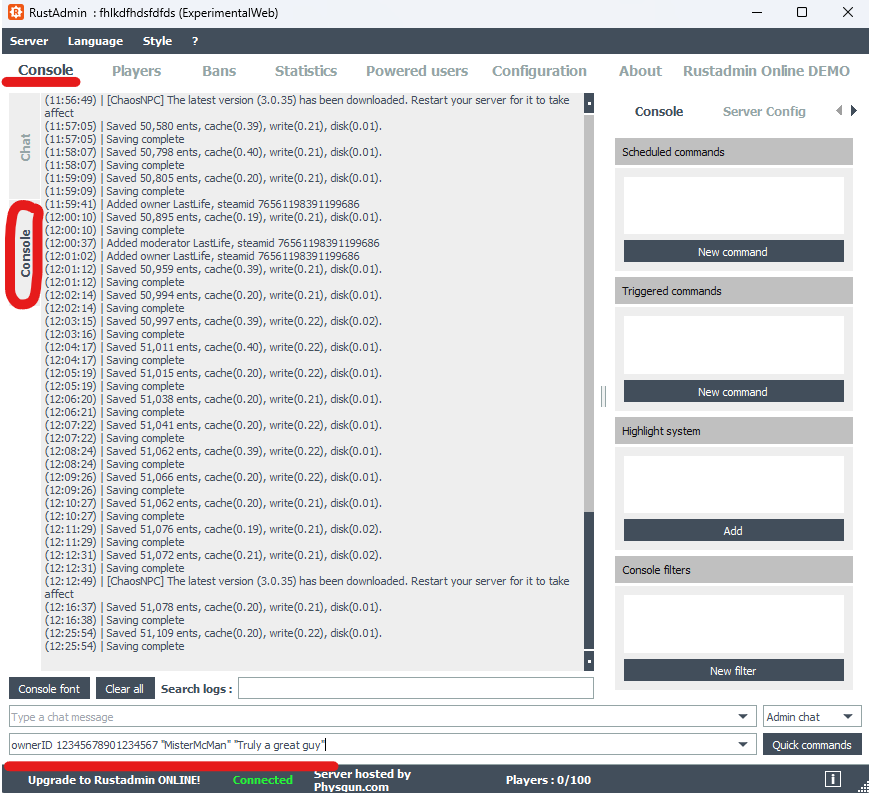
Next, you should head over to your console. You’ll see two tabs on the side that read Chat and Console. Make sure that the console is selected so you can see the feedback on your command. In the box that reads “Type a command to execute”, enter the following command line:
ownerid <SteamID64> "Name" "Reason"Replace “SteamID64” with your admin’s SteamID and fill out the other strings with the relevant information. Note that the ID64 doesn’t have quotes around it in the command. Only paste the ID numbers and nothing else.
Adding A Rust Admin (OwnerID) Through The Configuration File
You can also manually add admins using the configuration file. Go to the server/rust/cfg/users.cfg directory in your Rust server’s files and add the above command string directly into the file. If your server is running, either restart your server or enter the following command to force your server to implement the updated config file:
server.readcfgWant an easier method? Use Physgun’s Rust God Tools to find the player you want to make admin.
Removing A Rust Admin (OwnerID)
To remove an admin from your Rust server, enter the following line:
removeowner <SteamID64>If you’re using the configuration file method, all you have to do is remove the admin’s entry from it and run the update command or restart your server.
How To Add A Moderator (ModeratorID) To A Rust Server
To remove a Moderator from a Rust server, use the command:
moderatorid <SteamID64> "Name" "Reason"This command can also be executed using the in-game console on your Rust server by an admin since it has a lower authority level.
Rust Admins vs. Mods: What’s The Difference?
Moderators:
-
Have the responsibility of enforcing server rules and maintaining order on the server
-
Have access to most admin commands
-
Can not add or remove other moderators or admins
-
Have limited access to plugins depending on the configuration
-
Can temporarily ban players
-
Can spawn items
-
Have access to console log
Admins:
-
Are responsible for maintaining the server
-
Gain access to all admin commands
-
Can add and remove other moderators or admins
-
Full access to plugins and settings
-
Can permanently ban players
-
Have access to all moderator permissions.
Removing A Moderator (ModeratorID) From A Rust Server
To remove a Moderator from a Rust server, use the command:
removemoderator <SteamID64>