







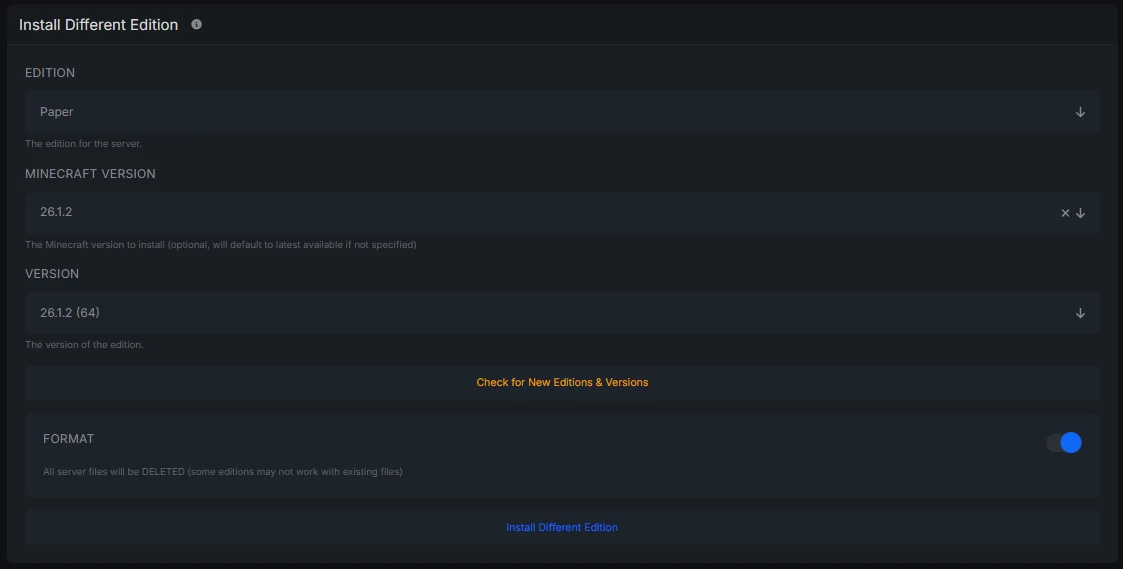
When a new Minecraft update drops, players on newer client versions get locked out of servers still running an older version, and that means losing players while you wait to update. ViaVersion solves that by letting clients on newer game versions connect to your existing server without you having to change anything about your setup. It’s a plugin, so installation is straightforward, but there are a few compatibility details worth knowing before you add it. This guide walks through installing ViaVersion, what it actually does to client packets, and how to confirm it’s working correctly after a restart.
1. Prerequisites
-
Java 17 or newer - recent ViaVersion releases refuse to load on older runtimes.
java -versionshould report at least 17.0.x.
-
Supported server software - Paper 1.19+ is the safest choice, but Spigot, Bukkit and Velocity are also compatible.
-
Access to the server files - either via FTP/SFTP, a control‑panel file manager, or direct console access.
If any of these items are missing, install the required Java version first and make sure your server core matches one of the supported platforms.
2. Download the Plugin
-
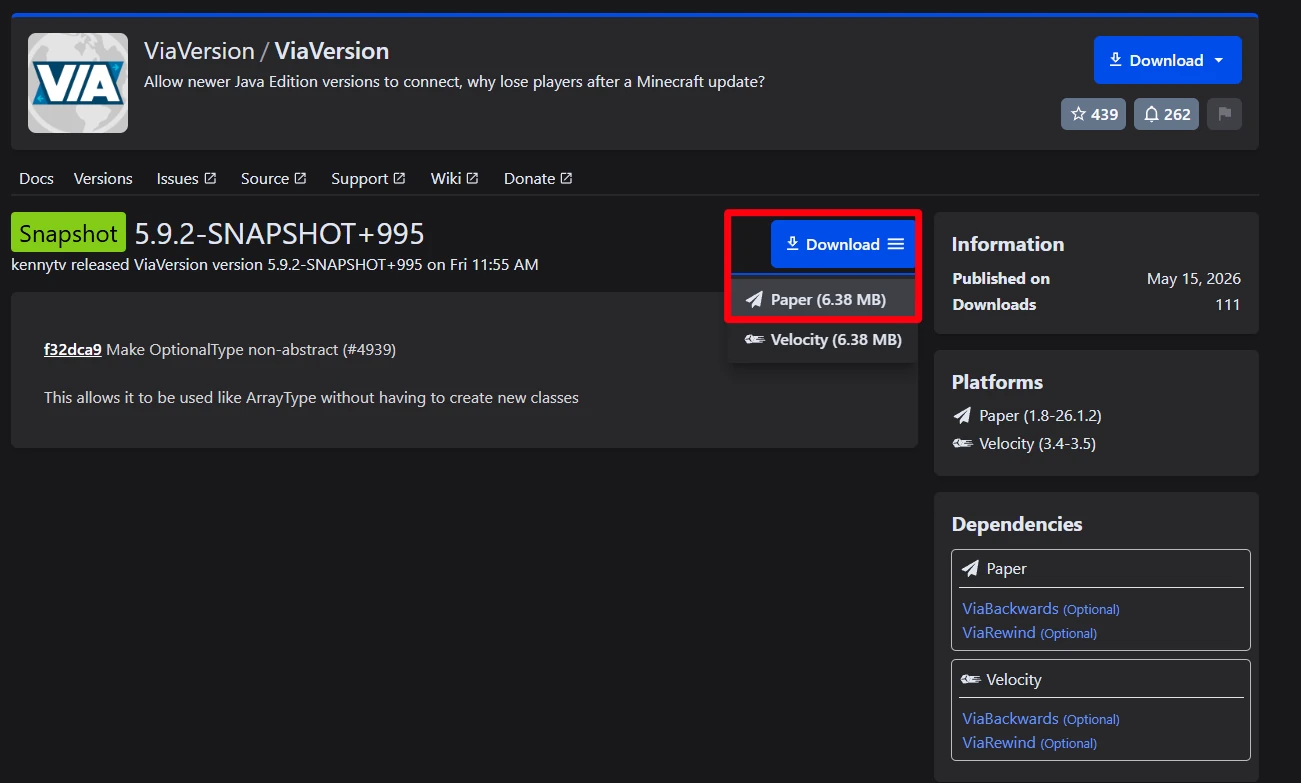
Open the official ViaVersion GitHub releases page: https://github.com/ViaVersion/ViaVersion/releases.
-
Locate the latest stable release (look for a tag like v5.x.x).
-
Download the file that ends with .jar. The name will be something like ViaVersion-5.9.2.jar.
-
(Optional) Verify the checksum provided on the page; this guarantees the file wasn’t corrupted during transfer.
Tip: If you run a Velocity proxy, grab the ViaVersion-Velocity jar instead of the Bukkit/Spigot version.
3. Upload the Jar to Your Server
-
Shut down the Minecraft server completely - a clean stop avoids corrupted plugin data.
-
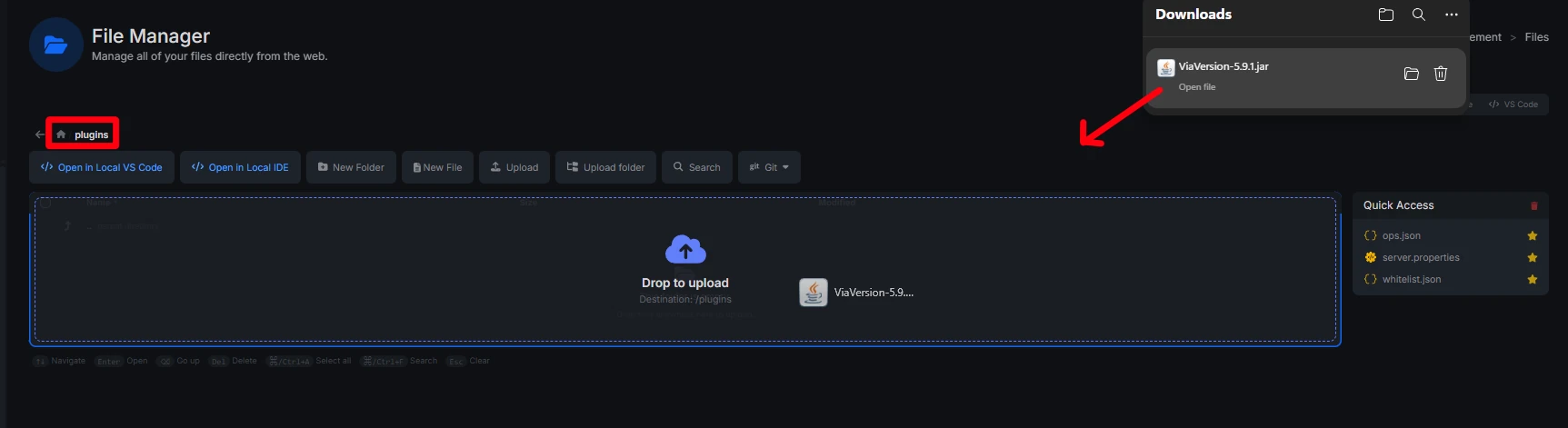
Navigate to the plugins directory inside your server folder.
/home/container/plugins/ -
Upload the downloaded jar into that folder.
-
The final path should look like:
plugins/ViaVersion-5.9.2.jar
Do not place the file anywhere else; ViaVersion relies on the standard plugin loader to initialize its configuration.
4. First Launch and Configuration Generation
Start the server again. During the boot process ViaVersion will:
-
Create a new folder called ViaVersion inside plugins.
-
Populate it with a default config.yml.
-
Print several lines to the console confirming the loaded version and the range of client protocols it can translate.
Sample console snippet:
[ViaVersion] Enabling ViaVersion v5.9.2
[ViaVersion] Supporting protocols: 735 (1.20) down to 735 (1.19)
[ViaVersion] Configuration loaded from plugins/ViaVersion/config.yml
If the server crashes or the plugin fails to load, double‑check that you’re running Java 17+ and that the jar matches your server software (Bukkit vs. Velocity).
Warning: Hot‑reloading plugins with /reload or a plugin manager often breaks ViaVersion. Always perform a full restart after installing or updating it.
5. Verifying the Installation In‑Game
Log in with any client version that is newer than your server (for example, a 1.20 client on a 1.19 Paper server). Once inside, run the built‑in command:
/viaversionThe reply should list the plugin version and the protocol numbers it currently supports. To see what other players are using, type:
/viaversion listIf the command returns a list of usernames with protocol numbers, the translation layer is active and functioning.
6. Basic Configuration Tweaks (Optional)
The default config.yml works for most setups, but a few settings are worth a glance:
-
max-packets-per-tick - caps how many packets a single player can send each tick; lowering it can mitigate certain flood exploits.
-
bypass-protocol-limit - when set to true, allows any client protocol, useful for testing but may expose edge‑case bugs.
-
debug - set to true only when you need detailed logs; it can flood the console otherwise.
Edit the file with any text editor, save, then restart the server for changes to take effect.
Tip: Keep the packet limiter at its default unless you notice performance spikes after a flood of new‑client connections.
7. Using ViaVersion with a Proxy (Velocity or BungeeCord)
If your network runs a proxy in front of the backend servers:
-
Install ViaVersion either on the proxy or on each backend, but not both.
-
On Velocity, drop the ViaVersion-Velocity.jar into the proxy’s plugins folder.
-
On BungeeCord, place the regular Bukkit jar on the proxy; the backend servers can stay clean.
Make sure the proxy forwards the original protocol version (Velocity’s forwarding-secret must be set correctly). Misconfigured forwarding will cause the proxy to report the wrong client version, breaking ViaVersion’s translation.
FAQ
Does ViaVersion change my server’s game mechanics?
No. It only translates network packets; the world, entities and commands remain exactly as they are on the server’s native version.
Do I need ViaBackwards as well?
Only if you want older clients (e.g., 1.8) to join a newer server. ViaVersion handles newer‑to‑older; ViaBackwards does the opposite.
Can I run ViaVersion on a BungeeCord network without installing it on each backend?
Yes. Install the plugin on the BungeeCord proxy, and it will handle translation for all attached servers, provided they run a compatible version.
Why did the plugin stop working after the latest Minecraft update?
New client protocols often require a short development window before ViaVersion adds support. Until the compatible build is released, newer clients will be rejected.
Is there a free version?
ViaVersion is open source and free to use. Contributions are welcome on GitHub, but no payment is required for any feature.