

Making a Hytale server is easier than it looks once you know what actually matters. Whether you’re just trying to play with friends or you want a persistent world people can join anytime, the setup process follows the same basic steps. This guide breaks down how to make a Hytale server without overcomplicating things or throwing unnecessary technical jargon at you.
We’ll go over the two main ways to create your own Hytale server: setting it up manually on your own machine, or using Physgun’s Hytale server hosting for a faster, more hands-off setup. You’ll learn what files are involved, where the server folder is located, and how basic configuration settings like player slots, mods, and view distance work on both Windows and Linux.
By the end, you’ll have a running Hytale game server that accepts player connections, launches cleanly, and is ready for real gameplay. Whether you’re testing things privately, inviting a small group, or planning to go public later, this walkthrough is focused on getting you in-game quickly, not making you fight your server before you even start playing.
Making A Hytale Server With Physgun
Creating a Hytale server with Physgun is as easy as just clicking a few buttons with instant setup!
Once your purchase your Hytale server, navigate to the Physgun Game Panel on physgun.com.
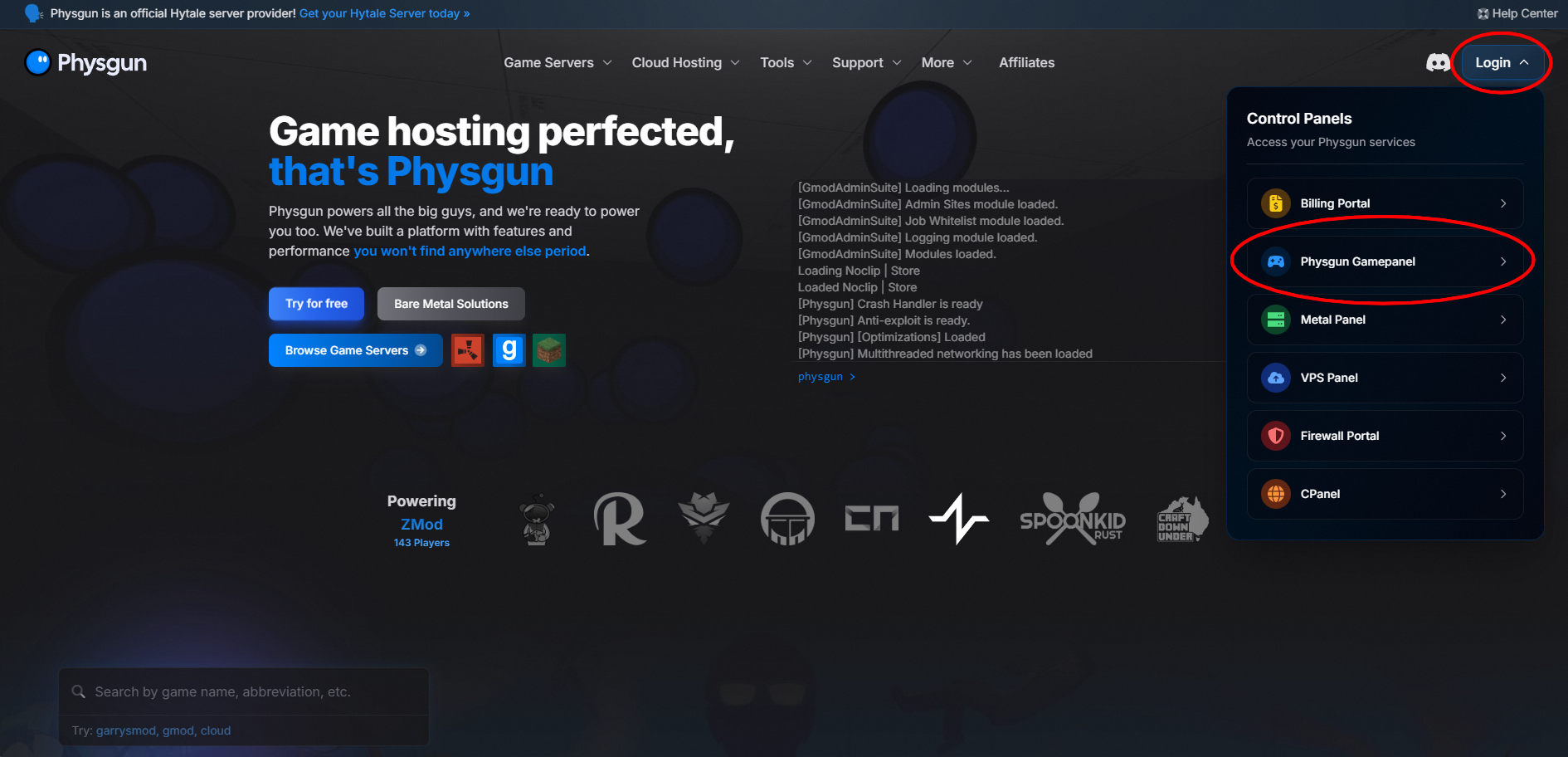
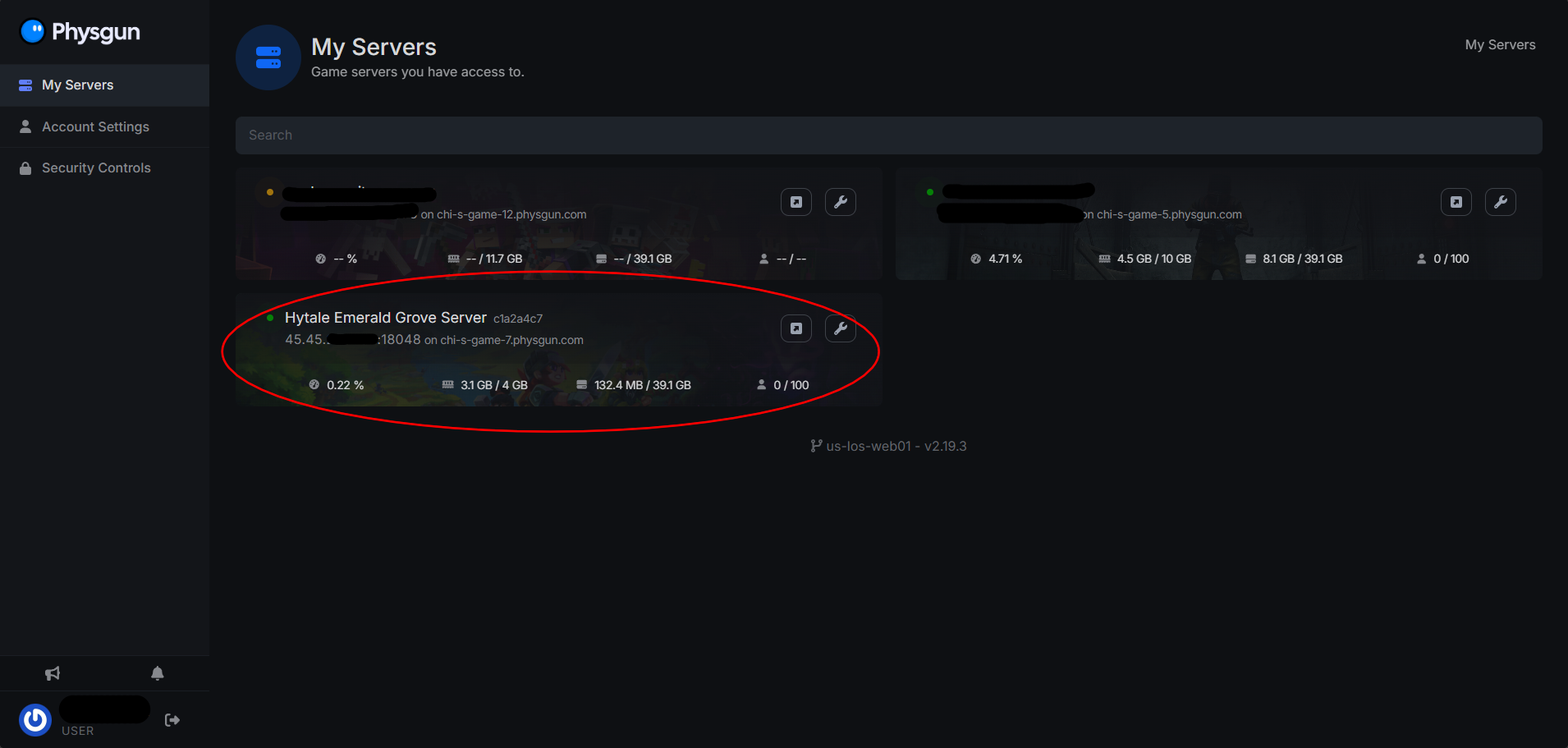
Once you’ve reached the Game panel, select your Hytale server from the list:
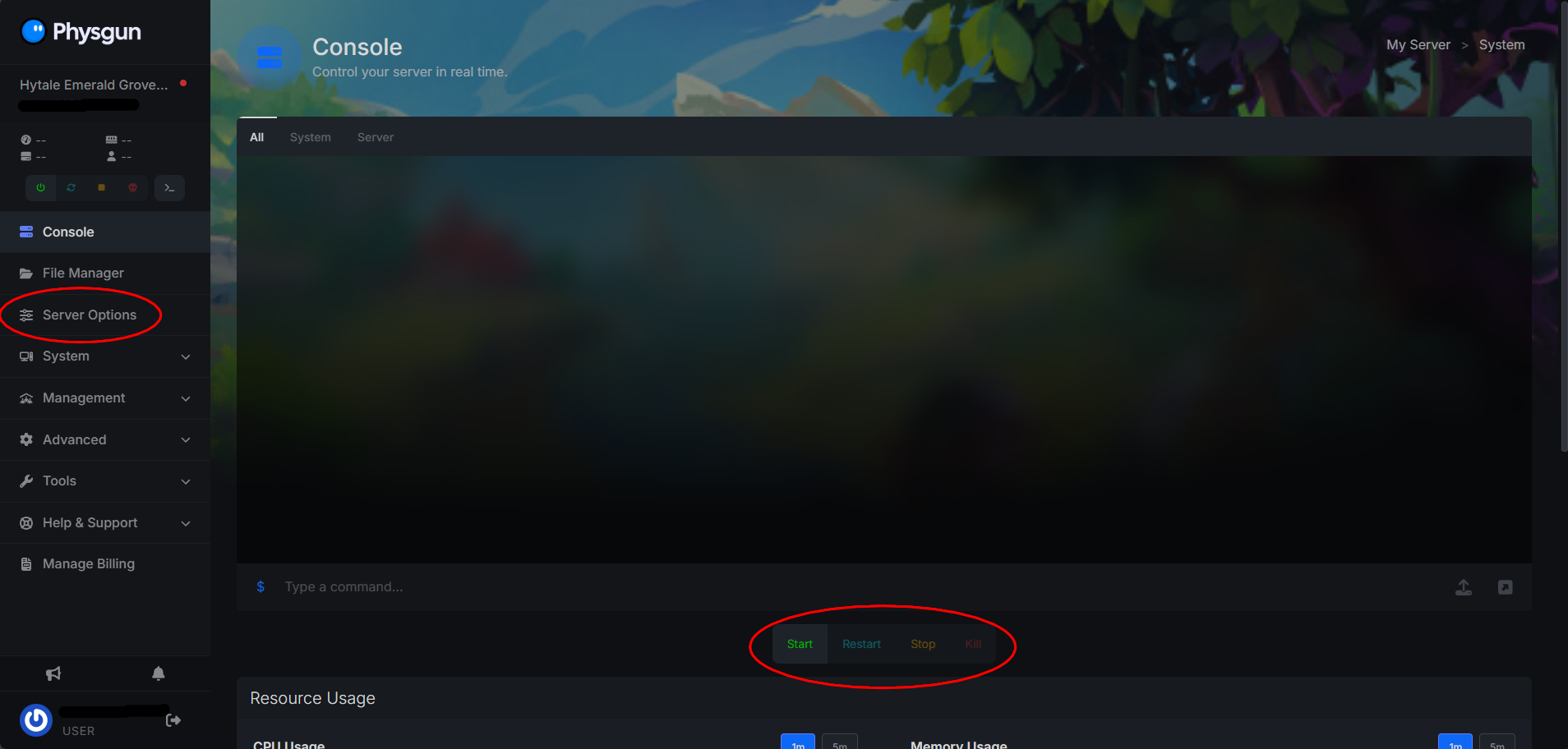
From there, you will be greeted with the game server console. From here, you can start, restart, stop, or kill your server, edit files, install mods, view server resource usage and much more.
For now, we will focus on getting online. To edit your server options, navigate to the Server Options on the left side of the screen.
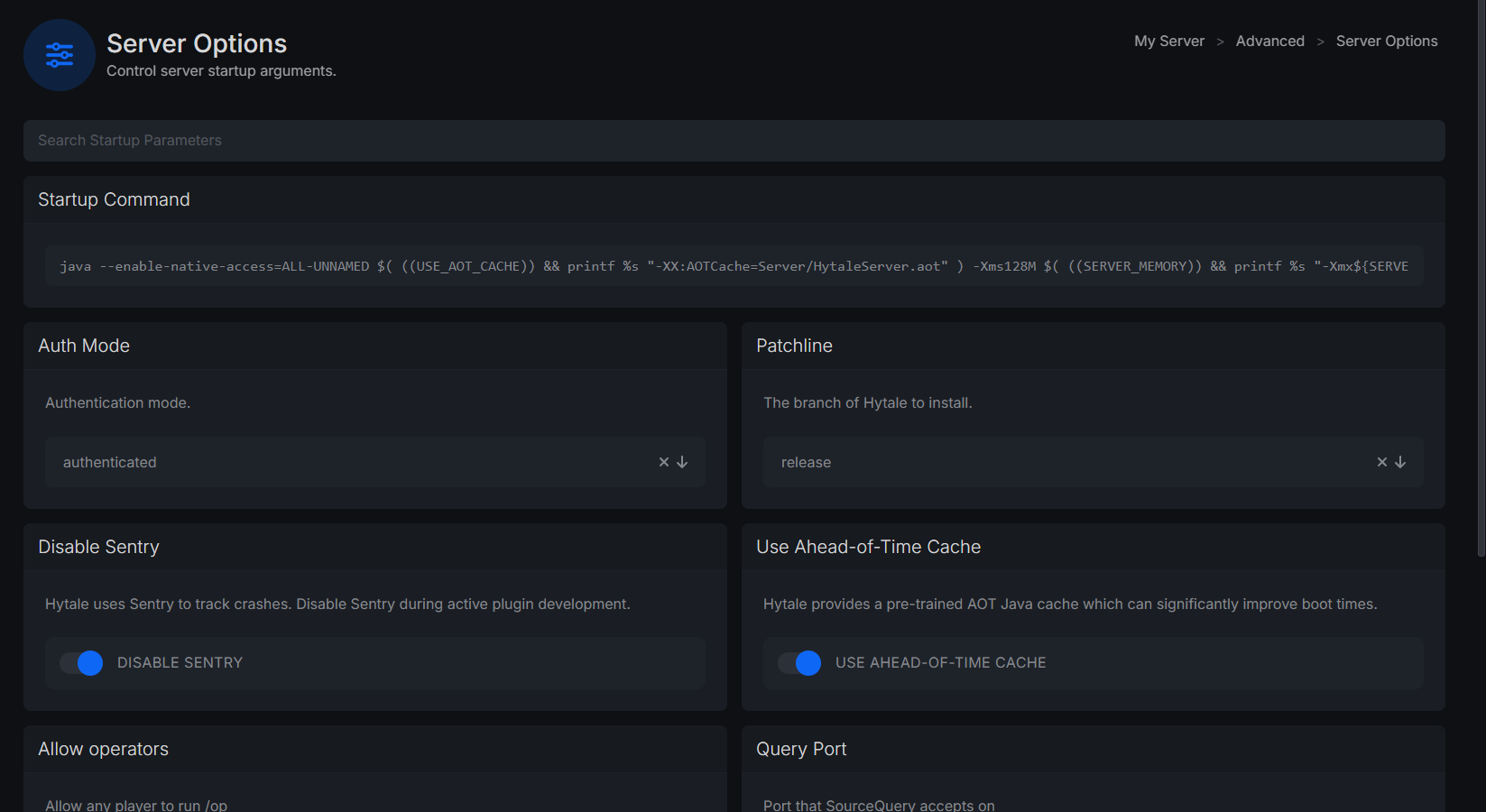
From here, we can change the branch your Hytale server is on, allow any player to run the OP command in-game, and more.
If everything here looks good, navigate back to the console on the left side of the screen, press the Start button under the console, and wait for the server to start!
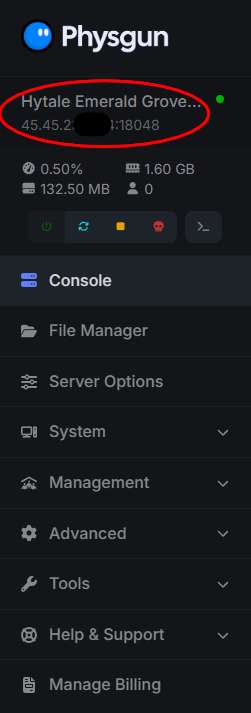
Now that your Hytale server is started, you can connect invite friends via the IP address and port provided. You can find these under the name of your server in the Game Panel, or once you select your server, under your server name at the top left.
Making A Hytale Server On A VPS
Hytale Server System Requirements For A VPS/Dedicated Server
These requirements apply to Hytale server hosting, self-hosted game servers, and most game server hosting providers.
-
Operating System: Ubuntu/Ubuntu Server 22.04+
-
Java: OpenJDK 25 LTS
-
CPU: 2 cores minimum (4+ recommended)
-
RAM: 4 GB Minimum (8+ recommended)
-
Storage: 5-10 GB free
-
Networking: UDP port 5520 open
-
Software: unzip will need to be installed by a root user for this tutorial. You can do this with the following command:
sudo apt install unzip -y
Resource usage scales with player slots, view distance, installed mods, and world activity.
Create A Dedicated Server User (Recommended)
When you create a Hytale server, it should run under a separate system user instead of root. This improves security white maintaining full control over your server.
Install Java 25 On A VPS/Dedicated Server
The Hytale game server runs as a Java process, so Java must be installed before first launch.
We will be installing OpenJDK 25, the required version for Hytale:
sudo apt update && sudo apt install openjdk-25-jdk -yYou can verify Java is installed and its version by running:
java --versionWhich should return something like this:

Obtaining The Hytale Server Files On A VPS/Dedicated Server
We will now create a dedicated server folder, used to store server files, configuration files, logs, mods, and player data. This will simplify updates and backups.
mkdir ~/hytale-server
cd ~/hytale-server
Hytale provides the Hytale downloader cli for manual setup. This tool will download the latest server software and required game assets used by the Hytale launcher.
wget https://downloader.hytale.com/hytale-downloader.zip
unzip hytale-downloader.zip
chmod +x hytale-downloader-linux-amd64
You can then download the server software using this tool like so:
./hytale-downloader-linux-amd64 -download-path game.zipThis step will ask you to authenticate your Hytale account to get the required files. Please visit the URL your server console gives you, login to your Hytale account, and enter in the authentication code the server has provided you with.

You can then unzip the download game files by running:
unzip game.zipYou have now created the default Server directory and download the required assets
Starting A Hytale Server On A VPS/Dedicated Server
Starting the server launches the server console, initializes default settings, generates configuration files, and prepares the world. If your CPU usage spikes during first launch, this is normal.
cd ~/hytale-server/Server
java -jar HytaleServer.jar --assets ~/hytale-server/Assets.zip --bind 0.0.0.0:5520
This will start your Hytale server on UDP port 5520. If you would like to use a custom port, you can start your server like this:
java -jar HytaleServer.jar --assets ~/hytale-server/Assets.zip --bind 0.0.0.0:YOUR_PORT_HEREWhere YOUR_PORT_HERE is the port you would like to run your Hytale server off of.
The server logs are automatically written while the Java process is running.
Authenticate Your Hytale Server On A VPS/Dedicated Server
Authentication is required for public servers, server discovery, and accepting player connections. The login device process links the server to your Hytale account. You can start the process by running the following command in your game server console:
/auth login deviceThis will start the process of authentication on your Hytale server. Follow the steps provided like we did earlier for authentication:

The link you follow will ask you to login to your Hytale account and authenticate it with your server. After authentication is successful, The game server console will display:
Authentication successful! Use '/auth status' to view details.It will then warn:
WARNING: Credentials stored in memory only - they will be lost on restart!To avoid having to authenticate your server each time you restart your server, run the following command:
/auth persistence EncryptedThis will store your server authentication locally encrypted.

Port Forwarding Your Hytale Server On A VPS/Dedicated Server
Most cloud VPS and dedicated server setups do not require port forwarding, but UDP 5520 must be open in all firewalls. Home hosting requires manual port forwarding on the router.
For UFW Firewall on Ubuntu, you can open the correct firewall port by running the following command on your Ubuntu installation:
sudo ufw allow 5520/udp
sudo ufw enable
If you are using a different port for your server than 5520, you can run the following command instead:
sudo ufw allow YOUR_PORT_HERE/udp
sudo ufw enable
Where YOUR_PORT_HERE is the custom port you setup your server to run on in the previous steps.
Players should now be able to connect to your server via your server’s IP address and port (Example: 123.456.789.10:5520).