

Customizing your Hytale server starts with editing its server settings, which lets you control gameplay, world generation, and player connections.
You can tweak your configuration files or server files through the server console or game panel to adjust things like view distance, ports, and world settings, helping keep RAM usage in check and your server running smoothly for dedicated servers, production servers, or even self-hosted worlds.
With the right settings, you can create a playable world that fits your expected player count and gives everyone a smooth, fun experience on your Hytale server.
Accessing Server Settings On Your Hytale Server
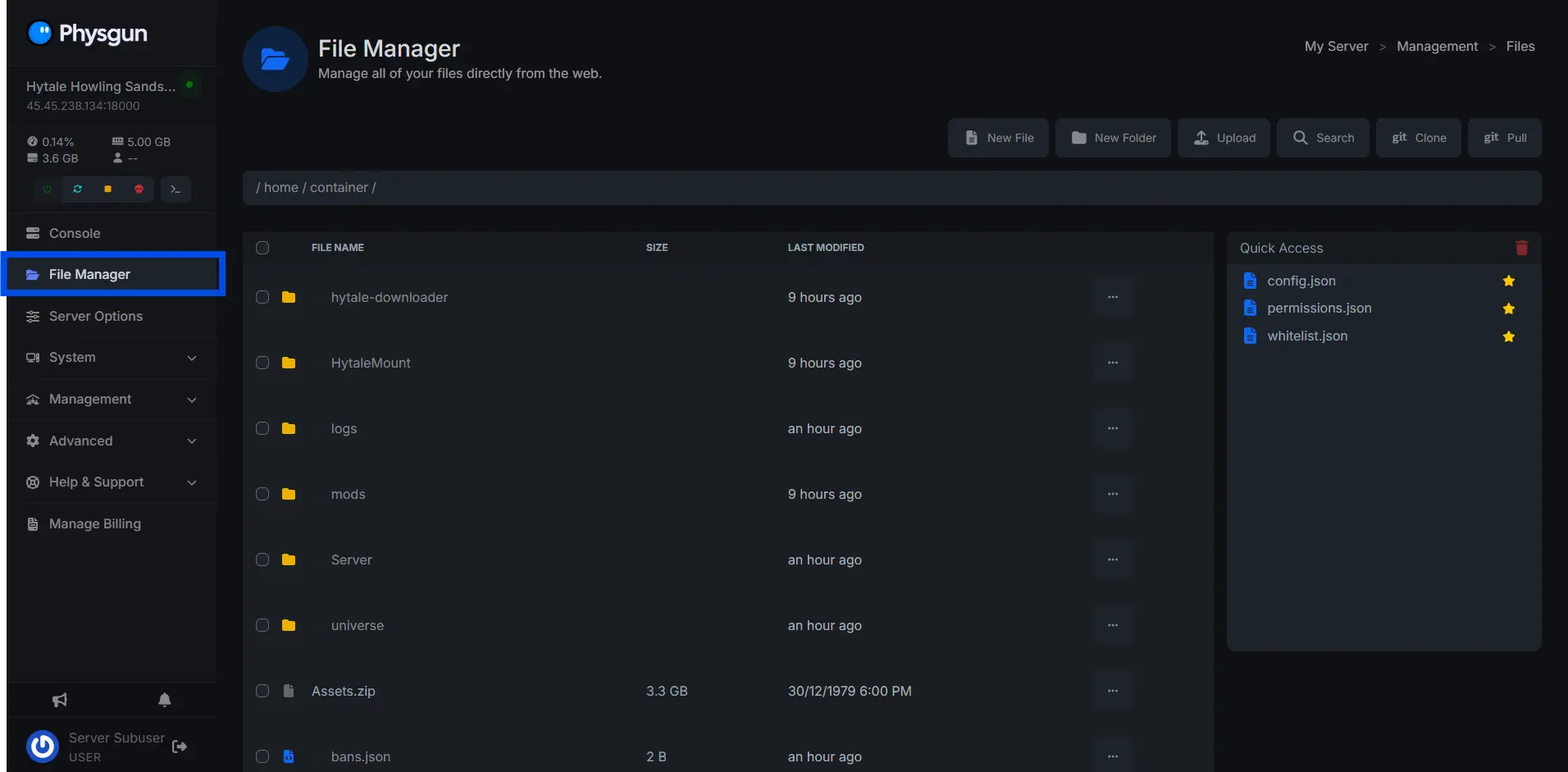
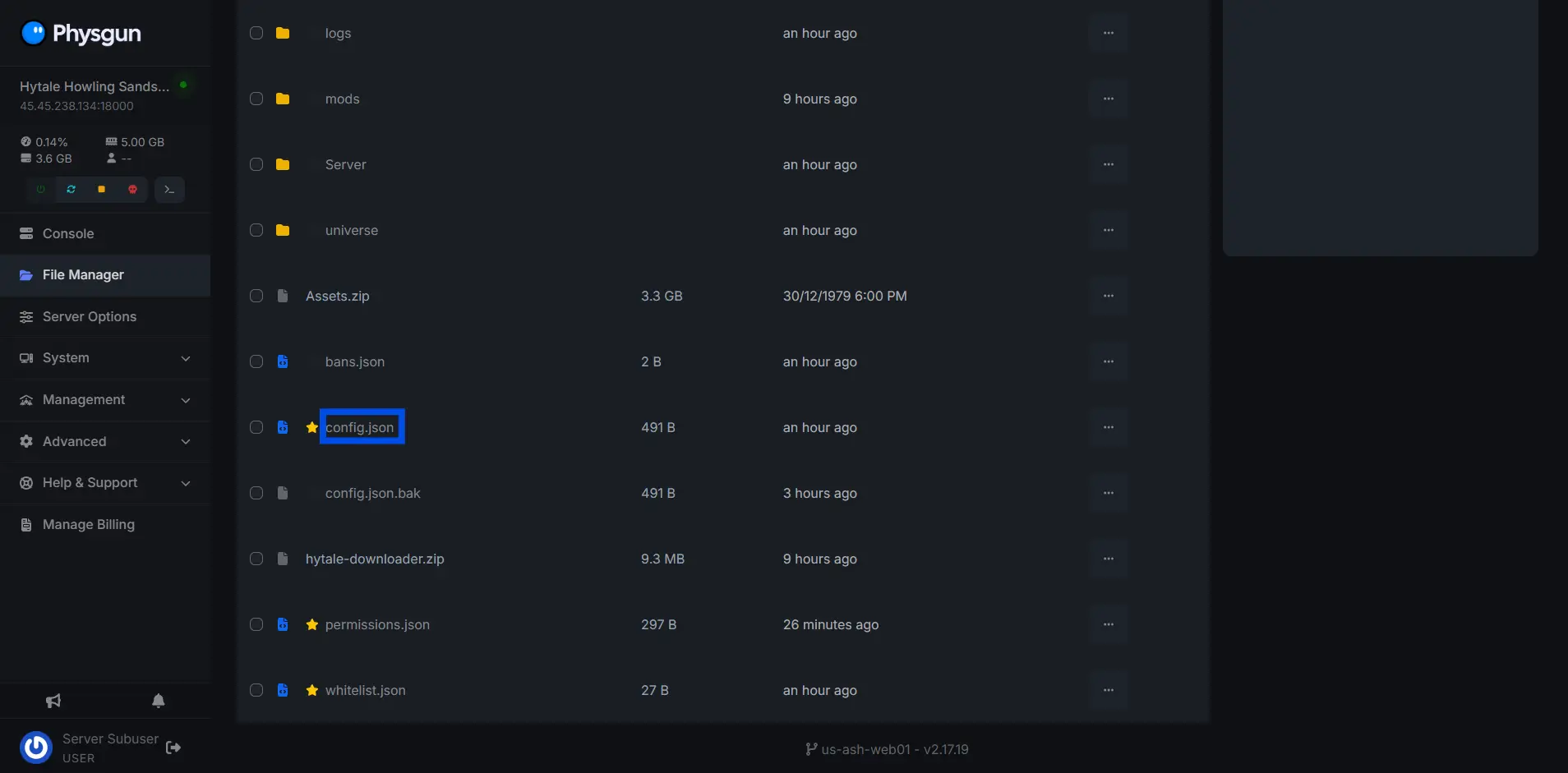
To access the server settings on your Hytale server:
-
Navigate to the “File Manager”
-
Open the config.json file
Hytale Server Settings Explained
| Setting | Description |
|---|---|
| ServerName | Sets the name of your Hytale server. |
| MOTD | Displays the server message of the day. |
| Password | Requires a password to join the server. |
| MaxPlayers | Limits the maximum number of players allowed. |
| MaxViewRadius | Controls view distance (12 is recommended). |
| GameMode | Defines the default game mode for new players. |
Need Help Editing The Server Settings On Your Hytale Server?
Contact our support team for 24/7 assistance!