

Adding mods to a Hytale server lets server owners go far beyond vanilla gameplay, from custom logic and world generation to new features and minigames. Whether you’re running a small private world or a growing community server, installing mods is how you shape the experience to fit your vision.
In this guide, we’ll break down how to add mods to a Hytale server step by step, including where to find Hytale mods, how to upload mod files using the file manager, and what to check in your server console to make sure everything loads correctly. By the end, you’ll know how to safely install, manage, and test mods so your server stays stable, secure, and ready for players to join.
Types Of Hytale Mods
Hytale mods come in many different forms, and knowing the types available makes it much easier to build the server experience you want. Some mods focus on world generation and gameplay features, while others add server-side tools, plugins, or custom logic that help server owners manage players and content.
In this section, we’ll break down the main types of Hytale mods, how they interact with your Hytale server, and when to use each one.
Packs
Packs are used to add or modify blocks, mobs, items, and behaviors through the Asset Editor, making them ideal for creators who want to customize content without writing code. They focus on assets and data, allowing you to change how the world looks and feels while keeping setup simple.
Server Plugins
Java plugins extend the base game using the Hytale API and are typically written in Java. They handle logic, interactions, and advanced systems, letting server owners add new features, automate gameplay mechanics, and expand vanilla functionality.
Early Plugins
Early plugins operate outside the standard plugin system and make low-level changes by injecting or modifying bytecode during the loading process. Because they interact directly with core systems, they should only be used when absolutely necessary, as they can affect server stability and compatibility.
How Packs And Plugins Work Together
Packs and plugins are designed to work together, with packs managing assets and data and plugins controlling behavior and systems, while early plugins are reserved for specialized use cases that require deeper access.
Installing Mods (Plugins) On A Hytale Server
To install a mod on a Hytale server:
-
Navigate to Curseforge or another Hytale mod platform. Download the mod you’d like to add to your server on your computer.
-
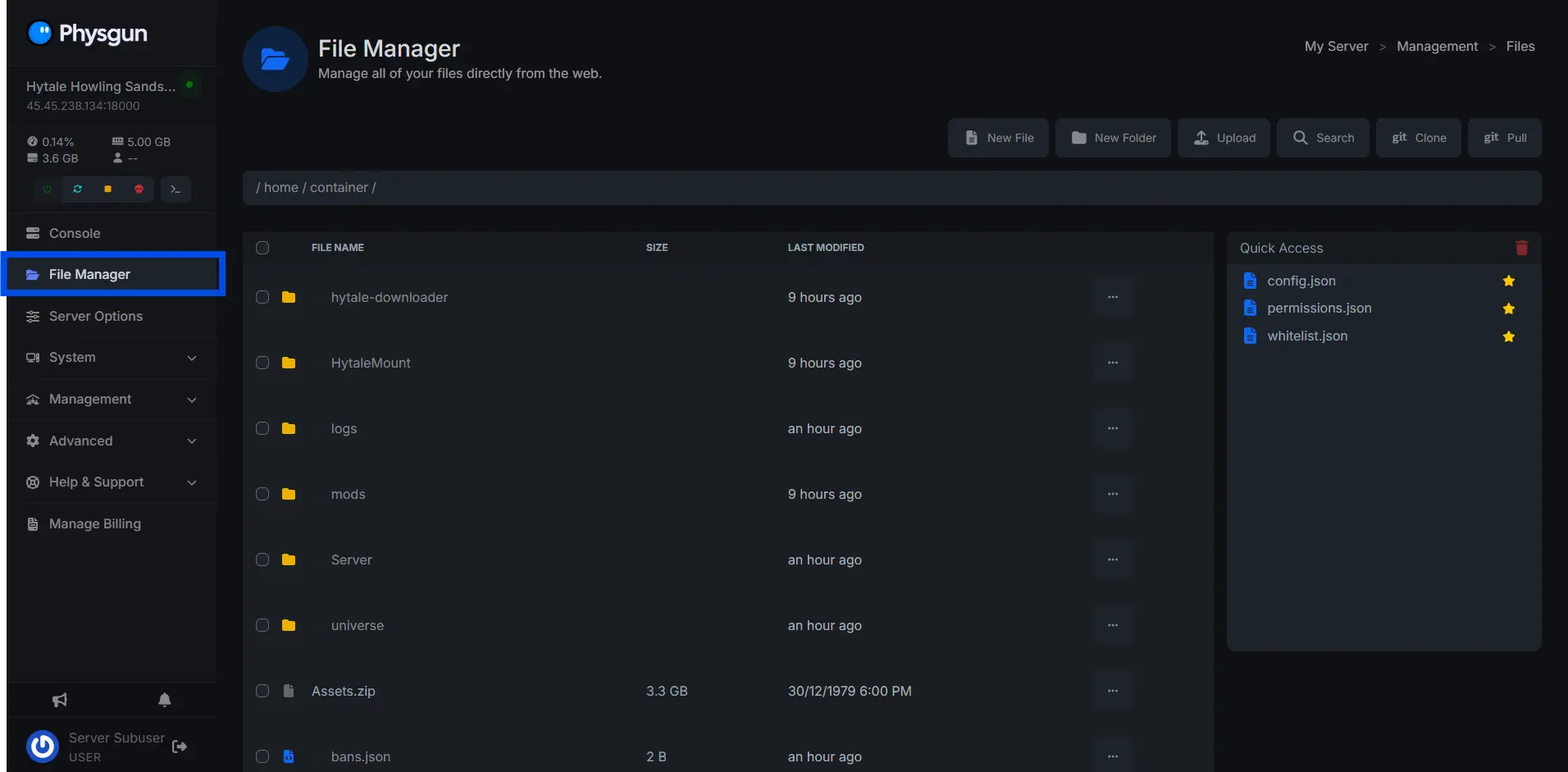
Open your server control panel. Navigate to the “File Manager”
-
Open the “mods” folder, transfer the downloaded mod file into this folder.
Removing Mods From Hytale Server Files
Note: When removing Hytale mods, make sure that you are not removing mods with dependencies where if you remove them they will break another Hytale mod.
To remove a mod from a Hytale server:
-
Open your server control panel. Navigate to the “File Manager”
-
Navigate to the “mods” folder, delete the mod file for the mod you’d like to remove.
Installing Mods On The Hytale Client
For the easiest install method, download the Curseforge client on your computer.
To add a mod to your Hytale game client:
-
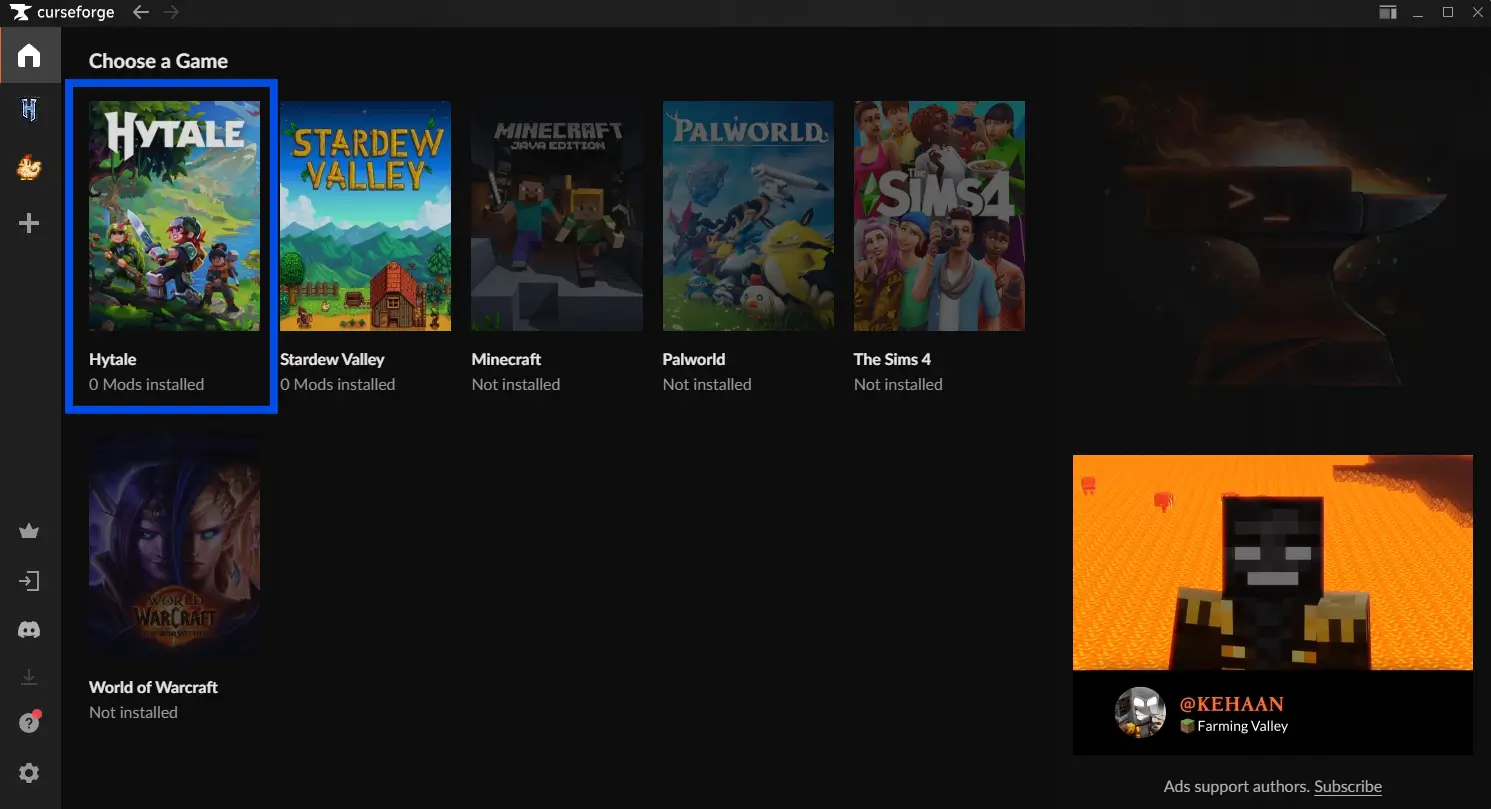
Navigate to Curseforge on the downloaded client, click on the Hytale category.
-
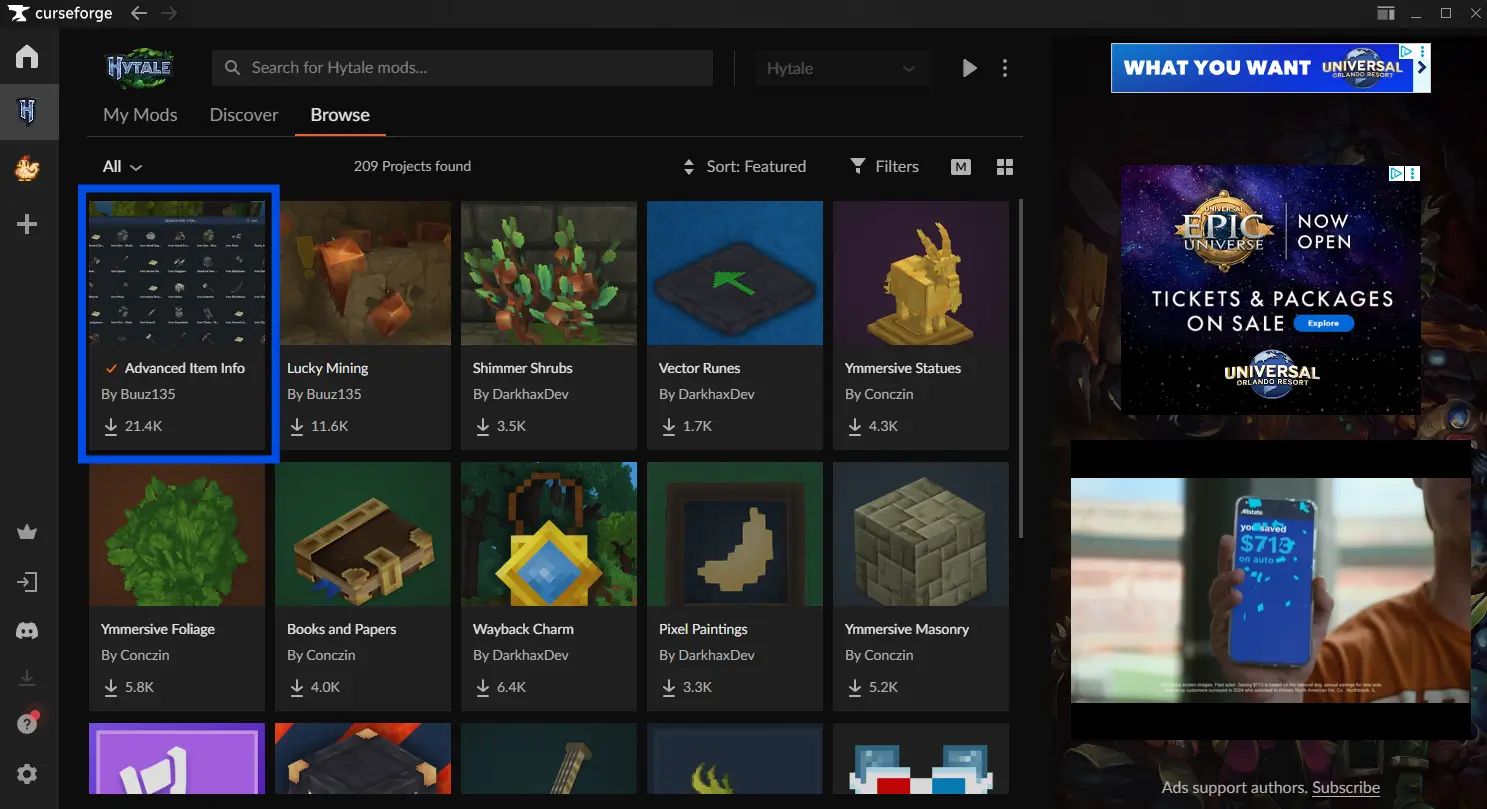
Browse for mods, click on the Hytale mods you want to add.
-
Open your Hytale game
-
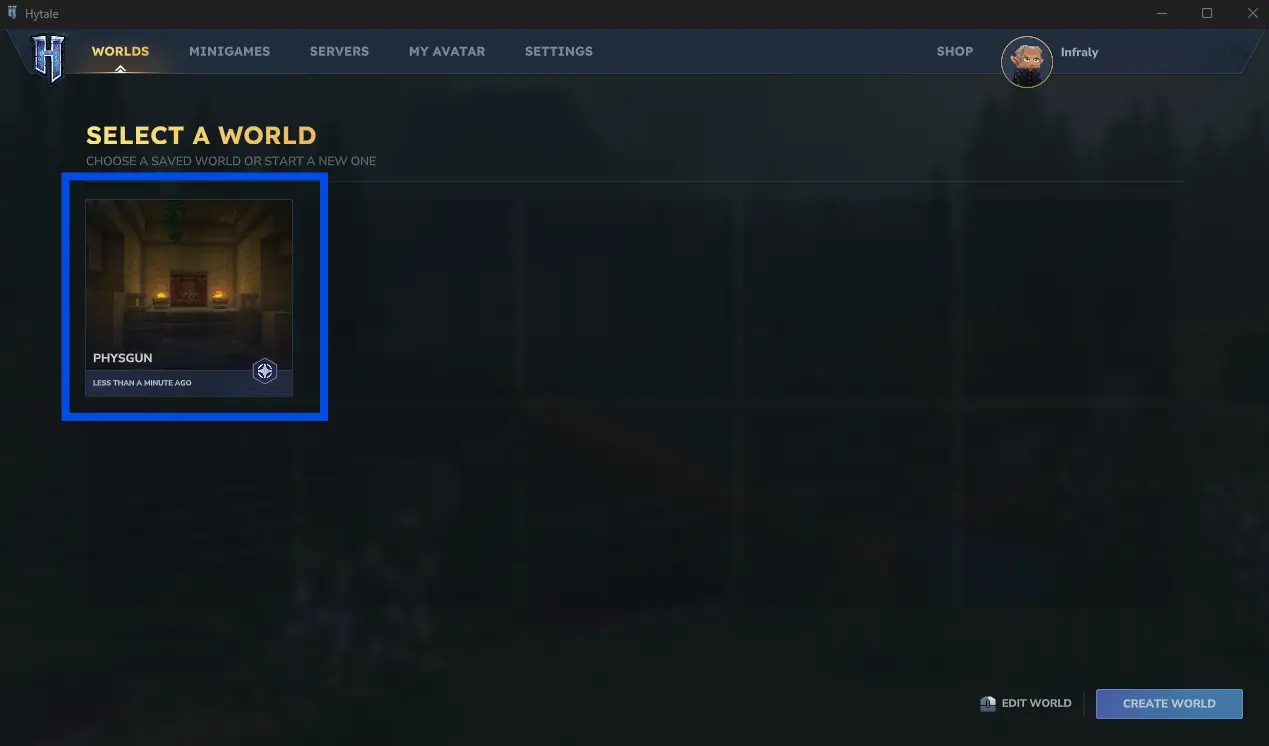
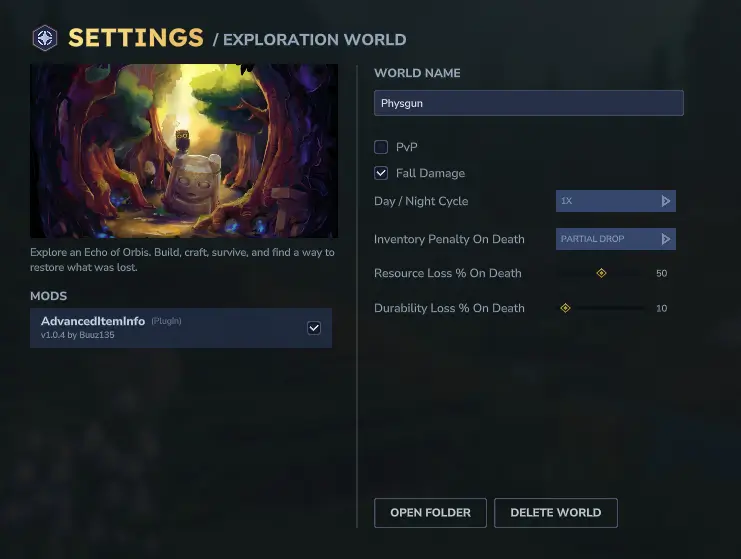
Right click on the game world you’d like to add mods to.
-
Click the checkmark for the mod you want to add to your Hytale world.
Removing Mods On The Hytale Client
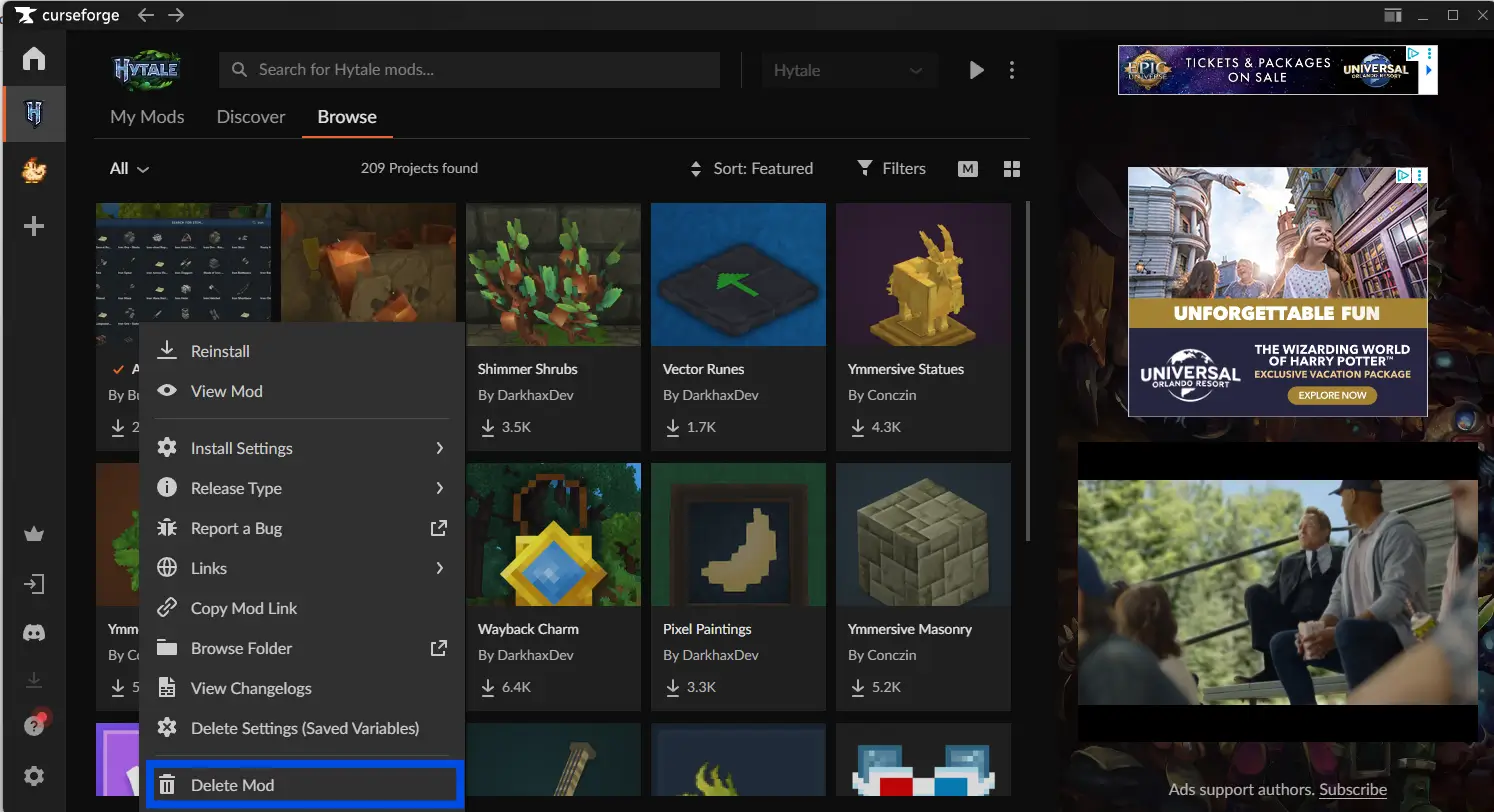
To remove a mod from your Hytale game client, open your Hytale mods in the Curseforge browser and right click. Click “Delete Mod” to remove the mod from your Hytale game.
Frequently Asked Questions
Below are the answers to a few frequently asked questions about adding mods to a Hytale server:
Where can I find mods for a Hytale server?
Mods can be found for a Hytale server inside of the “mods” folder.
Do packs and plugins work together on a Hytale server?
Yes, packs and plugins do work together on a Hytale server.
Still Need Help Adding Mods To A Hytale Server?
Contact our support team for 24/7 assistance!