

Fix Slow Connection / World Not Loading on Hytale Server
If you’re experiencing slow connections or the world isn’t loading when connecting to Hytale servers, this guide will help you resolve network driver issues on Windows.
Symptoms
- Your internet connection is generally stable and fast (you can watch YouTube videos without issues)
- Your singleplayer world loads fine and you can play normally
- Connecting to a server or friend is very slow and the world doesn’t load
- Your friend may be able to see you move but you can’t do anything
- You are on Windows
Problem
Some network devices such as Intel & Realtek have rare driver issues. The protocol Hytale uses (QUIC) is very modern and not always fully supported on all computers.
This is a known problem and will most likely not see a driver update. It affects modern platforms and both Wi-Fi and Ethernet connections.
Confirmation Test
You can confirm this issue affects you by connecting an Ethernet USB dongle to your computer and attempting to connect through that. If the problem is fixed with the dongle, you should follow the solutions below.
Solutions
Important: After each solution, test if it fixes your problem. You may not need to apply all changes.
Initial Steps
Step 1: Open Network Connections
- Open the Start Menu and type
View network connections - Select the Control Panel link
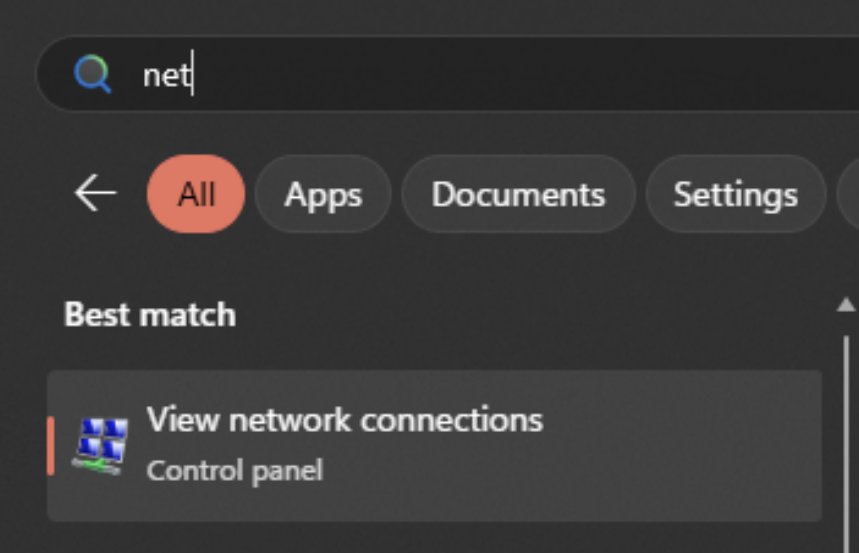
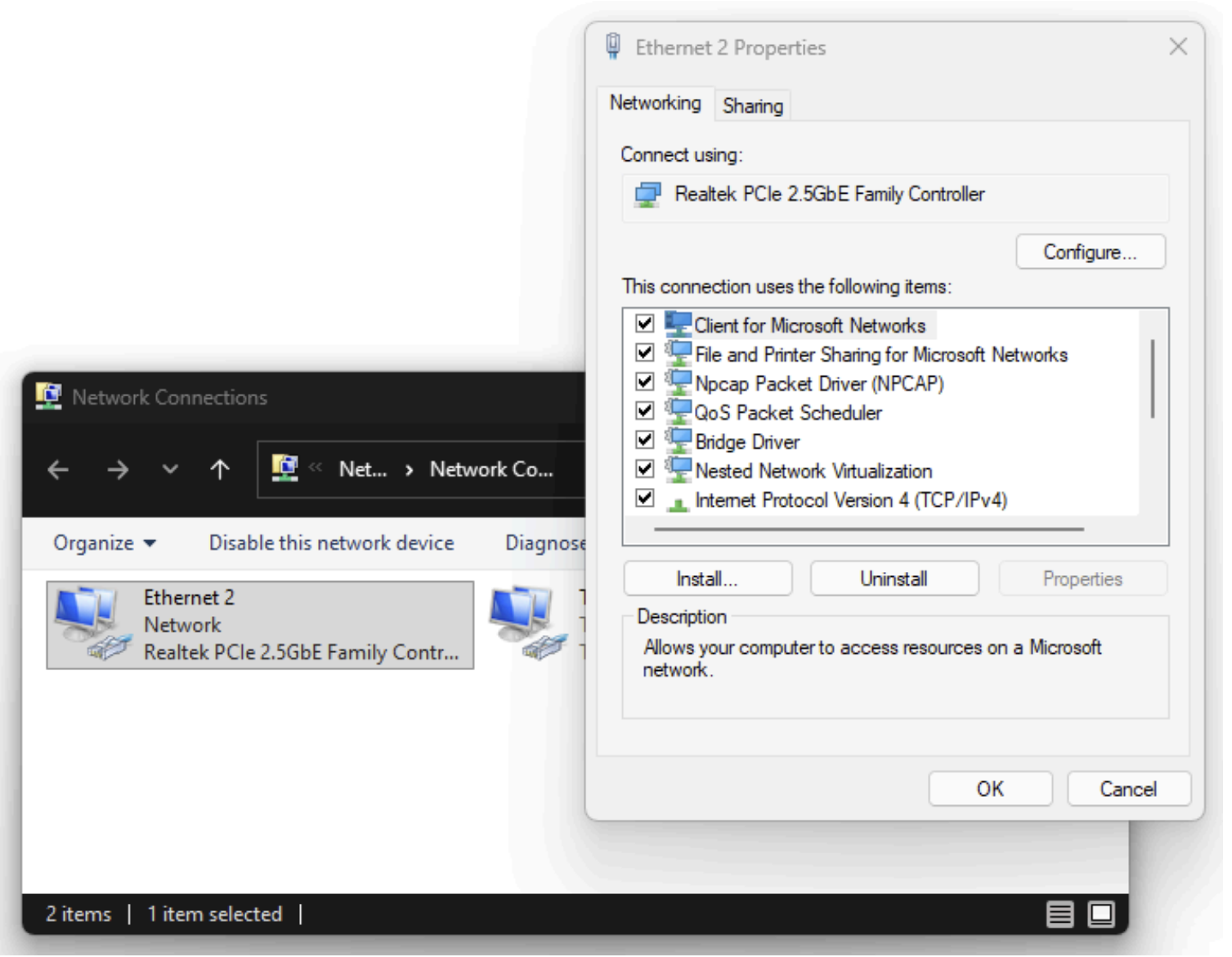
Step 2: Configure Your Network Adapter
- Select the network connection responsible for your internet connection (e.g., Ethernet, Ethernet 2, Wi-Fi)
- Right-click and select Properties
- Click Configure
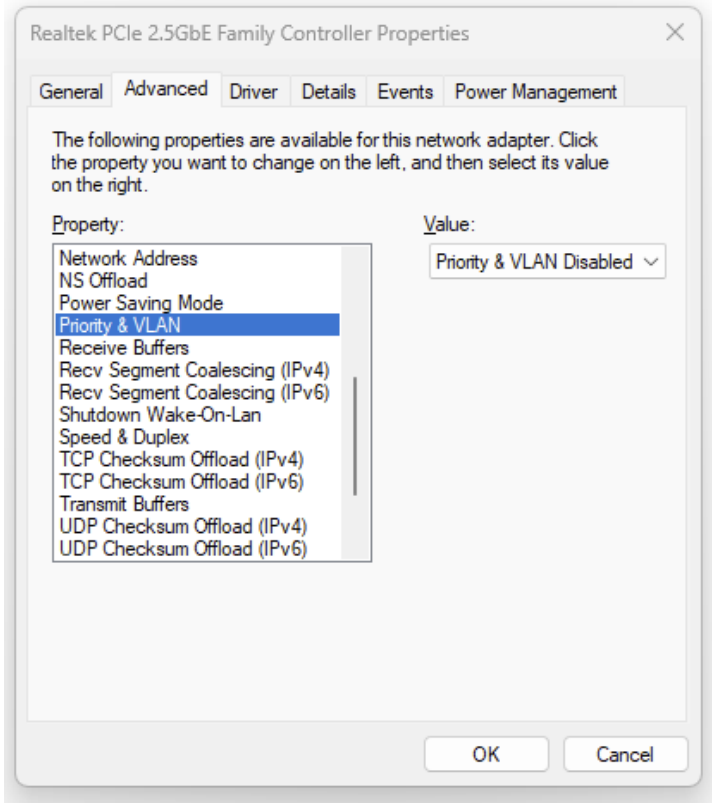
Solution 1: Disable Priority & VLAN
- In the Advanced tab, select Priority & VLAN
- Set the value to Priority & VLAN Disabled
- Click OK and wait for your internet connection to restore
- Test connecting to the Hytale server again
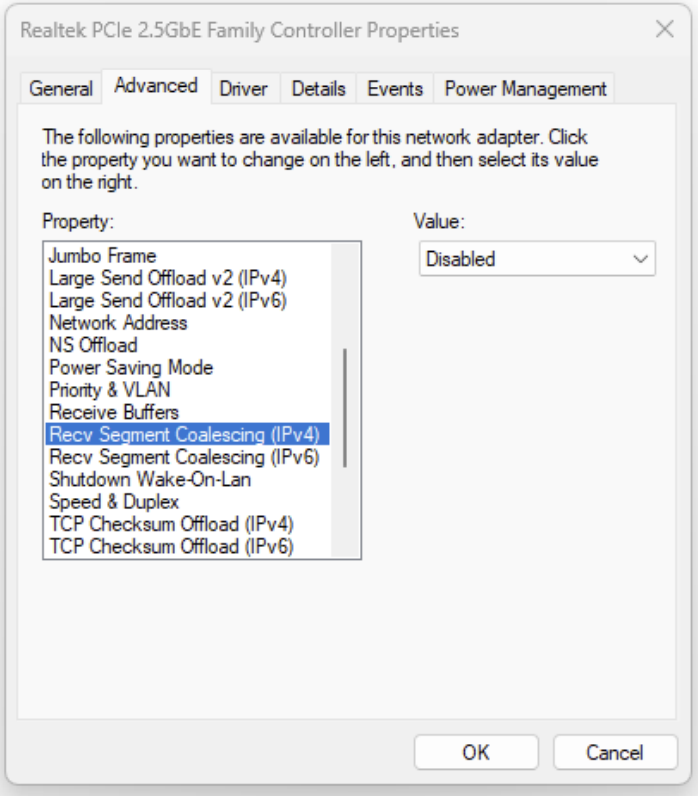
Solution 2: Disable Receive Segment Coalescing
- Select Recv. Segment Coalescing (IPv4) and set to Disabled
- Select Recv. Segment Coalescing (IPv6) and set to Disabled
- Click OK and wait for your internet connection to restore
- Test connecting to the Hytale server again
Solution 3: Disable Power Management Features
Disable the following settings one by one:
- Advanced EEE → Disabled
- ARP Offload → Disabled
- Energy-Efficient Ethernet → Disabled
- Flow Control → Disabled
- Green Ethernet → Disabled
- Click OK and wait for your internet connection to restore
- Test connecting to the Hytale server again
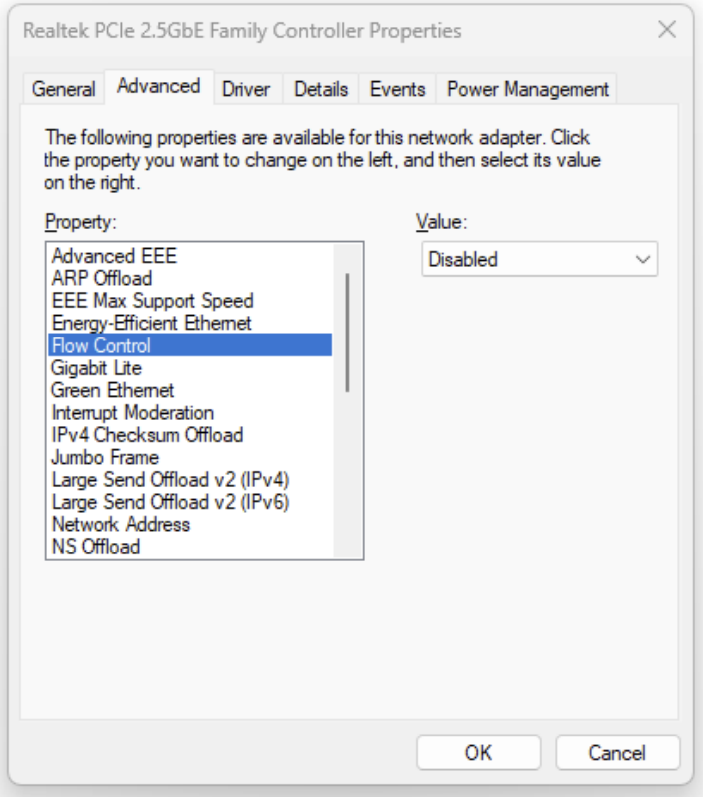
Solution 4: Comprehensive Network Settings (Last Resort)
Warning: This is a comprehensive change that may be difficult to reverse without reinstalling the driver. Only use this if the above solutions haven’t worked.
These settings were sourced from the community: Reddit discussion
Apply all of the following settings in your network adapter’s Advanced properties:
- Advanced EEE → Disabled
- ARP Offload → Disabled
- EEE Max Support Speed → 1.0 Gbps Full Duplex
- Energy-Efficient Ethernet → Disabled
- Flow Control → Disabled
- Gigabit Lite → Disabled
- Green Ethernet → Disabled
- Interrupt Moderation → Disabled
- IPv4 Checksum Offload → Rx & Tx Enabled
- Jumbo Frame → Disabled
- Large Send Offload v2 (IPv4) → Disabled
- Large Send Offload v2 (IPv6) → Disabled
- Maximum Number of RSS Queues → 4 Queues
- Network Address → Not Present
- NS Offload → Disabled
- Power Saving Mode → Disabled
- Priority & VLAN → Disabled
- Receive Buffers → 512
- Receive Side Scaling → Enabled
- Shutdown Wake-On-Lan → Disabled
- Speed & Duplex → Auto
- TCP Checksum Offload (IPv4) → Disabled
- TCP Checksum Offload (IPv6) → Disabled
- Transmit Buffers → 1024 (or 2048 if available)
- UDP Checksum Offload (IPv4) → Disabled
- UDP Checksum Offload (IPv6) → Disabled
- VLAN ID → 0
- Wake on Magic Packet → Disabled
- Wake on magic packet when system is in the S0ix power state → Disabled
- Wake on pattern match → Disabled
- WOL & Shutdown Link Speed → Not Speed Down
After applying these settings, click OK, wait for your connection to restore, and test the server connection.
Still Having Issues?
If none of these solutions work:
- Try using a Ethernet USB adapter as a permanent solution
- Update your network adapter drivers from the manufacturer’s website
Note: These settings primarily affect Intel and Realtek network adapters on Windows. Other adapters may have different options or may not be affected by this issue.