

How To Port Forward A GMod Server
Trying to host a Garry’s Mod server but your friends cannot connect? Garry’s Mod is a sandbox physics game that allows players to build and develop their own world from scratch. The issue is almost always port forwarding. If your Garry’s Mod server is running yet not visible on the internet, your router is likely blocking the required ports. Routers were not designed to allow incoming network requests, which is why port forwarding is necessary for certain applications like hosting a Garry’s Mod server. Proper port forwarding tells your network exactly where to send incoming traffic so other players can join your server without connection errors.
In this step-by-step guide on how to port forward a GMod server, you will learn how to:
-
Find your computer’s local IP address (Default Gateway).
-
Set a static IP address on your PC (so port forwards don’t break) via Windows Settings or Control Panel. Routers often assign a dynamic IP, which can change after a restart and break port forwarding rules, so a static IP is recommended.
-
Log in to your router’s dashboard and locate the Port Forwarding section.
-
Forward the correct ports for your Garry’s Mod (Source engine) server.
-
Configure inbound rules in Windows Defender Firewall for the proper ports.
-
Test your server from outside your network.
-
Understand the requirements for hosting a Garry’s Mod server, such as hardware, software, and network prerequisites.
Once done, your server’s ports will be open so players can connect to it without issues!
Skip Port Forwarding With Physgun Hosting
If you’d rather skip router configs entirely, consider a dedicated game server host like Physgun. With Physgun, the server runs on a public IP and you don’t open any ports. Friends can join your GMod server immediately without dealing with port forwarding or firewall rules. Physgun is the plug and play solution for hosting Garry’s Mod online.
Find Your Local IP and Router Address
To find your local IP and Router Address:
-
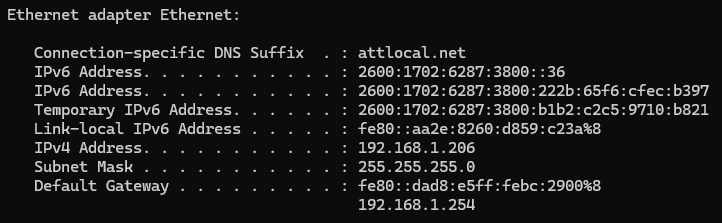
Open a Command Prompt window (press Start, type cmd, and open Command Prompt)
-
Inside Command Prompt, enter ipconfig. Note down your IPv4 Address (192.168.x.y or 10.0.x.y)
-
The Default Gateway (e.g. 192.168.1.1) is your router’s IP address on your local network.
-
You will use these values to set the static IP address and to log in to your router. When accessing your router’s dashboard, you may be prompted for a username and password. The default username is often ‘admin’, and the password may also be ‘admin’ or ‘password’.
-
To get your Public IP Address, go to a search engine like Google and search “What is my IP address”. Note this down as well.
Set A Static Local IP On Your PC
Routers often assign a dynamic IP (dynamic ip) to devices on your network. This means the IP address can change after a device restart, which may cause your port forwarding rules to stop working. Setting a static LAN IP ensures your server’s IP remains the same, preventing issues with port forwarding.
Windows Settings Method:
-
Open Settings, then find Network & Internet. Click your internet adapter (Ethernet or Wi-Fi, then Properties.
-
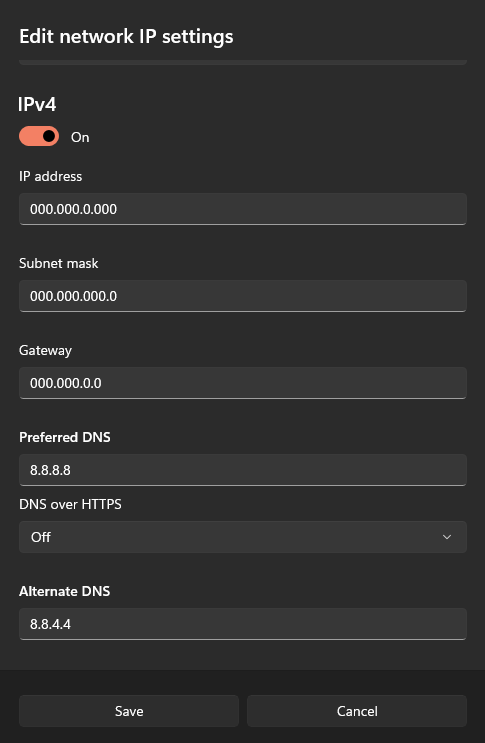
Under IP assignment, click Edit, and change Automatic (DHCP) to Manual.
-
Enable IPv4. Enter the IPv4 Address you noted earlier (e.g. 192.168.1.100), Subnet Mask (255.255.255.0), and Gateway (your router’s IP address.)
-
Under DNS, you can just enter a public DNS server (e.g. Cloudflare: 1.1.1.1, Google: 8.8.8.8, etc.).
-
Save and Apply. Your PC is now using a fixed IP on the LAN (so the router will always port forward to this IP address).
Control Panel Method:
-
Go to Control Panel, Network and Internet, then Network and Sharing Center. Click Change Adapter Settings.
-
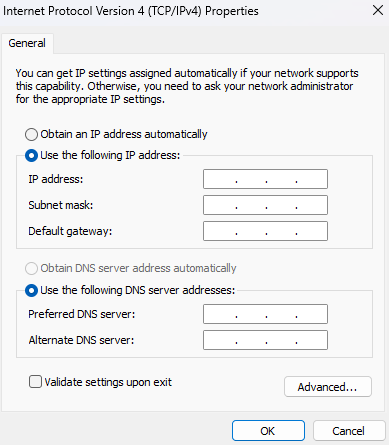
Right click on your active adapter, click Properties, then double-click Internet Protocol Version 4(TCP/IPv4).
-
Select Use the following IP address and enter the same IPv4 Address, Subnet Mask, Gateway, and DNS as the Windows settings method.
-
Check Validate settings upon exit and click OK.
Log Into Your Router and Forward Ports
-
In a web browser, go to http://DefaultGateway (the router IP from step 1). Log in with your router credentials—this usually means entering a username such as ‘admin’ and a password.
-
Find the Port Forwarding (or Virtual Server/NAT, etc.) section. This location varies by brand (check your router’s manual). The port forwarding rules are often displayed in a table format, where you enter the required port numbers, protocols, and IP addresses.
-
Add a new port-forward entry to port forward Garry’s Mod:
-
Name/Description: e.g. GMod Server (for your reference).
-
Protocol: UDP/TCP (or create two entries, one for UDP and one for TCP, if combined is not available).
-
External/WAN Port(s): 27015 (enter as range 27015–27020 if using multiple ports).
-
Internal/LAN Port(s): Same (27015 or 27015–27020).
-
Destination IP: your static IPv4 (e.g. 192.168.1.100).
Garry’s Mod (Source engine) uses port 27015 by default. Forwarding UDP port 27015 is required for gameplay; TCP 27015 is also commonly forwarded for RCON or additional connections. The Source query port 27020 (UDP) is also used for server listing queries. This means your server will be accessible from the internet for other players to join.
- Save/apply the rule. Your router may need a reboot for changes to take effect.
- Tip: If your ISP uses CGNAT (Carrier-Grade NAT), which means multiple users share a single public IP address, standard port forwarding on a home router may not work. In that case you need a public IP (contact your ISP or use a VPN/hosted service). Using a VPN can help avoid the risks associated with port forwarding by providing a secure connection, and some VPN providers offer port forwarding add-ons that can automate the process and enhance security.
Protocols - TCP vs UDP
-
TCP (Transmission Control Protocol) is connection oriented. It ensures reliable delivery and ordering of packets (used by web, downloads).
-
UDP (User Datagram Protocol) is connectionless. It sends data without guarantees, favoring low latency (used by voice chat, gaming).
For a Source game server like GMod, the critical game traffic uses UDP 27015. It’s best practice to forward both UDP and TCP on 27015 (and 27020) unless you know a specific need for one protocol. Forward only needed ports to limit exposure.
Create Windows Defender Inbound Rules
Even with your router open, Windows Firewall can block incoming connections. To allow GMod traffic through Windows Firewall:
-
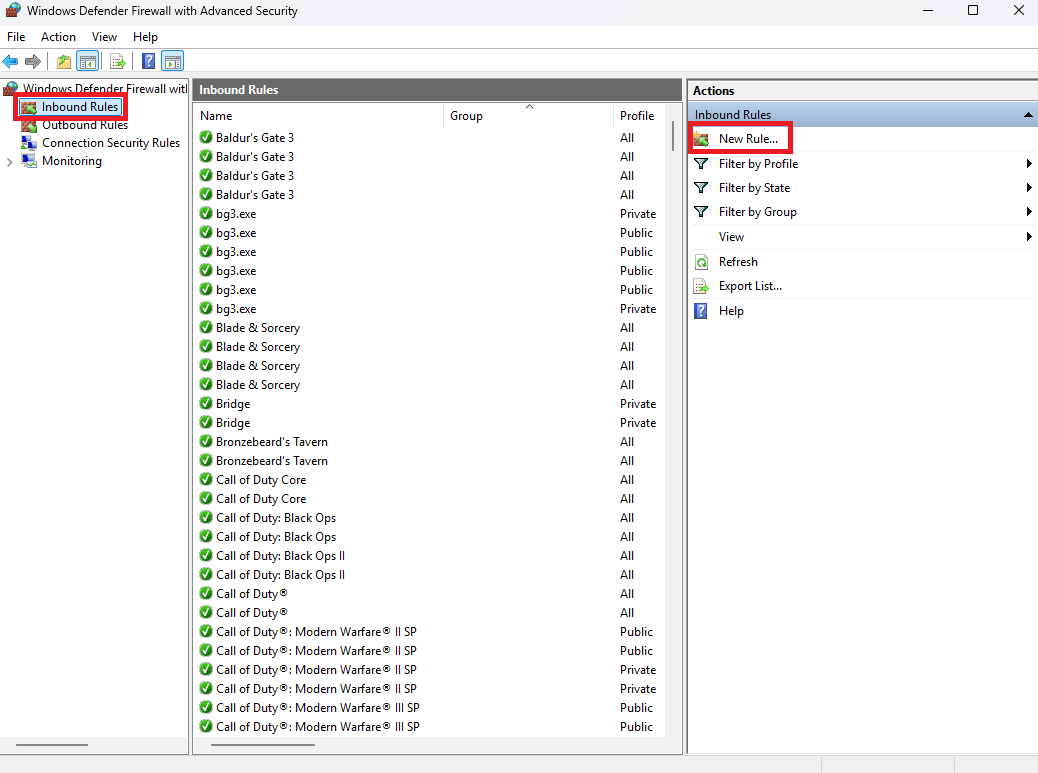
Open Windows Defender Firewall with Advanced Security (Search in the Start Menu).
-
Go to Inbound, New Rules, Select Port, then click Next.
-
Choose TCP, Specific local ports, and enter 27015 (or 27015-27020 for a range). Press Next, Allow the connection then Next.
-
Check Domain, Private, Public (if you trust the connection on all networks), press Next, then enter a name (e.g. GMod TCP 27015). Now press finish.
-
Repeat steps 2-4 for UDP 27015.
Windows will now allow incoming UDP and TCP traffic on port 27015 (or the range/ports you set up in the previous steps)
Testing The Server Connection
To test the connection to your Garry’s Mod server:
-
Restart your router and server to ensure all settings apply.
-
From another network (e.g. ask a friend or use a phone on mobile data), try connecting:
- In Garry’s Mod or Steam’s console (~ key), run:
connect YOUR_PUBLIC_IP:27015Replace YOUR_PUBLIC_IP with your actual public (external) IP address and 27015 if using a custom port.
- Alternatively, open Steam’s Server Browser and direct-connect using your public IP.
Notice: To host an internet server, you must use the command sv_lan 0 in your server console. Otherwise, your server will only be available on LAN and not accessible from outside your network.
- If the connect succeeds, your port forward is working. If it fails:
-
Double-check the internal IP in your router’s rule matches your PC’s static IP.
-
Ensure Windows rules for both TCP and UDP are set.
-
Verify your server’s startup command (e.g. srcds.exe -port 27015).
-
Try using an online port-check tool from outside your network (only works if server is running and listening).
You can also check if your port forwarding is working using online tools like canyouseeme.org.
Troubleshooting & Tips
-
Wrong IP: If your PC received a different IP after reboot, the rule will break. Use a static IP as above or set a DHCP reservation in the router.
-
Multiple servers: If running more than one GMod server on the same PC/router, use a range (e.g. 27015–27020) and unique ports per instance. Forward the full range.
-
ISP NAT: If you still can’t forward, your ISP may use CGNAT. Contact them or use a hosting service/VPN.
-
Double NAT: Ensure only one router is doing NAT. If you have two routers (e.g. a modem and router separatley), you may need to port-forward twice (modem → router → PC) or set the modem to bridge mode.
-
Steam GSLT: Since 2020, GMod requires a Steam Game Server Login Token for public listing. Without it, your server will be hidden in the list (though friends can still join by IP).
Now you know how to port forward a GMod server!