

Setting up a Star Wars RP experience inside Garry’s Mod is a process, not a single install button. A solid SWRP server builds on a DarkRP modification, proper folder structure, and clean configuration. This walkthrough explains how to create a playable Star Wars RP server, install the gamemode, and avoid common mistakes that derail new communities.
This guide assumes you already have a basic GMod server hosted with Physgun, or through a VPS/Self-Host.
Making A Garry’s Mod Star Wars RP Server
A Star Wars RP server is essentially a DarkRP server that has been modified with Star Wars specific content like jobs, weapons, models, vehicles, and maps. Most SWRP servers use a custom DarkRP base such as StarWarsRP or another derived framework.
Before continuing, make sure that:
-
Your GMod server starts correctly.
-
You can join and play without errors.
We will be using the gamemode DerivedRP. DerivedRP is a modified version of DarkRP that allows the gamemode name and branding to be changed, making it the ideal choice for creating a Star Wars RP server.
Installing DerivedRP on GMod Server
To install Derived DarkRP on your GMod server:
-
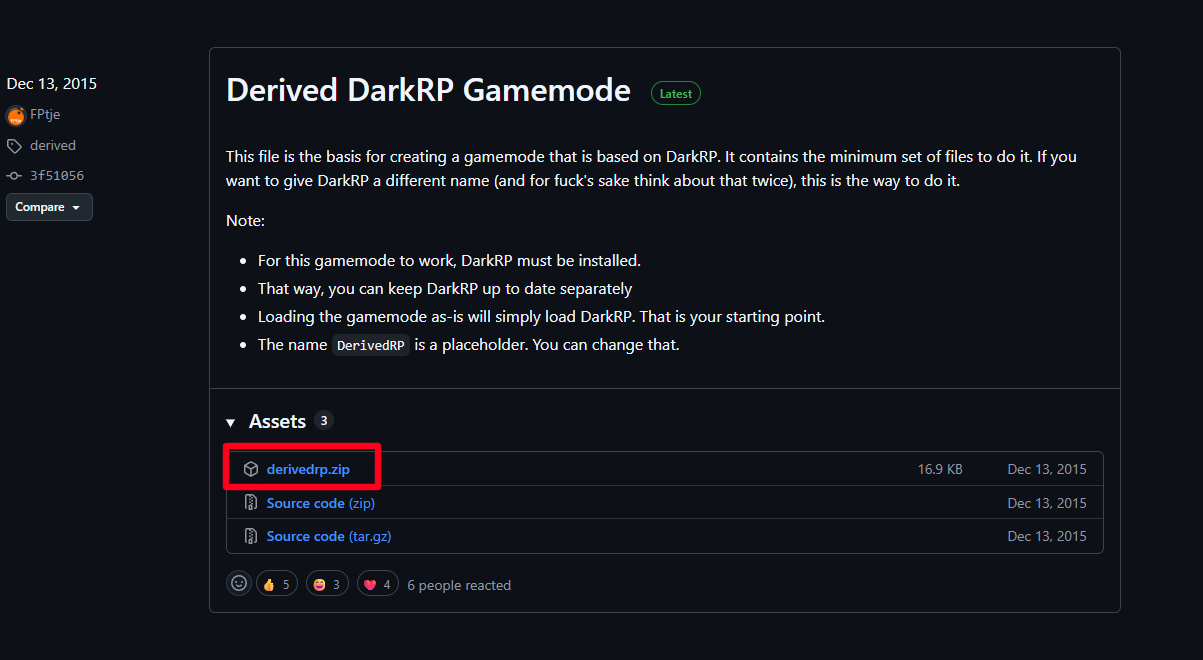
Go to the Derived DarkRP release page.
-
Download the derivedrp.zip file to your computer.
-
Open and extract the zip file to a safe place.
- If you are using a managed GMod host like Physgun, you are able to upload and extract the zip file directly through the gamepanel.
-
Go to your servers file directory and navigate to garrysmod/gamemodes/
-
Upload or drag the derivedrp folder into the gamemodes directory.
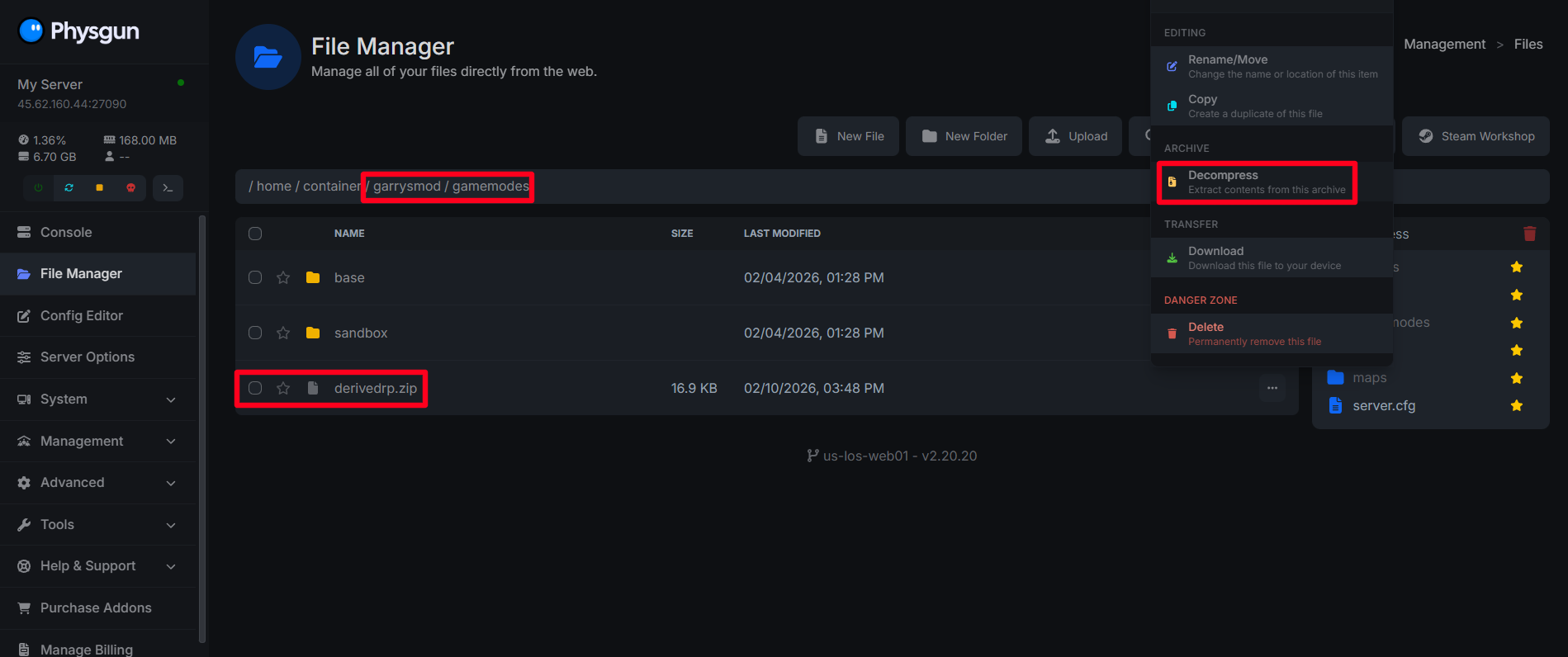
Now, DerivedRP is installed, but not quite yet configured as Star Wars RP.
Renaming DerivedRP to StarWarsRP
To rename DerivedRP to StarWarsRP so it correctly appears in Garry’s Mod:
Rename the gamemode folder:
-
Locate the derivedrp folder you uploaded.
-
Rename the folder to starwarsrp
Update The Gamemode Definition File
-
Open the newly renamed starwarsrp folder
-
Find the file named derivedrp.txt
-
Rename derivedrp.txt to starwarsrp.txt
-
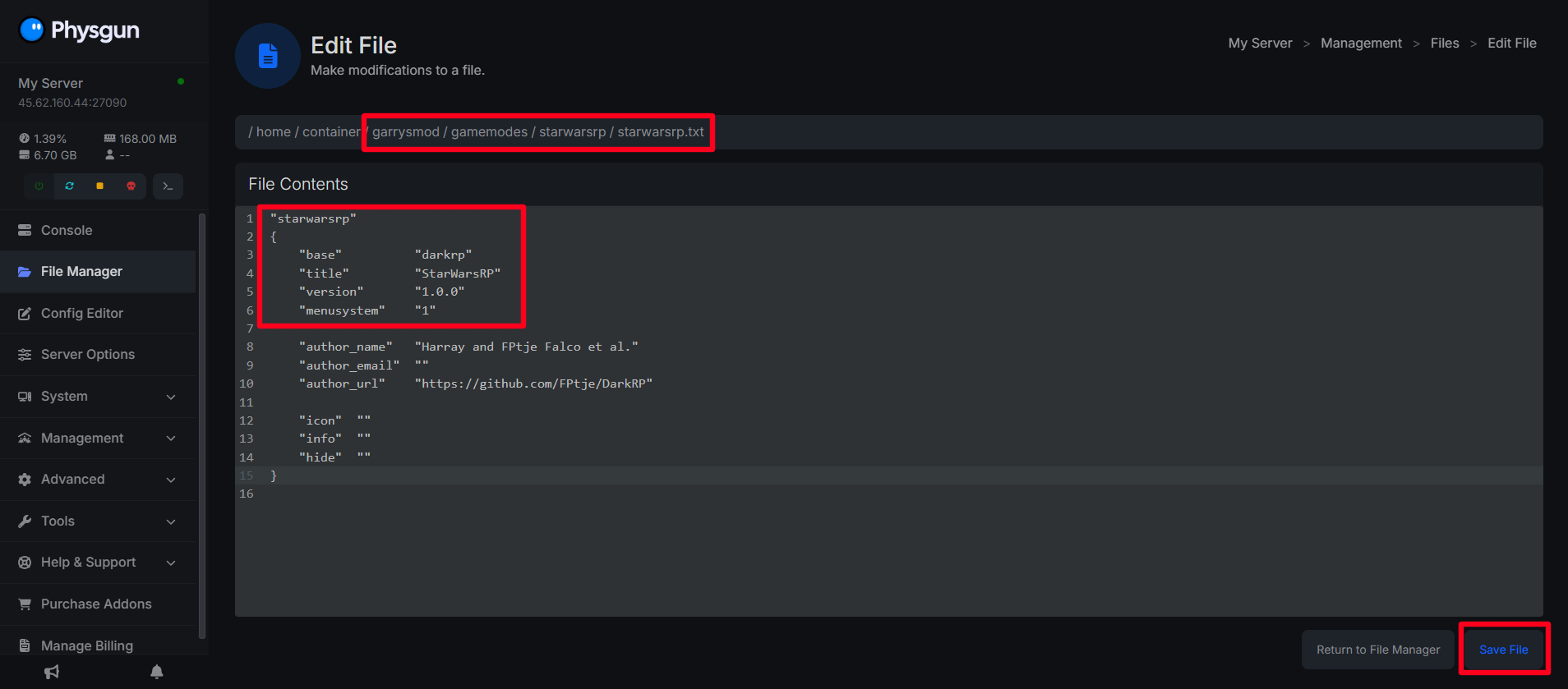
Open up the newly renamed starwarsrp.txt file in a text editor like notepad
- If you are using a managed game host like Physgun, you can modify these files directly in the gamepanel.
-
Modify the contents of starwarsrp.txt so the name and title reflect Star Wars RP. This file should look similar to this:
"starwarsrp"
{
    "base"          "darkrp"
    "title"         "StarWarsRP"
    "version"       "1.0.0"
    "menusystem"    "1"

    "author_name"   "Harray and FPtje Falco et al."
    "author_email"  ""
    "author_url"    "https://github.com/FPtje/DarkRP"

    "icon"  ""
    "info"  ""
    "hide"  ""
}
Save the file once the changes are complete.
Update the Gamemode Name in Lua Files
To update the gamemode name must be updated inside the Lua files so it displays correctly in-game:
-
Navigate in your server files to garrysmod/gamemodes/starwarsrp/gamemode/
-
Edit the cl_init.lua and update the GM.Name value:
GM.Version = "1.0.0" GM.Name = "StarwarsRP" GM.Author = "By Harry, FPtje Falco et al." -
Edit the init.lua and make the same change:
GM.Version = "1.0.0" GM.Name = "StarwarsRP" GM.Author = "By Harry, FPtje Falco et al." -
Save both of these files.
At this stage, DerivedRP has been fully converted into StarWarsRP, and the gamemode will now appear correctly when selected or started on your Garry’s Mod server.
Note: After completing these steps, make sure to change your servers gamemode to starwarsrp
Adding Content To StarWarsRP server
Adding content to your Star Wars RP server will make it more than just a simple DarkRP clone. With addons, maps, jobs, and more, you can craft your StarWarsRP to be exactly what you want it to be.
Installing addons and maps to StarWarsRP server
To install addons on your Star Wars RP server:
-
Find the addon or map you would like to add to your server, either via a website like GModStore, or the Steam Workshop
-
If you are installing addons or maps through workshop: Create a Workshop collection containing the addons or maps you would like to add and set the workshop collection ID in your server’s startup commands. On Physgun, you can do this in the Server Options tab in the gamepanel.
-
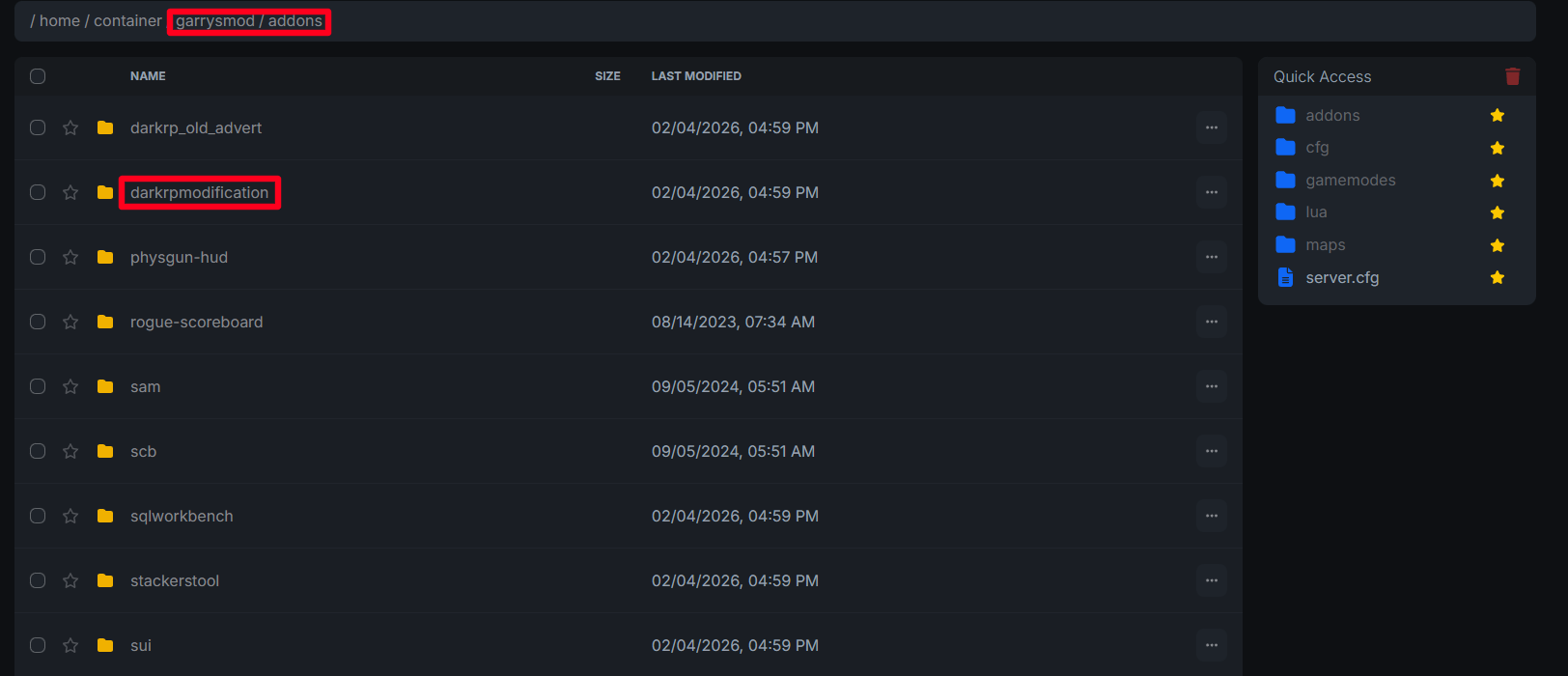
If you are installing addons or maps manually: Place your downloaded addons in your server’s files at garrysmod/addons and place your .bsp map files at garrysmod/maps
-
Restart your server and your addons should now be loaded
Adding Custom Jobs and Regiments To StarWarsRP Server
To make custom jobs/regiments on your StarWarsRP server:
-
Download and install the DarkRPModification addon to your server
-
Navigate to darkrpmodification/lua/darkrp_customthings and open the jobs.lua file
-
Add a new job to this file. For example:
TEAM_CT = DarkRP.createJob("Clone Trooper", { color = Color(0, 120, 255), model = { "models/player/clone_trooper.mdl" }, description = [[ You are a Clone Trooper serving the Galactic Republic. Follow orders from higher-ranking officers and protect Republic interests. ]], weapons = { "weapon_sw_dc15a" }, command = "ct", max = 0, salary = 45, admin = 0, vote = false, hasLicense = true, category = "Clone Troopers" }) -
Create new categories for your job in the categories.lua file in the same directory as jobs.lua like so:
DarkRP.createCategory{
    name = "Clone Troopers",
    categorises = "jobs",
    startExpanded = true,
    color = Color(0, 120, 255),
    canSee = function(ply) return true end,
    sortOrder = 100,
}
After creating or editing your jobs:
-
Save all files
-
Restart your server completely
-
Join the server
-
Open the F4 menu
-
Verify your jobs appear and are under the correct categories
If your jobs do not appear, check for Lua errors in the server or in-game console.