

Learning how to make a GMod server private gives you full control over who can access your Garry’s Mod server, what mods and addons are installed, and how your game mode is played. Whether you’re hosting from your PC, running a dedicated server, or using GMod server hosting, making a server private comes down to proper server settings, server files, and basic network security.
A private GMod server is ideal for playing with friends, testing mods, or running a secure sandbox or mod server without random players joining. This tutorial covers both password protection and a SteamID64 whitelist to fully lock down access.
Hiding Your Garry’s Mod Server From The Server Browser
Hiding your GMod server in the server browser makes it so players looking for servers don’t even get yours as an option to join. This makes it much harder for bad actors to find your server, preventing unwanted joins and attackers from easily finding your server.
Thankfully, if your server is hosted through Physgun, it’s as easy as clicking a button to hide your server in the server browser!
Hiding your Gmod Server from the Server Browser Through Physgun Gamepanel
To hide your Garry’s Mod server in the server browser through Physgun:
-
Navigate to the Physgun Gamepanel and select your Garry’s Mod server.
-
Head over to Server Options in the left side nav bar and scroll down until you find Hide From Server List.
-
Tick the option to On and restart your server.
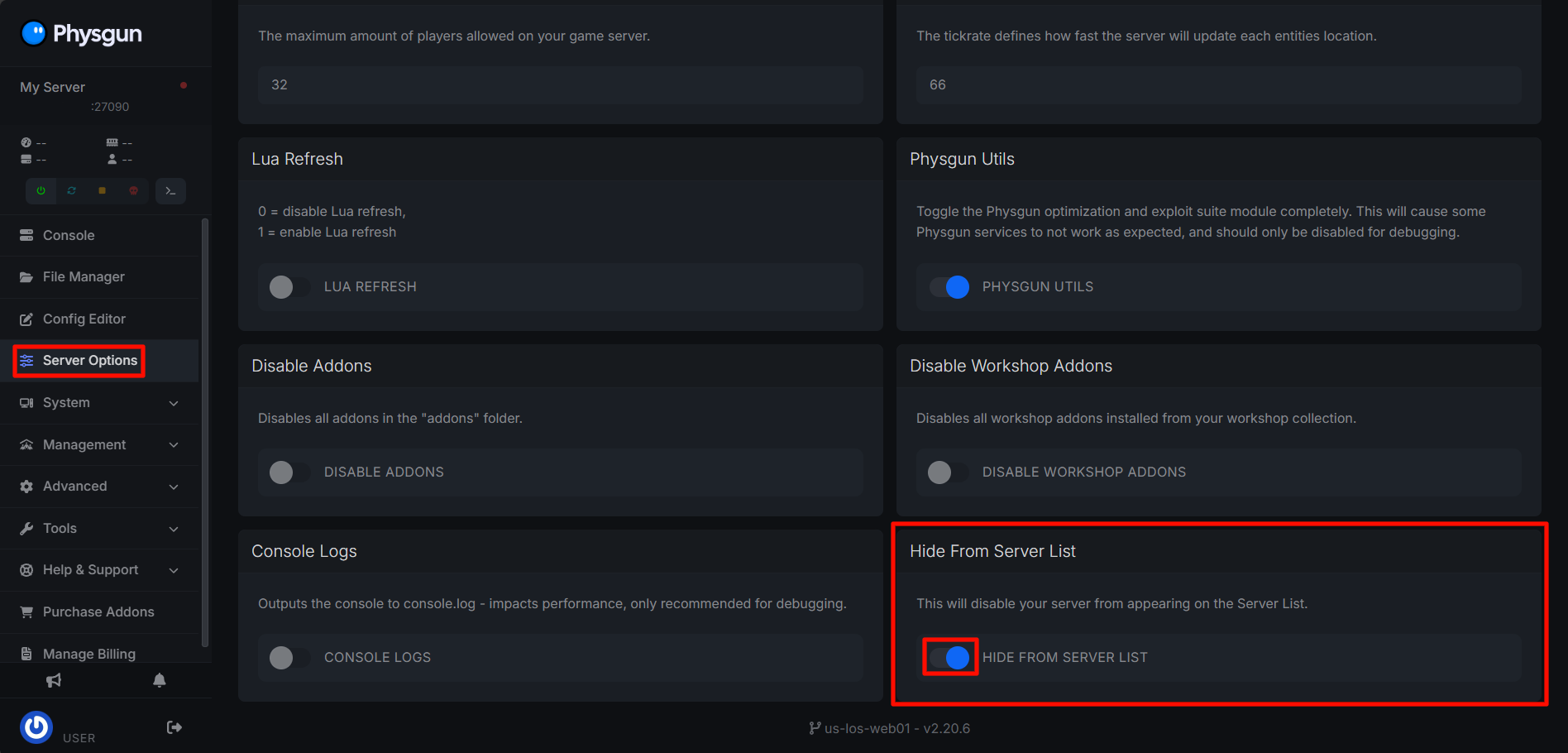
That’s it! Once you restart your server, players will have to join your server via the in-game console with the connect command as it will no longer show in the server browser.
Hiding your Gmod Server From The Server Browser Through A VPS
To hide your Garry’s Mod server in the server browser through a VPS or Self-Host:
-
Navigate to your game servers root files
- Depending on how you usually start your server (either through a .sh/.bat script, or via the command line), you will want to modify your normal startup command in the next step.
-
Add -nomaster to your normal startup command, whether that’s through the command line, or through a .sh/.bat script.
Your startup command should look something like this:
Windows:srcds.exe -game garrysmod +map gm_flatgrass -maxplayers 16 -nomasterLinux:
./srcds_run -game garrysmod +map gm_flatgrass -maxplayers 16 -nomaster -
Save the file or startup command you modified and restart your server using the newly edited startup command!
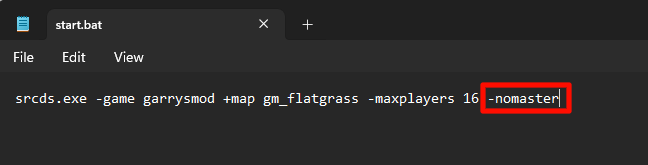
That’s all! Now your Garry’s Mod server will not show up in the server browser and will have to be joined via the console with the command connect ip_address:port, where ip_address is your servers IP, and port is your server’s port.
Adding A Password To Your Garry’s Mod Server
Whether you are running a Garry’s Mod server directly from your computer (such as hosting a server through the game for friends to join) or running a dedicated Garry’s Mod server, either through a VPS, self-hosted, or through a hosting company such as Physgun, setting up a password for your server is simple!
To add a password to your locally hosted Garry’s Mod Server:
-
Navigate to Garry’s Mods game/server files.
- If you are doing this for a local server, you can find these files easily by navigating to the game in your steam library, right clicking on Garry’s Mod -> Manage -> Browse local files
-
Open the following folder:
garrysmod/cfg -
Find the file in garrysmod/config titled server.cfg and open it in a text editor like notepad.
-
Find or create the entry sv_password “(superstrongpassword)”.
-
Make sure to replace (superstrongpassword) with a secure password of your choosing.
-
Don’t give this password out to people you don’t want to join your server!
-
-
Save the server.cfg file after you add your password and restart your server.
Once restarted, your server IP will now require a password before players can connect. This works for local servers, dedicated servers, and most hosting plans.
Making A Whitelist For Your Garry’s Mod Server
For stronger security, you can create a whitelist that only allows specific users to connect. This method uses SteamID64 values and blocks all other connections, even if someone has the password.
This is the best option for private servers, development servers, or closed community servers.
To make a whitelist for your Garry’s Mod Server:
-
Navigate to your Garry’s Mods game/server files.
-
Navigate to garrysmod/lua/autorun/server and create a new file called whitelist.lua
-
Copy the following code into the new whitelist.lua file:
if not SERVER then return end -- Whitelisted SteamID64s local WHITELIST = { ["76561198000000001"] = true, -- add more SteamID64s here } hook.Add("CheckPassword", "SteamID64Whitelist", function(steamID64, ipAddress, svPassword, clPassword, name) if WHITELIST[steamID64] then return true end return false, "You are not whitelisted on this server." end) -
To add yourself or other players to your whitelist, just add a new line under [“76561198000000001”] = true, with the same content, but use your own SteamID64s instead.
-
You can find your or other players SteamID64 by using external admin tools or websites like steamid.io.
-
Make sure that you have a comma after each entry! Having multiple people on your whitelist should look something like this:
local WHITELIST = {
    ["76561198000000001"] = true,
    ["76561198000000002"] = true,
    ["76561198000000003"] = true
}
-
-
Save this file and restart your server.
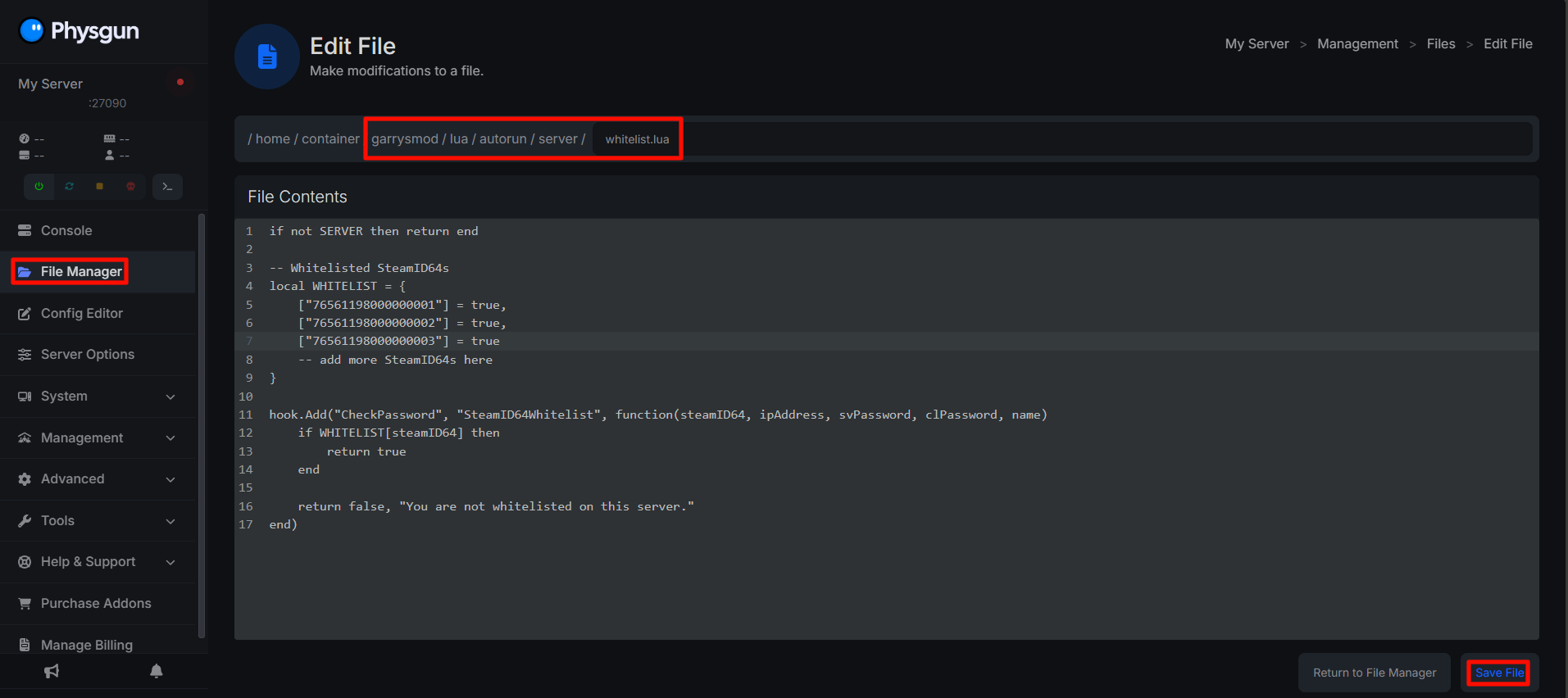
Now, if a player is not in the whitelist you setup, they will not be able to join your server! If a player tries to join your server but is not added to the whitelist, the server will tell them, “You are not whitelisted on this server.”
Using a server password plus a SteamID64 whitelist ensures your Garry’s Mod server stays private, secure, and accessible only to the players you choose. This setup works for local servers, dedicated servers, and most GMod server hosting services, regardless of your hosting plan, slots, or mods.
This approach keeps your server data safe, protects your community, and gives you full control over how your game server is accessed and played.