

Hosting a Prop Hunt server in Garry’s Mod is one of the most fun ways to play GMod with friends, combining hide-and-seek mechanics with creative props and custom maps. Whether you want to play Prop Hunt privately or run a public Prop Hunt server, the setup process is straightforward once you know where everything lives.
In this guide, you will learn how to host a Prop Hunt server in GMod, including how to install the Prop Hunt gamemode, download required files from the Steam Workshop, and configure your GMod server settings so players can join without errors.
We will also cover how to add Prop Hunt maps, choose the correct gamemode, and avoid common mistakes that prevent the server from loading properly. By the end of this guide, you will have a fully working Prop Hunt server ready to play, whether you are hosting for friends or building a fun public Garry’s Mod community.
Installing Prop Hunt On GMod Server
To install Prop Hunt On Your GMod Server:
-
Navigate to the Steam Workshop for Garry’s Mod.
-
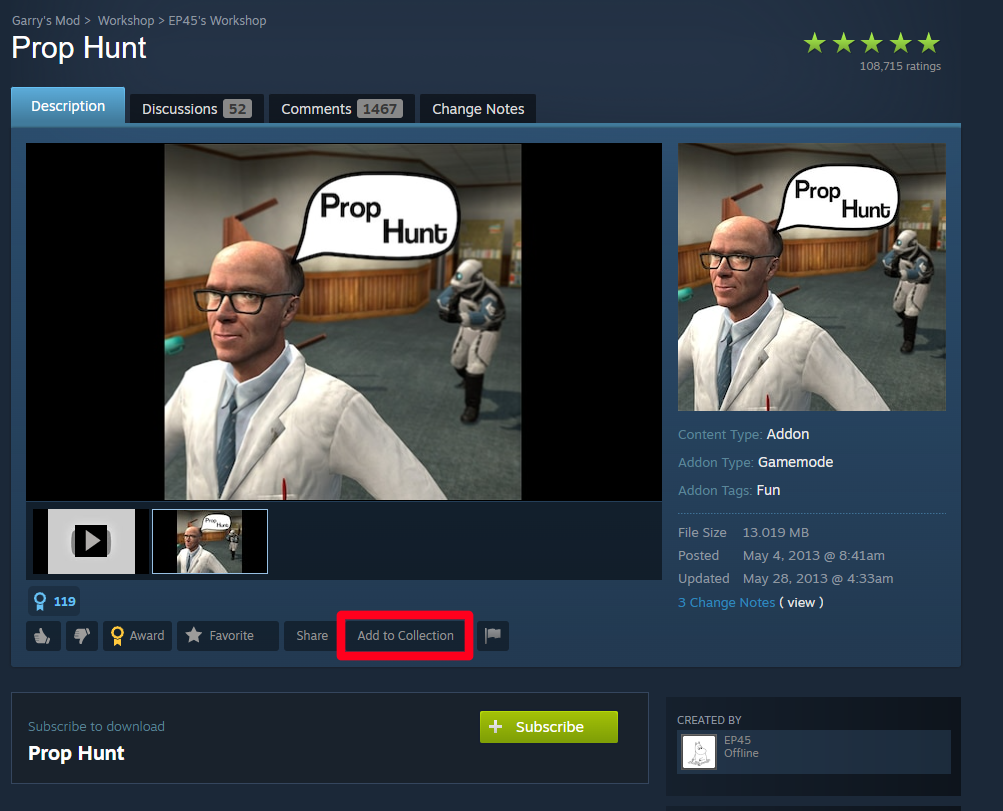
Find the Prop Hunt or Prop Hunt Enhanced addons and add them to your servers Workshop collection.
-
Restart your Garry’s Mod server and it will now auto download the game mode to your server.
You can now set the gamemode in your server.cfg file to prophunt and when you start your server, it will now be running the Prop Hunt game mode!
Adding Prop Hunt Maps To Your Garry’s Mod Server
To find and download Prop Hunt maps for your Garry’s Mod server:
-
Navigate to the Steam Workshop for Garry’s Mod.
-
Use the search bar and type something along the lines of “Prop Hunt Maps”
- A lot of Prop Hunt maps will have a prefix of ph_, e.g. ph_office
-
Find a map that looks appealing to you and add it to your server’s Workshop collection.
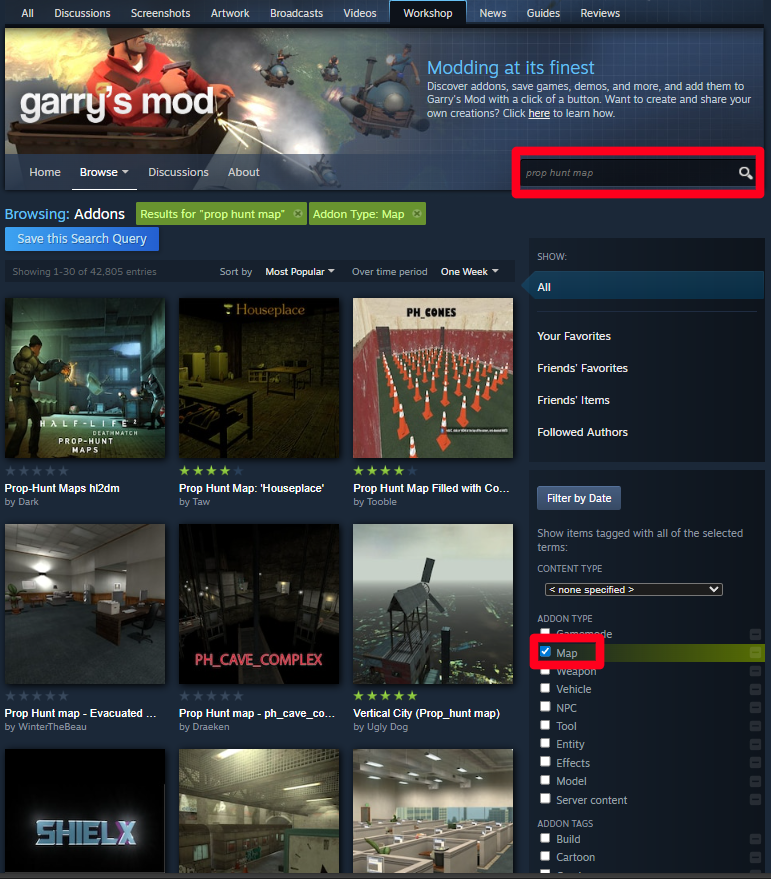
Once you have added the map to your server’s Workshop collection, you can now load and run the map on your Garry’s Mod server!
Configuring Prop Hunt On Your Garry’s Mod Server
To Configure Prop Hunt on your Garry’s Mod server:
-
Navigate to your server’s files or Game panel if using shared hosting Like Physgun.
-
Modify the file at garrysmod/cfg/server.cfg to set up your server’s name, password, and more.
-
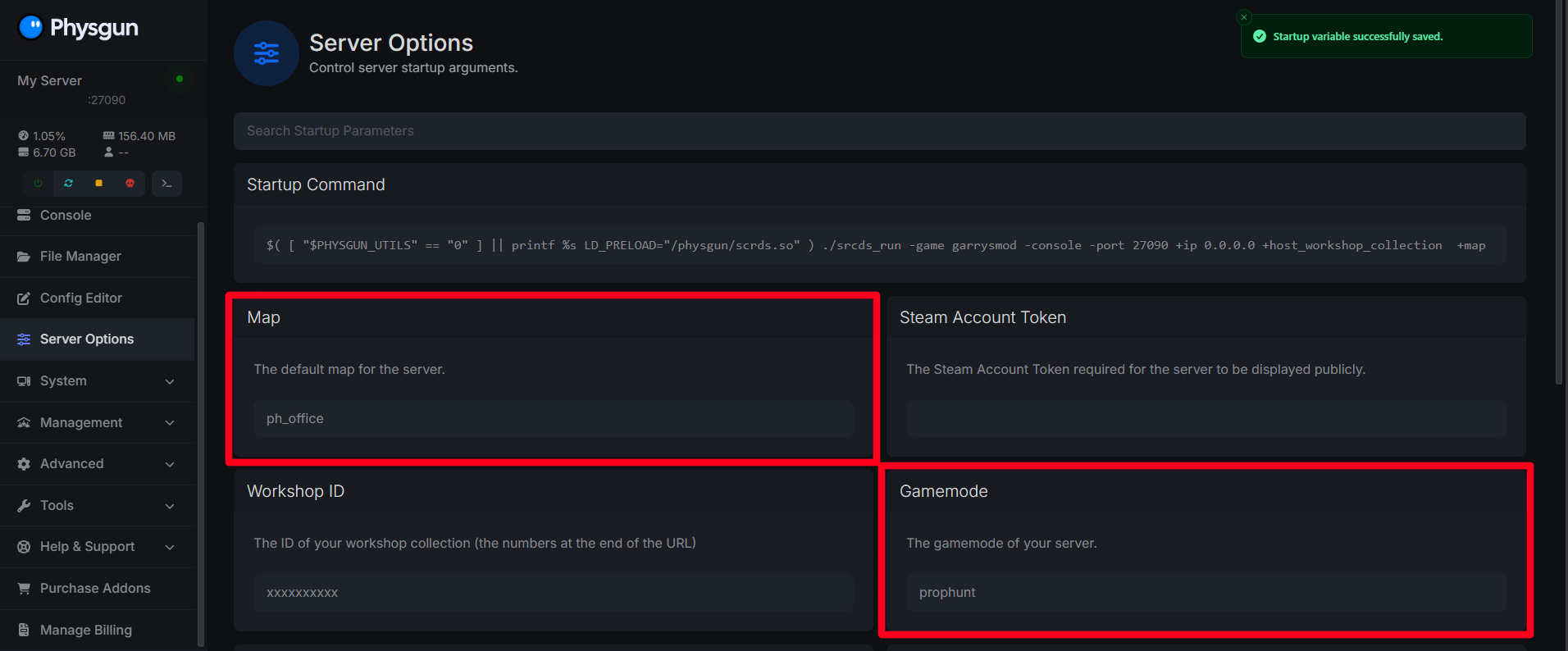
Modify your startup command or Server Options to change the game mode to prophunt to ensure your server starts the game mode. You can also set the map the server starts on here.
-
Start your Prop Hunt server!
You can verify the server loaded correctly by checking the console on startup for:
-
Correct game mode loaded
-
No missing map errors
-
no missing addon warning
Fixing Common Errors During Setup
If something goes wrong, check these things:
-
Server won’t load: Wrong map or game mode selected.
-
Missing props or sounds: Addons not fully downloaded.
-
Players can’t join: Password mismatch or downloads still running.
-
Wrong gameplay: Server started in Sandbox.
Restarting the game after downloads finishes fixes most setup errors.
FAQ and Helpful Checks
-
Always wait for Steam downloads to finish.
-
Restart Garry’s Mod after subscribing to addons.
-
Double-check the selected map and game mode.
-
Don’t mix Prop Hunt with unrelated game modes like Murder.
-
Make sure any addons you download are compatible with the Prop Hunt game mode.
Taking your time and following each step carefully makes hosting a Prop Hunt server much easier, even if this is your first time setting up a GMod server.
Do you need help setting up your Prop Hunt server on Physgun? Contact our Physgun support team 24/7 for help!