

Changing the gamemode on a GMod server lets you completely transform how your Garry’s Mod server plays, whether you are switching from sandbox to DarkRP, TTT, or another custom game mode. The process is straightforward once you know where the gamemode setting lives and how game modes are installed.
In this guide, we will explain how to change gamemode on a GMod server, where the gamemode folder is located inside the garrysmod directory, and how to install game modes from the Steam Workshop or upload them manually.
You will also learn how to select the correct gamemode in the gamemode box, set a default gamemode, and properly restart the server so the new gamemode loads without issues. By the end, you will know how to change game modes safely, troubleshoot blocked or missing gamemodes, and get your server running exactly how you want for your players.
Obtaining a Garry’s Mod Gamemode
When you first install your Garry’s Mod server, it usually comes with the Sandbox and Trouble in Terrorist Town gamemodes already included in the files. If you’re looking to change your server’s gamemode to something different, like Prop Hunt, DarkRP, or Helix, you’ll have to do a little extra work to get it onto your server.
There are two ways to obtain a new gamemode for your server. You can download it from the Garry’s Mod workshop, or you can download the files directly onto your server.
Downloading a Gamemode from the Workshop
Downloading a gamemode from the GMod workshop is incredibly easy to do, especially if you’ve already added addons to your server before. All you have to do is find the gamemode you want to use and click Add to collection to add it to your server’s workshop collection. That’s it! It’s added to your server.
Downloading a Gamemode to Your Gamemodes Folder
Many server owners may prefer downloading their gamemode’s files directly to their server. This way, it’s easier to edit the source code to their specific needs. Most gamemodes can be found on the creator’s GitHub page, or can be downloaded directly from the workshop using GMPublisher. Once you’ve downloaded your desired gamemode’s files, simply paste them into your server’s garrysmod/gamemodes folder.
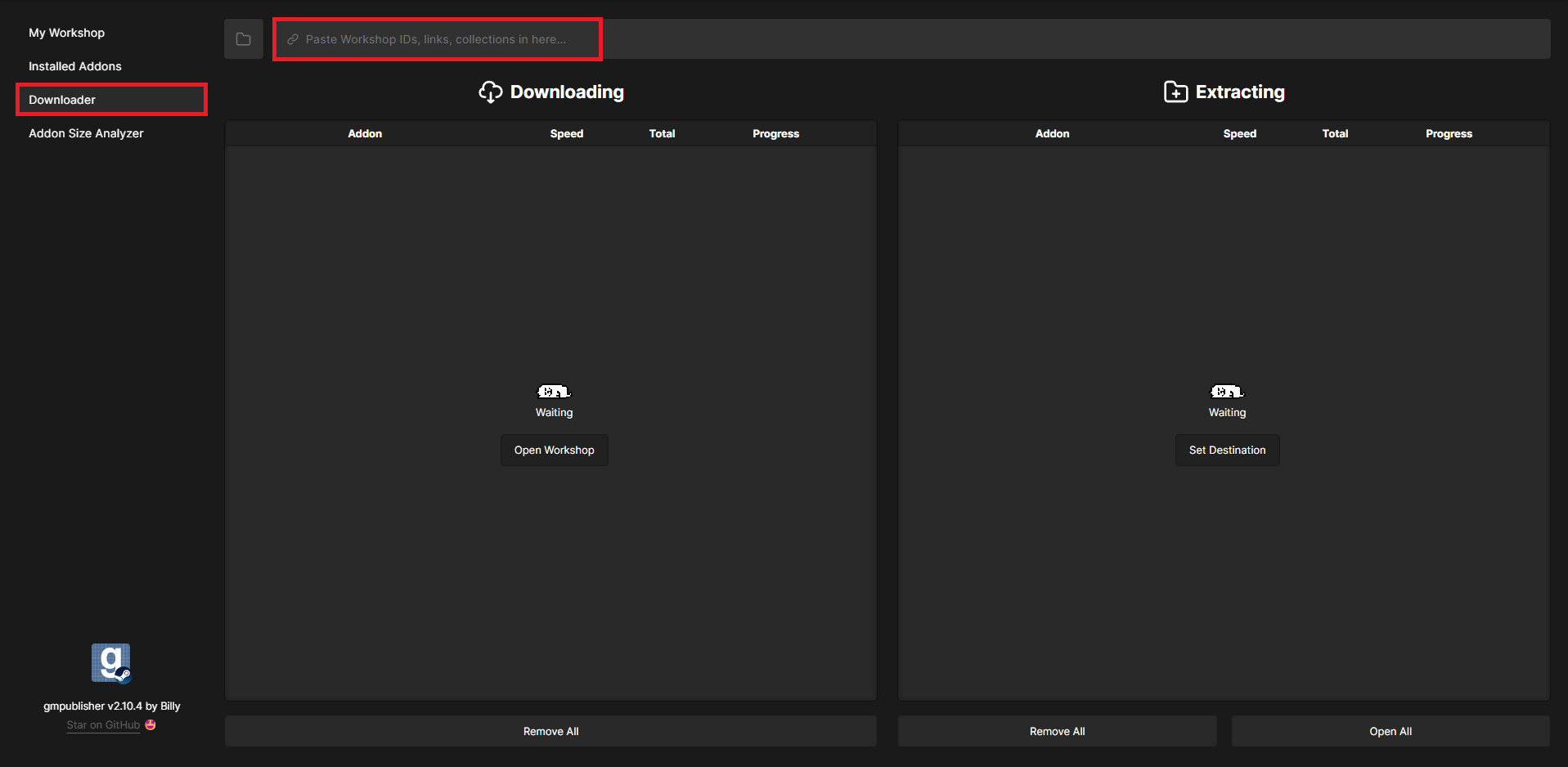
You can download an addon using GMPublisher by pasting the addon’s ID into the downloader.
Changing Your Garry’s Mod Server’s Gamemode
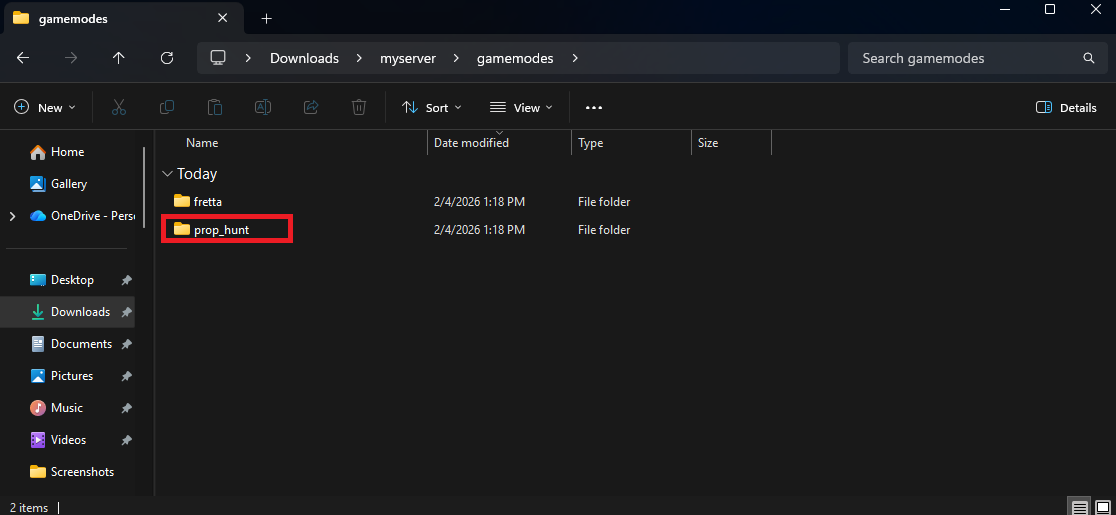
Now that you have your gamemode downloaded onto your server, you need to switch your server’s gamemode to the one you added. Whether you’re a Physgun client or hosting a server elsewhere, you’ll need to obtain the gamemode’s ID in order to do this. This corresponds to the name of the gamemode’s main folder and is the value needed for your server to know what files to access. For example, if you’re using Prop Hunt, you can find the ID in the server_folder/garrysmod/gamemodes/prop_hunt directory, with prop_hunt being the ID.
Changing Your Gamemode Using a Physgun Panel
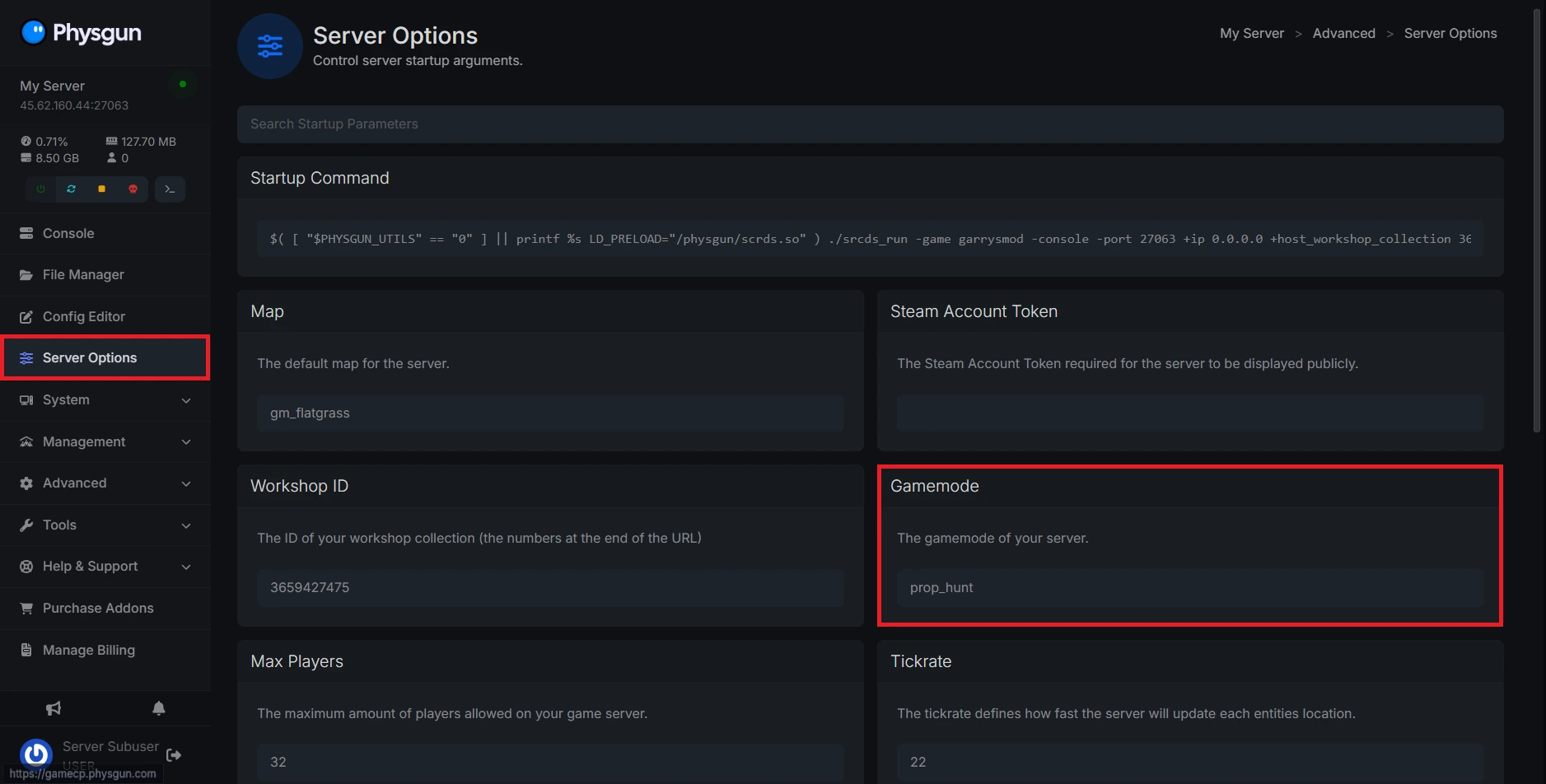
If you are a Physgun client, you can change your gamemode in your server panel. Navigate to the Server Options tab and locate the box labeled Gamemode. Enter the gamemode ID into the box and restart your server. When the server starts up, your gamemode will be changed!
Changing Your Gamemode Using Your Batch File
If you aren’t using a server panel, you can change your server’s gamemode using your server’s .bat file. Open your batch file and find the +gamemode value. Assuming you haven’t changed it before, it should say sandbox immediately after it. Change this value to your gamemode ID and save the file. Now when you load up your server, it’ll be running the new gamemode when you join!
