

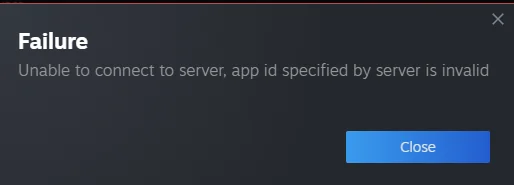
Seeing the “Unable to connect to server app ID specified by server is invalid” error when you try to join a Garry’s Mod server? This frustrating message usually appears when the server App ID specified by the server does not match what Steam expects. In simple terms, your Steam client and the dedicated server are not agreeing on the correct ID, which blocks the connection. The good news is that this error is almost always fixable in a few minutes.
In this post, we’ll help you learn:
-
How to properly refresh the Steam app.
-
How to clear your Steam download cache.
-
How to opt out of Steam Beta.
-
How to verify your game files.
-
Other potential workarounds for fixing this extremely annoying bug.
Why Does The Server App ID Specified Error Occur?
This error usually appears when there is a problem validating the game’s app ID when Steam connects to a server. Something goes wrong in Steam and the host server’s connection, causing the app ID to fail in authentication. This could be caused by corrupted files, a Steam client issue, or a server configuration mistake.
How To Fix The App ID Specified By Server Is Invalid Error
Even if this error may seem like the end of you playing your favorite Sandbox game, worry not! Usually, the solution is super simple. It’s just a matter of finding out which method you should use.
Restart Steam Completely
Before going down a rabbit hole of trying different solutions, try to shut everything down and restart Steam.
To properly restart Steam:
-
Quit out of Garry’s Mod if you have it open.
-
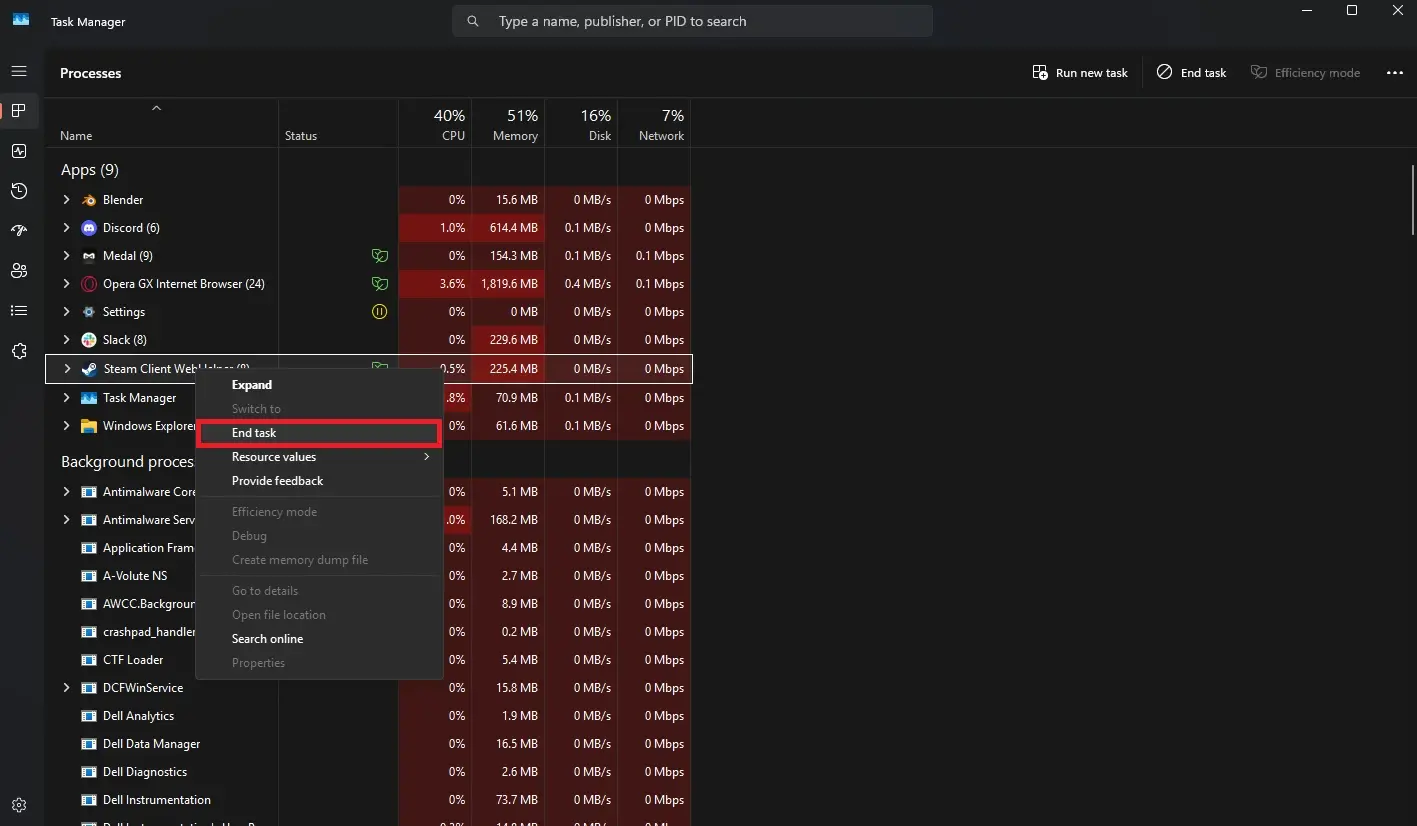
Open up your Task Manager by right-clicking on your taskbar.
-
Right-click Steam Client WebHelper and select End Task.
-
Close out of the Task Manager.
-
Open Steam and load up Garry’s Mod.
-
Find your desired server in the list and check if you can load in.
Clear Steam Download Cache
If restarting Steam didn’t work, it might be a larger problem. In some cases, corrupted cache files can completely mess up server connections across several games.
To clear your download cache:
-
Click the Steam button in the top left corner.
-
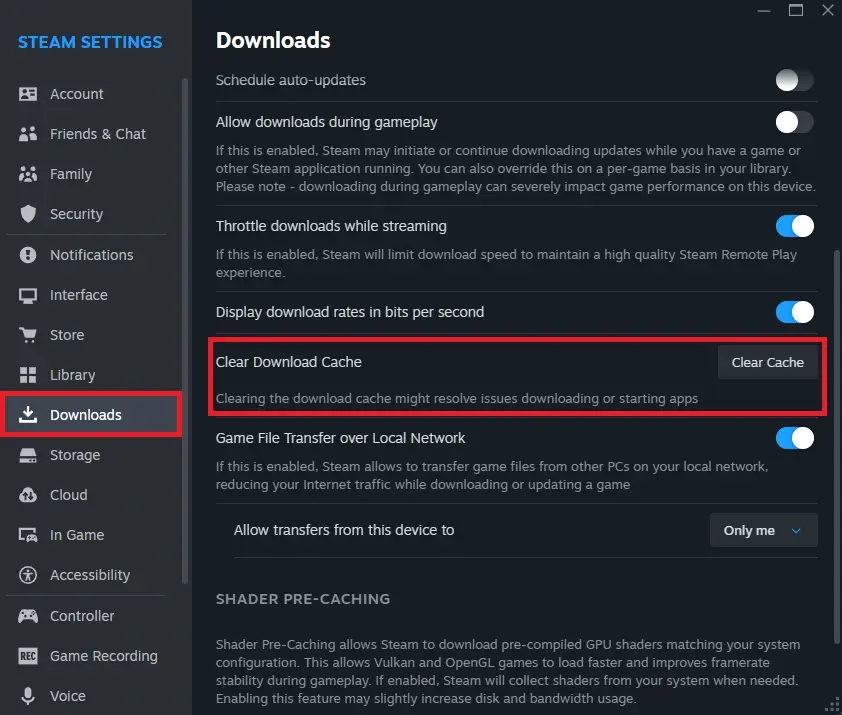
Go to Settings > Downloads > Clear Download Cache.
-
Click on the Clear Cache button.
-
Click confirm and let Steam do its thing. This will delete meaningless data history, temporary data, and ongoing installation data, among other things. It will not delete your personal data or game progress, though.
- Note that Steam will restart itself once it’s done, and you’ll have to log in to your account again.
-
Log back in to Steam and open Garry’s Mod.
-
Load into your desired server and see if your problem is fixed.
Opt Out of Steam or GMod Beta Branches
If you’re running an unstable beta branch of Steam or Garry’s Mod, it may be interrupting your loading process. Luckily, changing your beta participation status on both fronts is incredibly easy!
To opt out of the Steam beta branch:
-
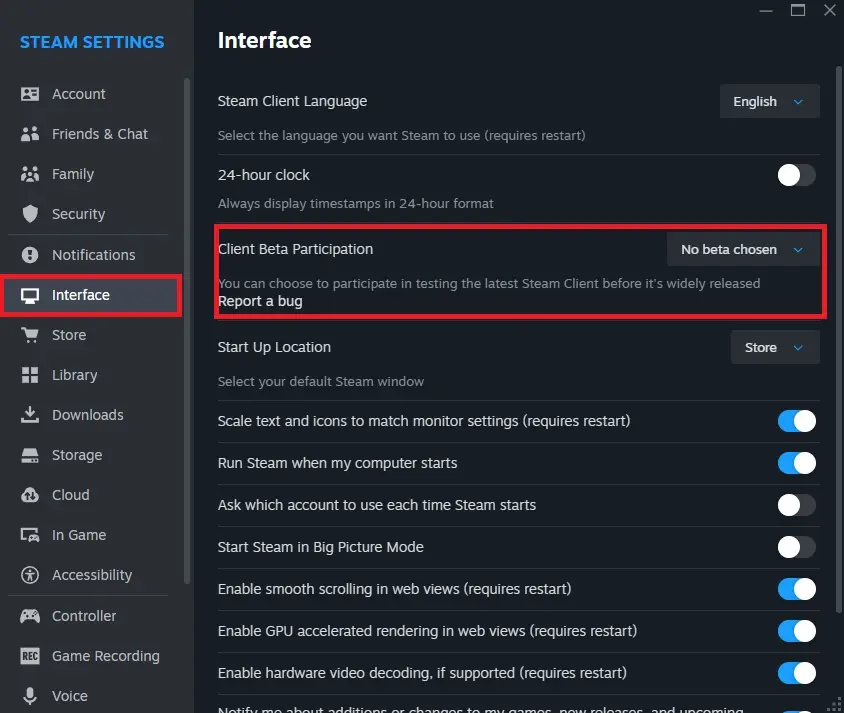
Open up your Steam settings again and go to Steam > Settings > Interface > Client Beta Participation
-
Click the dropdown menu and select No beta chosen.
-
Restart Steam if needed.
To change your Garry’s Mod beta branch:
-
Go to your Steam Library and right-click Garry’s Mod.
-
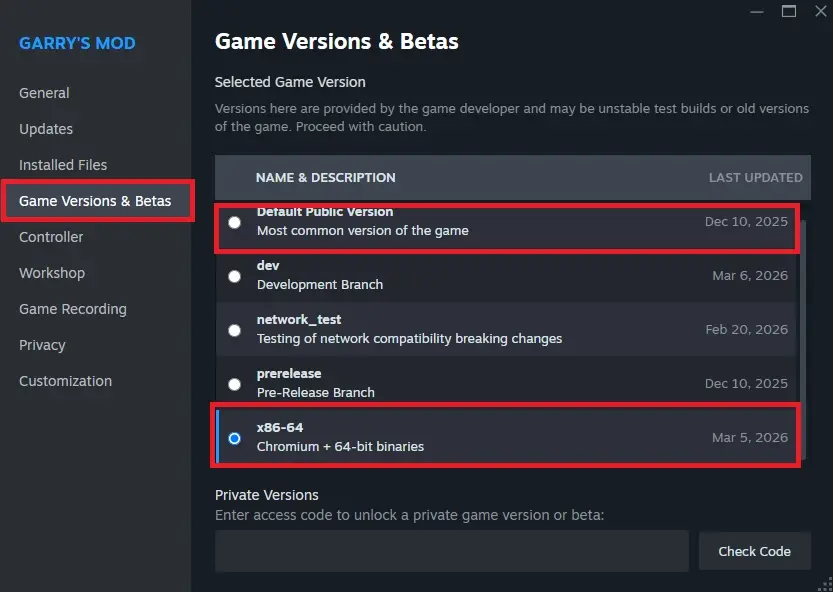
Select Properties and then the Game Versions & Betas tab.
-
Select either Default Public Version or x86-64.
- The Default Public Version is the safest and most stable option, but x86-64 allows for added features and compatibilities.
-
Boot up Garry’s Mod and try loading into the server.
Verify the Integrity of Game Files
Much like with the Steam Download Cache, you might have missing or corrupted files, specifically in your Garry’s Mod folder. Sometimes, when there’s an issue, the ol’ reliable of solutions is to validate your files.
To verify Garry’s Mod files:
-
Right-click on Garry’s Mod in your library and select Properties.
-
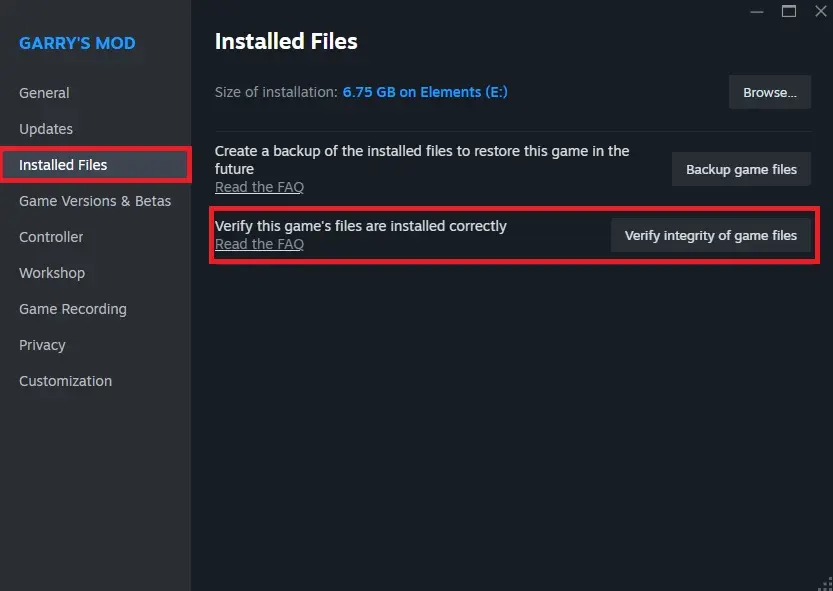
Select the Installed Files tab and click the Verify integrity of game files button.
-
Wait for Steam to do its thing. This might take a while.
-
Once it’s finished, load up Garry’s Mod and see if your problem is fixed.
Reinstall Garry’s Mod
If validating your files didn’t work, you may have to completely uninstall and reinstall Garry’s Mod.
To reinstall GMod:
-
Right-click Garry’s Mod and select Manage > Uninstall.
-
Wait for the game to uninstall.
-
Once the game is fully uninstalled, click the blue Install button.
-
Wait for your game to reinstall and load up Garry’s Mod once it’s done.
-
If this fixed your problem, you should be loading in with no issues.
Validate Your Server
If you aren’t the owner of the server you’re having problems with, consider copying the link to this article and sending it to them if nothing else works. It may be entirely out of the player’s control. The best way to determine if it’s a server issue and not a client issue is to ask if other people are having the same problem in the community.
The owner of the server needs to make sure their server is completely up to date with the latest version of Garry’s Mod, has no corrupted files, and all of their connection information is up to date.
We suggest creating a backup and reinstalling your server if you can’t pinpoint the cause of the problem.
Reinstall Steam (Last Resort)
If no other solutions work, your Steam app might be completely corrupted or broken beyond repair. In this extreme case, you’ll have to uninstall and reinstall Steam entirely.
To safely and properly reinstall Steam:
-
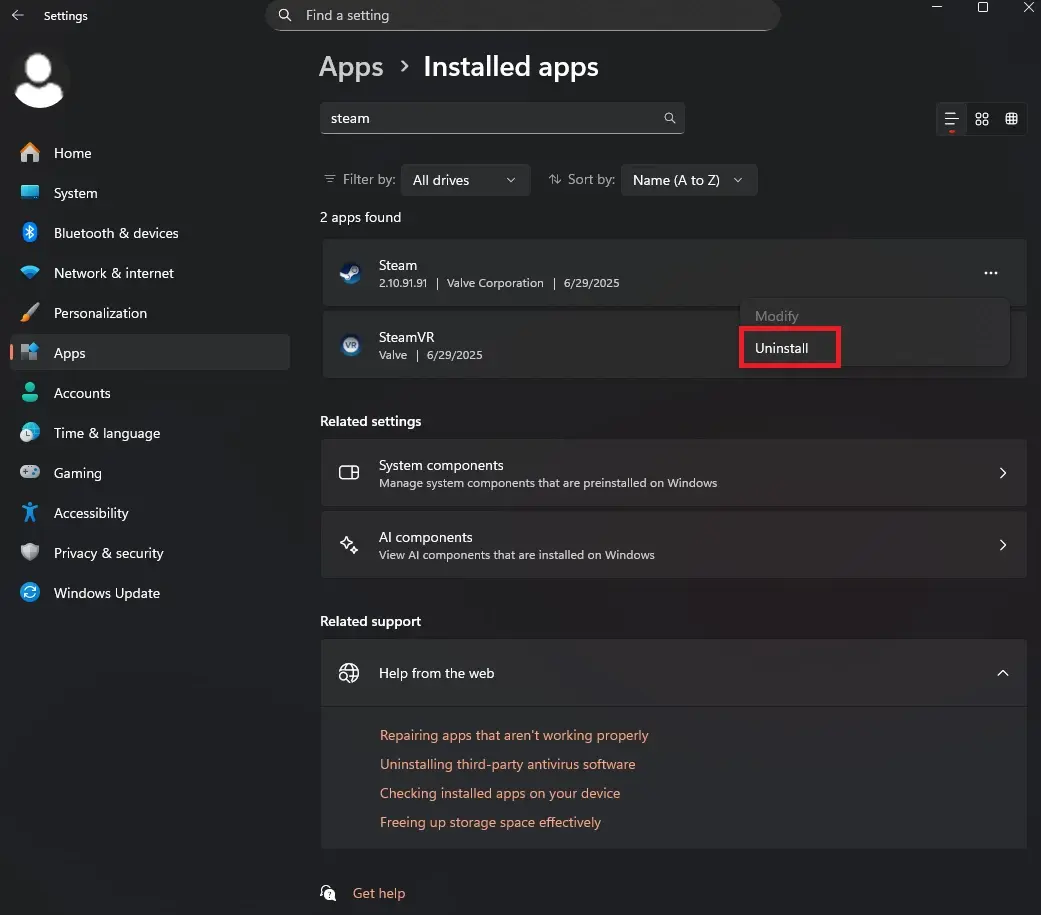
Press your Windows key and search for “Add or Remove Programs” (or open Finder > Applications if you’re on Mac)
-
Search for Steam and click Uninstall.
-
Wait for your computer to completely uninstall Steam.
-
Now, go to the Steam store and download Steam onto your computer.
-
Open SteamSetup.exe and click yes on the permission prompt if one comes up.
-
Select your preferred language and file destination.
-
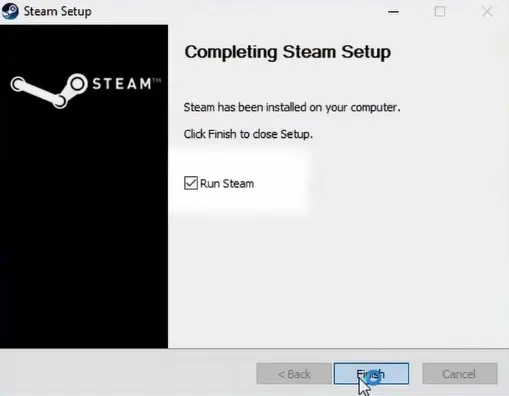
Click Install and make sure the Run Steam box is checked.
-
Click Finish.
-
Steam will install an update from here and open when it’s done.
-
Log in to your Steam account.
-
Once you’re properly back into Steam, navigate to your Library and install Garry’s Mod.
-
Make sure you’re all subscribed to your server’s content pack, if necessary, before launching Garry’s Mod.
-
Find your server in the server browser and load in.
Conclusion
The “App ID Invalid” error can indeed be frustrating, especially since there aren’t many articles covering it, but with the right approach, it’s incredibly straightforward to fix. Now you know how to work around this error when you can’t load into your favorite DarkRP or TTT server.
If this issue persists, consider asking around our Discord server linked below this article. Someone will gladly help you!