
If you keep searching for the same Rust server every time you play, it’s time to favorite it properly. Knowing how to favorite a Rust server saves time, avoids scrolling through the server browser, and lets you reconnect instantly after a wipe or restart. The process works both inside the game and through Steam favorites.
In this guide, you’ll learn:
How to favorite a Rust server using the in-game server browser and favorites tab
How to add a server to favorites using the server IP and port through Steam
Once added, your saved server will always appear in your favorites tab, making it easy to join without searching again.
How To Add A Rust Server To Favorites (In-Game)
This is the fastest way while you are already playing. You can navigate to the server browser section and use the Join button to connect to a server. While connected to a server, you can right-click it in the server browser section to add it to your favorites.
Steps
Open Rust
Go to the server browser
Find the server you want to save
Click the star icon next to the server name
The server is now in your favorites tab. You can:
Open the favorites tab
Click the server
Press connect
This method works best if the server already appears in the list.
How To Favorite A Rust Server Using Server IP
If you have a server address (IP and port), you can connect directly and then save it.
Open Rust.
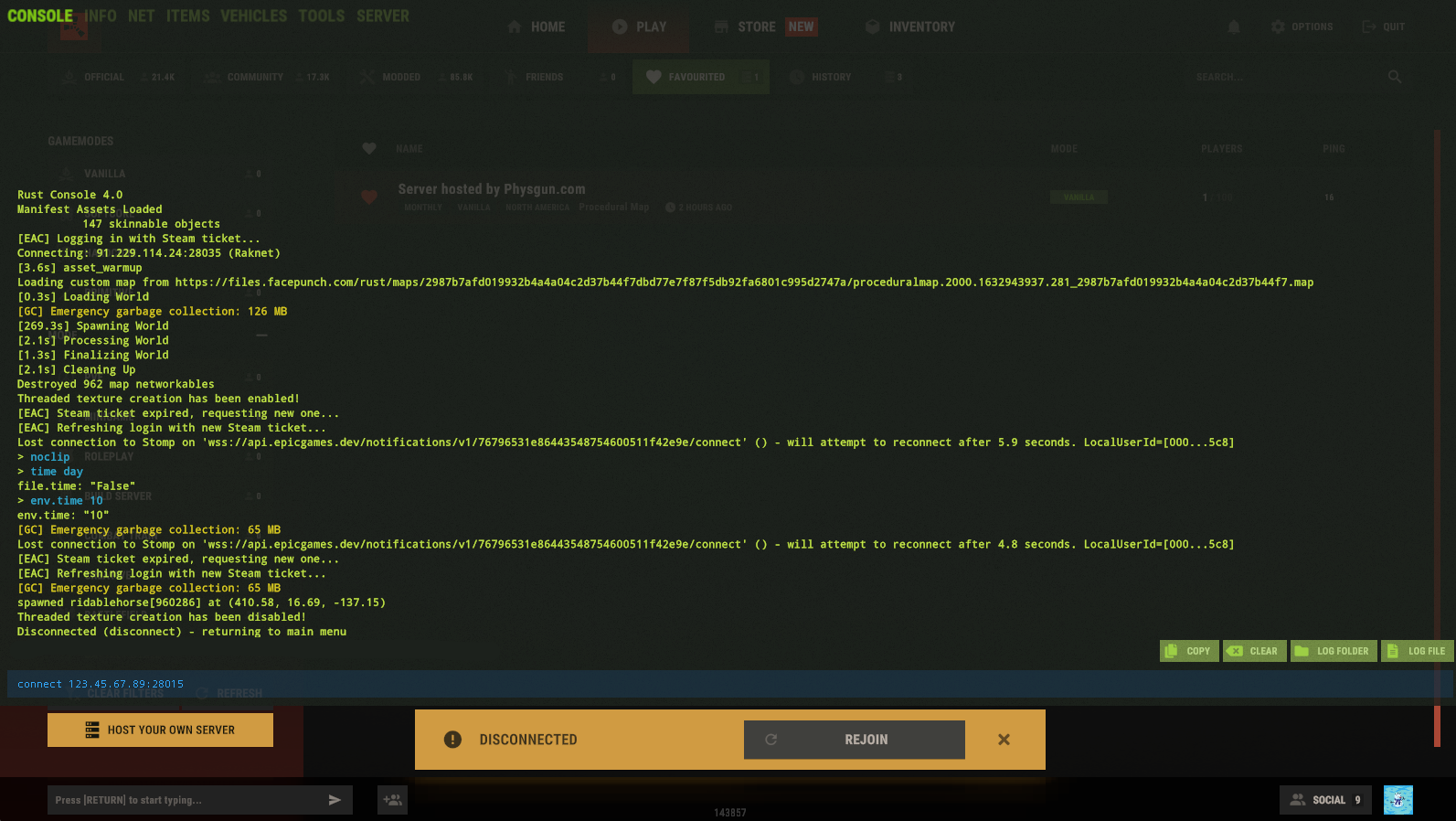
Press F1 to open the console.
Type client.connect <server address> (replace <server address> with the actual IP and port).
Press Enter to join the server.
Players can also connect to Rust servers using console commands.
After joining, you can add the server to your favorites for easier access next time.
Wait for the connection process to complete before proceeding.
This method is useful when connecting through Steam servers as well.
Steps
Open Rust
Press F1 to open the console
Type:
connect IP:PORTPress enter to join
Once connected, open the server browser
Find the server in the history tab
Click the star icon to add it to favorites
This is useful for private servers or when a server does not show in the main list.
How To Add A Rust Server To Steam Favorites
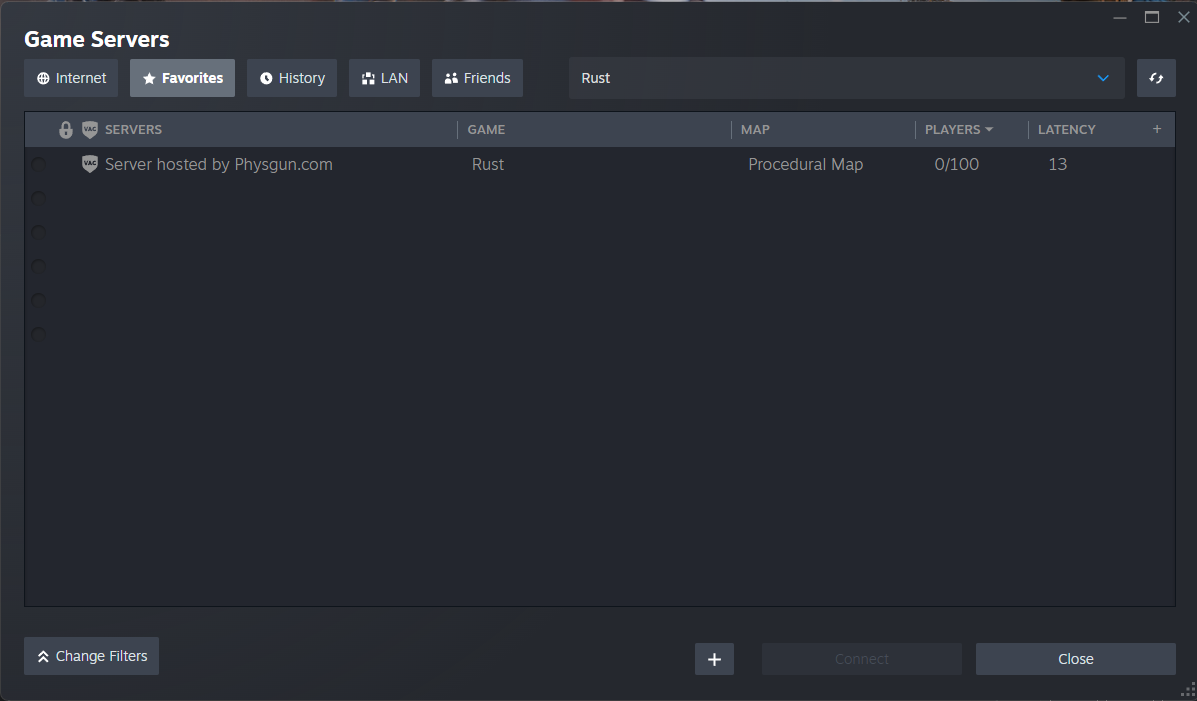
To favorite a Rust server, you will navigate through the Steam client to the Favorites window. The most reliable method to favorite a Rust server is using the Steam Client's server browser.
Steps
To save a Rust server using Steam, open Steam and click on 'View' in the upper left-hand corner.
Open Steam
Click View → Servers
Go to the Favorites section by clicking the Favorites tab
Click the Add A Server button
Enter the server IP and port
After entering the server's IP and Port, press the Add this server to favorites button to save it
Once the server is added, you may need to click Refresh to see it in your favorites list
You can now:
Select the server in the Favorites section
Press the Connect button
Launch Rust automatically
To connect to your saved server, click Connect in the favorites list.
If the server does not appear, try the query port (usually game port + 1).
Why Use Steam Favorites?
Steam favorites:
Work even if the in-game list fails to load
Let you connect faster
Keep your saved server after restarts
Are more reliable for modded and private servers
Help you keep your server list relevant and up to date
This is the preferred method for most players.
If you encounter any issues with Steam favorites, don't hesitate to seek help from support.
For more advanced server management tips, read relevant guides or knowledge base articles to stay informed.
My Rust Favorite Server Isn’t Showing Up
If your favorite server is missing, try:
Press refresh in the favorites tab and wait for the refresh process to complete
Verify the server IP and port
Use the query port instead of the game port
Check the history tab if you joined recently
Re-add the server through Steam
After game updates, some favorites may disappear and need to be added again. Rust servers can be removed from the favorites list after a game update, requiring a rescan for them. If you experience issues with the in-game server list, you can use the Steam interface to favorite servers instead.
Can You Favorite A Server With Console Commands?
Console commands let you connect directly, but they do not permanently add a server to favorites. You still need to:
Star it in the server browser
Or add it through Steam
Tips For Managing Favorite Servers
Set up or build your list of server IPs in a text file
Use Steam favorites for modded servers
Refresh your favorites after wipes
Remove inactive servers to keep the list clean
Organize or update your favorite servers today
This makes reconnecting faster and avoids confusion.
Conclusion
Favoriting a Rust server is the easiest way to save time and reconnect quickly after wipes or restarts. You can add a server using the in-game browser, connect with the server IP and star it from history, or use Steam favorites for the most reliable method.
If a server does not appear, refresh the list, verify the port, or re-add it through Steam. Once saved, your favorite servers will always be one click away so you can jump back into Rust without searching again.